PST Import Some Items Cannot be Copied Error
There are different types of errors occur when users uses Outlook on a daily basis. One of the most common Outlook errors is “PST import some items cannot be copied either they were moved”. If you are facing the same error and searching its solution, then the blog is surely for you. The write-up discussed here will describe the best solution to fix some items cannot be copied error.
Microsoft Outlook is one of the commonly used email applications for email management. And due to its regular us in both routine corporate communication as well as in casual email forwards – the primary PST become huge that triggers the errors at multiple levels viz. file integrity, software performance, etc.
One such common error is “some items cannot be copied” that usually occurs whenever user tries to copy emails from Outlook INBOX to public folder. Therefore, it is recommended to keep limited data in PST file because small PST files are easy to maintain – frequent backups and archive will help as the first measure to ignore Outlook-related problems (including PST file corruption).
Several Outlook users in spite of understanding the fact that the email application is susceptible to errors, do not backup their PST file data and thus get trapped whenever a problem arise through many different Outlook use scenarios.
More Common Reasons behind PST Import Some Items Cannot be Copied Error
Before discussing the solutions in detail, let’s check out some possible reasons behind getting the same error.
- The emails that a user needs to save to a different location are already in use by another application.
- Installed Antivirus program also stop users to copy and move items from Outlook email account.
- Trying to access large size PST file may also encounter this error in Outlook.
- Corrupt PST files are also one of the major reasons of getting the error.
Manually Fixing PST Import Some Items cannot be copied in Outlook Error
- Sometimes the error will automatically resolve when users restart Microsoft Outlook. After this, users can try to copy the items again from PST file.
- Close MS Outlook and open it again in a safe mode and try to copy the items one more time.
- If Antivirus program is installed, uninstall it and restart Outlook and check if you now able to copy all the required Outlook items.
- Add new account in your Outlook and import PST files of earlier Outlook account in new Outlook.
- Use any free tool like ScanPST.exe and repair PST file.
Classic Method to Fix “PST Import Some Items cannot be copied either they were Moved” Error
Still, if you unable to fix the error by using the above manual methods, then there is an alternative solution available that will help you to transfer these PST files into accessible file formats i.e. MacMister PST Converter for Mac & Windows.
By making use of this wonderful tool, users can extract the data of inaccessible files and move them into options such as PDF, PST, MSG, EML, EMLx, MHT, HTML, DOC, IMAP, CSV, Thunderbird, Gmail, G Suite, Yahoo, and more.
Steps to Access Large PST Files into Required Saving Option on Mac
Step 1. Download and open the app on your Mac.
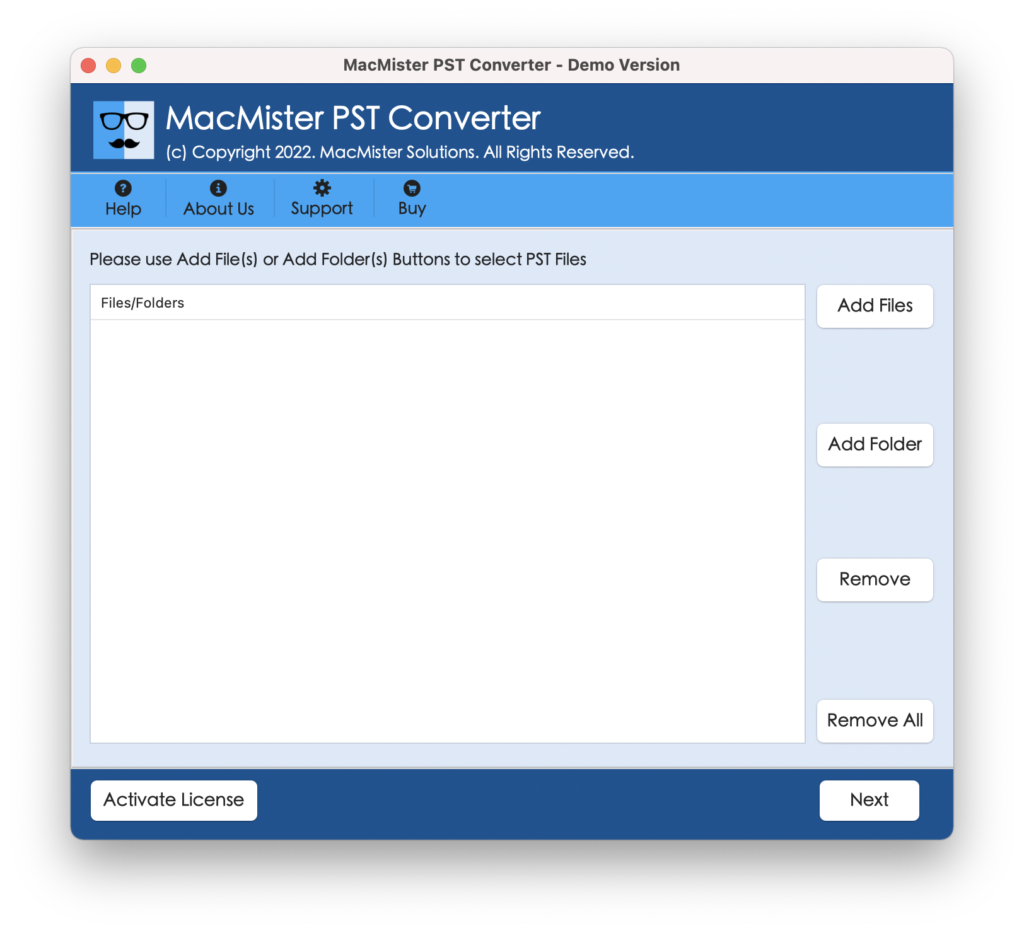
Step 2. Click Add File(s) option to add necessary individual large PST files on the tool. Or, make use of Add Folder option to add PST files folder on the app to convert the files in batch. Click Next to proceed.
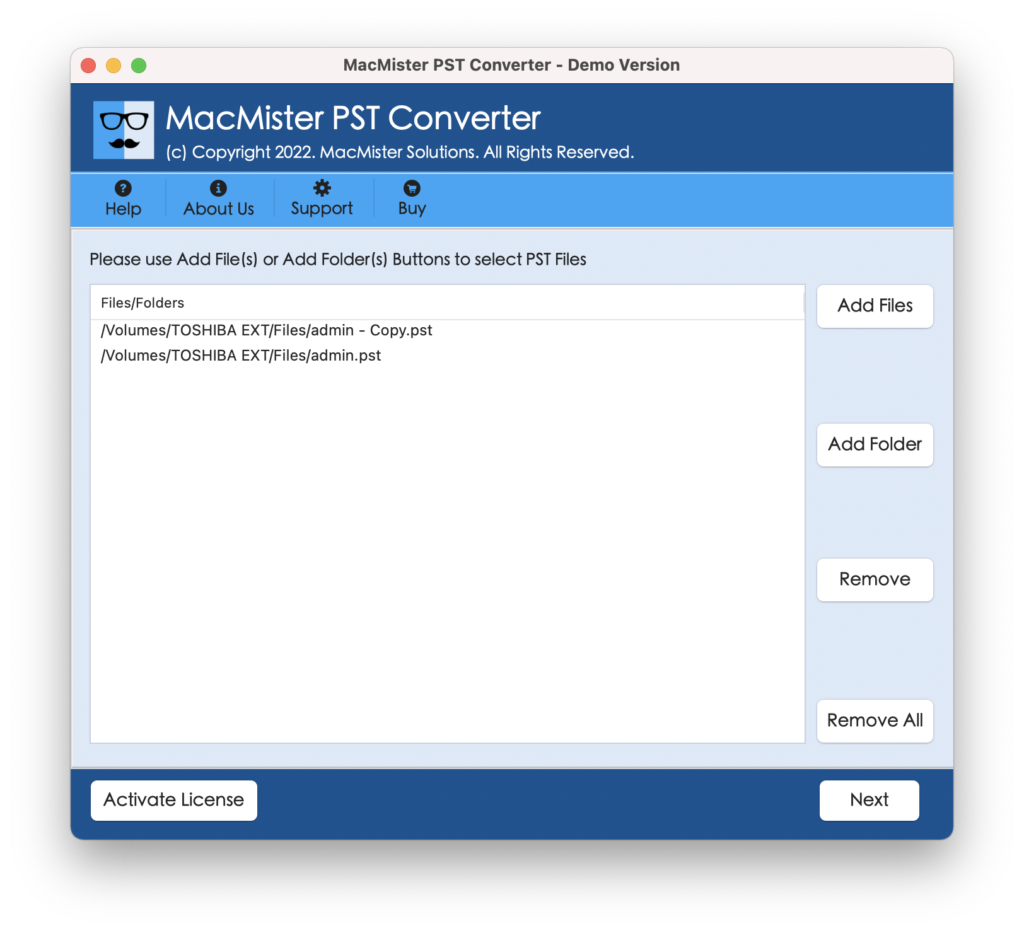
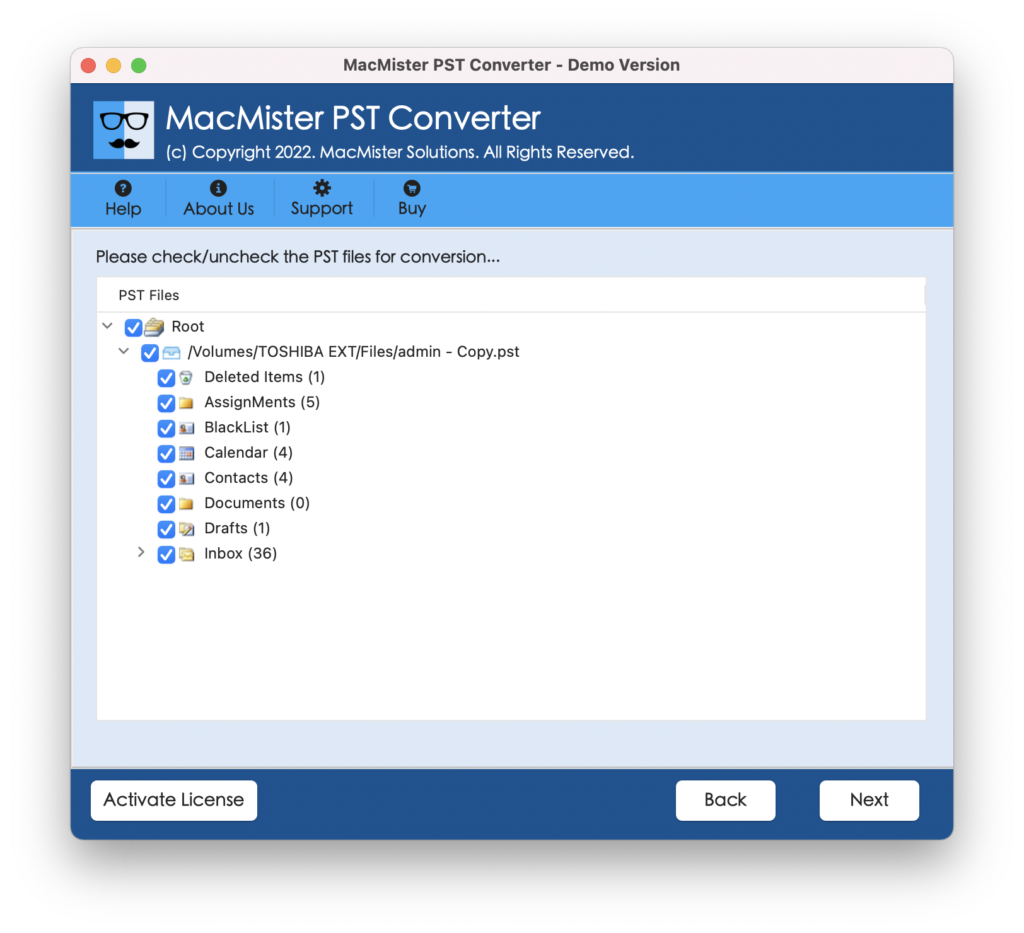
Step 3. The files start appearing on the software pane one-by-one with selected checkboxes. However, you can utilize the checkbox according to your requirements. Click Next to continue.
Step 4. Click Select Saving Options and select the required saving option in which you want to move PST file items.
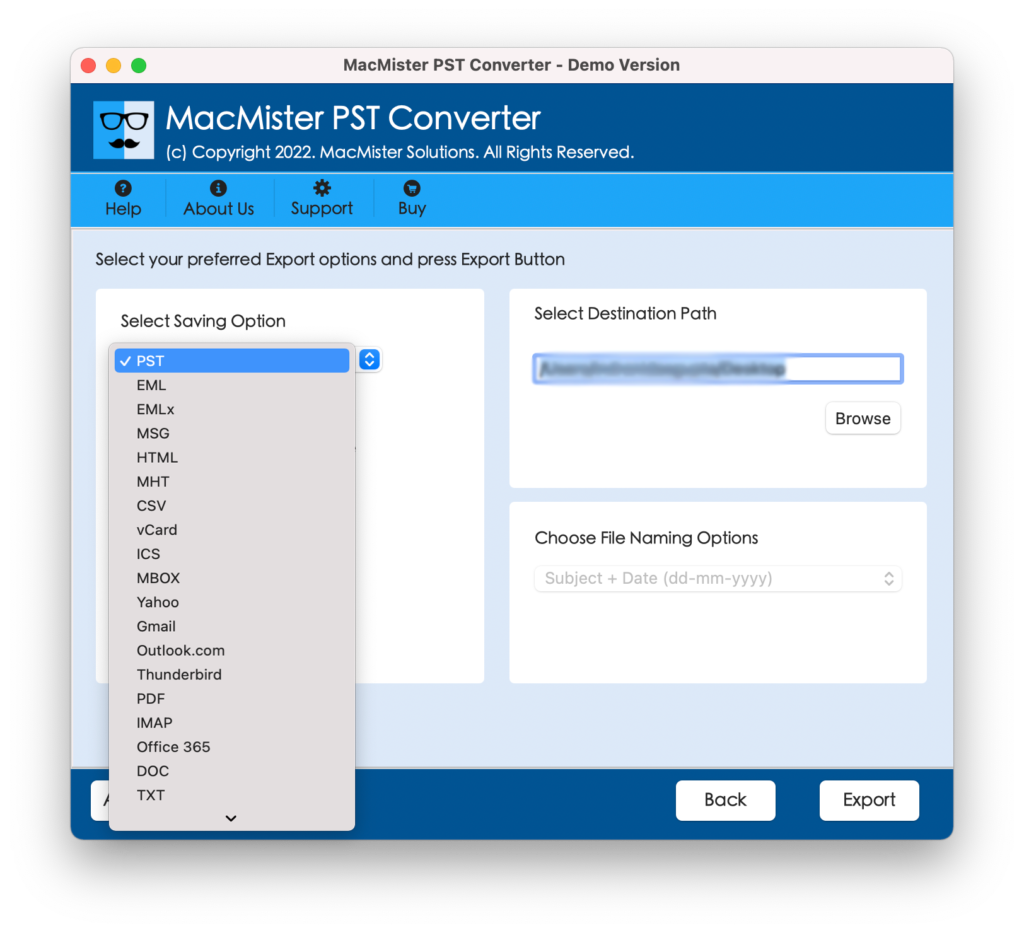
Step 5. You can set the sub-options according to the requirements and click on Export to start the process.
Step 6. The process will take place and a live process will appear on the tool that shows the current conversion progress of PST files.
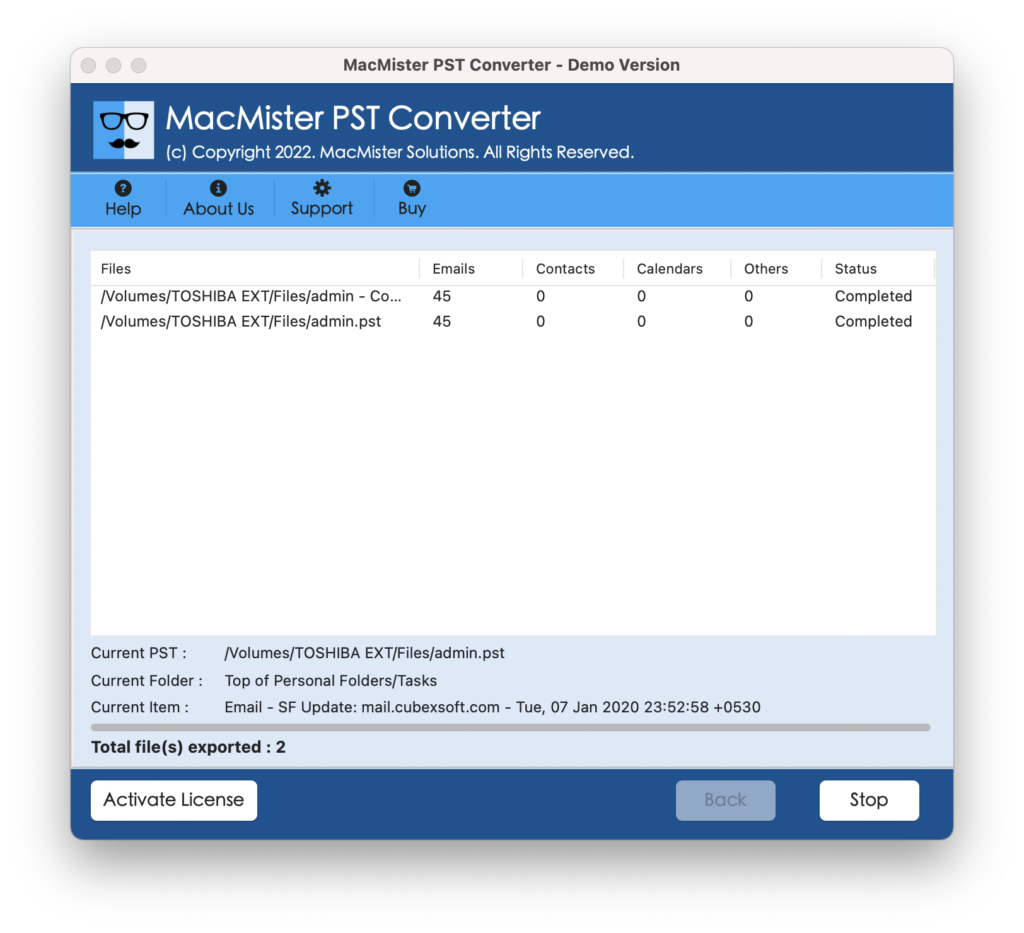
The process will finish with a pop-up window confirming that the tool has completed the conversion successfully. Click on OK and visit the location where resultant files are saved. However, you can open the required file to check the result. You will see that the PST files are accurately converted. The folder structure is also precise and every email will appear with correct data and formatting properties.
Additionally Advanced Features of the Tool
- Able to transfer PST files with emails, contacts, calendars, and other items effortlessly.
- Provides dual options to load necessary PST files on the tool i.e. Add File(s)/Add Folder options.
- Supports numerous saving options in which users can easily copy PST file items.
- Allow users to download and run the app on all Mac OS versions including Mac OS Sonoma.
- Windows users can also utilize the solution on all Windows OS users including Windows 11.
- Preserves the folder structure of PST file during the whole process.
- Maintains the originality of PST emails, contact list, calendar events, etc.
- Offers user-friendly environment which is operable by all professional and non-professional users.
Conclusion
In the article, we have offered some fixes to resolve “PST import some items cannot be copied” error. There are different manual approaches available to fix the issue. You can try the suitable one and check if the problem is resolved or not. If it is not resolved, then it is advised to go with the alternative method which allows to import large PST to OLM, PDF, EML, EMLx, MHT, HTML, CSV, MBOX, Gmail, G Suite, Yahoo, Outlook.com, and more.