Resolve Common PST Import Issues in Office 365 – [Guide 2026]
PST import issues in Microsoft Office 365 may occur due to data corruption, wrong assigned permissions, and file size limits. Such problems may hinder the process of email import correctly. Therefore, going through the root cause is important before applying any fix. So, the write-up here discusses the most common PST import issues in MS Office 365 and explains how to resolve them in a simple and effective way.
Why PST Import does not work in Microsoft Office 365?
To fix PST import issue, it is essential to understand the reason behind it first. In many cases, PST import issues arise due to technical restrictions or inappropriate configurations.
Microsoft Office 365 utilizes Azure Storage for PST file import. Due to this, a slight mistake can result in failure. Additionally, PST files are created by older Outlook versions that usually have compatibility issues. However, network problems as well as permissions errors also play a major role in encountering PST import issue.
Thus, understanding the underlying cause allows in implementing the apt solution instead of making the same error repeatedly.
Know Common PST Import Issues in Office 365
Users generally report the below listed problems while importing PST files in Office 365 –
- PST import process may be halted during the upload stage and failed to continue further.
- Users may receive “We couldn’t import PST” error message during import.
- The import will not work when PST file size limit exceeds.
- Corrupt or damage PST file cause import failure.
- An invalid or wrong CSV mapping file will disable the import feature.
- Some emails or folders may not be present after import process finishes.
- Incorrect permissions or role assignment issues will prevent the import from running properly.
- Slow or unsuccessful Azure uploads disrupt the PST import procedure.
As such issues are common, so Microsoft is advising to check multiple factors before trying the import process again.
Different Fixes to Resolve PST Import Issue in Microsoft 365
When PST import error occurs in Office 365, applying the right troubleshooting steps will help in resolving the issue and complete the import successfully. However, you may use the appropriate Microsoft 365 PST import troubleshooting guide that is explained below –
Way 1. PST File Size Limit Exceeds
Microsoft Office 365 allows PST import only within specified size limits. Large PST files increase the possibility of upload failures, incomplete imports, and timeouts.
- First, break large PST into smaller convenient parts.
- Then, get rid of unnecessary emails, large size attached files, and duplicates.
- Afterwards, upload & import smaller PSTs individually.
By making use of the above steps, one can ease processing load and enhance the entire success rate of import job.
Way 2. Corrupt or Damage PST File
A corrupted PST usually fails during validation or mailbox processing. Even, if the upload process is successful, then also Microsoft Office 365 may decline the file later. So, go through the below steps to troubleshoot PST import –
- Make use of Outlook inbuilt Repair Tool i.e. ScanPST.exe.
- After, fix PST files completely.
- Make a new PST and move restored data into it.
- Validate PST before file upload to Azure.
Although ScanPST can resolve minor corruption. It may fail to restore severe damaged PST files. In case you need to recover severe corrupted PSTs, then you may make use of MacMister PST Converter for Mac & Windows that will preserve PST files by transforming them into reliable file types and email accounts.
Way 3. Incorrect Azure Storage Configuration
Microsoft Office 365 PST Import relies on Azure Blob storage. If SAS Urls or container permissions are incorrect, then they can hinder the upload or interrupt in the import task. Here is how to fix PST import issues in Office 365 –
- Generate fresh SAS URL from Compliance Center
- Make sure SAS URL has Read, Write, and List permissions
- Upload PST files to correct Azure container
- Make use of the latest Microsoft advised CSV mapping template
Even a small typo in a mapping file can interrupt the complete process.
Way 4. Permission and Role Assignment Issues
Without appropriate admin roles, PST import jobs unable to run successfully. So, you need to go through the steps to fix PST import issues in Office 365 –
- Assign the Mailbox Import Export role
- Make use of a global admin or Exchange admin account
- Sign out and again sign in after assigning role
Role permissions can take few minutes to apply, so waiting before retrying is essential to resolve PST import issues in Microsoft Office 365.
Way 5. Unsupported PST or Outlook Format
Older Outlook versions generate ANSI PST files which are not completely supported by MS Office 365. So, the user needs to update Outlook version to resolve PST import errors in Office 365.
- Go to updated or new Outlook and open PST file.
- Export the data in UNICODE PST
- Avoid making use of Outdated or old Outlook versions.
Making use of UNICODE PST ensures improved compatibility and seamless import.
Way 6. Network or Upload Error
Slow or unsteady internet connectivity can lead to Azure upload failures. Follow the below steps to fix network upload error, which is considered as one of the common PST import issues –
- Make use of a fast and stable internet connection.
- Avoid using VPN or proxy during upload.
- Upload PST files during non-peak hours.
- Stable network significantly reduces timeout and upload interruption errors.
After resolving the issues, one can fix PST import error. Make sure the file is completely healthy and not too large, and has appropriate permissions so the import can successfully finish and all the emails as well as folders appear in Office 365 appear without any problem. Hence, it is better to make use of a professional technique to complete the task successfully with ease –
Professional Method to Fix PST Import Error in Office 365 Easily
MacMister’s PST Converter Tool is a best way to fix common PST import errors in Office 365 quickly and securely. It enables users to import few or unlimited PST files directly into Office 365 account without any complexities. The tool also preserves the original folder structure including emails, attachments, calendars, and contacts and even helps in selective import for particular folders or items. With its intuitive GUI and exceptional features, the software is suitable for technical and novice users. Thus, the migration becomes fast and highly effective.
Step-by-Step Procedure to Import PST into Microsoft Office 365 Account on Mac
Step 1. Download, launch, and run the app on Mac.
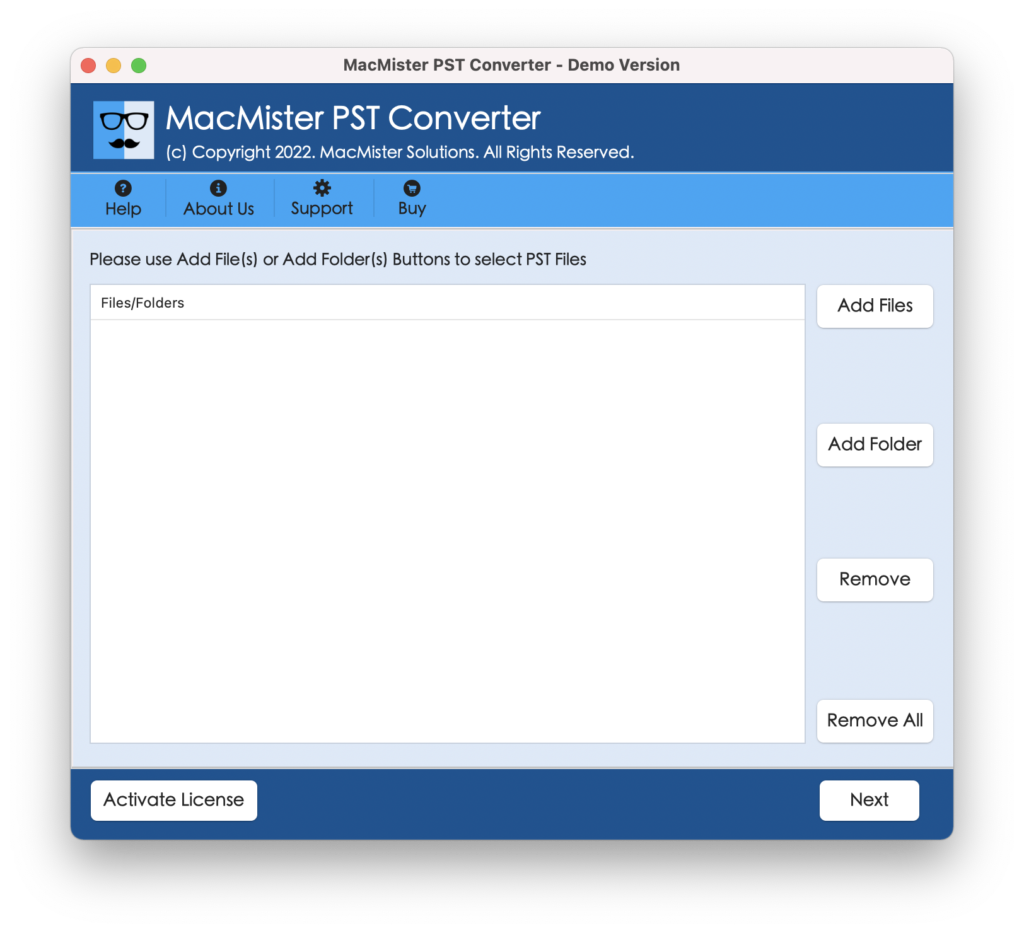
Step 2. Use dual buttons i.e. Add File(s)/Add Folder to load PST files on the tool. Click Next to continue.
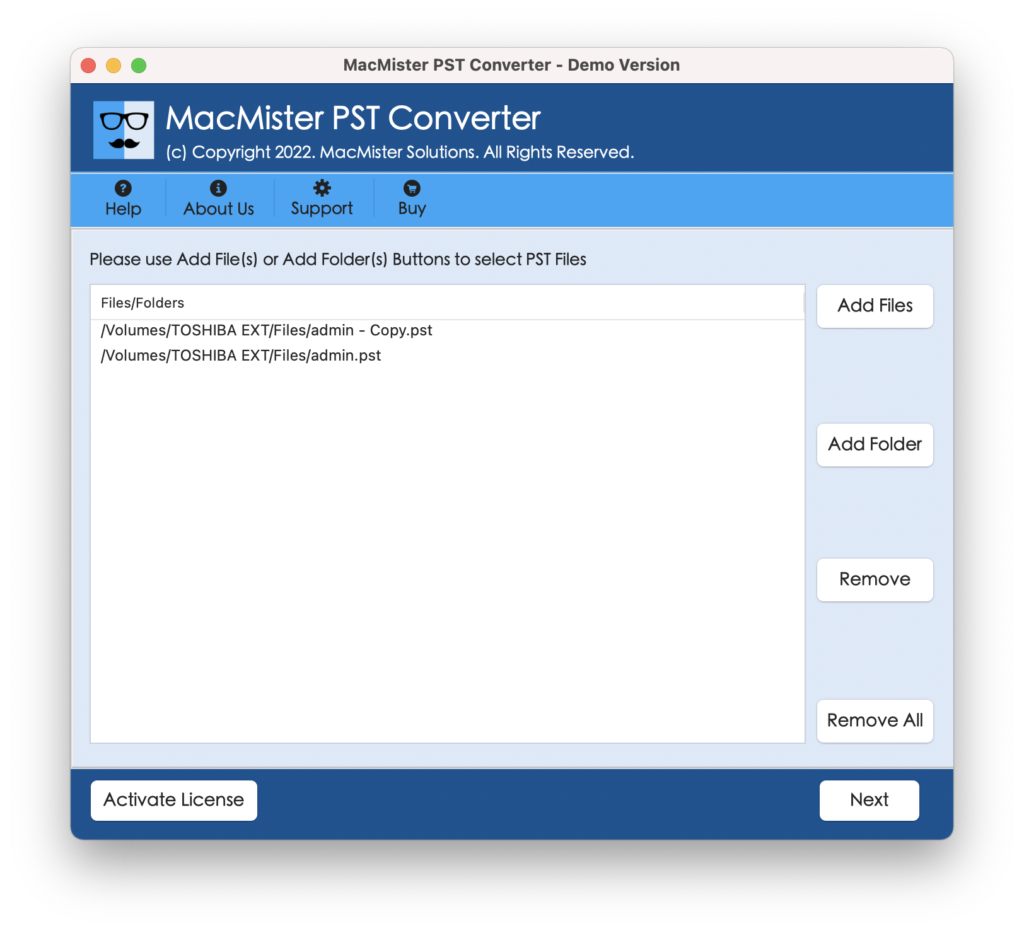
Step 3. Now, verify the files listed and tap Next to proceed.
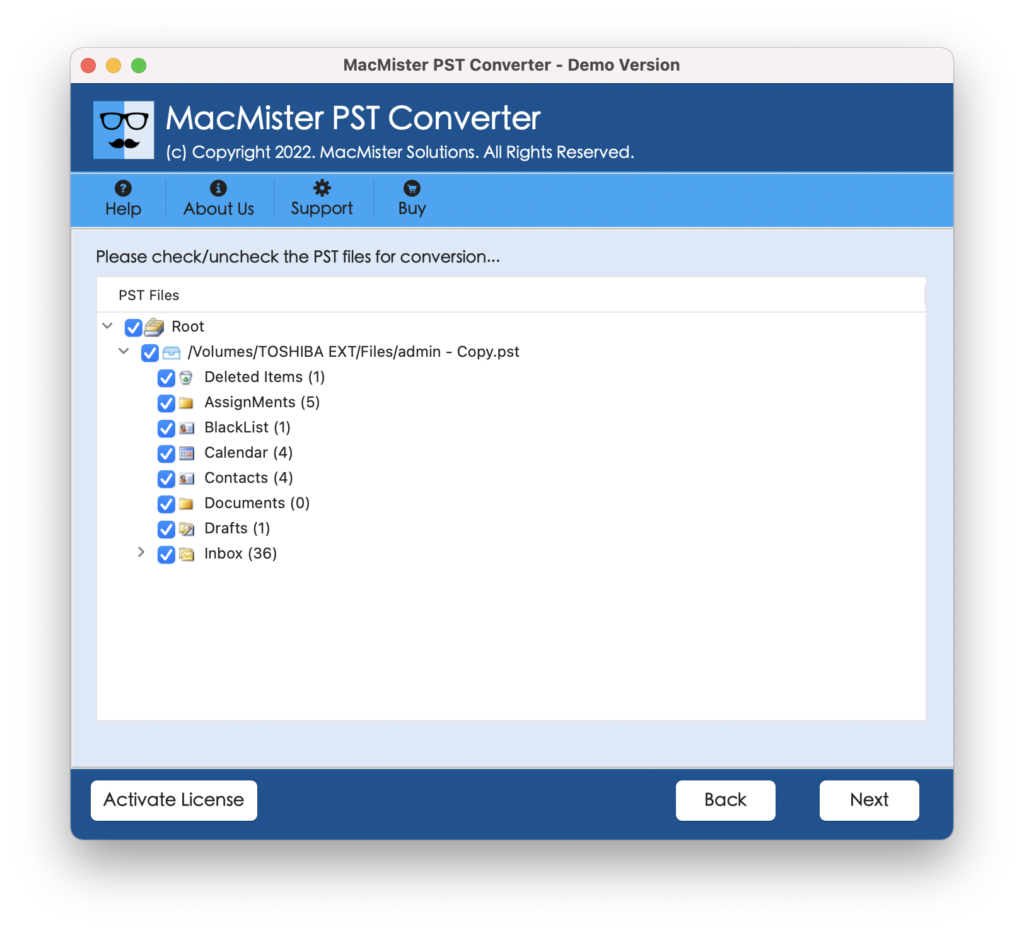
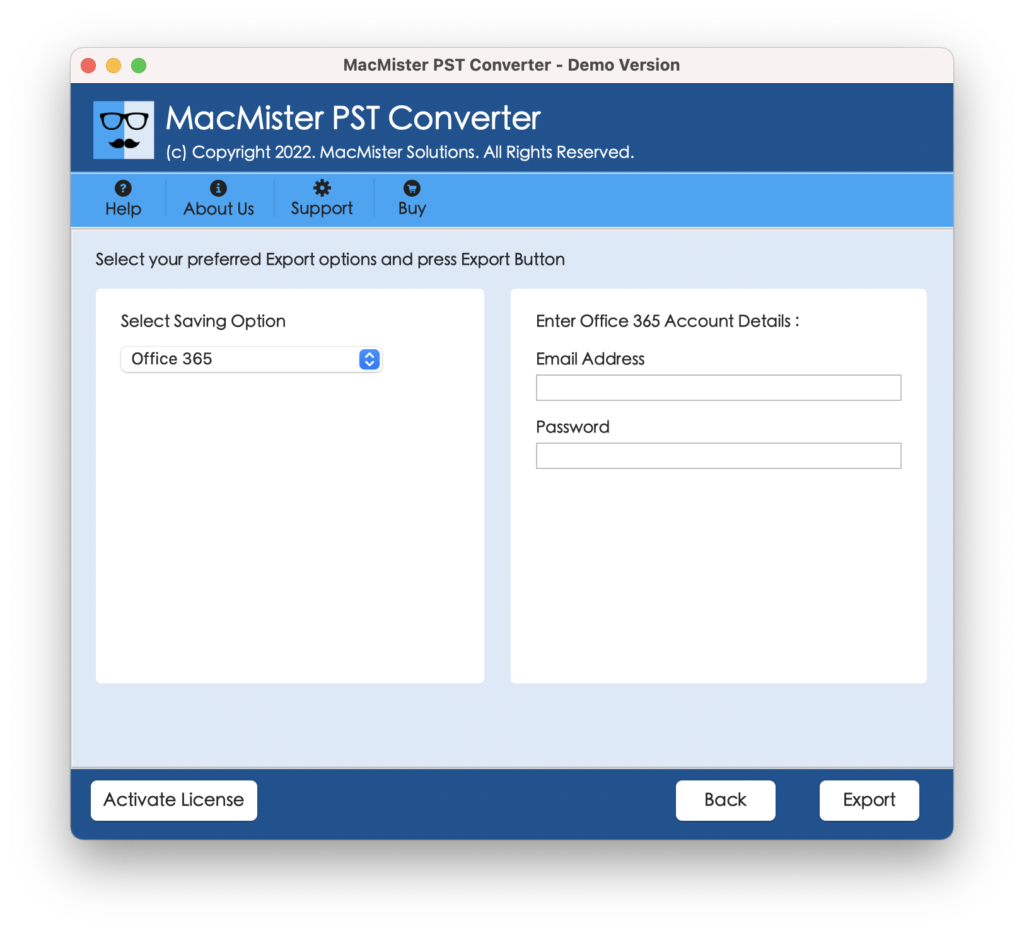
Step 4. Choose Office 365 from Select Saving Options and click Next.
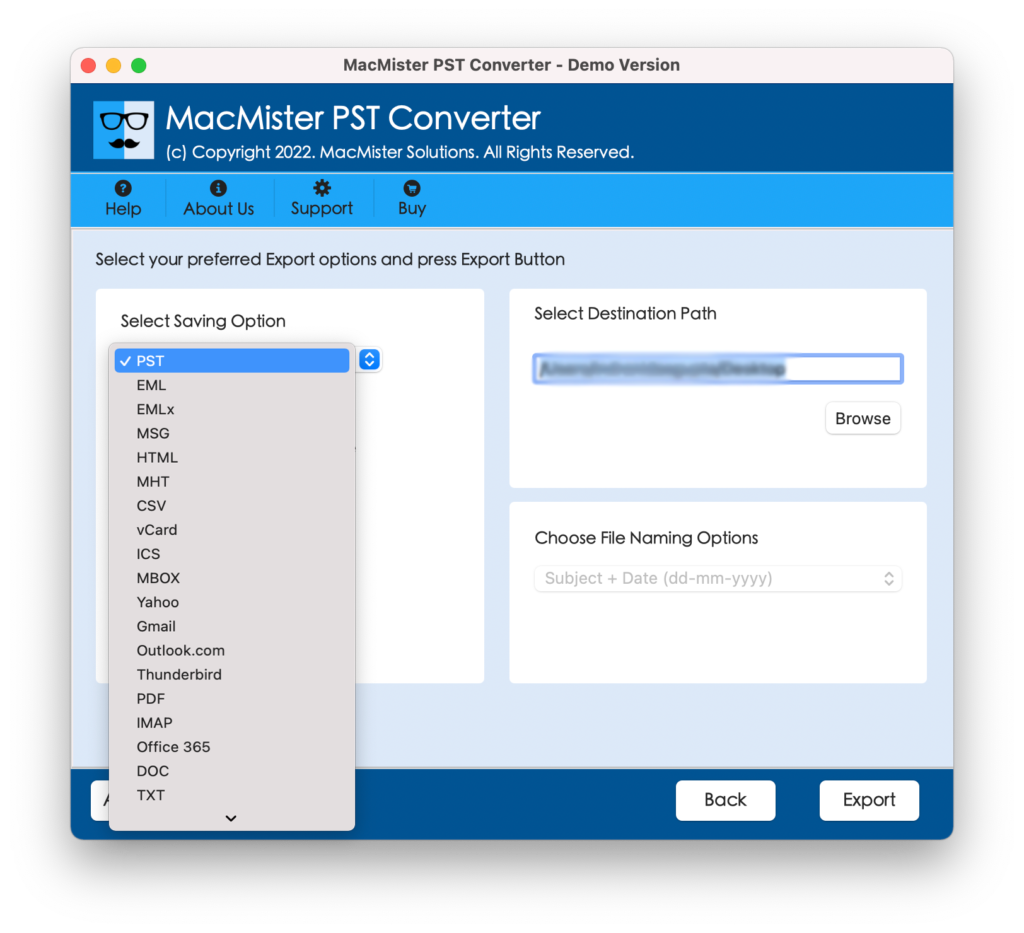
Step 5. Add Microsoft 365 credentials and tap Export.
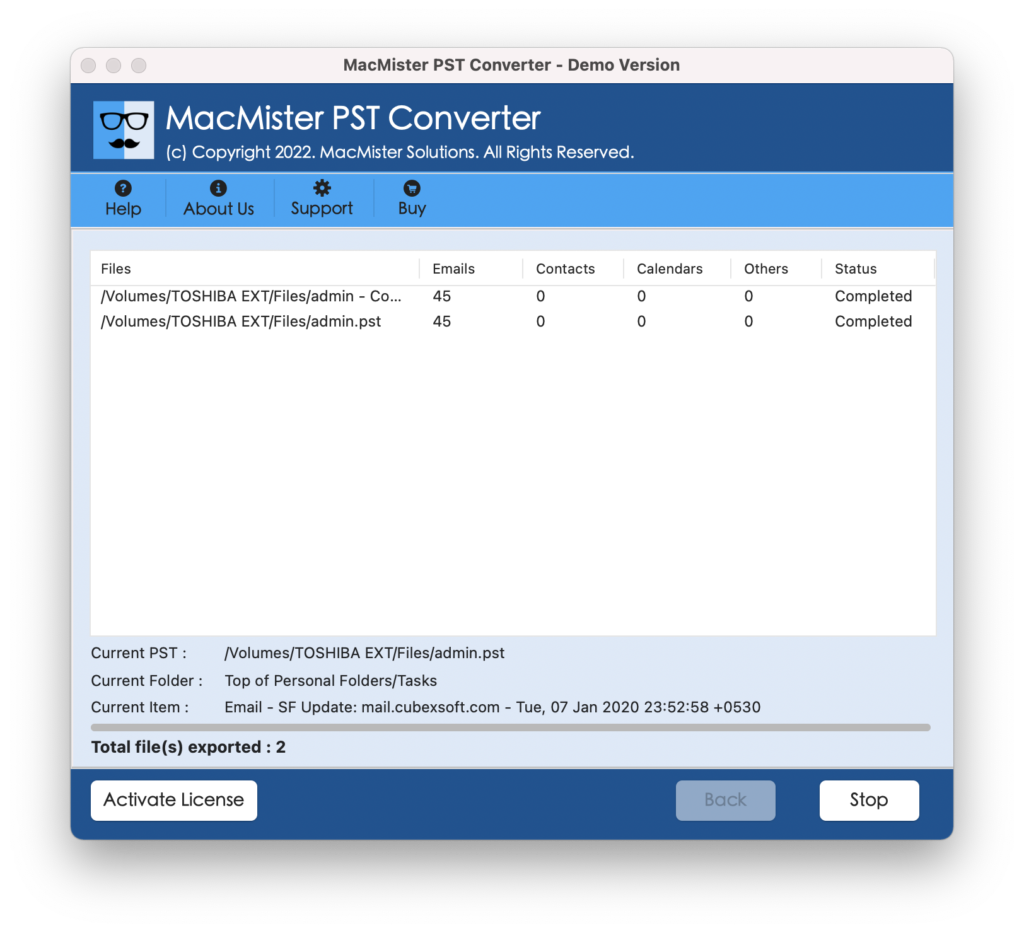
Step 6. The Live Conversion Report screen appears displaying total files imported, files left for import, and import status.
Epilogue
In the write-up, we have discussed PST import issues occur in MS Office 365 due to corruption, file size limits, incorrect configurations, or permission errors. Although Microsoft has a manual method but it will be very lengthy and time-consuming. Thus, it is advisable to go with the professional solution that eases the process and ensures accuracy. Therefore, choosing the correct approach relies on technical comfort, urgency, and data size. When data safety and time matter, a reliable method always deliver appropriate results.