How to Save Outlook Emails to Dropbox? – [Tutorial 2024]
Cloud services are in demand these days because they provide the flexibility to get the access of stored files from any platform anywhere anytime. Dropbox works as a personal cloud storage space where users can save documents, images, videos, etc. The comprehensible interface and powerful features is one of the notable functionalities of Dropbox for sharing and file storage. Outlook emails serve as a crucial warehouse of communication and they need to be a secure and accessible storage solution. Therefore, users need to transfer their essential Outlook emails to Dropbox.
So, in the guide we will provide the process of how to save Outlook emails to Dropbox which is useful in storing and safeguarding precious messages. But first, let us explore some more reasons responsible for saving emails from Outlook to Dropbox.
Why to Save Outlook Emails to Dropbox?
Let’s focus on some reasons first that are responsible for extracting emails from Outlook in order to export them into Dropbox:
- Dropbox’s security in protecting the important information is comparatively higher as it uses encryption along with two-factor authentication.
- Share specific email or entire folder to colleagues, clients, or family members easily and efficiently.
- Users will be able to access the emails downloaded on the device, modify them, and execute many other functions.
- If somehow the system gets crashed and data is lost, then emails saved on Dropbox can be recovered easily.
- Allow users to access emails from anywhere using internet. By storing files in Dropbox, one can get the access to emails along with other data.
Know How to Save Outlook Emails to Dropbox in Easy Way?
Now, let us explore the effective practice for saving Outlook emails to Dropbox. Here, we will go through the manual process followed by automated approach. In the first method, we will first extract the data from Outlook and transfer the same into Dropbox.
Method 1. Manually Save Emails to Dropbox
The methods need to be implemented manually. Follow the steps carefully to save to export emails to Dropbox.
Step 1. Extract Outlook emails
- Run Outlook email client.
- Go to the required email folder you need to export.
- Navigate to File and choose Open & Export.
- Select Import/Export.
- Choose Export to a File and press Next.
- Opt for Outlook Data File (.pst) option and click Next.
- Choose the desired folder and hit Next.
- Search for a location to save extracted PST file and press Finish.
Step 2. Save Emails to Dropbox
- Login to Dropbox account.
- Then drag and drop extracted PST file into Dropbox or make use of upload button for the same.
Limitations
- Suitable for few files.
- Large PST files can affect the performance.
- Technical steps would complicate the process for novice users.
- Need to be implemented under expert’s guidance.
Method 2. Directly Save Emails to Dropbox
Make use of MacMister Email Backup Software Mac & Windows to save Outlook emails to Dropbox with attachments. Select the source from the left. You can choose a webmail service that is connected with your Outlook account. Add the credentials and click Login. After this, the tool connects with the tool, select Dropbox from the Select Saving Options list, apply required filter (if needed) and hit Start Backup. In few seconds, all the emails will be saved into Dropbox.
Additionally, the software provides many features with the help of users can save Outlook emails to Dropbox according to the requirements. You may even download the free demo of the tool to experience the software operation for free.
Working Steps to Save Outlook Emails to Dropbox on Mac
Step 1. Download, launch, and operate the software on Mac.
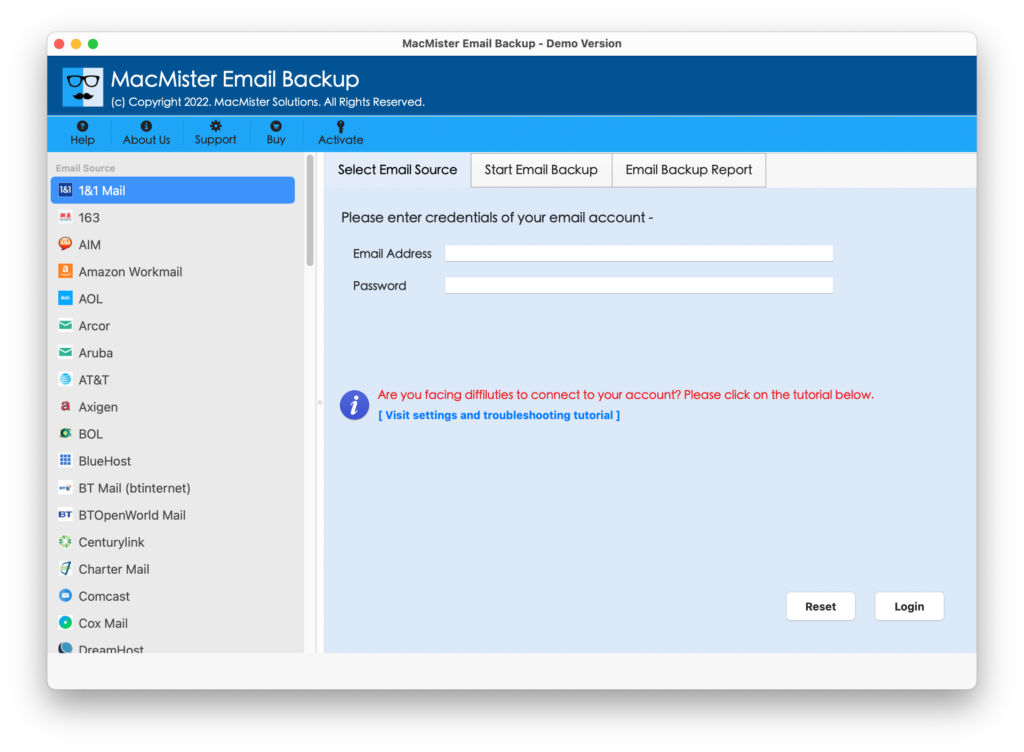
Step 2. Select the required source from the left, add the credentials, and click Login button.
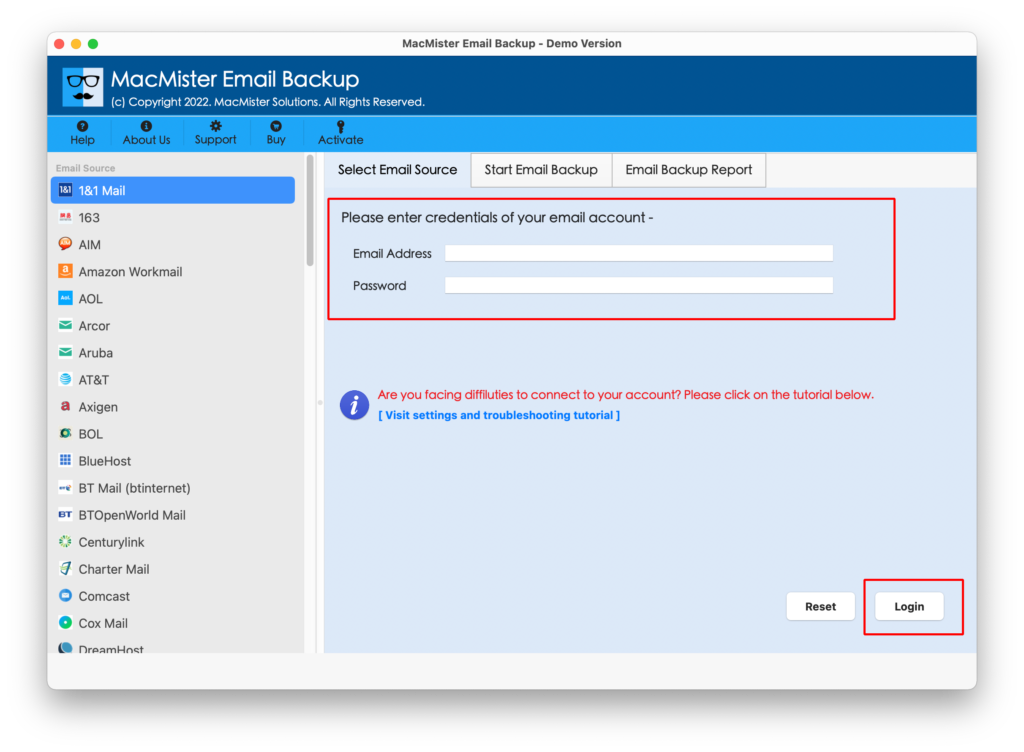
Step 3. Once the account is connected, all the mailboxes will list on the left side of the tool.
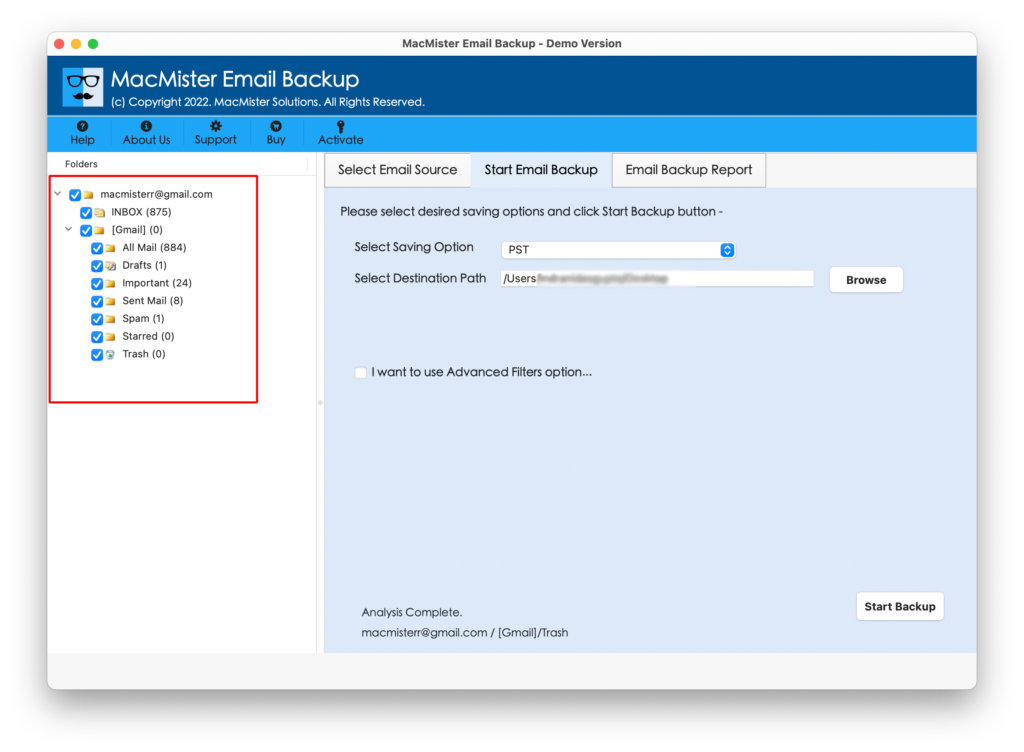
Step 4. Now, go towards right, click Select Saving Options, and choose Dropbox as a saving type from the menu.
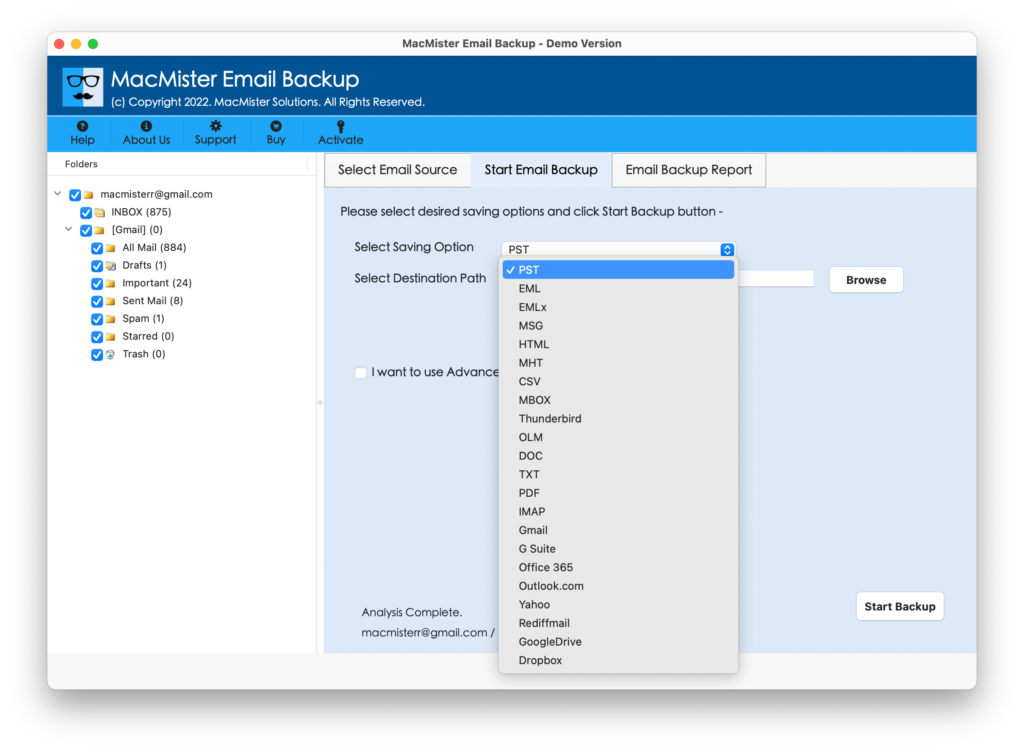
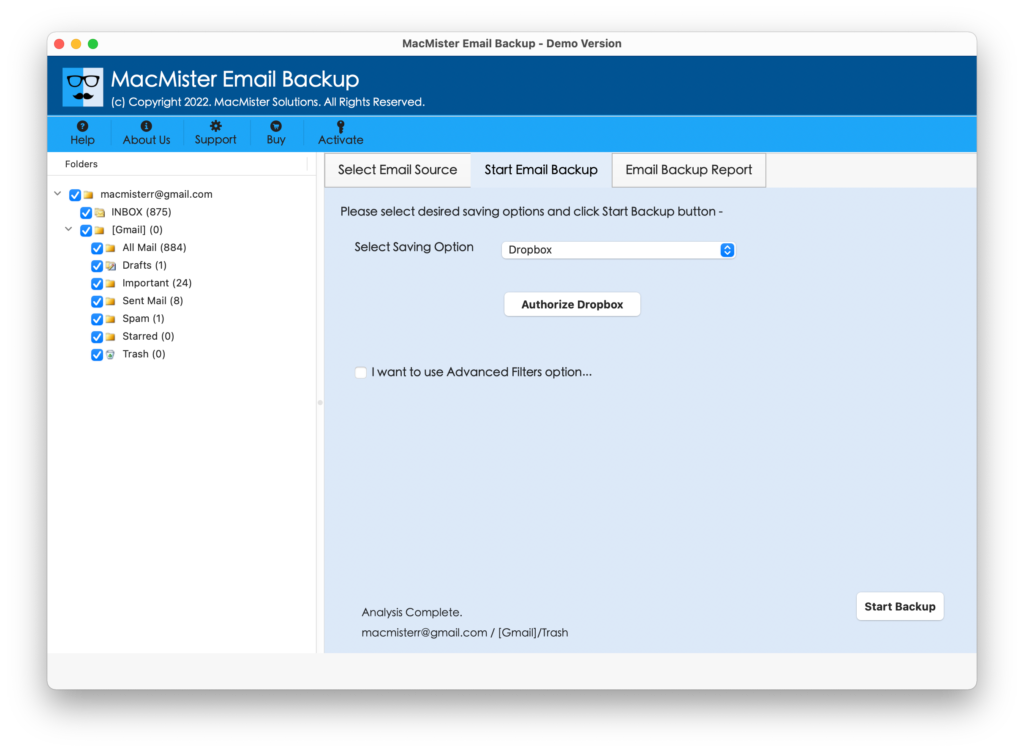
Step 5. Set the sub-options appearing under Dropbox as per your needs, apply required filter and press Start Backup button.
Step 6. The Email Backup Report screen will generate which shows the live migration progress to users.
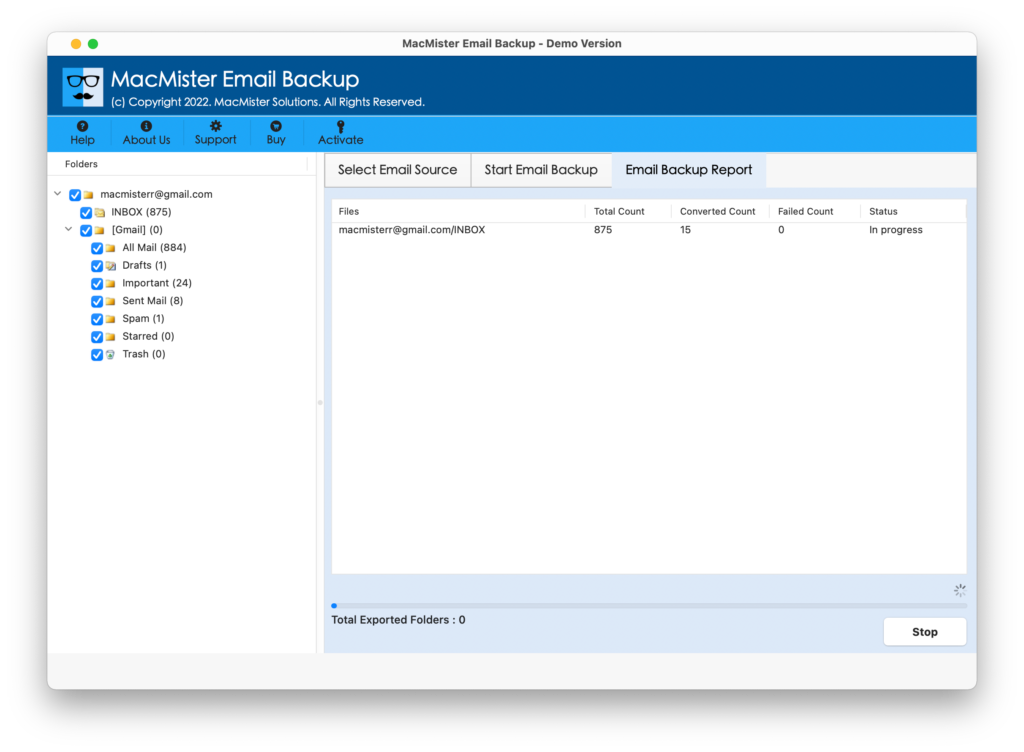
The entire process will end in few seconds with a message “Process Completed”. Click the OK button and login Dropbox account to verify the results. You will see that the software has accurately saved Outlook emails to Dropbox. The content, layout, and formatting properties of each and every email will be shown without alterations.
Overall, it is a time-saving method to save emails to Dropbox from Outlook with attachments without losing data integrity.
Epilogue
In the write-up, we have discussed multiple ways to fix “how to save Outlook emails to Dropbox” on Mac & Windows. In the first method, we have discussed the manual process which is only suitable for few files. Also, the process has technical steps that will be a little complex for novice users. Additionally, we have provided the direct solution which is operable by professional and non-professional users. It has 30+ webmail options but users can select the desired source and save Outlook emails to Dropbox directly. And the best part is besides Dropbox, there are 15+ saving options available to export Outlook emails. However, users can download the software for free and explore the entire procedure free of cost.