How to Manage and Split Large MBOX File on Mac?
Are you constantly facing challenges with large MBOX file folders that keep slowing down the performance of your email application? Thus, constantly wonderful how to split large MBOX file on Mac with ease?
Large MBOX files also refuse to open in any email application. In such a situation, users who are utilizing email clients such as Thunderbird, Apple Mail or any other MBOX-compatible email applications frequently come across of oversized MBOX files. Large MBOX files not only affect the performance of email application but also increase the possibility of file corruption or data loss. Thus, users look further to divide large MBOX files. This is essential if a user need to access MBOX file in an email app without encountering any errors or problem. So, in the write-up, we will go through –
- Why Splitting MBOX file is necessary?
- Perfect step-by-step Tutorial to split MBOX file directly on Mac.
- Multiple splitting options that perfectly fits for all users.
- What to choose – Manual Method or Expert’s Solution.
Why to Split MBOX file? – Top Reasons
Several times, many thinks that MBOX file can preserve entire data in a single file and it will be secure for future. But then why it is essential to divide oversized MBOX file. There are plentiful reasons for the same. At times, large MBOX files can cause multiple issues. Let us understand why to break MBOX files –
Better Performance – All email clients can handle small size files very quickly. Moreover, this minimizes lag and stops working on any OS when users access .mbox files.
Reduced Risk of MBOX file corruption – In case you make use of large files, they become susceptible to corruption. So, accessing oversized MBOX files can result in inaccessible emails.
Effective Email Management – After MBOX files are divided into smaller parts, they can be easily backed up, shared, and migrated.
Skip File Size Limitations – Dividing oversized MBOX files allows navigating around size limit restrictions placed on many email applications.
Data Safeguarding – Splitting MBOX files into multiple parts help users accessing emails smoothly and delivering better data protection.
Free Method to Split MBOX File into Multiple Parts
Method 1. Divide MBOX File using Thunderbird
Breaking MBOX files is a common requirement if a user needs to make use of large mail archives in multiple email applications such as Thunderbird or Apple Mail. In the era of AI, professional techniques exist to split MBOX files. But not all users have the same needs as not everyone can spend money on an expert tool. They may use the free method.
Steps to Split MBOX File in Thunderbird
- Go to Thunderbird email app.
- Create multiple folders in the same.
- Afterwards, navigate to large MBOX folder.
- Choose multiple emails and drag-and-drop them into new folders that are recently created.
- Repeat the same process until large MBOX files are divided into multiple smaller parts.
- Go to Thunderbird’s local profile directory.
- Every new folder that you create will now display as individual MBOX file within profile folder.
Method 2. Try Plain Text Editor to Divide MBOX File in Smaller Parts
- Before breaking MBOX files using text-editor, ensure to take their backup first.
- Use large file editor such as Notepad ++ or VS Code to open MBOX file.
- Search for Email Start Points. Every email will start from “From”.
- Select all emails using Ctrl + A, copy and paste them into a new file and they will be saved as .mbox extension. To split every file, repeat the steps accordingly.
Pros and Cons of Manual Methods
Pros:
- Both the methods are free of cost.
- Users do not require any additional software.
- Text Editor will help users accessing MBOX file data without email client.
Cons:
- The method is extremely tiresome for large MBOX files if the folder has saved files in GB.
- Users can neglect emails or they can also shift the same.
- No option is present to break MBOX file by size, sender, date, etc.
- Any slight error in a file structure can corrupt the entire MBOX file and make it inaccessible.
- Free method requires knowledge of MBOX format.
- Risk of losing attachments, metadata, and email formatting.
How to Split MBOX File Directly on Mac? – Powerful Solution
The most efficient and effective way to split oversized MBOX file directly on Mac is a professional powerful MacMister MBOX Converter for Mac application. The app offers over 15 saving types. Users can transform large MBOX files into PST and split them into multiple smaller parts without data loss. The GUI of the tool is friendly and intuitive. All technical and novice users can operate the app without any issue and break large MBOX files with ease. Additionally, it is equipped with remarkable features with the help of one can split MBOX file according to the requirements.
Know Software Working Tutorial to Split Large MBOX Files on Mac
Step 1. Download and launch the app on any macOS.
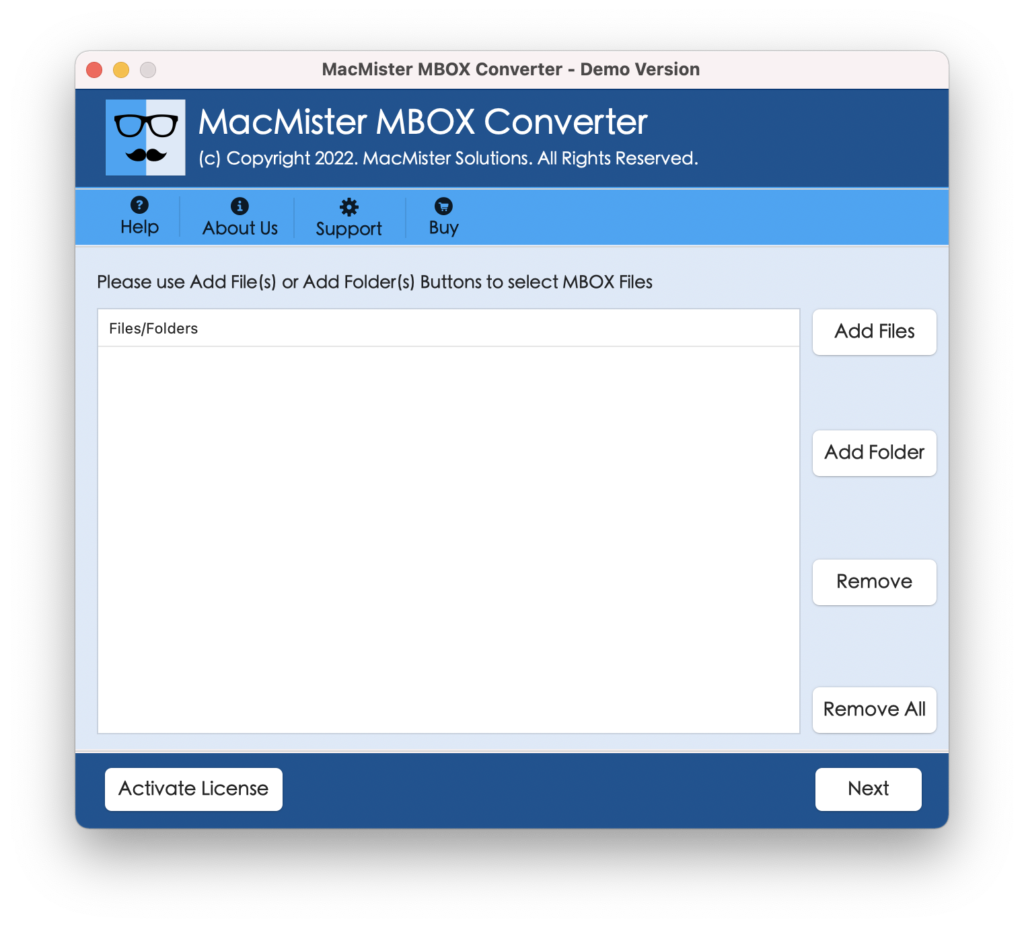
Step 2. Take help of Add File(s)/Add Folder buttons to load MBOX files on the tool.
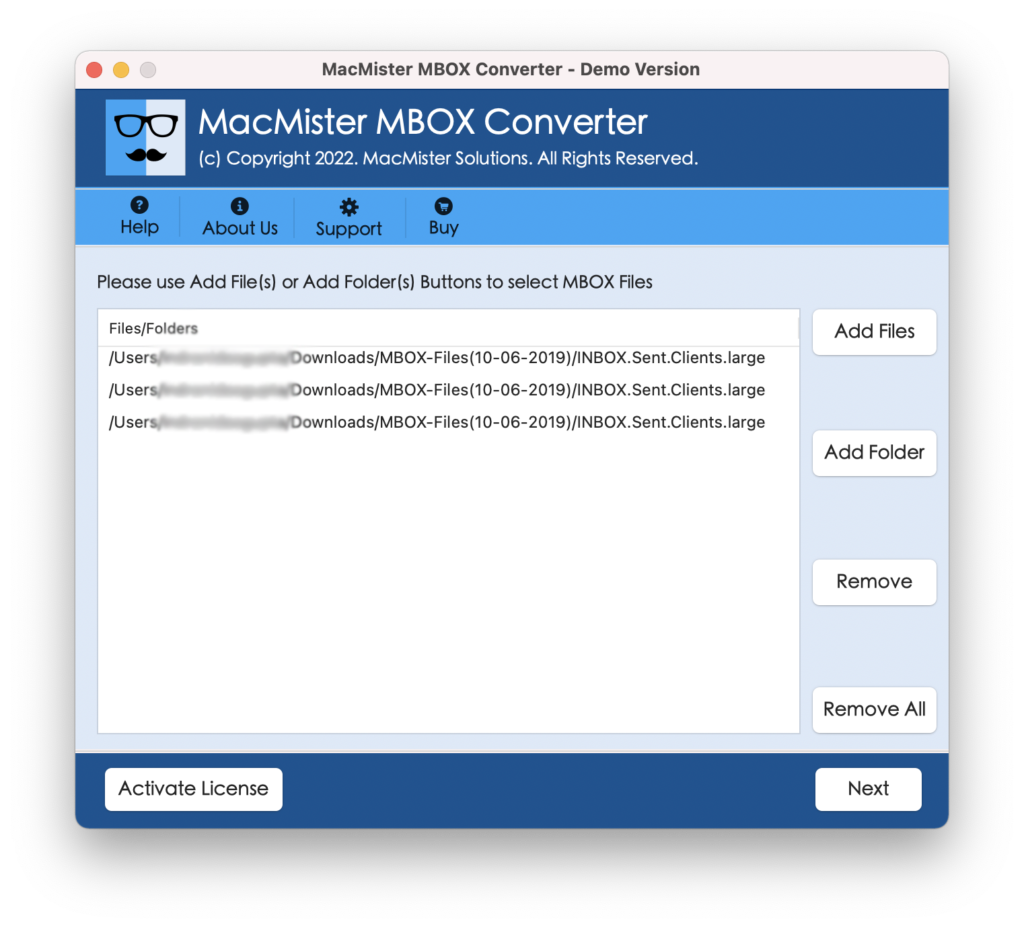
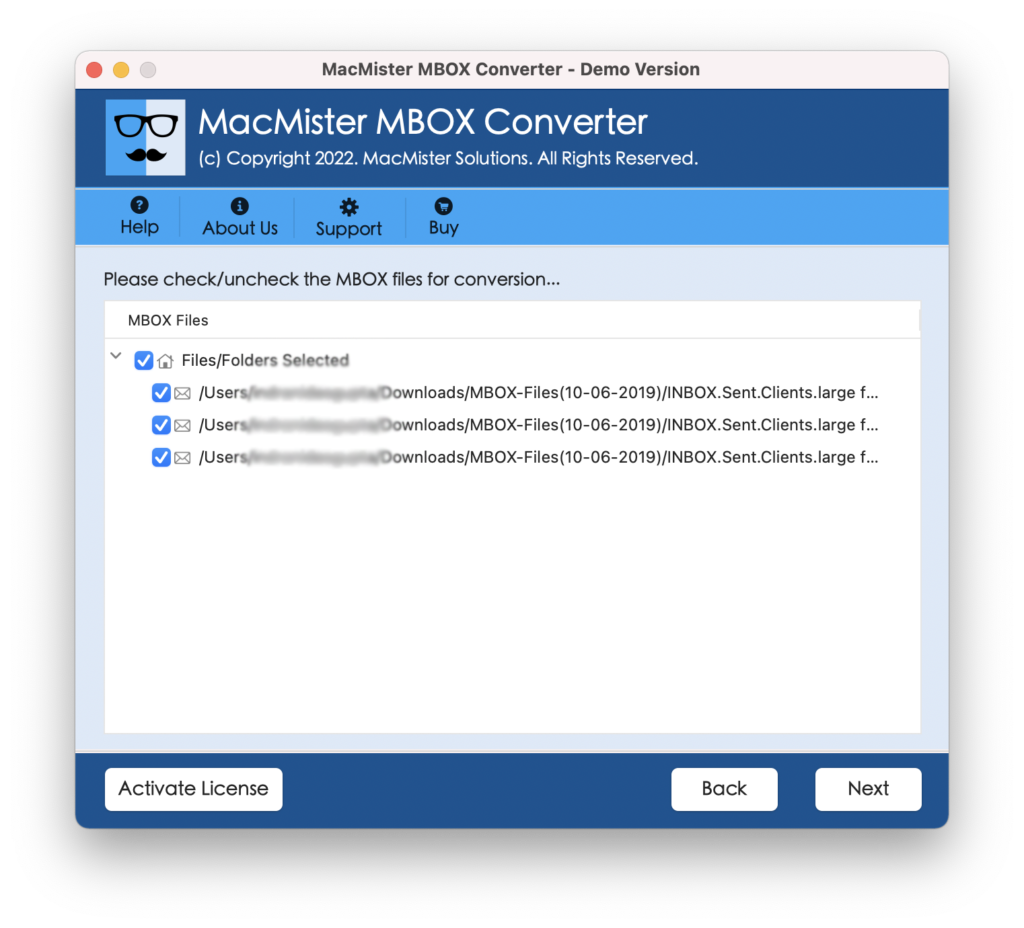
Step 3. Now, verify the list of MBOX files appearing with default selected checkboxes. However, one may deselect the checkboxes of unnecessary files and split files of selected checkboxes, if required. Otherwise, tap Next to continue further.
Step 4. Select PST from Select Saving Options.
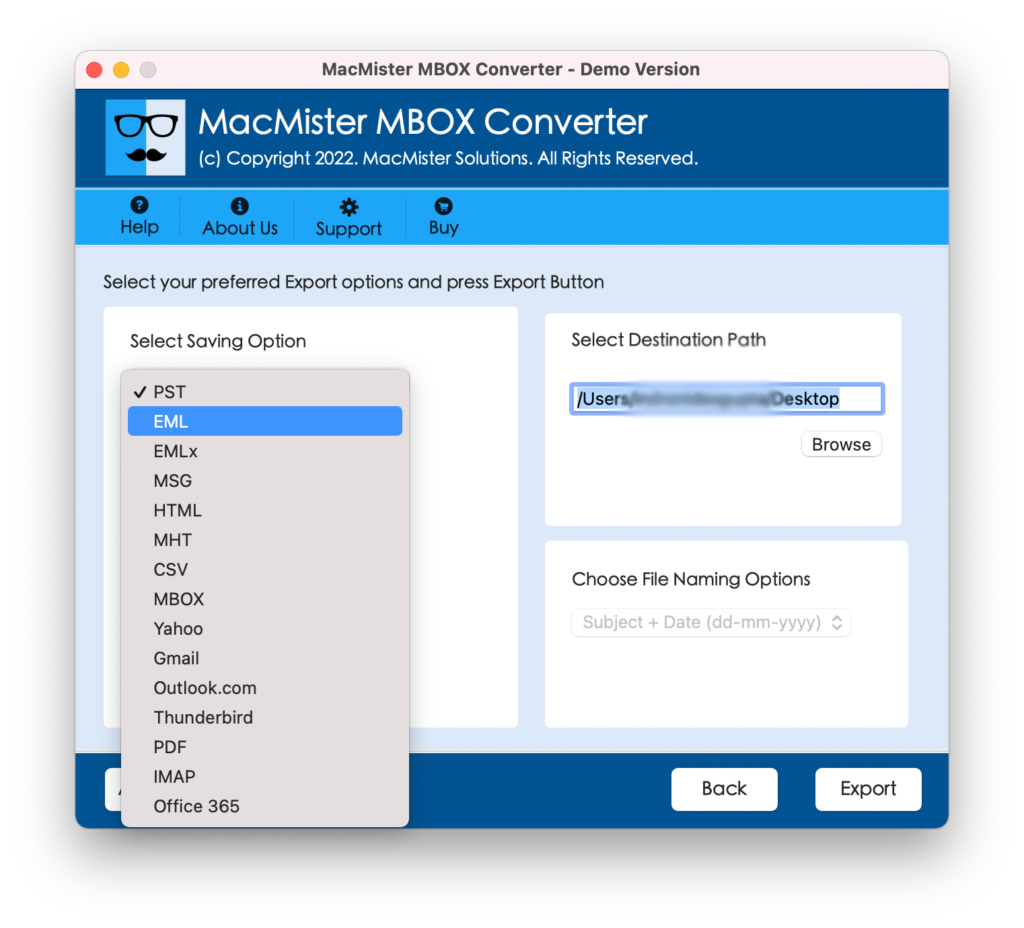
Step 5. Select the checkbox of Split PST file and set other options accordingly. Then, tap Export.
Step 6. Check the live split process through Live Conversion Report as appearing on the screen.
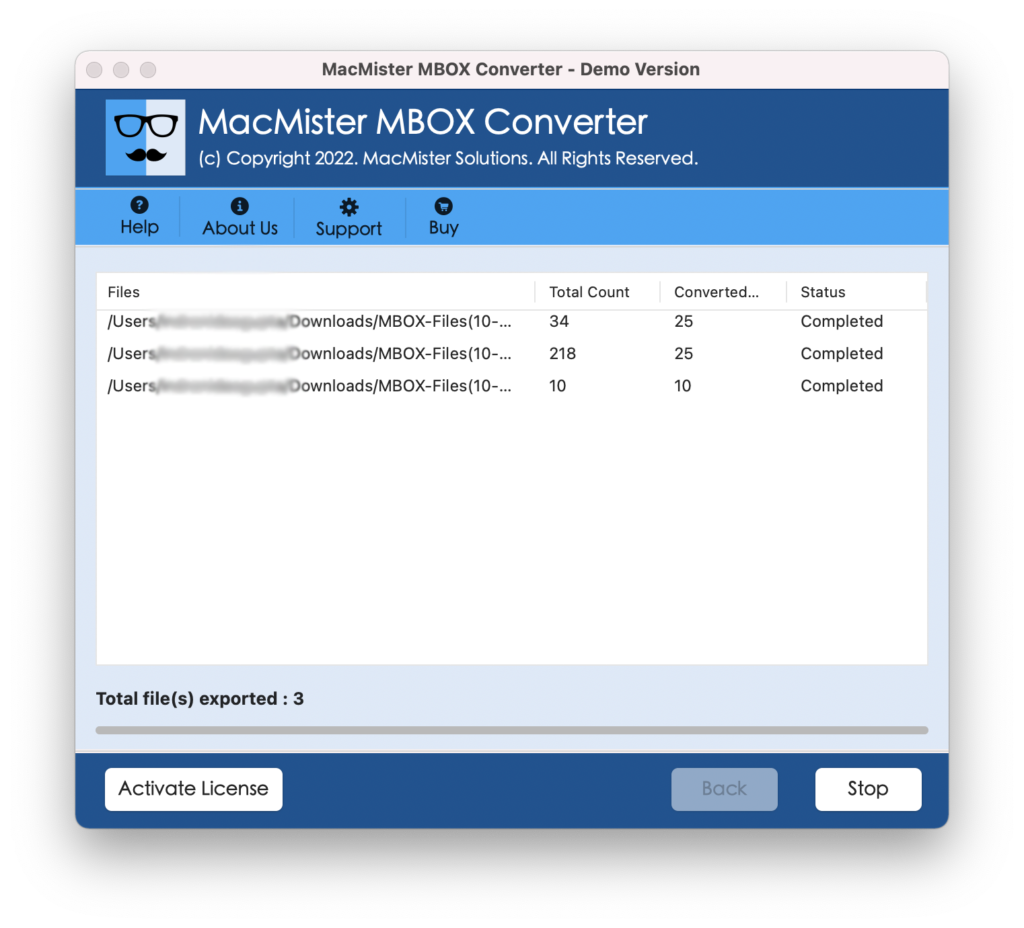
Within seconds, the task will terminate and “Conversion Completed” notification will appear on the screen. Click OK to close the message. Now, go to specified location to check resultant files. However, you will see that the files are split successfully and the data within every split file will appear with 100% accuracy.
Benefits of the Application
- Able to split MBOX files on Mac in bulk.
- Supports dual buttons (Add File(s)/Add Folder) to load MBOX files.
- Allow users to transform MBOX files into PST that further helps in splitting large/oversized MBOX files.
- Built with a friendly GUI so that all users can use the app and divide MBOX files with ease.
- Protects the originality of MBOX file data during split process.
- Easily break MBOX files on Mac OS Sequoia and earlier macOS versions.
Epilogue
In the write-up, we have mentioned different techniques to fix how to split large/oversized MBOX files on Mac. The first two methods are entirely free of cost but require technical knowledge. Users with non-professional skills find difficulty in implementing the process manually. Also, steps are lengthy and can take users lot of time and efforts. So, to overcome such issues, it is advised to take help of a professional utility. The professional method is easy to use and is programmed with a secure operational environment. Anyone can utilize the app and split MBOX files within seconds. Furthermore, the tool possesses exceptional features with the help of users can break large MBOX files according to the requirements. And the best part is the app is available with a freeware version. One can download the free demo of the tool and split 25 files for free.