How to Transfer Apple Mail to New Computer?
Are you one of those Mac users who is moving to a new system soon? Looking for an approach that could help you to transfer Apple Mail to a new computer? If yes, then follow the MacMister tutorial which is providing a suitable technique to transfer Apple Mail to a new computer.
Many users at some point find themselves in a circumstance where they are not able to decide “how to transfer Apple Mail to a new computer”. The situation generally occurs when a Mac user moved to a new organization or upgrading to a new Mac operating system. Moreover, many times people want to access Apple Mail data from a different location on a different system. This sometimes puts users in a challenging and confusing state. But, as said that there is nothing in the world that is impossible and so we will be discussing a solid strategy here that will help to transfer Apple Mail to new computer. Let’s get started and understand the methodology in detail by taking the help of a query:
Common Scenario
I recently bought a new computer and created a new Apple Mail account in the same. Now, the problem I am facing is there are some important Apple Mail .mbox files of the old account stored on the old machine which I need to access in a new one. The files are very confidential and I don’t want to take any risk by downloading any unverified or risky solution. The challenge here is I am unable to find any secure and reliable method that could help me to transfer Apple Mail mailboxes from my old Mac account to my new Mac Apple Mail account.
There are lots of similar queries that many Mac users have added in forums and still searching for a suitable approach to transfer Apple Mail to new computer. So, without more ado, let us simply get direct and know the advanced solution to implement the process efficiently.
How to Transfer Apple Mail to New Computer?
Apple Mail Converter for Mac is the best solution that helps users to precisely transfer Apple Mail to new computer on Mac OS. The application has a friendly and time-saving operational environment that users can utilize without taking support from skilled professionals. The performance is fast and delivers 100% accurate results. It allows transferring Apple Mail emails and attachments to PST, PDF, MSG, EML, MBOX, HTML, MHT, CSV, DOC, IMAP, Thunderbird, Office 365, and more. Moreover, the tool has the ability to directly export the configured profile mailboxes or one can even load the Apple Mail MBOX files and perform the migration accordingly.

The software is designed with innumerable benefits and options that help users to transfer Apple Mail to new computer according to specific requirements. Download the trial edition now and check how to export Apple Mail folders to new Mac for free.
Working Steps to Transfer Apple Mail to New Computer
Step 1. Run Apple Mail Migration Tool on Mac OS.
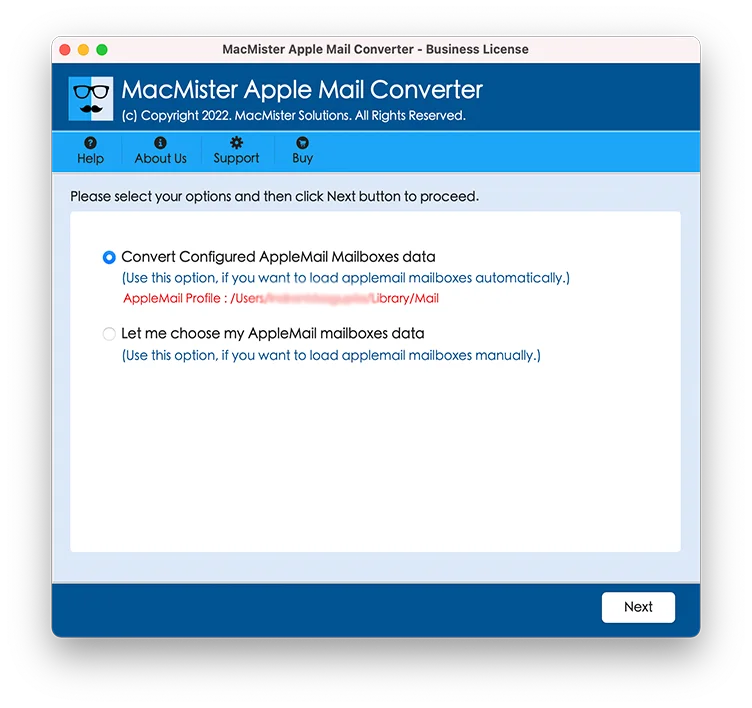
Step 2. Add Apple Mail mailboxes on the software by choosing the required options as shown and click Next.
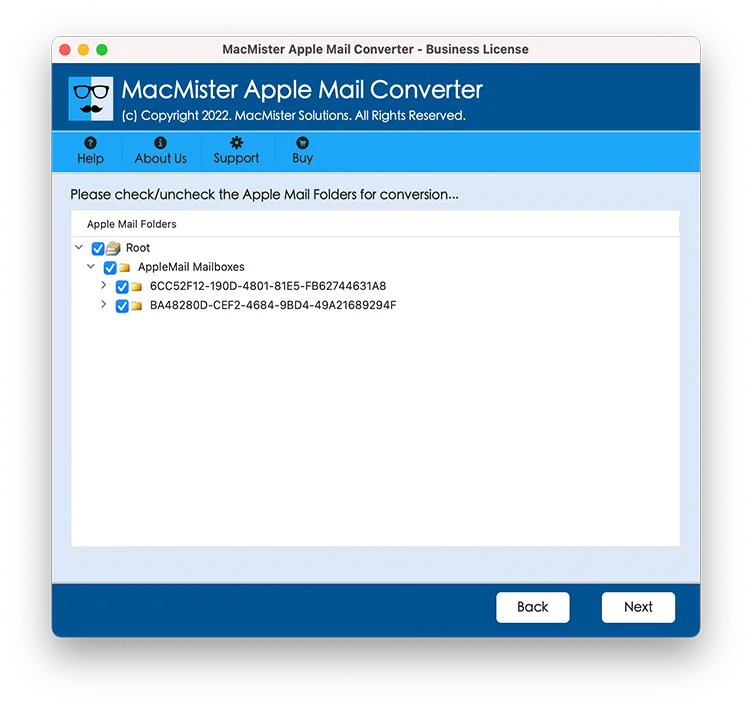
Step 3. The list of Apple Mail files will appear with checkboxes on the screen. Users can utilize the checkbox to transfer selective Apple Mail files to new computer. Apply the selection accordingly and click Next.
Step 4. Choose the required saving type from the Select Saving Option menu.
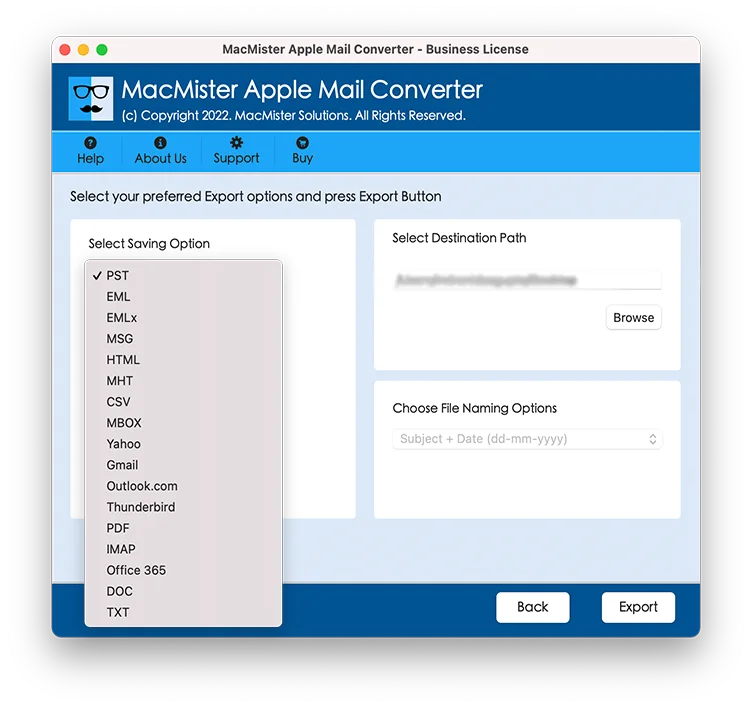
Step 5. Each saving type is equipped with a few properties that will help users to save the resultant mailboxes as per the user’s needs. Apply them accordingly and click Export.
Step 6. The process will begin straight away and show Live Conversion on the screen from which users can track the export status as well.
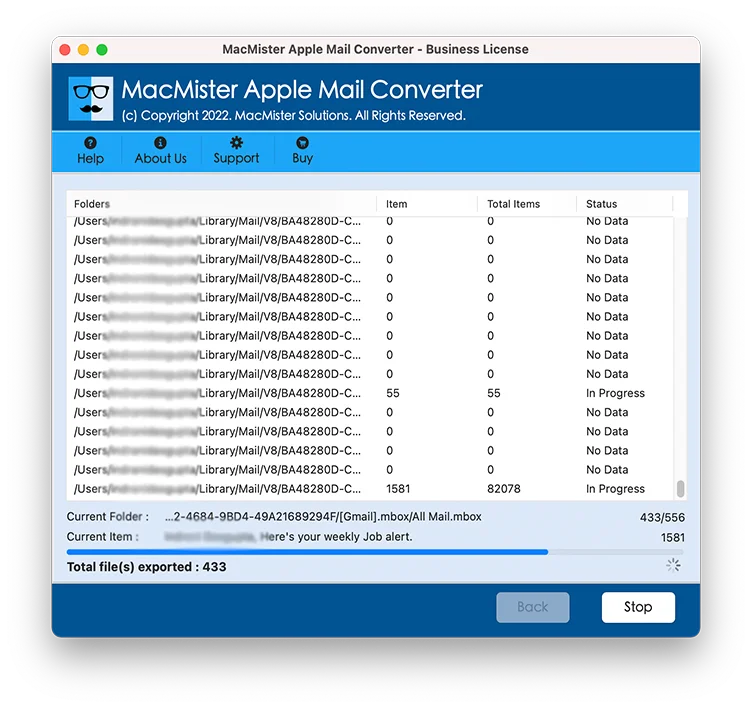
The migration will take a few seconds to complete the whole process. Once the transfer is done, users will get a “Conversion Completed” message on their screen. Now, one can go to the location of the resultant files to check the data accuracy. However, the tool assures uninterrupted and unaltered migration. So, when users open the resultant file, they will that each and every letter of the content as well as the formatting properties are totally the same and original.
Why I Should Choose MacMister Software?
The application discussed above has many amazing beneficial features and some of which are:
Multiple Options to Load Apple Mail Mailboxes
The application has two different options to load Apple Mail mailboxes on the software i.e. Convert Configured Apple Mail Data & Let me choose my Apple Mail data. The Convert Configured Apple Mail data allows loading the configured path of the Apple Mail profile on the system where Apple Mail stores the entire list of user data items. The Let me choose my Apple Mail data includes Add File(s) and Add Folder options through which users can add Apple Mail-supported MBOX files on the software.
Includes Multiple Saving Options to Save Emails
The software is equipped with a list of multiple saving options that will help users to export Apple Mail mailboxes. Users can choose PST, PDF, MSG, EML, EMLx, MHT, HTML, DOC, CSV, IMAP, Yahoo, Thunderbird, Outlook.com, and more. It will provide ease to those who want to save Apple Mail mailboxes in the desired saving option.
Accurately Transfer Apple Mail to New Computer
The utility has the ability to accurately transfer Apple Mail to new computer. The software takes care of the original data during the process. So, when a user receives the resultant output, it will be shown with accurate metadata properties (hyperlinks, font style, images, etc.) and folder structure.
Includes Multiple Options to Save Emails as PDF
The application provides multiple properties under the PDF saving option. Users will get the freedom to embed attachments into PDFs or extract attachments to a separate folder. By applying the required option, users can save emails and attachments as per their requirements and transfer Apple Mail to new computer accordingly.
Avail File Naming Options in Text Supported Formats
The software provides multiple naming options in text-based file formats. So, if a user chooses TXT, DOC, PDF, or any other file format, then he/she will see Choose File Naming Options property. And, clicking on it will contain the list of different naming patterns that are available in the combination of subject, from, and date.
Transfer Apple Mail to New Computer on all Mac OS
With the help of the tool, users can transfer Apple Mail mailboxes to new computer that supports all Mac OS versions. With the help of the tool, one can execute the migration on macOS Ventura, Monterey, Big Sur, Catalina, High Sierra, etc.
Besides these, there are many more advanced options available that you can experience by downloading the trial edition.
Final Thoughts
The blog explained the powerful and easy procedure to transfer Apple Mail to new computer. The software discussed above is simple and possesses user-friendliness. Moreover, the features deliver desired outcomes and are capable of providing results with 100% accuracy. Download the freeware version now and test the migration process by transferring the first 25 Apple Mail emails with attachments for free. For any queries, contact MacMister Support.