How to Transfer & Forward Roadrunner Email to Gmail Account?
If you are a Mac user and find a way to forward Roadrunner email to Gmail! Then, I must say you are at the right article. Here, you will get all the necessary information and guidance that is needed to transfer Roadrunner email to Gmail properly.

Roadrunner is a popular webmail service which is controlled and managed by Time Warner Cable. However, it is only used by those who have the access of TWC services. Without any doubt, Roadrunner is an amazing webmail service but the common reason why people nowadays searching a way to move account from Roadrunner to a different email account so that they could use other email accounts greater. Email Services such as Gmail, Outlook, Yahoo, Hotmail, MSN and AOL are much better in terms of preservation and application.
Although, there is a manual method available but still we have discussed the professional solution which is secure and easy to use. So, in the further section, we have discussed how to transfer Roadrunner to Gmail in two different ways.
What is a Best Way to Transfer Roadrunner Email to Gmail on Mac?
Now, after gaining the knowledge about the reasons of forwarding Roadrunner emails to Gmail, let us understand the methods to access Roadrunner emails in Gmail profile. There are basically two techniques for implementing the same i.e.
- Using Professional and Secure IMAP Backup Tool
- Using Manual Steps.
Method 1. Transferring Roadrunner Email to Gmail using a Secure Solution
IMAP Backup for Mac will be an amazing solution for those who are carrying plethora of files wants to access them in Gmail within seconds. However, it is a solution which allow users to forward entire Roadrunner email folder to a desired Gmail account at once. Moreover, the working steps and GUI of the application not only easy to use but also possesses an environment that attract most of the Mac users. Even, the in-built security will keep the users private details safe when performing the process.

The features introduced in the application will help users to forward specific Roadrunner emails to Gmail. It will make the task easy for users who are not looking to transfer the entire list of Roadrunner account emails. And, the best and most important benefit of using the application is its free demo. With the help of the trial edition, users can easily check the complete software steps and its functioning.
Steps to Forward Roadrunner Email to Gmail
Step 1. Download, Install & Run IMAP Migration Tool on macOS.
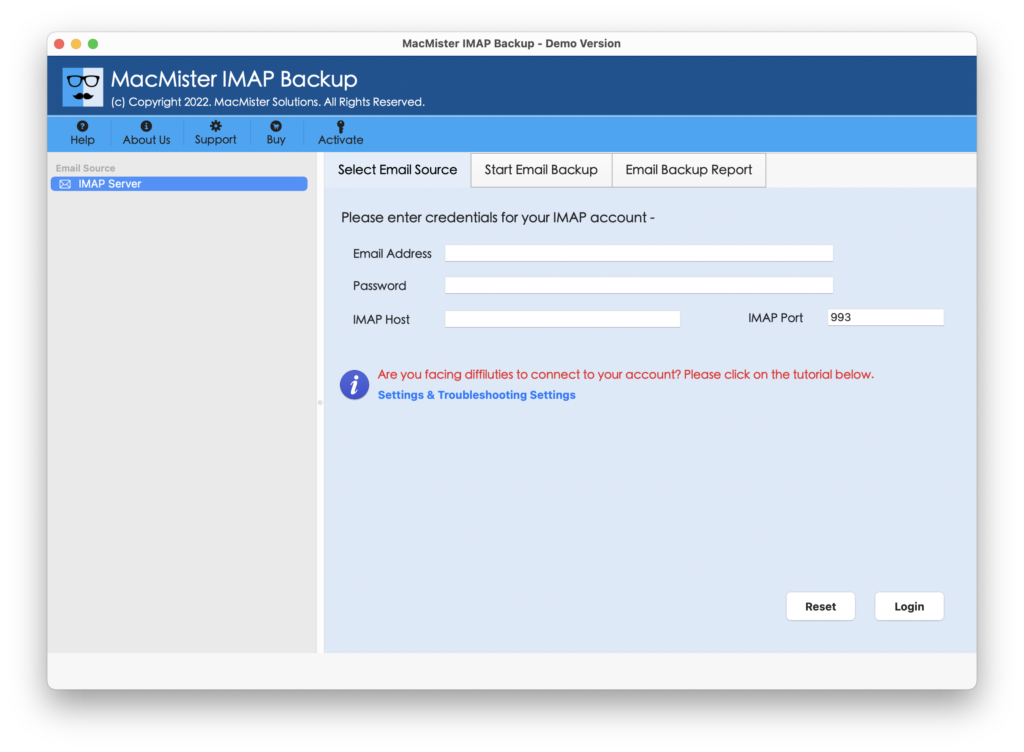
Step 2. Select IMAP Server option from the available webmail source list appearing on left. Provide Roadrunner account details with its IMAP Host and Port Number and click on Login button.
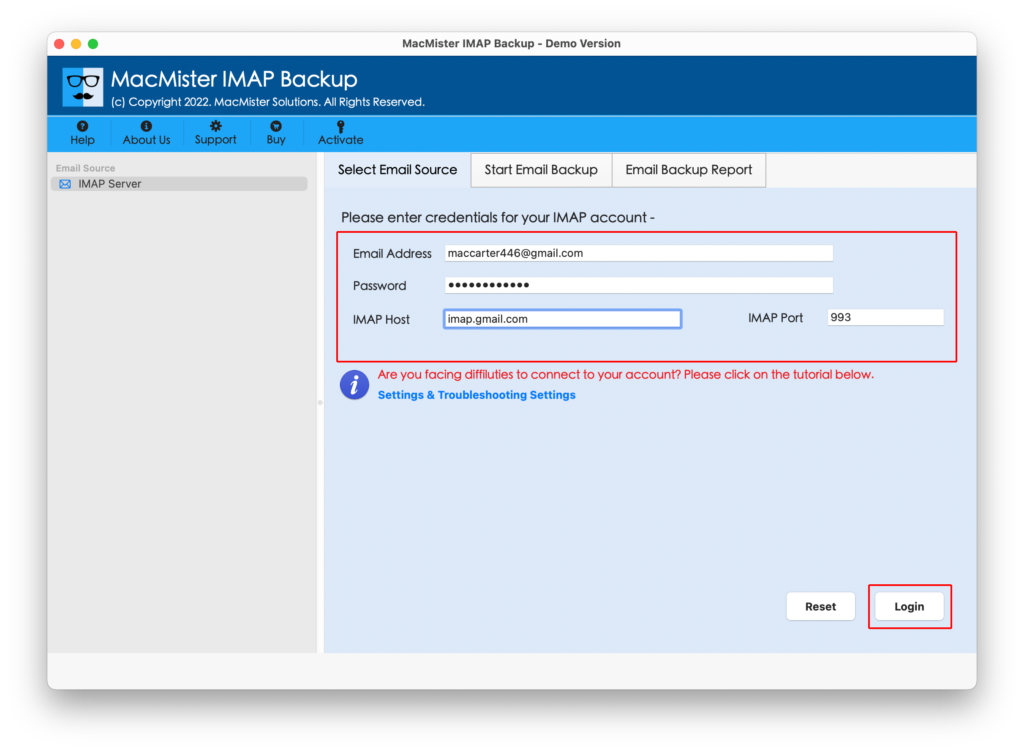
Step 3. Roadrunner account will quickly connect with the application and shows its entire list of mailboxes in hierarchical structure. Each will display with checkboxes that will help users to transfer selective Roadrunner emails to Gmail.
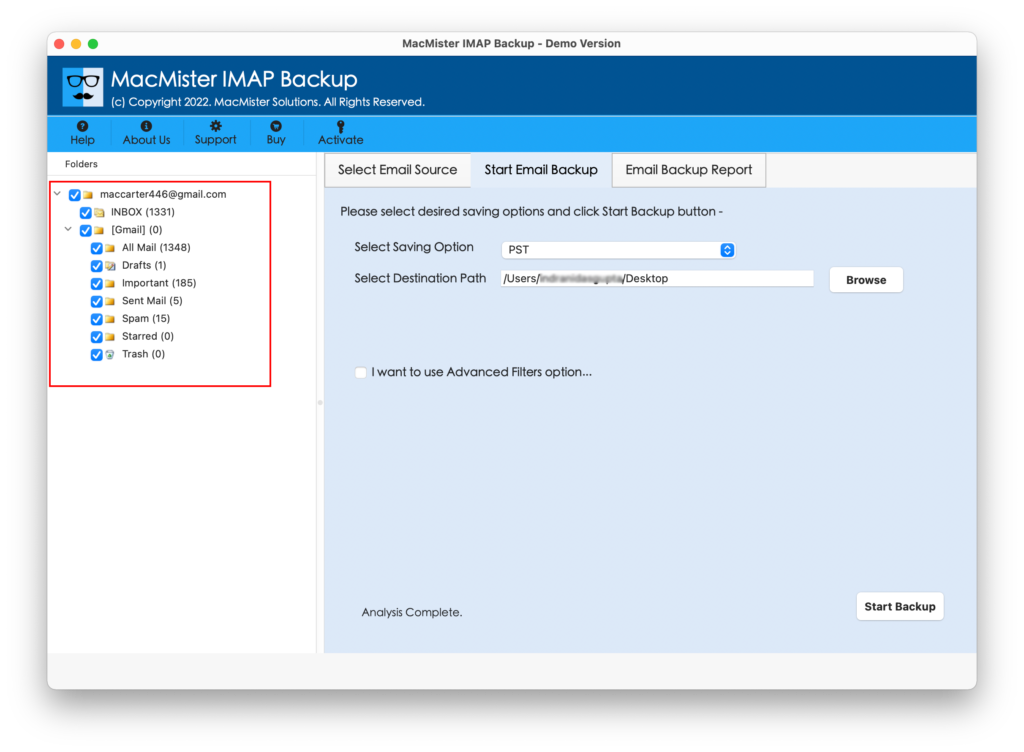
Step 4. Select Gmail from drop-down list of Select Saving Option.
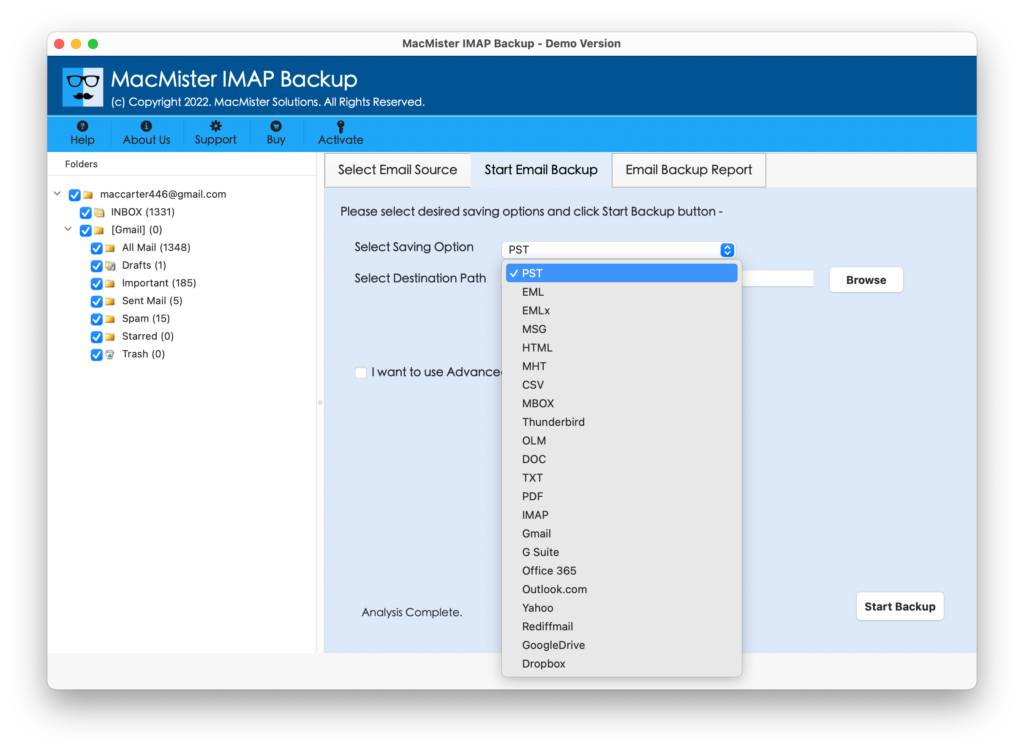
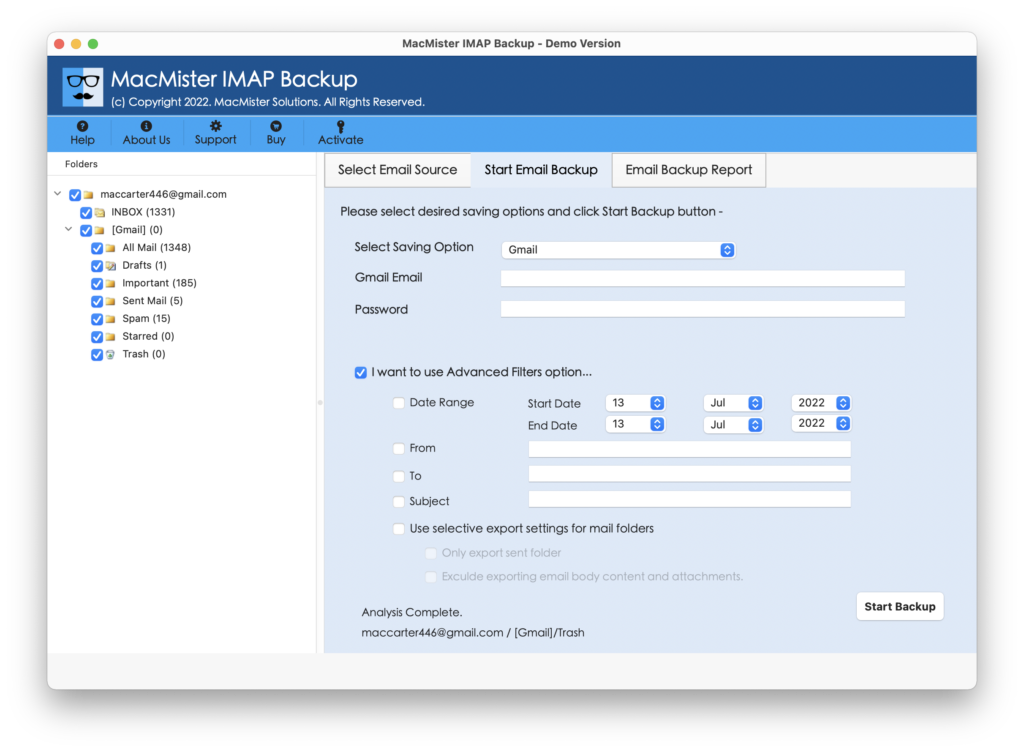
Step 5. Enter the Gmail login details in which users wants to forward Roadrunner emails. One can use filters as well to transfer specific emails from Roadrunner account. After this, press Start Backup button.
Step 6. Check and verify the process status with the help of Email Backup Report as shown –
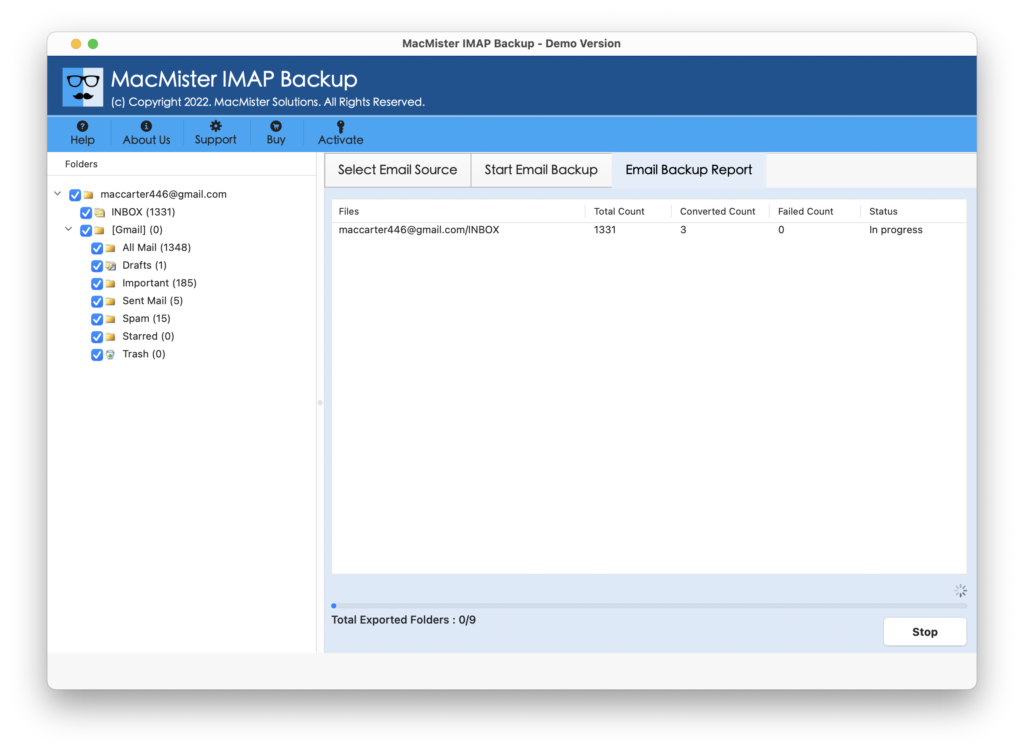
The tool will show “Process Completed” once all Roadrunner emails are transferred to Gmail account. Now, go to the Gmail account that a user has chosen to transfer Roadrunner emails. The data integrity and the structure of Roadrunner account mailbox will be 100% accurate.
Note. Use DEMO EDITION to experience the forwarding process of Roadrunner email account to Gmail directly. The free download edition will help users to explore the complete software processing by transferring the first 25 Roadrunner emails to Gmail with attachments free of cost.
Method 2. Manually Forwarding Roadrunner Emails to Gmail
Follow the steps and forward Roadrunner emails to Gmail manually –
Step 1. Go to Roadrunner account and sign-in with the required login details. After this, navigate to Settings option.
Step 2. Choose “customize mailbox options” tab.
Step 3. Click the option “setup mail forwarding right under” appearing under “forwarding section”. Now, one will see “forwarding address” option displaying next to “forwarding section”. A text will be written beside it “To forward emails to other email accounts, type those here and place a comma after typing single email address”.
Step 4. Provide the required address of a Gmail account in which one wants to forward Roadrunner emails. There are some definite rules listed on the right-hand side of the page as well which needs to be obeyed accordingly.
Step 5. Turn off the forwarding: It will help in cancelling the email forwarding.
Step 6. Send the emails and retain a copy: This allows to keep the copy of received emails and the same will be redirected to the specified Gmail account.
Step 7. Send and Reject: Enable users to send/delete emails constantly.
The process can be operated only by technical users. If you are a novice user then make sure that you get assistance from external sources. Because there are some technical steps involved which need to be applied correctly.
Final Thoughts
MacMister Solutions has introduced two different technique to transfer Roadrunner email to Gmail account. In the first method, we have implemented the process with the help of Roadrunner to Gmail Backup for Mac application. It is direct, cost-effective, reliable and secure. And will definitely ease the work of an organization. The software will perform the migration without any trouble and able to deliver the accurate output in minimum time.
However, in the second method, it is necessary and advised to take help of experts as some settings need to be applied to transfer Roadrunner email to Gmail manually. For any queries, you can quickly contact to MacMister Support.