How to Transfer GoDaddy Email to another GoDaddy Account?
Are you carrying two GoDaddy webmail accounts and want to transfer emails from one GoDaddy account into another? Wondering how to transfer GoDaddy email to another GoDaddy account? Looking for an advanced and powerful approach to implement the same process safely? If yes, then read the segment till the end and you will be able to successfully transfer GoDaddy email to another GoDaddy account with 100% accurate results.
Why to Transfer GoDaddy Email to another GoDaddy Account?
GoDaddy webmail is a web-based email service that delivers a customizable interface to users with a wide range of features. The service delivers multiple features and capabilities, including the ability to handle email addresses, and access to emails from any device anytime irrespective of the location. One can say, it is a reliable and affordable email service that is perfect for both small businesses and web developers.
However, there are several users who carry two GoDaddy accounts for data management. One could be for personal use and another for professional reasons. At times, when they switch to a different organization or thinking about leaving their current company, they need to take the backup of all their crucial emails from their old professional email account to their personal email profile. This could be a daunting task. Because organization-based reports are confidential and need to be handled in a safe way. And, performing the migration between two GoDaddy accounts needs to be managed in an appropriate manner.
Therefore, it is advised to use a solution that guarantees secure migration and accurate output.
Best Way to Transfer GoDaddy Email to another GoDaddy Account
In this section, we have discussed two approaches for transferring emails from one GoDaddy webmail account to another. The first approach has highlighted the manual procedure to transfer GoDaddy email to another GoDaddy account. The second approach will discuss the direct and reliable way to accomplish the required task. Let’s understand both the solutions and then the final decision will be upon you.
Manually Transfer GoDaddy Email to another GoDaddy Account
The manual method has basically two steps:
- Connecting GoDaddy webmail with Thunderbird
- Removing GoDaddy Accounts
Step 1. Steps to Connect GoDaddy webmail with Thunderbird
Connect both the GoDaddy accounts in Mozilla Thunderbird. Follow the steps mentioned here.
- Open a Mozilla Thunderbird email account.
- Go to the Menu icon and select Account Settings from the list.
- Click Account Actions and choose Add Mail Account option.
- Provide the login details of your GoDaddy account and click Continue.
- Specify the IMAP details of the GoDaddy account and press the Finish button.
When both accounts are successfully added, then drag the emails from one GoDaddy account and drop the same into another GoDaddy profile.
Step 2. Remove GoDaddy Accounts (optional)
After transferring the emails successfully, you can remove the necessary account and to do the same, follow the steps mentioned below-
- Go to the Menu button, navigate to Account Settings, select Account Actions, and choose Remove Account.
- Select the old GoDaddy account that was previously added.
However, the complete process need a few hours as the steps are technical and require the support of experts for executing it properly.
Some Limitations
- Requires the installation of Thunderbird email client on the system.
- Affects the hierarchy of folder structure.
- Lengthy steps and so consumes a lot of the user’s time and effort.
- It is necessary to take the support of skilled professionals.
- The missed of a single step can cause data loss risk.
Directly Transfer GoDaddy Email to another GoDaddy Account
With the help of MacMister GoDaddy Email Backup Software for Mac and Windows, users can directly transfer GoDaddy email to another GoDaddy account. The software is simple, user-friendly, and advanced. Both professional and non-professional users can use the application effortlessly and perform the migration between two GoDaddy webmail accounts without showing an error. Even, the steps are short and time-saving. They will quickly transfer all emails from one GoDaddy account into another with attachments accurately.
Moreover, the software includes many features and options with the help of users can transfer GoDaddy email to another GoDaddy account according to specific criteria. Download the trial edition of the tool and understand the complete operation of the tool for free.
Step-by-Step Process to Transfer GoDaddy Email to another GoDaddy Account
Step 1. Download, launch, and run MacMister GoDaddy Backup for Mac on any macOS.
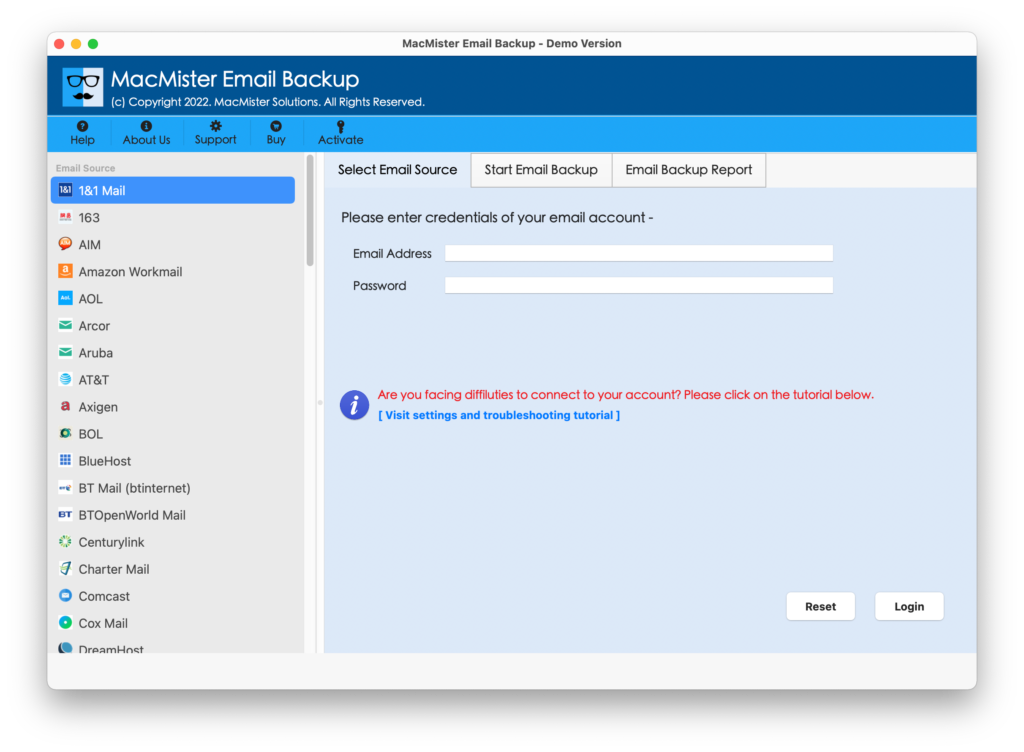
Step 2. Select GoDaddy as a source from the left. Provide the login credentials and click on Login button.
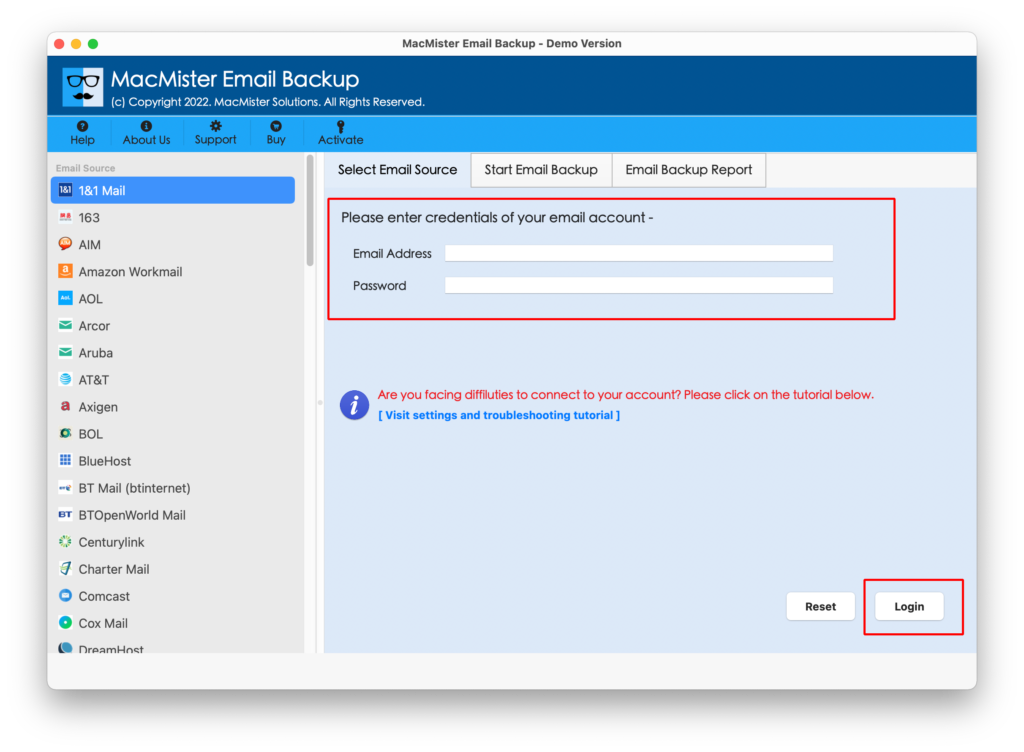
Step 3. GoDaddy webmail account is connected with the tool and the application will start listing GoDaddy mailboxes on the software.
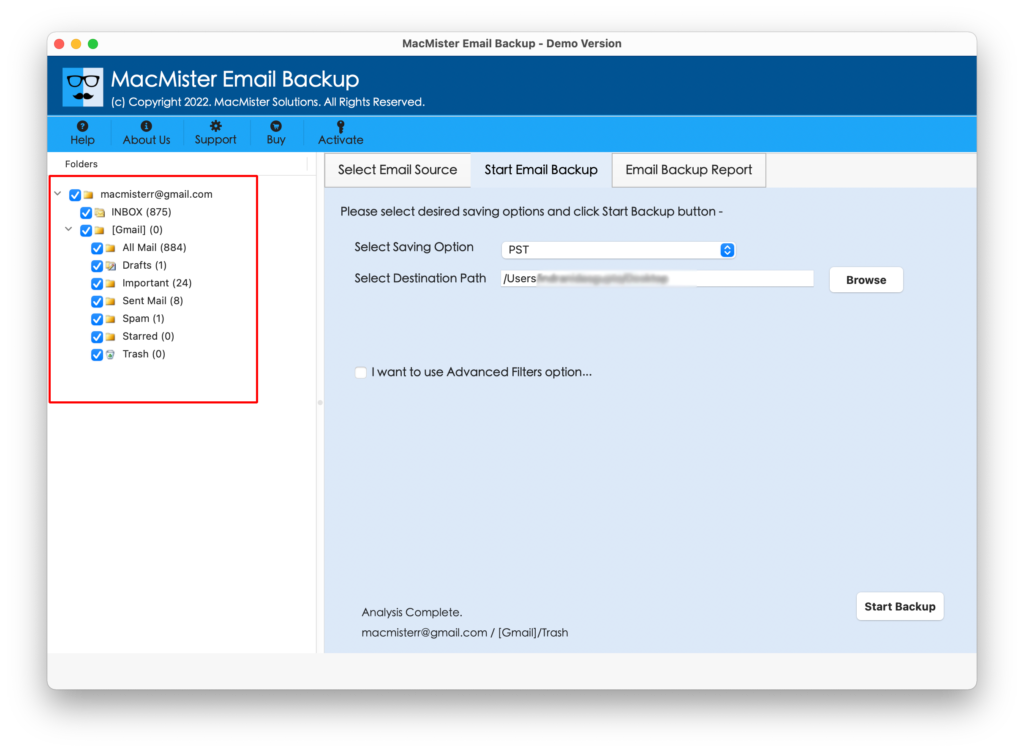
Step 4. Click Select Saving Options and choose the IMAP option from the list.
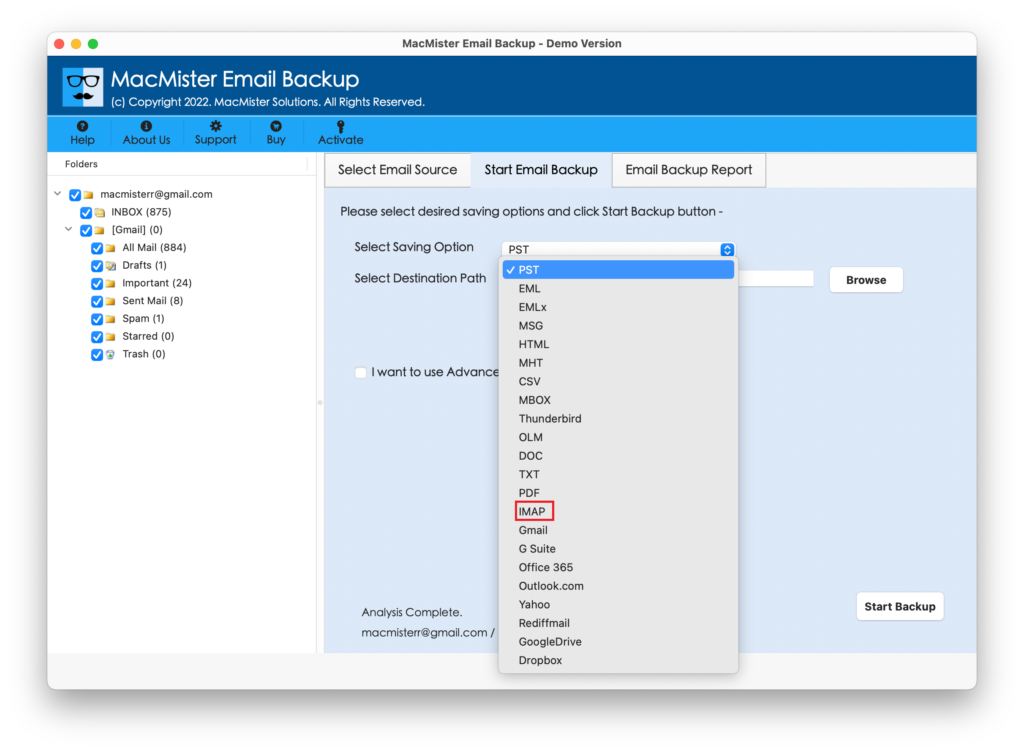
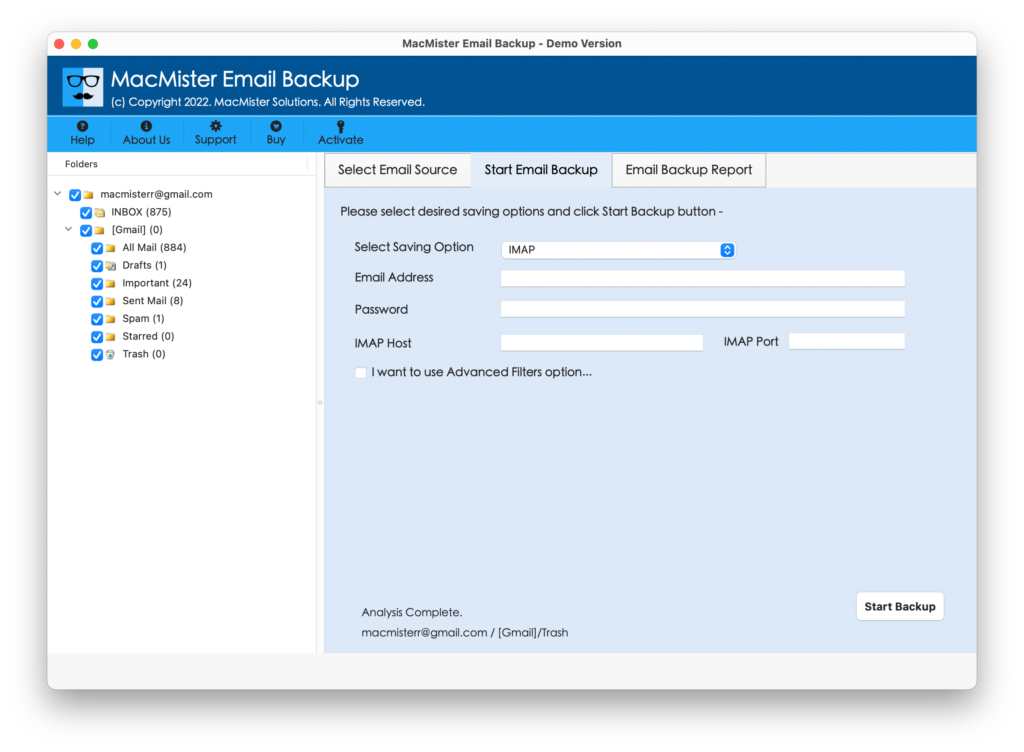
Step 5. Specify GoDaddy email ID with password, IMAP host, and port number. Set filters if you want to transfer specific GoDaddy emails into another GoDaddy account. Last, click on the Start Backup button.
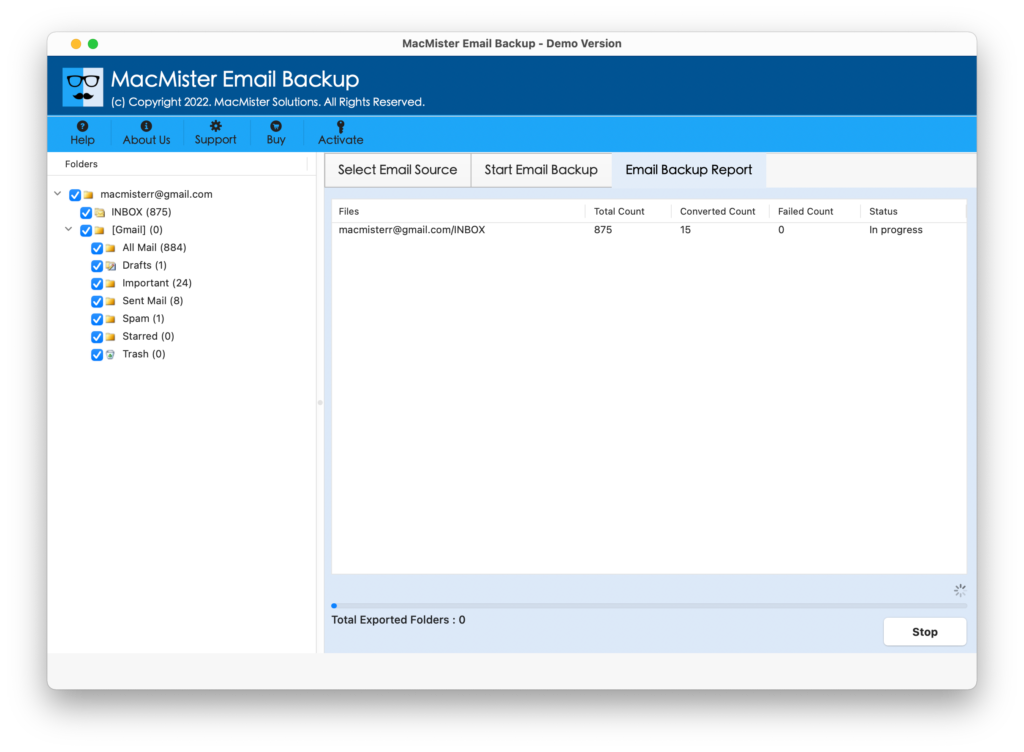
Step 6. The process will immediately start and show Email Backup Report window to users through which users can track the ongoing migration progress of GoDaddy emails.
The entire task takes minimum time to finish the process successfully and then users will receive Process Completed message to users. Click the OK button and go to the destination GoDaddy webmail account to check the result. However, you will see that all the email messages are ideally migrated and the formatting properties are also precise.
Epilogue
The write-up has highlighted two approaches for transferring GoDaddy email to another GoDaddy account on Mac & Windows. The first approach is manual and carries technical steps that need to be handled appropriately. The second approach is direct and capable of transferring unlimited GoDaddy emails to another GoDaddy account with 100% accuracy.
Moreover, it provides a free demo with the help of users who can explore the working of the software for free. It allows to transfer 25 GoDaddy emails to another GoDaddy account free of cost. However, the choice is yours. Go ahead with the suitable method and perform the process in a short time.
Quick Note. For any assistance, contact MacMister Support.