How to Transfer SBCGlobal Email to Gmail on Mac & Windows?

Need a way out to transfer SBCGlobal email to Gmail on Mac? No worries, the blog is all you need! Go through the entire write-up and you will be able to successfully transfer SBCGlobal email to Gmail with attachments safely.
SBCGlobal is a popular email service provider that users use across the globe on several devices. It is known for delivering high-end security features and can also be synchronized with other email services for sending/receiving of emails. One can access SBCglobal email account with other email services as well as devices after configuring it with appropriate email settings.
SBCGlobal account can also be configured with Google Mail but in case you are not aware of how to do that, then in the further section we have discussed the steps. But, let’s understand the reasons first for transferring sbcglobal.net emails to Gmail account.
What are the Reasons to Transfer SBCGlobal Email to Gmail?
Currently, a wide range of users trust email for day-to-day professional communication. Every day, users receive unlimited emails and some are critical to some extent. And, keeping them on a platform that does not provide robust security measures can lead to data theft or even the account will become susceptible to malicious threats.
Gmail is considered as one of the reliable and prominent email services. Its remarkable security options safeguard user’s email account really well. The email service provider provide options such as 2-step verification, passkeys, Google prompt, 2-step verification phones, and more. This will protect the account and ensures the data protection stored in Google Mail account.
Not only this, we are mentioning other reasons also due to why users need to transfer SBCGlobal email to Gmail account.
- SBCGlobal unexpectedly stopped working in the middle but Gmail is responsive and does not create issues in-between of the task.
- Logging with SBCGlobal account in iPhone leads to error messages many times but Gmail is easy-to-use on most of the devices and work without giving any trouble to users.
- User’s sometimes need to deal with “SBCGlobal email not working” error. While users will not find any such errors when working with Google Mail.
How to Transfer SBCGlobal Email to Gmail on Mac & Windows?
There are basically two ways to transfer sbcglobal.net emails to Gmail account.
- Direct and Safe Approach
- Manual Approach
Let’s get started with the first method first and then we will discuss the manual solution.
Method 1. Directly Transfer SBCglobal Email to Gmail
You can use MacMister IMAP Backup Tool for Mac & Windows to directly transfer SBCGlobal email to Gmail with attachments. The application has a simple and safe platform that any individual can use without any worries and transfer unlimited SBCGlobal emails to Gmail at once. Even, the steps are easy-to-operate. In just few seconds, users will get all their necessary emails from sbcglobal.net account into Google Mail profile.
Moreover, there are plenty of features and options present that SBCGlobal users can apply as per their requirements to get the desired results. However, the trial edition of the software is available that will help users in exploring the complete processing of the tool for free.
Working Steps to Transfer SBCGlobal Email to Gmail on Mac
Step 1. Download & Run SBCGlobal to Gmail Backup Tool for Mac on a macOS machine.
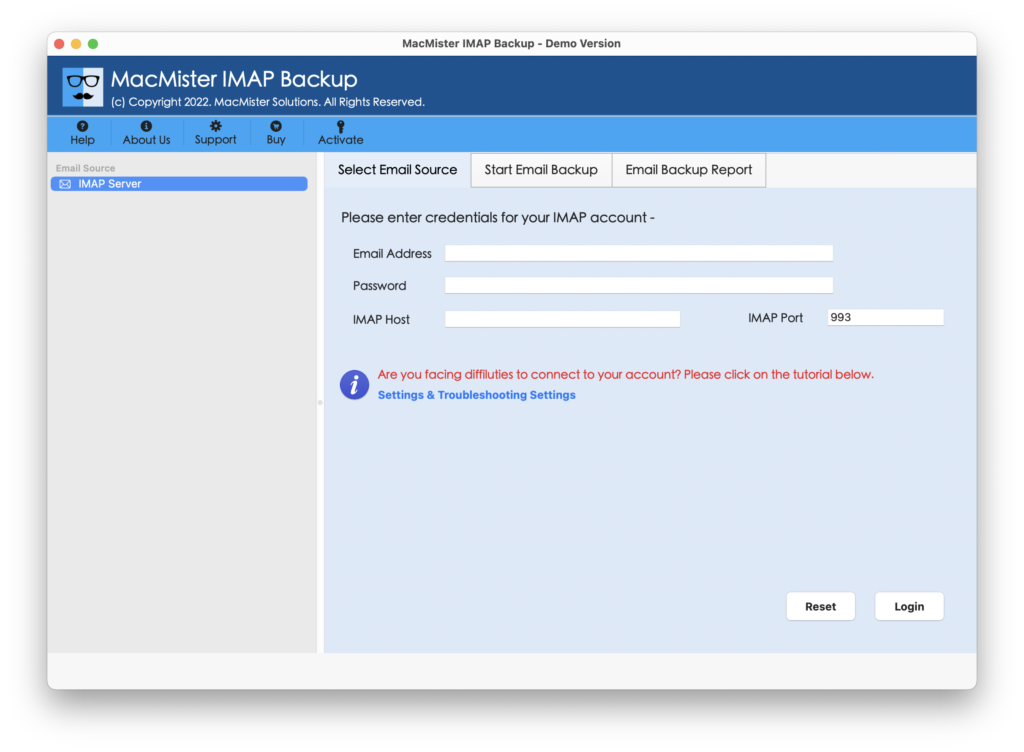
Step 2. Provide SBCGlobal account details i.e. email ID, password, IMAP host, and port number, and press the Login button.
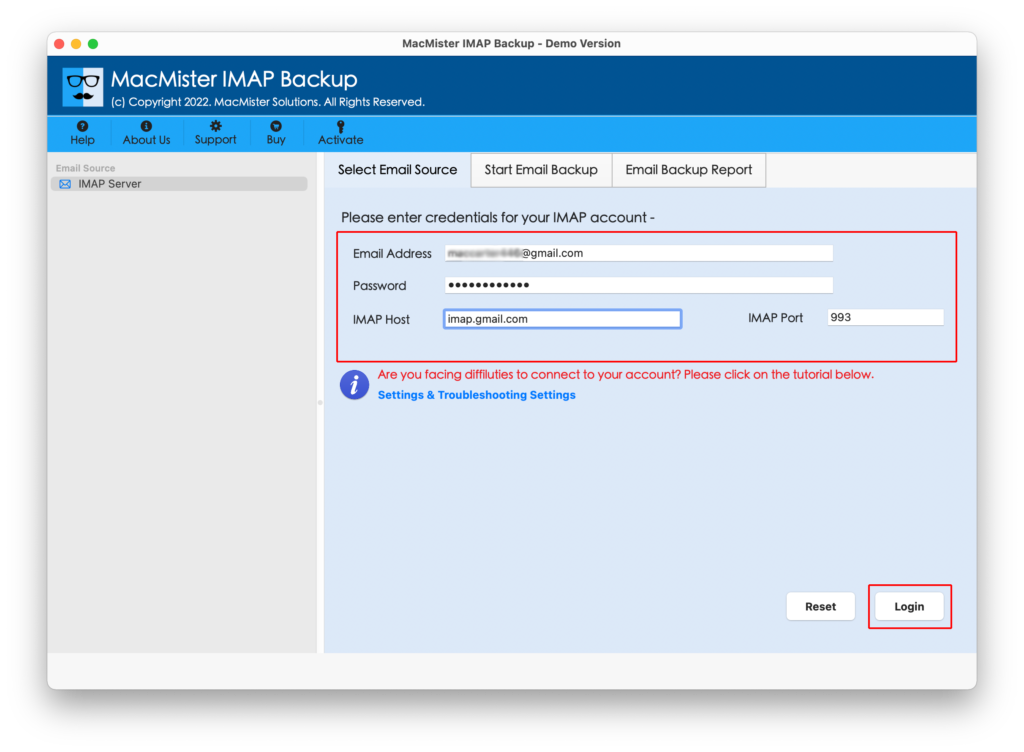
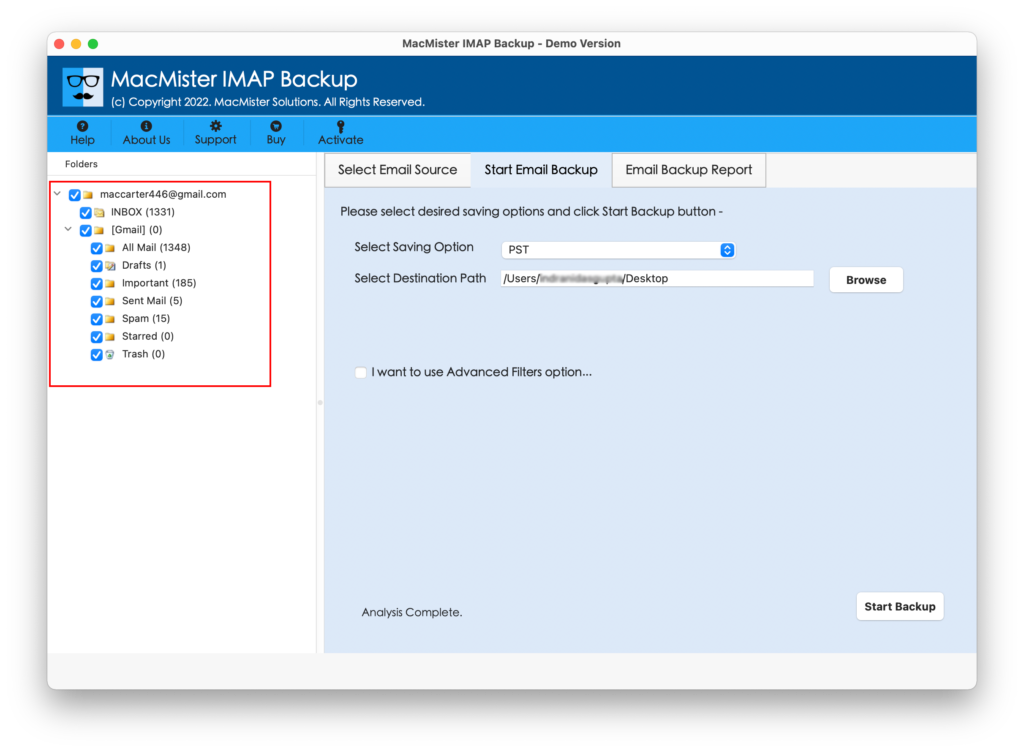
Step 3. The SBCGlobal account connects with the tool and its mailboxes start listing on the software panel one-by-one.
Step 4. Go to Select Saving Options and select Gmail option from the menu.
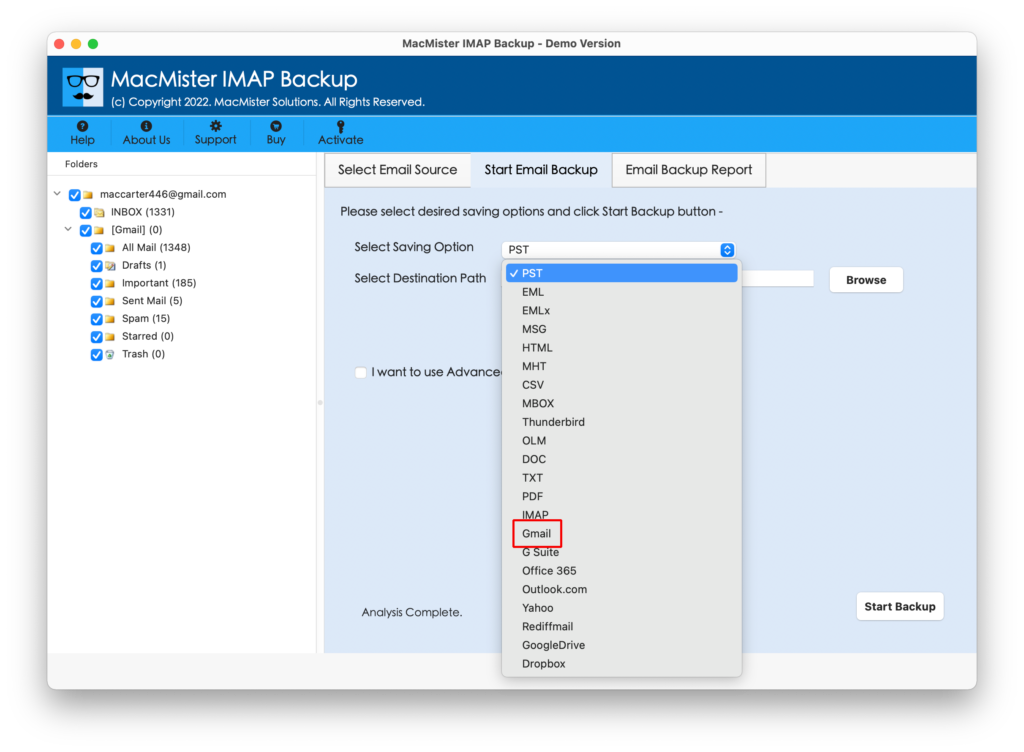
Step 5. Enter Gmail details i.e. email address and app password. Apply Filters according to the requirements and click on Start Backup button.

Step 6. The procedure is live and the tool will show Email Backup Report window through which users can track the ongoing transfer progress of SBCGlobal emails.
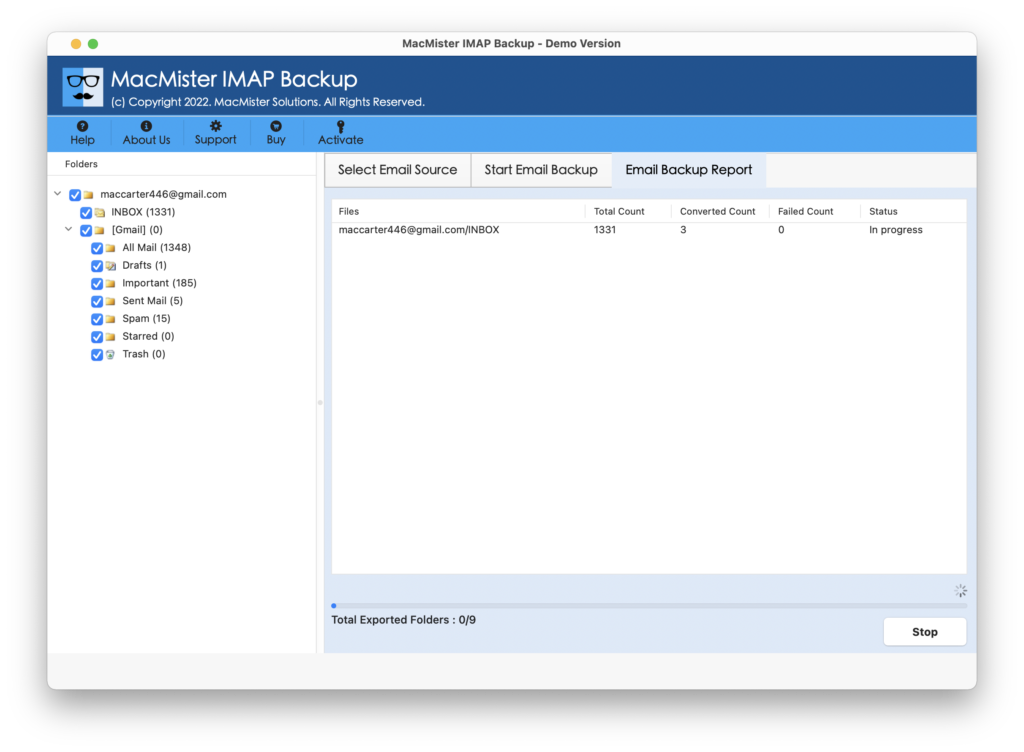
The whole task will finish in a minimum time and user’s will get Process Completed pop-up on their screen. Click the OK button and then login to Google Mail account to check the transferred emails. However, you will see that the data is appearing without any modification and even the formatting properties are in accurate form.
Method 2. Manually Transfer SBCglobal Email to Gmail
- Go to www.gmail.com and login to Gmail account using the required credentials.
- Click the gear icon appearing at the top-right window of Gmail that represent Settings and click on See all Settings option.
- Now, navigate to Accounts & Import and click Add a mail account option.
- Enter SBCGlobal account details in the required fields and click Next.
- In POP Server, type inbound.att.net and enter 995 in IMAP port.
- Select the checkbox of Leave a copy of retrieved message on the server. By enabling it, the messages will be saved and Gmail will not prevent them from deleting.
- Simultaneously select Always use a secure connection (SSL) when retrieving mailbox with Label incoming messages that right away come from sbcglobal.net account.
- Tap Add Account option to transfer SBCGlobal email account to Google Mail and then wait for a few minutes.
- Log out Gmail account and again log in to your Gmail profile to check if the SBCGlobal account is added or not.
By implementing the above-mentioned steps, you will be able to successfully transfer SBCGlobal email to Gmail account. But, the procedure needs to be handled carefully. Make sure that you are performing the manual process under an expert’s supervision. Because the missed of a single step can cause chaos.
Epilogue
The write-up has discussed multiple approaches for transferring SBCGlobal email to Gmail account. The first method i.e. MacMister SBCGlobal Email Backup Software Mac & Windows is an intelligent solution that is safe and reliable to use. Any individual can operate it without any hassle and perform the process within seconds.
Moreover, a free demo is available that helps users to transfer the first 25 SBCGlobal emails to Gmail free of cost. The second method can be a little worrisome as it requires the support of skilled professionals and needs to be careful with the steps. So, make sure to opt for the right method and perform the process appropriately.