How to Transfer TalkTalk Emails to Gmail with Simple & Effective Methods?
If you are one of those users who need to urgently transfer TalkTalk emails to Gmail, then you are at the right place. Here, the write-up will assist you to do exactly what needs to be done so that not only the existing emails but also the new emails will automatically redirect from the TalkTalk to Gmail environment.
However, let us first explore the differences between the two that force migration from TalkTalk Mail to Google Mail account.
Overview – TalkTalk Vs Gmail
The comparison between them will surely help you understand why a lot of people choose Gmail over TalkTalk.
- TalkTalk requires active premium subscription. One needs to pay £5 monthly to continue using TalkTalk Mail Plus.
- Gmail is however free to use, although it also has paid plans but most of the services are covered in free version.
- TalkTalk services are applicable in limited geographical area i.e. UK.
- Gmail can be used worldwide.
- Gmail offer accessibility to 50+ other applications and tools for free of charge such as Sheets, Google Drive, Slides, etc.
- TalkTalk Mail is only an email service.
- Enhanced AI-centric automation and other services are available in Google Mail which is extracted straight away from the proprietary Gemini models.
- TalkTalk possesses limited AI features that only facilitate basic editing.
How to Transfer TalkTalk Emails to Gmail Manually?
There are multiple ways present to retrieve emails from TalkTalk into Gmail or utilize Gmail inbuilt function to extract email data. However, to implement the process, follow the steps mentioned below –
Step 1. Login to TalkTalk Webmail account.
Step 2. Choose single or multiple email messages.
Step 3. Go to Forward icon (arrow pointing towards right) in the toolbar and click the same.
Step 4. Then, make use of the More actions icon present in the detail view or in the content menu within email list view.
Step 5. Select Gmail as the recipient.
Step 6. Enter the required details for email forwarding and press Send.
Alternative Manual Approach –
Step 1. Within Gmail profile, go to gear icon that represent Settings.
Step 2. Click “See all Settings”.
Step 3. Navigate towards Accounts & Import tab.
Step 4. Go to Import mail and contacts link.
Step 5. A small screen will display at the top left side of the window. Expand it and finish the instructions accordingly.
After executing the above steps, users will see that all their TalkTalk emails will start forwarding to Gmail profile.
Both the method works well, but you need to repeat them everytime there is a requirement to access TalkTalk emails into Gmail account. If you have a lot of time, then manual approach is suitable. In case you need a quick, secure, time-saving, and trouble-free method, then use the solution discussed in the next segment.
Automated Approach to Transfer TalkTalk Email to Gmail
Another instant and secure way to transfer TalkTalk email to Gmail account is MacMister IMAP Backup Tool Mac & Windows.The application is direct and carries an intuitive interface so that all types of users can operate the tool without issues and transfer TalkTalk emails into Google Mail with ease. With the help of the solution, users can add TalkTalk credentials with IMAP host and Port number, once the account is connected successfully, then they can easily transfer entire list of emails from TalkTalk to Gmail without data loss.
Furthermore, users will encounter many beneficial features in the same that they can apply to obtain the desired results.
Now, follow the below steps to transfer TalkTalk emails to Gmail on Mac using automated solution –
Step 1. Install and run the app on a Mac-supported system.
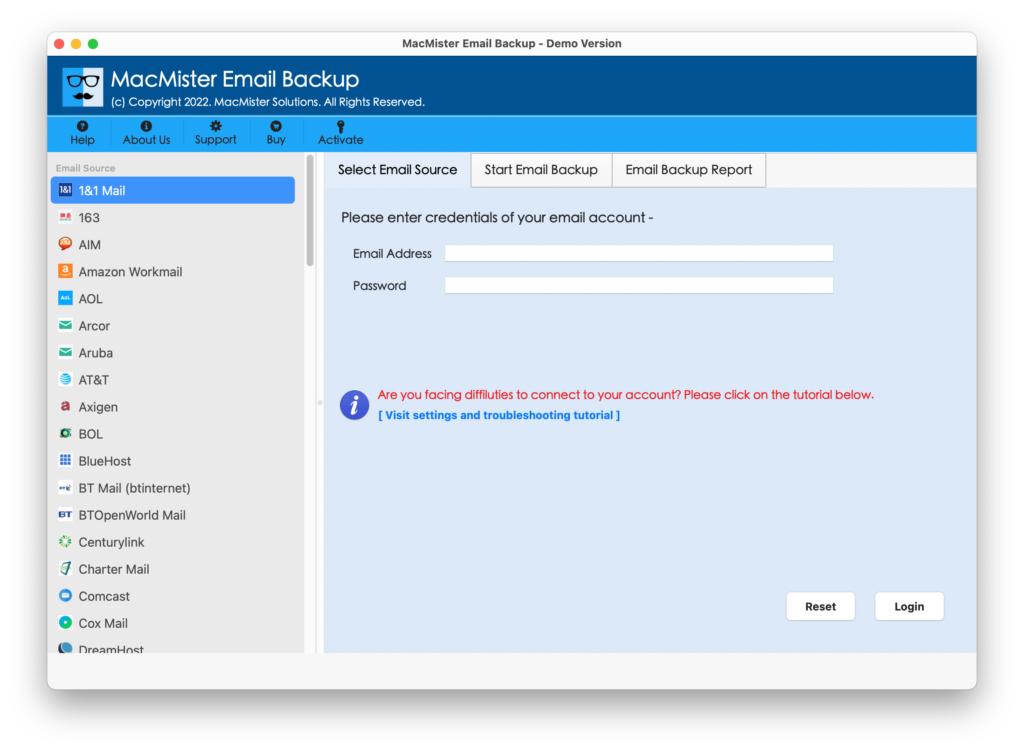
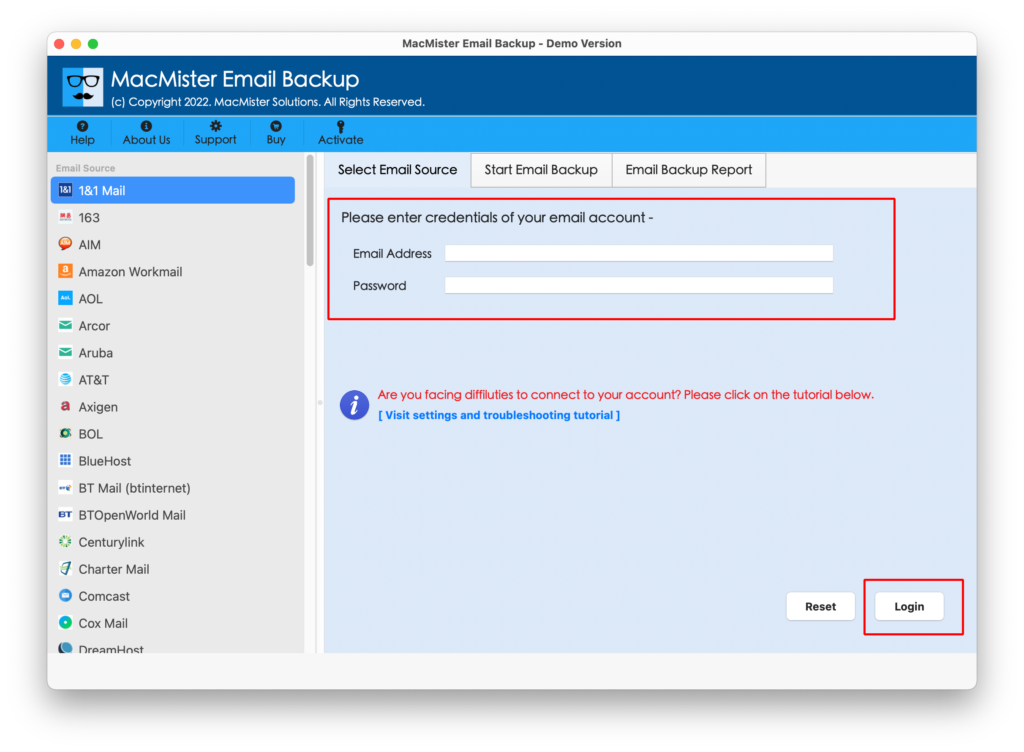
Step 2. Add TalkTalk credentials in required fields with IMAP host and port number. Then, tap Login button.
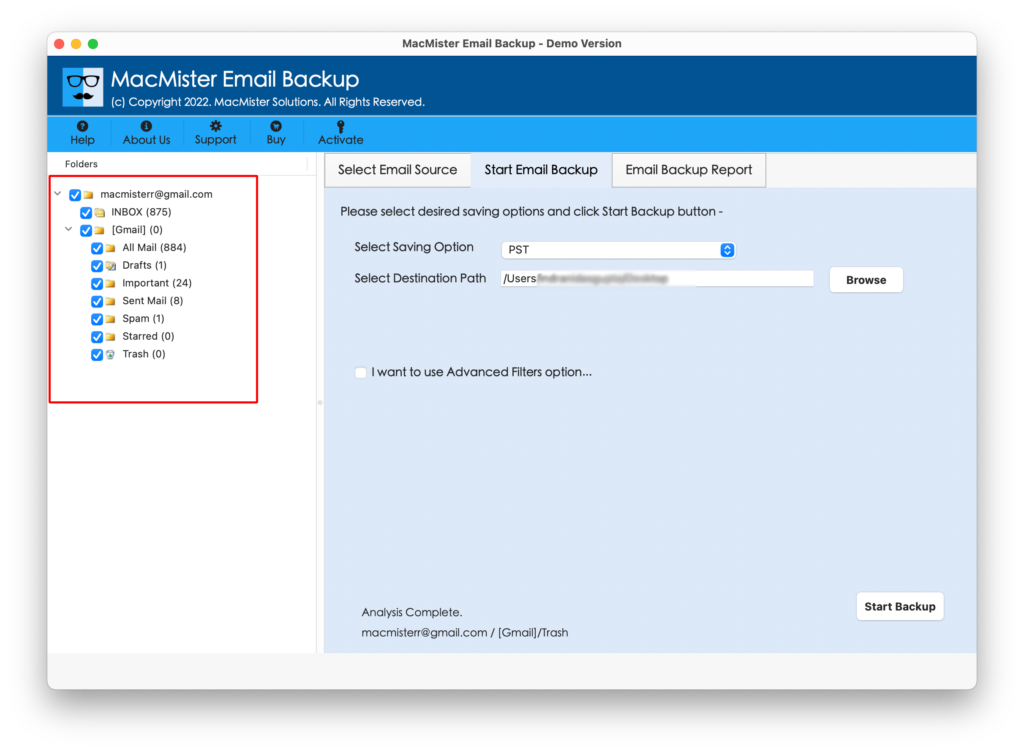
Step 3. The tool creates a connection with TalkTalk email account and lists its entire folder items on the left pane.
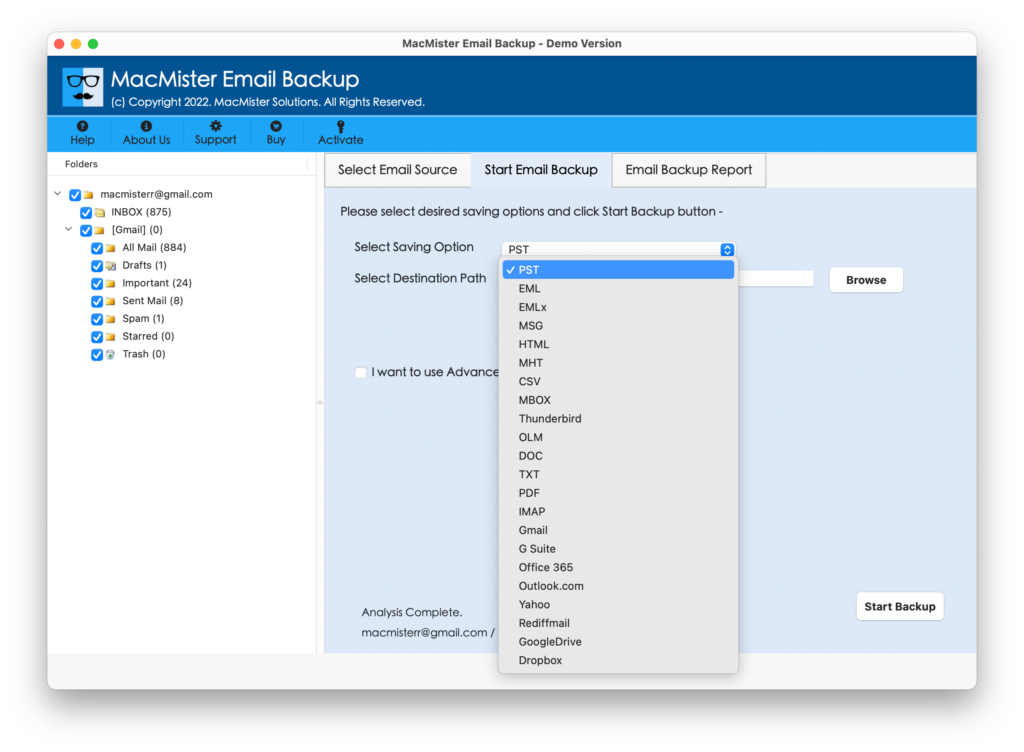
Step 4. Go to the right software pane, click Select Saving Options and choose Gmail saving type from the menu.
Step 5. Add Gmail login details, set filters (if required) and tap Start Backup button.
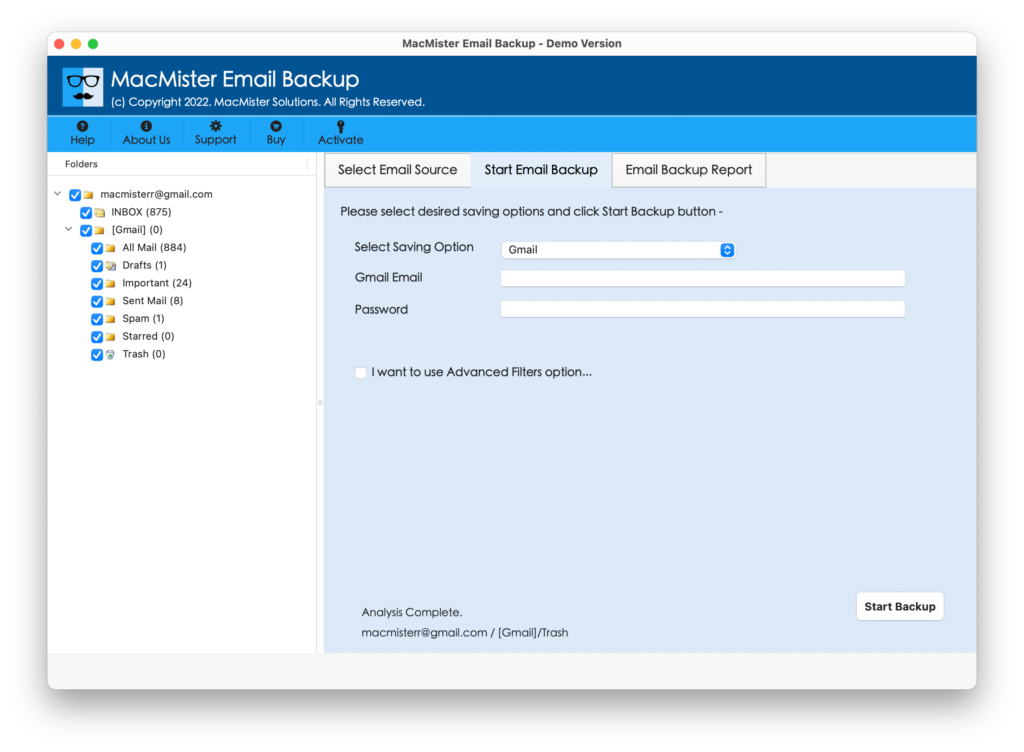
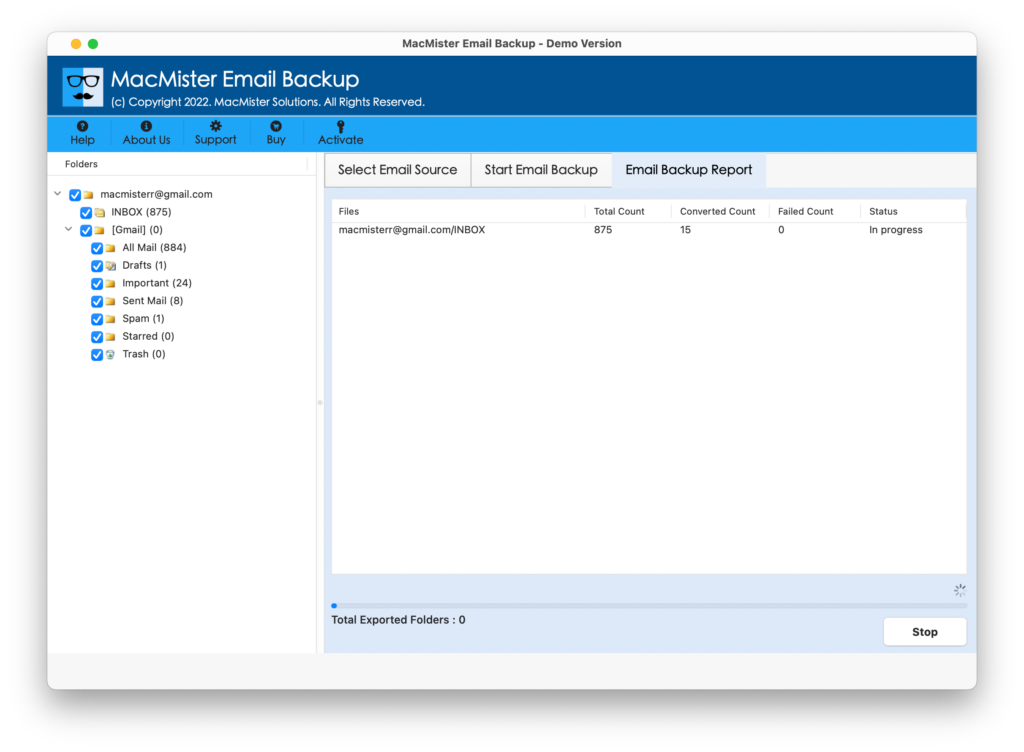
Step 6. The Email Backup Report window will display that highlights the live migration status of TalkTalk emails.
Within fraction of seconds, the task will finish and then “Process Completed” notification will appear on the screen. Click OK and then go to specified Gmail profile to check transferred TalkTalk emails. However, you will see that the app has successfully transferred TalkTalk emails into Gmail account. The entire TalkTalk email content will appear with correct and precise content, layout, and metadata properties.
Remarkable Benefits of the Application
- Directly transfer TalkTalk emails to Gmail account with attachments.
- Built with a friendly interface and easy operational clicks.
- Technical and novice users can perform the operation without expertise help.
- With Gmail, offers 15+ more saving types for email transfer.
- Protects the text originality of TalkTalk emails during the process.
- Different Filter options are available to transfer specific TalkTalk emails into Google Mail profile.
- Windows and Mac users can utilize the app as it is available for both the operating systems.
Epilogue
In the write-up, we have explored different approaches to fix how to transfer TalkTalk emails to Gmail account. The manual approach is free but is only suitable for the ones who are not in a rush. The automated approach is useful when users need to quickly transfer emails from TalkTalk to Gmail with 100% accuracy. It is paid but delivers powerful results in less time. However, MacMister also has Email Backup Software Mac & Windows utility which includes 30+ email sources for migration. Users can make use of the app to import emails from AOL, DreamHost, Comcast, Microsoft 365, ProtonMail, and more.