What causes Outlook Data File (PST) Corruption and How to fix it?
If you are encountering PST file corruption on a regular basis, then you are not alone in this. Several Outlook users get upset when they encounter missing emails, disrupted workflows, and inaccessible contacts. However, PST file corruption may occur due to numerous reasons such as sudden crash of the system, hardware failures, large file sizes, and malware attacks. So, in the guide, we will go through “what causes Outlook data file (PST) corruption and how to fix it”. And in the end you will able to recover Outlook database and keep PST file healthy.
What causes PST File Corruption?
Before taking right measures to fix PST file corruption, it is essential to understand the reasons behind corrupt PST files. Some of them are mentioned here –
- The file size limit of older Outlook versions (2002 and earlier) is 2 GB. Newer versions support 50 GB but still the files are prone to corruption.
- Forcefully quitting Outlook during crash or power failure can damage PST file. Ensure to properly close Outlook and install UPS (Uninterruptible Power Supply) for any unanticipated power outages.
- The presence of malicious software can alter or destroy .pst files. Scan the system regularly using updated antivirus software to avoid file corruption in future.
- In case you hold PST on network drives or the system is synced with cloud services such as Dropbox or OneDrive, then this can also cause corruption. Thus, it is preferable to save PSTs on external or network drives.
- Due to bad hard disk, any file including PSTs can cause corruption. Make sure to run CHKDSK to check and fix errors on the disk.
- Outdated or defective add-ins such as third-party email tools may hinder PST integrity. It is necessary to update add-ins and remove the ones that are not required anymore.
- At times, opening PST files under incompatible Outlook version can cause corruption. So, it is essential to make use of correct Outlook version to access PST file smoothly.
Measures to take during Corruption
Below are some methods discussed which users can take help of in order to backup and repair PST file corruption error –
- Recover and Restore PST File from existing Backup
- Use Microsoft’s inbuilt Tool
- Get help of a Professional Solution
Now, let us explore all the methods in detail.
Method 1. Restore PST from Backup (If Available)
In case you possesses PST backup, then follow the steps below –
- Locate Outlook Data File backup (usually present in Documents\Outlook Files).
- Quit Outlook and replace damaged PST file with backup.
- Restart Outlook and confirm data recovery.
Tip. Enable AutoArchive or make use of Windows Backup to avoid data loss in future.
The method is implementable if PST file backup is present on the system.
- Go to backup location which is typically present in Documents\Outlook Files.
- Exit the app and replace corrupted PST with backup.
- Open the app again and verify restored data.
Tip. Make use of AutoArchive or Windows Backup to prevent data loss in future.
Method 2. Use Microsoft’s Inbuilt Tool (ScanPST.exe)
Microsoft Outlook is programmed with free inbuilt utility called ScanPST.exe (Inbox Repair Tool). Here’s how to utilize it –
- Locate ScanPST.exe by following the path discussed here –
- For Outlook 2019/365 –
- Go to C:\Program Files\Microsoft Office\root\Office 16\
- For Outlook 2016 –
- Go to C:\Program Files (x86)\Microsoft Office\root\Office 16\
In case you not able to find it, then go to File Explorer and search for scanpst.exe.
- Double-click on the file to open it.
- Tap Browse button and select corrupted .pst file.
- Click Start to start the scan session for errors.
- In case of any error, hit Repair andwait until the process completes.
- Afterwards, open MS Outlook and verify if the issue is solved.
Note. If ScanPST.exe failed to fix the issue, then there is a possibility of severe PST file corruption.
Method 3. Use Professional Solution
ScanPST.exe possesses high probability of failure as it is only suitable for basic fixes. To repair severe corruption, it is recommended to make use of a professional method i.e. MacMister PST Converter for Mac & Windows. It is an app that allows users to restore PST files into multiple saving options such as PDF, EML, HTML, DOC, TXT, OLM, Yahoo Mail, O365, and more. By doing this, one can protect PST data from any type of loss. The tool has wide ranging features and has been programmed with a free demo edition.
Follow the below working tutorial of the tool to repair and restore PST file –
Step 1. Download and run the application on macOS.
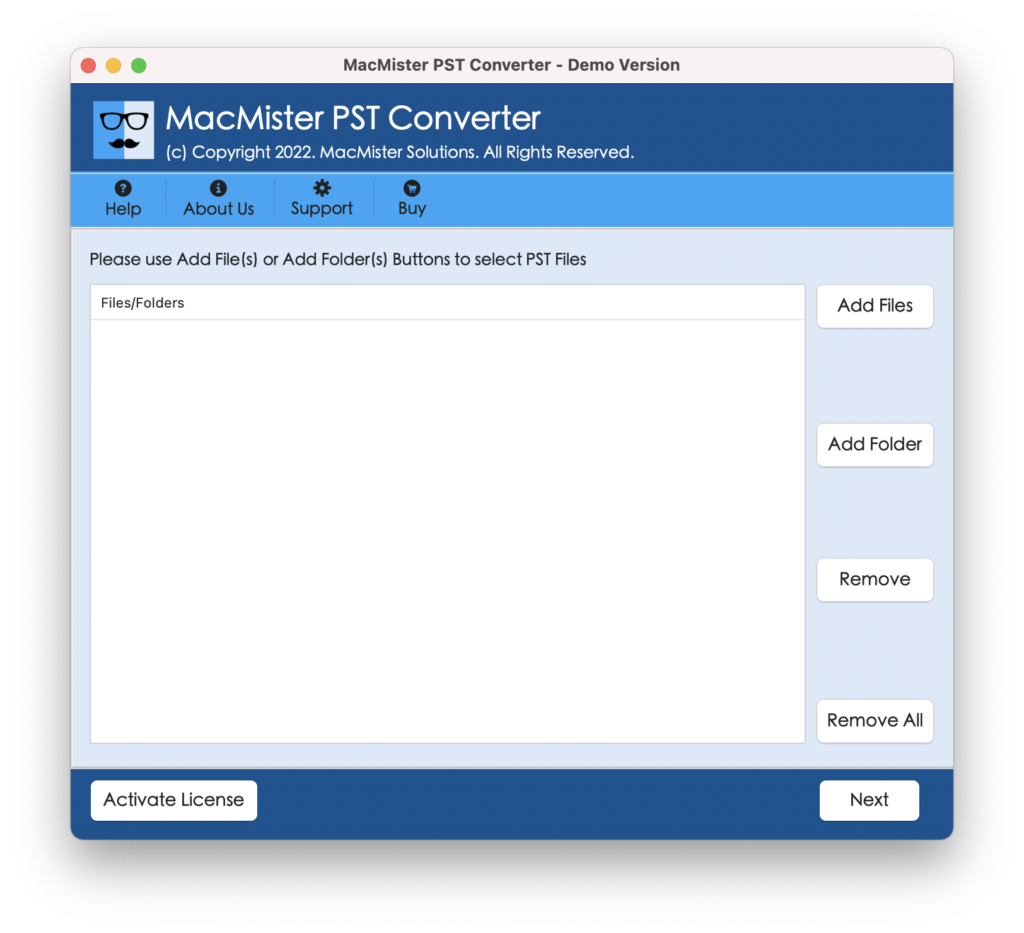
Step 2. Make use of Add File(s)/Add Folder buttons to load PST files for backup and click Next.
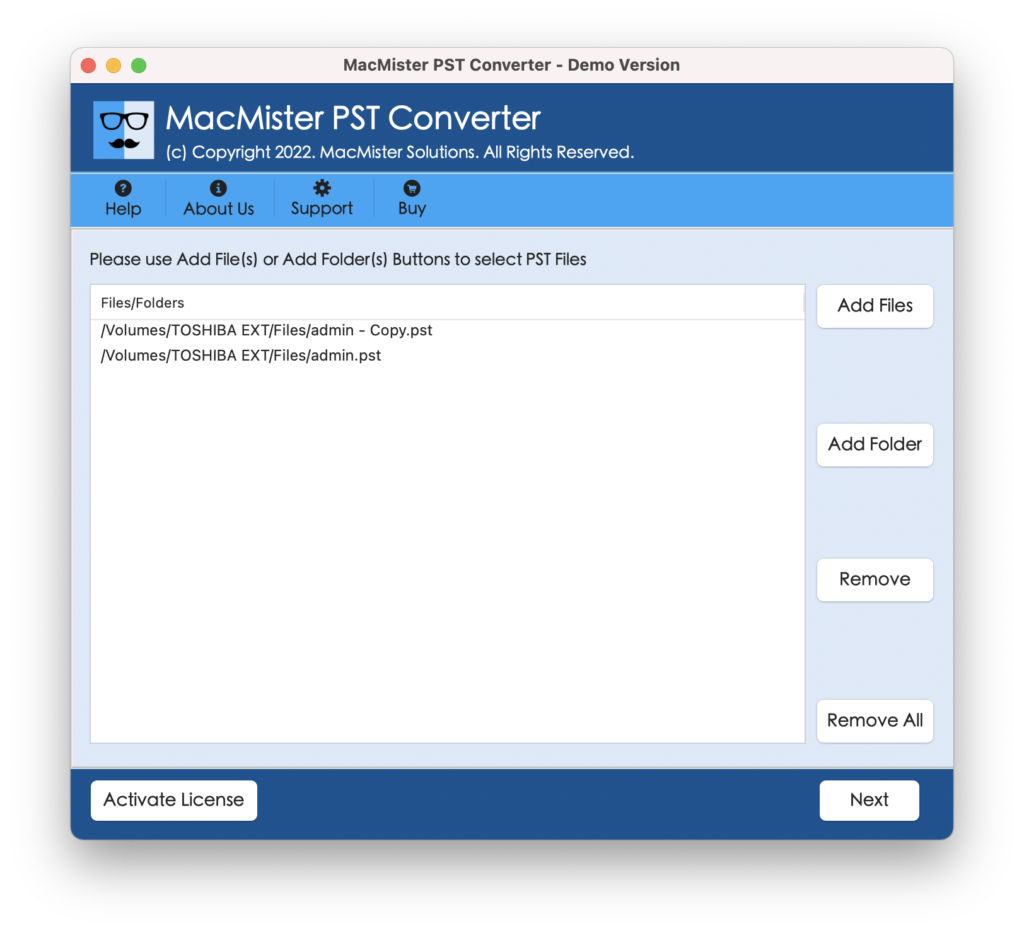
Step 3. Cross-check the files listed and press Next to continue.
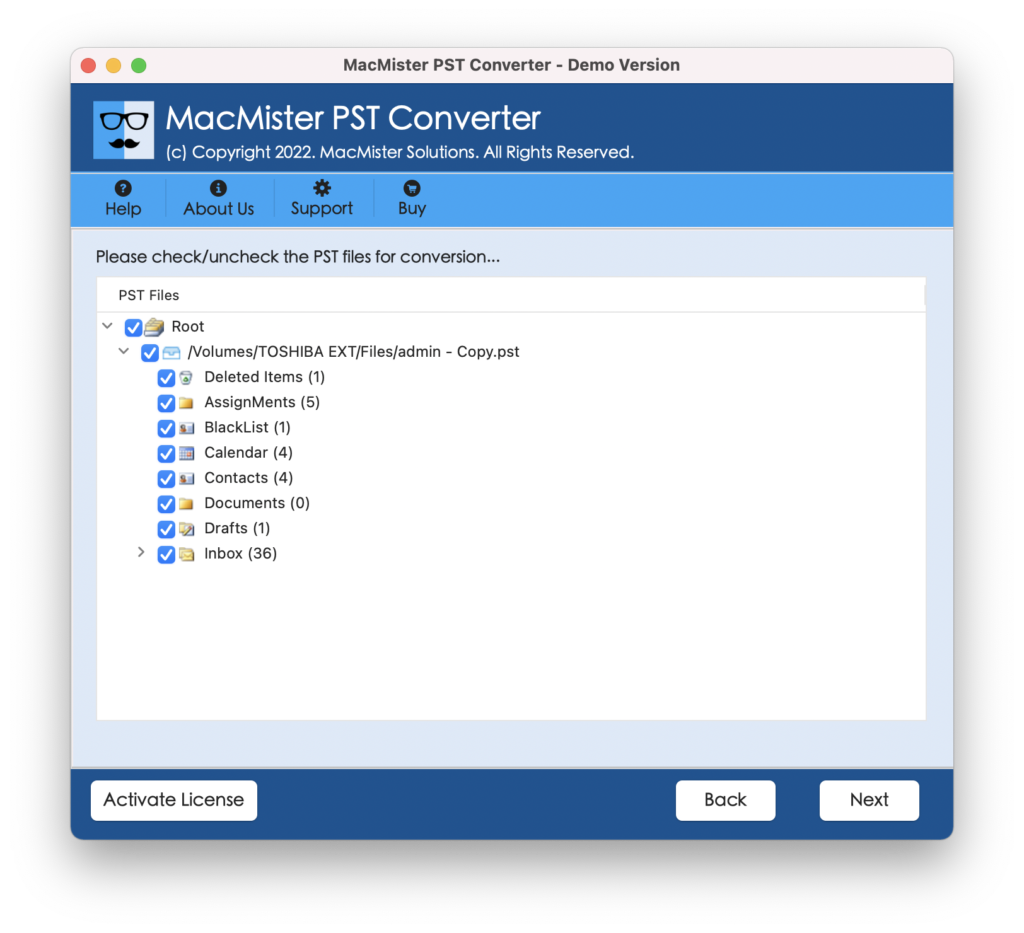
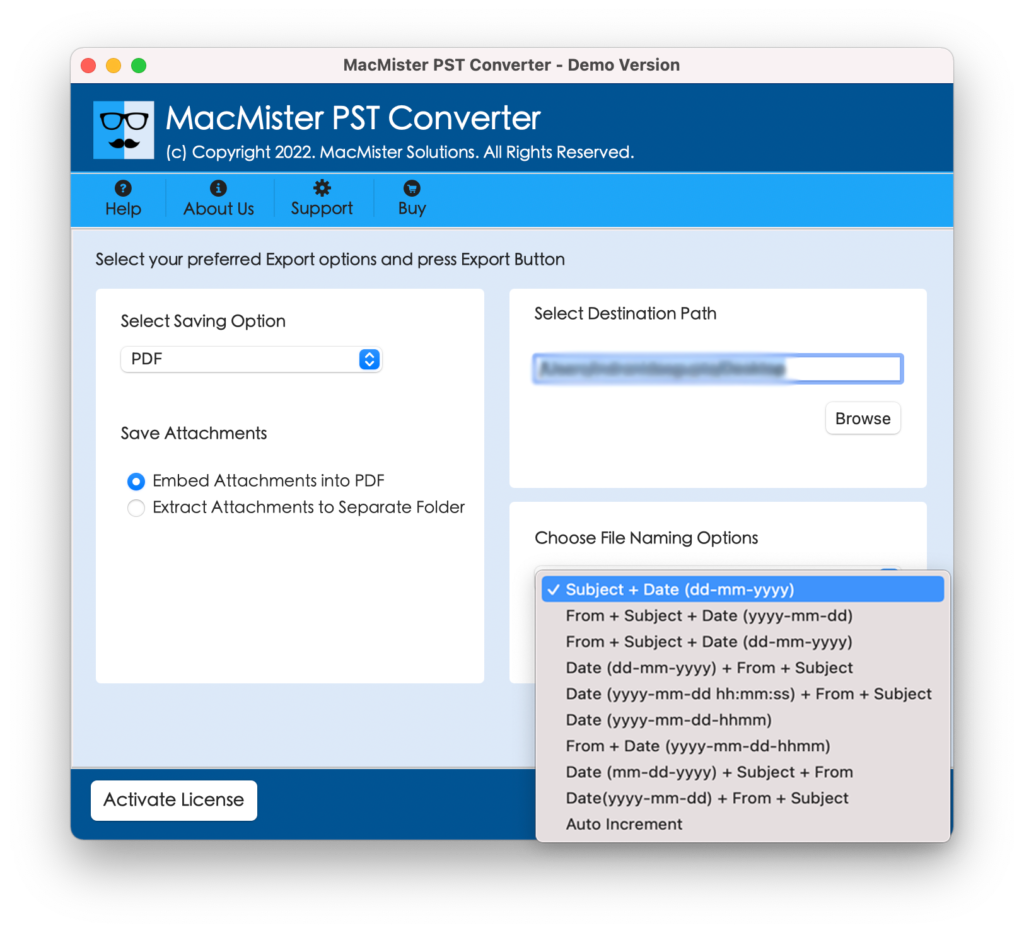
Step 4. Choose the required saving type from Select Saving Options.
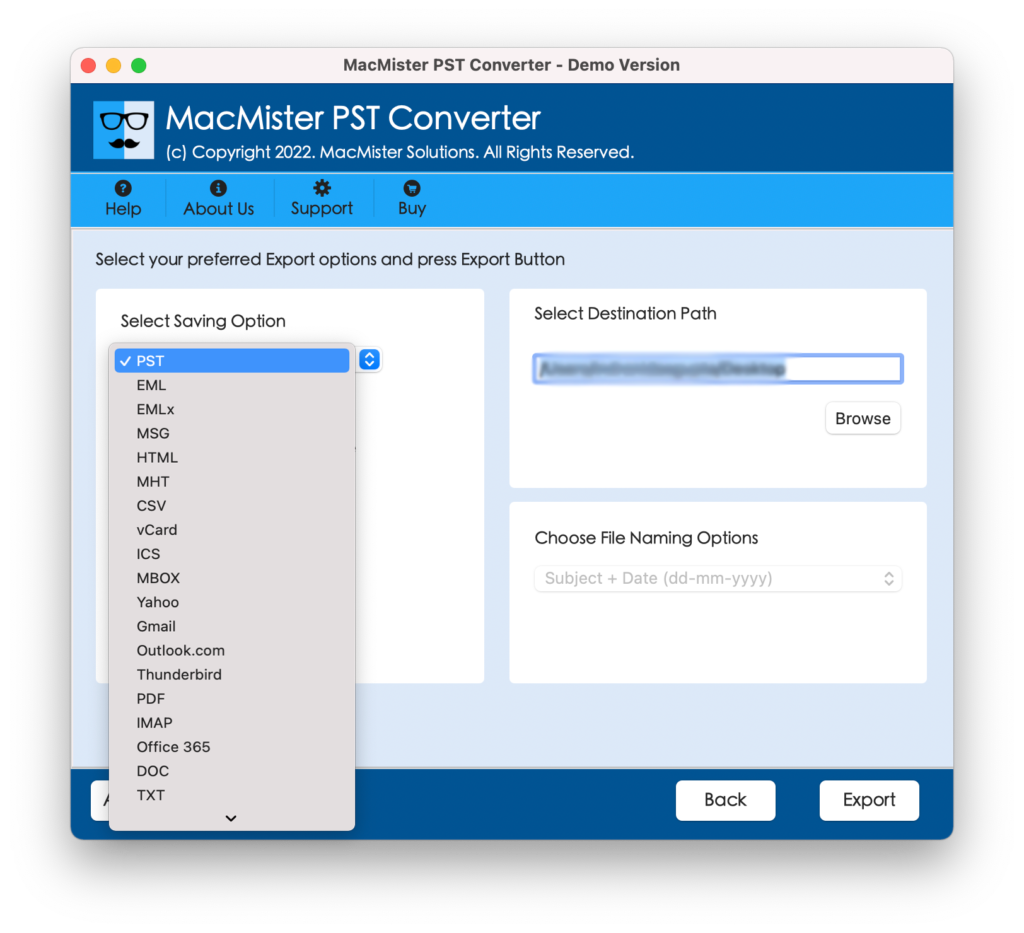
Step 5. Apply sub-options as per requirements and hit Export.
Step 6. The tool will open Live Conversion Report and show live backup status of PST files to users.
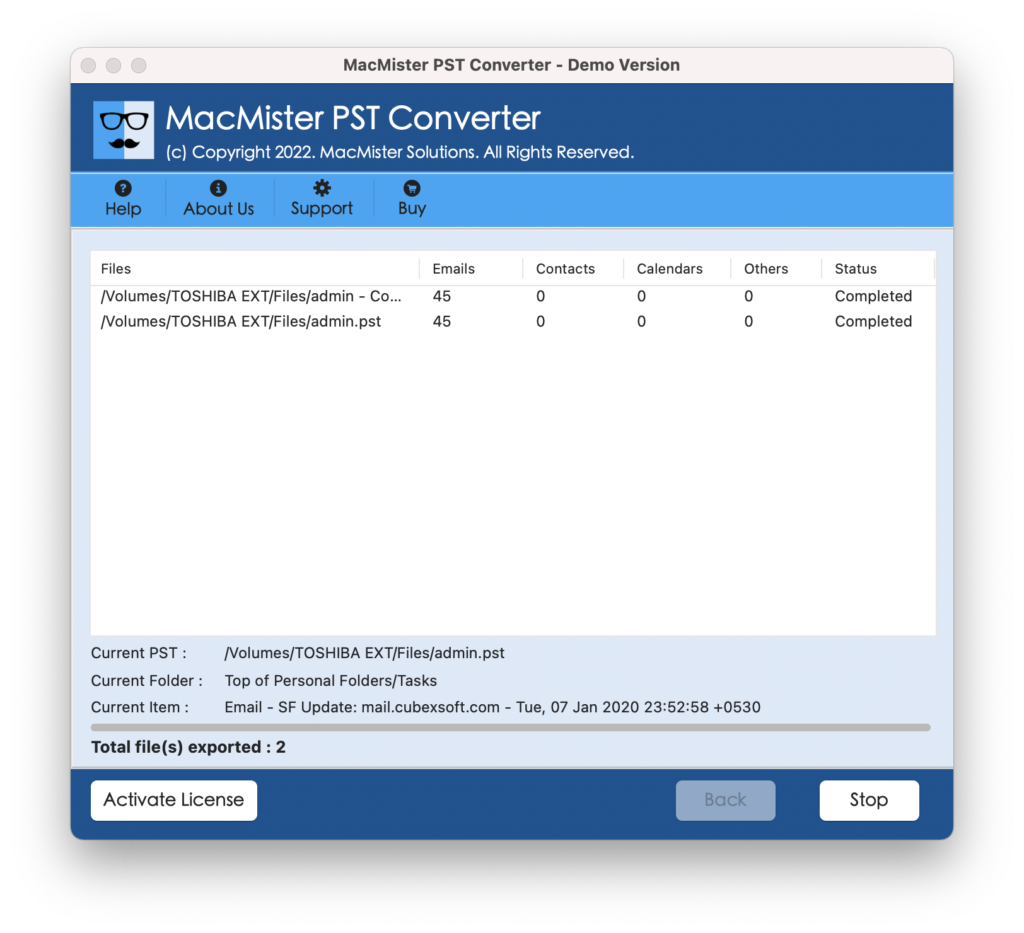
In few seconds, the process will end and Conversion Completed notification will appear on the screen. Click OK to close the same and then go to the specified location to check resultant files.
Pros – Able to restore PST files easily, supports 15+ saving types, large PST files are supported, available in Mac & Win OS versions.
Cons – Paid but worth it
How to Avoid PST File Corruption in Future?
If PST file is prone to corruption, then first and foremost thing is to repair it. Then, take the appropriate measures to avoid corruption in future –
- Reduce the size of PST.
- Take PST backup regularly.
- Ensure not to store PST on external drive and networks.
- Update Outlook and Windows versions whenever they are available.
- Make use of Outlook in safe mode for troubleshooting.
Each solution is explained separately in the further segments of a write-up.
Fix 1. Reduce the Size of PST to Avoid Corruption
If PST files are quite large in size, then there are chances of corruption. So, make sure not to let them exceed 20GB even when Outlook supports 50 GB. Below are the steps to reduce PST file size –
Archiving Old Emails
- Navigate to File, go to Info, select Cleanup Tools and tap Archive.
- Choose date range (e.g. emails older than a year).
- Select desired location to save archived files.
Erase Unnecessary Attached Files
- Make use of Outlook’s Search to search for large attachments: hasattachment: yes size>5MB.
- Delete or Save Attachments externally to free up space.
Compress PST File
- Click on File, select Account Settings and choose Data Files.
- Select PST file and tap Settings.
- Hit Compact Now to decrease file size.
Fix 2. Take PST Backup Regularly
- Copy PST file manually to external drive or cloud storage.
- Make use of Outlook’s AutoArchive feature by navigating to File, click Options, go to Advanced and select AutoArchive Settings.
Fix 3. Do not Store PST File in External Drives or Networks
Preserve PST files on a local C: drive for improved stability.
Fix 4. Update Windows and Outlook Regularly
Make sure to Update Windows and Outlook whenever updates are available as they will help in removing bugs that were present previously causing corruption in PST file.
Fix 5. Make use of Outlook in Safe Mode for Troubleshooting
- Hold Win + R and type: outlook.exe/safe
- If you are using PST in a safe mode, then faulty add-in could be a culprit.
Epilogue
If PST file is constantly getting corrupted, then it is advised to act upon it fast and take the measures discussed in the write-up –
- Restore PST from Backup.
- Use Microsoft’s Inbuilt Tool (scanpst.exe) to repair and fix PST file.
- Utilize Professional Tool.
Lastly, maintain PST file health through regular backup, Outlook updates, and smaller file size. Following such practices ensures protection of emails, contacts, and other PST data.