What is Neo Mail and How to Configure Neo Mail on Gmail Account?
After in-depth research by our Experts, they identified that several users encounter challenges while migrating or transferring emails from NEO Mail to modern email services. In the write-up, we will go through what is Neo Mail and how to configure Neo Mail on Gmail account. We will discuss both manual as well as verified automated solutions. After understanding both the techniques, opt for the suitable method and perform the task accordingly.
What is Neo Mail?
Neo Mail is a web-based emailing platform which is mainly offered by web hosting providers and educational institutions to facilitate users’ access and deal with emails through web-browser. It is equipped with necessary email functions such as sending, receiving, and organizing messages but lacks when it comes to new or advanced features. Due to why users think about moving their mailboxes to more powerful email services or platforms.
Why Users Need to Configure Neo Mail on Gmail Account?
Users set up Neo Mail into Google Mail account to merge professional, branded appearance of a custom domain email (e.g. name@yourbusiness.com) with the familiar, well-functioning, and feature-rich interface of a Gmail platform. The configuration enables users to manage sending/receiving of business emails by utilizing custom address while gaining benefit from Gmail’s spam filters, mobile app, and interface familiarity, all at lower cost than its alternatives such as Google Workspace.
Main Reasons behind Configuring Neo Mail on a Gmail Profile
- Users require a custom domain email for reliability but prefer to handle all the correspondence in a single place (Gmail) that are already at ease using.
- Neo Mail delivers free domain and a lower-cost user-friendly, business-class email service that performs integration directly into Gmail, making it perfect for small businesses.
- Helps managing multiple email address domain such as info@ or support@ in a single Google Mail account, improving efficiency.
- While making use of Gmail’s interface, one can still have access to Neo’s feature such as read receipts, signature designers, and email tracking.
- Includes superior security, high email deliverability, and better backup that can be directly handled through Gmail’s third-party app access.
- It is budget-friendly, easy to set up and a great alternative of Google Workspace, enabling users to avoid difficult technical setups.
How to Configure Neo Mail on Gmail Account? – Manual & Automated Solution
Method 1. Manually Configure Neo Mail on Gmail profile
To configure Neo Mail on a Google Mail account, make use of POP3 to receive email and SMTP to send, allowing managing business email within Gmail interface. Go to Gmail Settings, click Accounts, and select Add a Mail Account by making use of incoming server imap0001.neo.space with port 993 and outgoing server smtp0001.neo.space with port 465 with enabled SSL/TLS.
Working Tutorial to Configure Neo Mail on Gmail Account
- Go to Gmail and click Cog icon representing Settings that appears at the top-right of the profile window and click See all Settings option.
- Navigate towards Accounts & Import tab and click Add a Mail Account appears under Check mail from other accounts.
- Type complete Neo Mail address and tap Next. Then, select Import emails from my other account (POP3) and tap Next.
- Apply below POP3 Settings (Incoming) –
- Username – Full Neo Email Address
- Password – Neo email ID password
- POP Server – imap0001.neo.space
- Port – 993 (or 995 if 993 fails)
- Select the checkbox of “Leave a copy of retrieved messages on the server” to make sure that the mail is still accessible through Neo web interface. Select “Always use a secure connection (SSL)”.
- Set SMTP Settings (Outgoing)
- After POP is set up successfully, select “Yes I want to able to send mail as…”
- SMTP Server – smtp0001.neo.space
- Port – 465
- Add Username & Password as same as above
- Choose SSL/TLS
- Tap Add Account and a verification email will be sent to Neo mailbox. Click that link for confirmation.
Note. Make sure the third-party email access is enabled in your Neo Mail account.
Method 2. Professional Way to Add Neo Mail Emails to Gmail Account
The professional direct process to add Neo Mail emails to Gmail account is MacMister IMAP Backup Tool Mac & Windows. The application is user-friendly, effective, and highly secure. Users with professional and novice users can easily operate the tool and import Neo emails into Gmail directly.
It is built with exceptional features that help users in transferring Neo emails into Gmail account with attachments as per requirements. However, one can use the free demo of the app and explore the detailed migration process for free.
Steps to Add or Import Neo Emails in a Gmail Profile on Mac
Step 1. Download, install and run the app on a Mac machine.
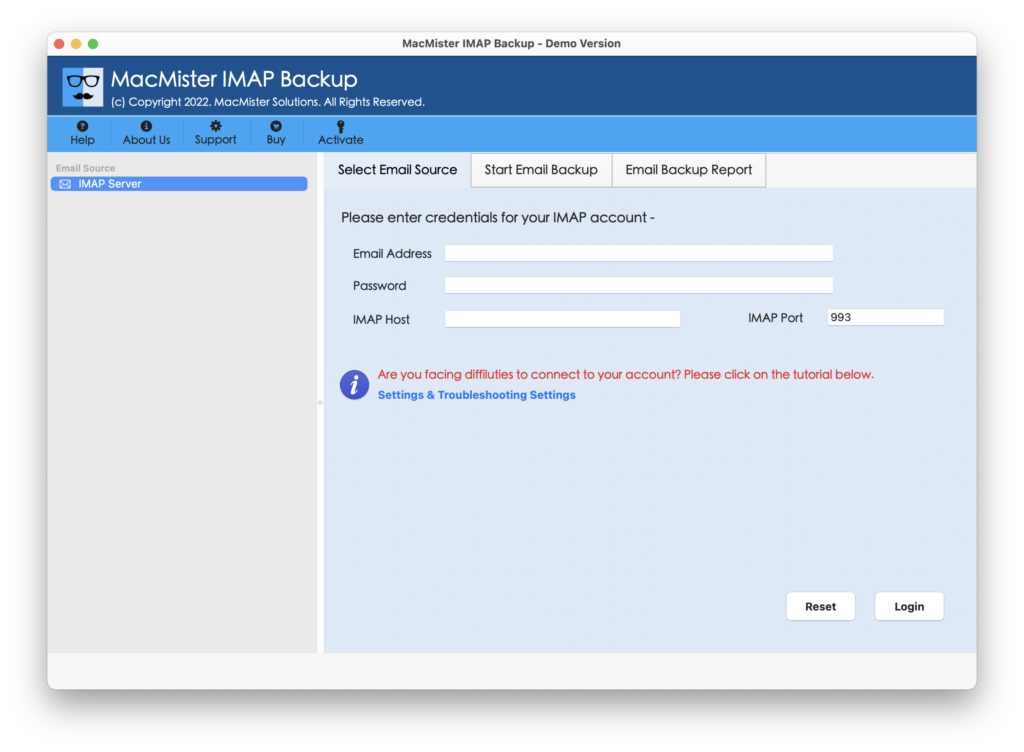
Step 2. Add Neo credentials with IMAP host and Port Number and tap Login button.
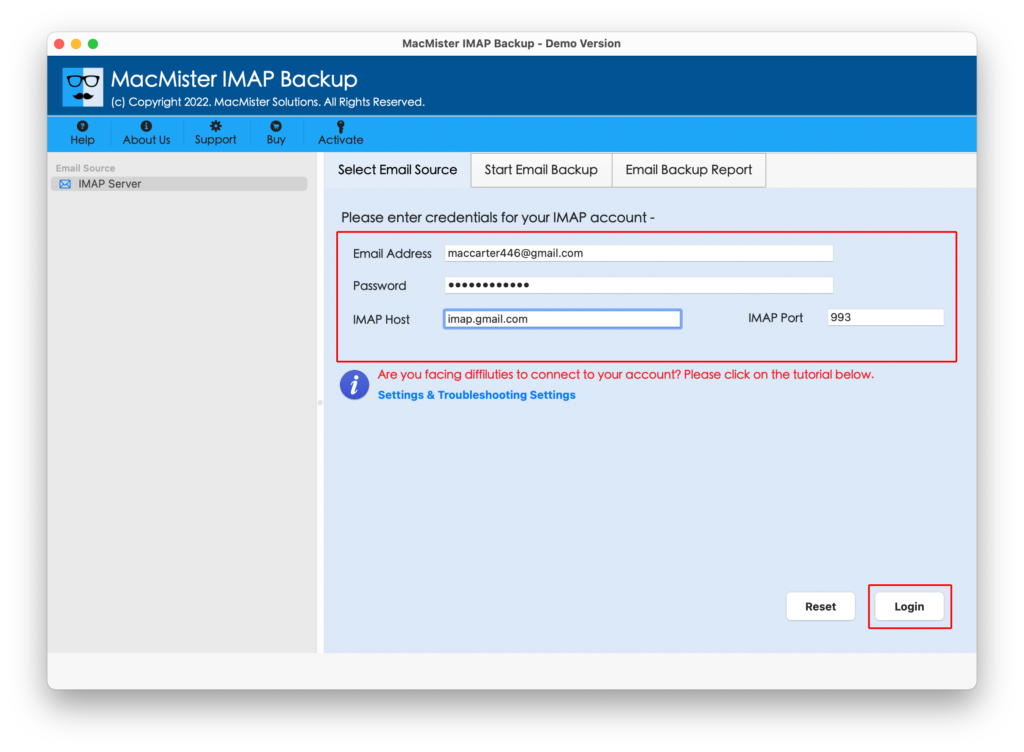
Step 3. After Neo Mail is connected, the tool start listing its mailboxes on the left pane of the app. Verify them and continue further by navigating to the right side of the tool.
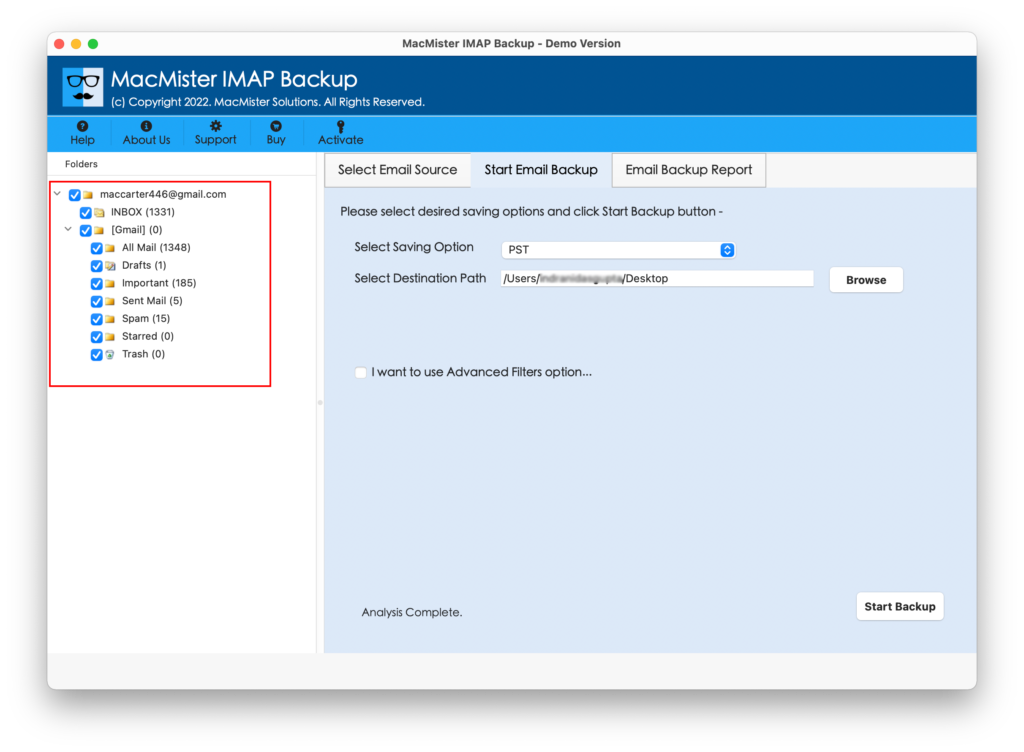
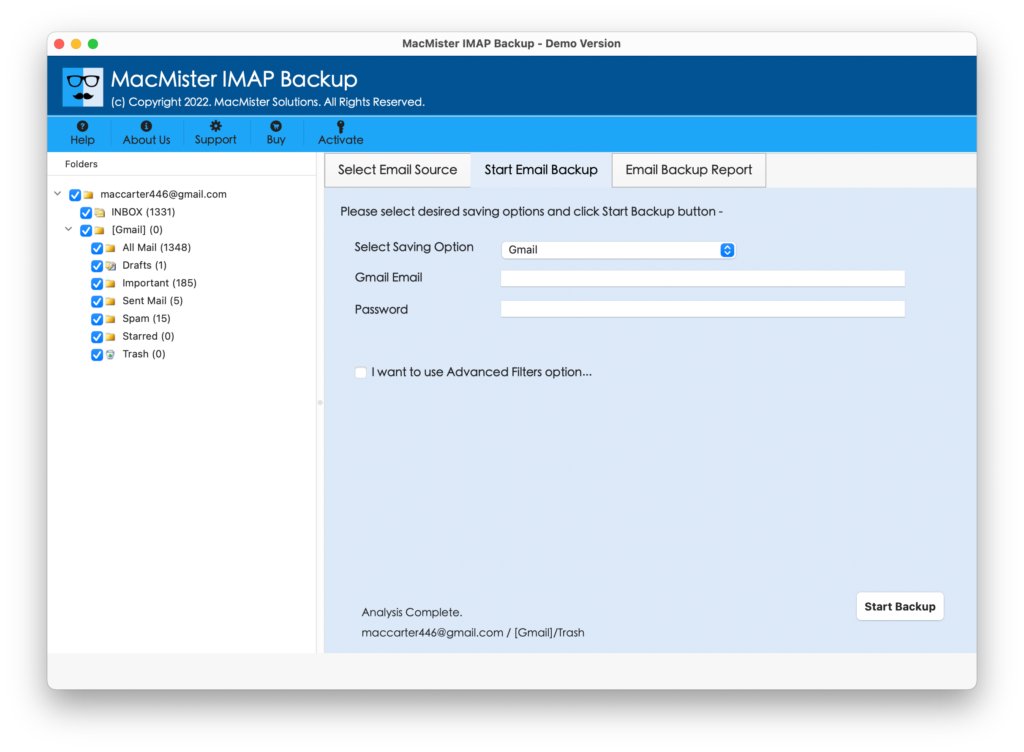
Step 4. Click Select Saving Options and choose Gmail from the menu.
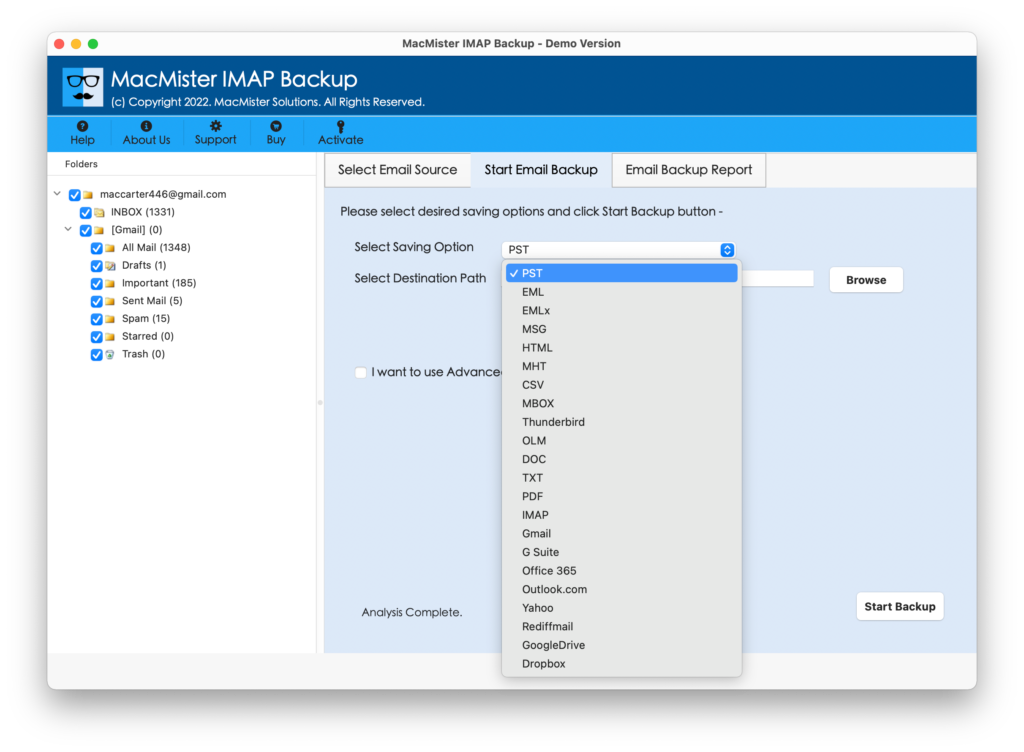
Step 5. Add Gmail email ID and app password in required fields. Set sub-options accordingly. And click Start Backup button.
Step 6. Go through the live Email Backup Report to check the live import status of Neo Mail account.
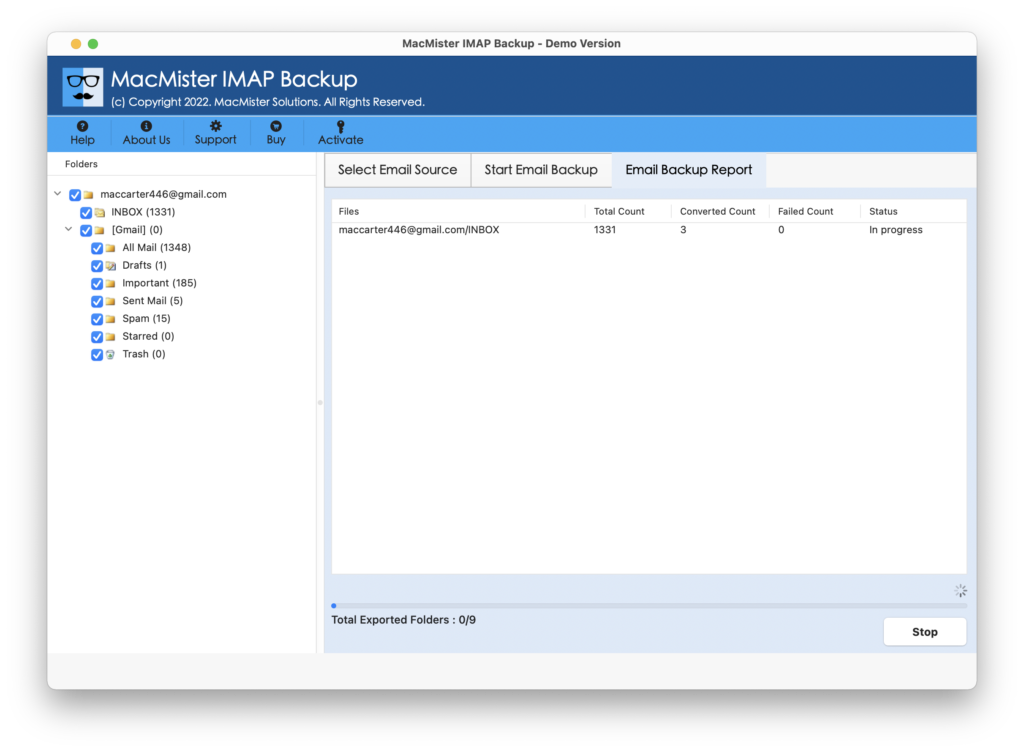
Within seconds, the task will end and then “Process Completed” notification will appear on the screen. Click OK to close the message and then login to a specified Gmail profile to cross-check imported Neo email files.
Overall, this is one of the easiest and safest procedure to access Neo emails in Gmail account.
Epilogue
The write-up here explained multiple approaches to configure Neo Mail on Gmail account. The first method is free to use but somewhat difficult to operate as the steps are lengthy and complex. Non-technical users will face challenges while configuring Neo Mail on Gmail manually. So, it is advised to take help of a professional solution. It is easy, simple, and quick. Anyone can easily connect with Neo Mail account and access its emails right away into Google Mail profile with 100% accuracy.