Why is Roundcube not Working? – [SOLVED]
Is your Roundcube webmail stopped working suddenly and now dealing with why is Roundcube not working properly? Searching for a quick and effective fixes for the same? No worries, simply read the following article which has explained about Roundcube and the common webmail errors that users go through sometimes. So without more ado, let’s get started!
What is Roundcube Webmail?
Roundcube is a software package that also delivers webmail service. A webmail is a web page that makes sure that the emails are loaded using IMAP protocol and can be viewed in a webmail or web page right away. However, it is a browser-based platform and thereby users can check their emails from anywhere anytime. So, in case you are on a vacation then you can use your laptop, tablet, or even mobile phone to straightaway login to your email account as Roundcube only requires good internet connectivity.
Quick Tip. Download Roundcube Email Backup Software for Mac & Windows and import Roundcube emails and attachments into 15+ saving options. Get free demo now and export first 25 Roundcube emails for free.
Roundcube is designed by PHP programming language and compatible with MySQL database. Thus, Roundcube can be virtually accessed on any web-browser and even enable users to create their own webmail & hosting the same on a hosting package.
Errors Messages in Roundcube
Here are some of the common error messages that occur while using Roundcube webmail service. We have discussed the issue related to every error message and also highlighted the solution for the same.
Error 1. Storage Server Unable to Connect
The Roundcube installation mostly uses IMAP protocol to connect through port 143 without SSL or 993 with SSL to the primary IMAP server. The IMAP Server that is configured in MX DNS records of the domain name not able to respond to the login attempt. But there are rare chances that it will respond but will not deliver the response that Roundcube was expecting.
Solution
At first, check through online TCP whether the domain name is responding to IMAP ports or not. You can perform the same with the help of below link –
https://check-host.net/check-tcp
Here, specify the domain name and mentioned the port number as 143 or 993.
Example entry: xyz.net:143 or xyz.net:993.
The tool will also verify if port 143 or 993 (IMAP Ports) is working and if there is any response.
Connection Timed Out Message
If in case you receive no response then it means that the webmail has an outage, or that the domain name is not appropriately linked, thereby email/IMAP server is not responding.
If there is a connection timed out, contact e-mail or hosting provider.
Connected
If you get connected message but still experiencing the error message in Roundcube, then there could be the disturbance in hosting provider or in your email setting. Also, if the problem persists, it is recommended to contact them so they encounter the root cause of the issue.
Error 2. Connection Error (Failed to reach the server)!
The error is similar as a previous error discussed above. So, it is advised to carry out the same solution to make your webmail working as previously.
Session is Invalid or Expired
Roundcube track down the PHP session when login and thus checks if the maximum time you logged in has not yet expired. If that is the case, the error message will appear asking to re-login and then stay logged in for a while.
If you encounter an error message window after Roundcube login, then Roundcube will be failed to generate PHP session file. It will confirm there is definitely something going wrong with the server where Roundcube is running.
Solution
In this case, it is recommended to first check the configuration settings of Roundcube and the location where Roundcube saves the session files.
The following will highlight the configuration rules for the sessions:
config/defaults.inc.php
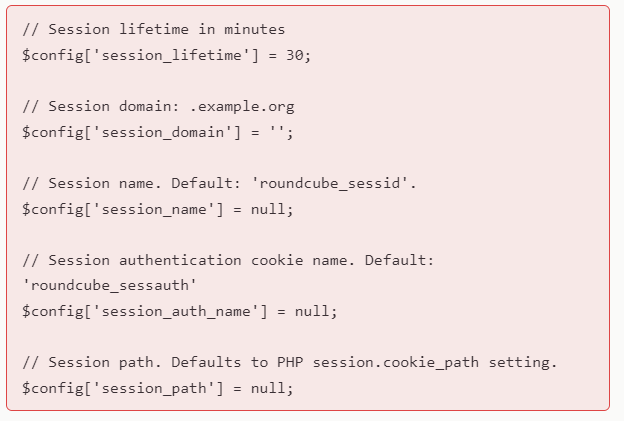
The session_lifetime is the duration of time that starts when you login till the session expires. However, it can be increased or decreased as per your requirements.
The session_path is the path where entire sessions are kept. But it is advised to leave this empty so it follows the common PHP session_path.
If the error message does not appear and appears right after login, then it means web server unable to store the session in the default session path of PHP. So, it is recommended to contact the email or hosting provider with the information.
Error 3. Not able to Perform Operation. No Free Disk
The error message says everything. Without having enough storage space, the operation cannot be processed.
Suppose, when composing an e-mail or want to create a reply of specific e-mail, the IMAP Server generates a draft. This concept cost storage space and sadly none left.
That is why the error message you encountering indicates that the storage space of IMAP Server is full.
Solution
To get more storage space, it is recommended to clean your Recycle bin within Roundcube. This will free the disk space if the Recycle bin carries some items and make the error message disappears. If the Recycle bin is already clearned, then it is recommended to go through the Inbox and check for the emails with large attachments that are no longer required. However, you may discard them and clear the Recycle bin right away to access more storage space.
Increase Email Account Storage Space
There are multiple control panels or hosting providers present that helps you to set the storage space of email address. Know how to do this for each control panel –
DirectAdmin – Open Control Panel and go to Email Accounts. There is multiple email accounts list present. Click Modify and the page will appear; you can change the password but also mention the new quota.
After new quota is specified, it will become active right away and the error message in Roundcube should be resolved.
cPanel – Click Email Accounts and then click the link Disk and Quota for e-mail address.
A new page will appear where you can set new e-mail quota. After this, the error message in Roundcube should be fixed.
Plesk: Login to Plesk and click Subscriptions. Select domain name and click Customize. A resource tab appears, set the mailbox size. This will appear as your new e-mail quota.
Once the settings are adjusted, Roundcube will immediately work again and the error message will be solved.