How to Save Outlook MSG Files as HTML for Web Viewing (2026 Guide)
Outlook MSG files are commonly used to store individual email messages with all their essential details, including the sender, recipient, subject, attachments, and metadata. While the MSG format works perfectly within Microsoft Outlook, it is not ideal when you want to view emails in a web browser, upload them to a website, or share them with users who don’t have Outlook installed.
Converting MSG files to HTML is a practical solution because HTML files can be opened in any modern web browser such as Google Chrome, Microsoft Edge, Mozilla Firefox, or Safari without requiring additional software.
In this guide, you’ll learn why converting Outlook MSG files to HTML is beneficial, the manual method to save MSG as HTML, its limitations, and a faster way to convert multiple MSG files without losing formatting.
What Is an Outlook MSG File?
An MSG file is an email message file created by Microsoft Outlook. It stores a complete copy of an individual email along with all its associated information. A typical MSG file contains –
- Sender and recipient information
- Subject line
- Date and time
- Email body
- Attachments
- CC and BCC details
- Internet headers
- Email formatting
MSG files are commonly used for email archiving, legal documentation, email migration, and sharing important communications. However, since they are proprietary Outlook files, opening them without Outlook can be difficult.
Users often convert MSG files to PDF, HTML, PST, or EML for better accessibility and sharing.
Why Convert Outlook MSG Files to HTML?
Although MSG files preserve email data accurately, HTML offers better compatibility and accessibility. Here are some common reasons why users convert MSG files to HTML –
- Easy Browser Access – HTML files can be opened directly in any web browser without installing Microsoft Outlook.
- Better Compatibility – Unlike MSG files, HTML works across Windows, macOS, Linux, and even mobile devices.
- Easy Email Sharing – HTML emails can be uploaded to websites, intranet portals, or documentation systems for quick viewing.
- Long-Term Email Archive – Organizations often archive important emails in HTML format because it remains accessible even if Outlook is unavailable.
- Preserve Email Formatting – A properly converted HTML file maintains –
Fonts, Colors, Hyperlinks, Tables, Images, Layout
This makes the email look almost identical to the original Outlook message.
- Faster Email Search – HTML files can be indexed by search engines and desktop search tools, making archived emails easier to locate.
Common Situations Where HTML Is Preferred
Many professionals convert MSG files to HTML in the following scenarios –
- Publishing email newsletters on websites
- Sharing emails with clients
- Maintaining project documentation
- Creating legal evidence
- Email compliance audits
- Knowledge base creation
- Email backups
- Offline viewing
If your goal is simply to read Outlook emails without Outlook installed, HTML is one of the most convenient formats available.
How to Save Outlook MSG Files as HTML Manually
Microsoft Outlook includes a built-in option to save individual emails as HTML. Follow these steps –
Step1: Open Microsoft Outlook – Launch Outlook on your Windows computer.
Step2: Open the MSG File – Double-click the MSG file or open it from Outlook.
Step 3: Click File – Select the File menu.
Step4: Choose Save As – Click Save As from the available options.
Step5: Select HTML – Choose HTML from the Save as Type dropdown list.
Step6 – Select Destination Folder – Choose where you want to save the converted file.
Step7: Click Save – Your Outlook email will now be saved in HTML format.
This method works well if you only need to convert one or two MSG files. Although Microsoft Outlook allows you to save an MSG file as HTML, the manual method has several drawbacks, especially when dealing with a large number of emails.
Limitations of Manual Method
- No batch conversion – You must convert each MSG file individually, which can be very time-consuming.
- Microsoft Outlook is required – You cannot use this method without Outlook installed and properly configured.
- Not suitable for large archives – Converting hundreds or thousands of MSG files manually is impractical.
- Risk of formatting changes – In some cases, fonts, images, tables, or hyperlinks may not appear exactly as they did in the original email.
- Attachments are saved separately – Email attachments are not embedded within the HTML file and need to be managed separately.
- Higher chance of human error – Repeating the same steps for multiple files increases the possibility of selecting the wrong files or destination folders.
If you frequently need to convert Outlook emails for web publishing, documentation, or email archiving, using a dedicated conversion tool can save significant time and effort.
Convert Multiple MSG Files to HTML with the MSG to HTML for Mac Tool
For users who need to convert dozens or even thousands of Outlook MSG files, MacMister MSG Converter for Mac offers a faster and more efficient solution. The software is designed to simplify email conversion while preserving the original structure and content.
 |  |
Unlike the manual approach, it supports batch conversion, allowing you to process multiple MSG files in a single operation. The tool maintains email formatting, metadata, and folder structure, helping ensure that the converted HTML files closely match the original Outlook messages.
Steps to Save MSG Files as HTML
Step 1: Download, install, and launch the MSG to HTML Tool on your computer.
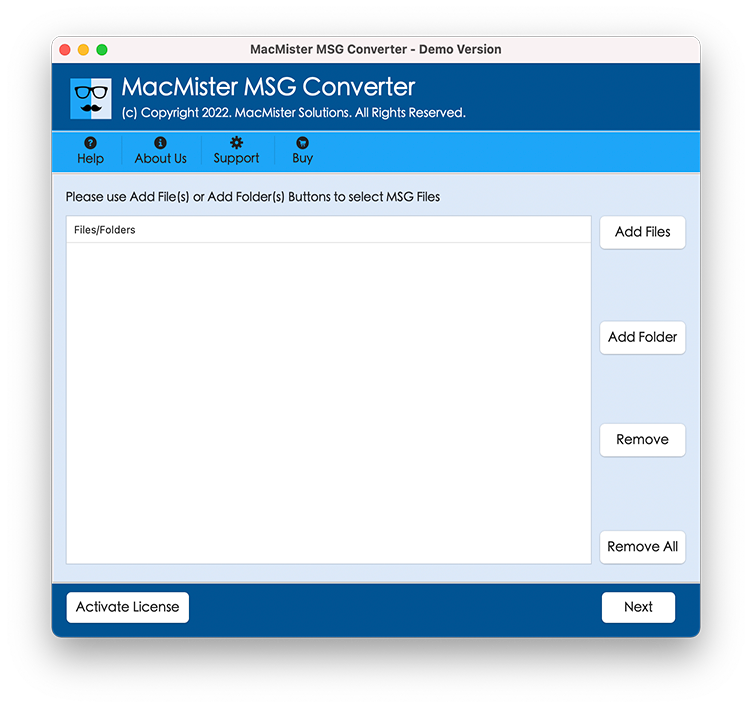
Step 2: Click Add Files or Add Folder to import one or multiple Outlook MSG files.
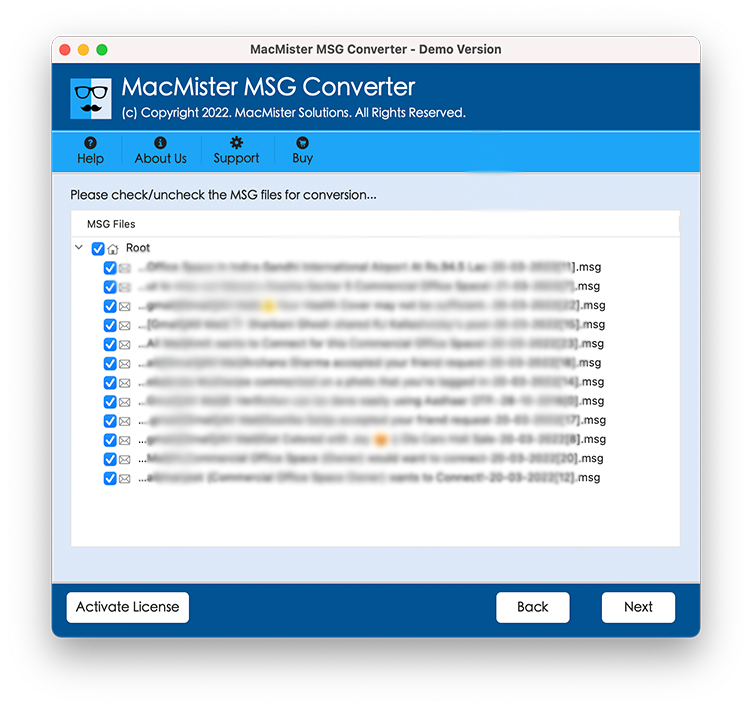
Step 3: Preview the loaded emails to verify the selected data before conversion.
Step 4: Choose HTML as the desired output format.
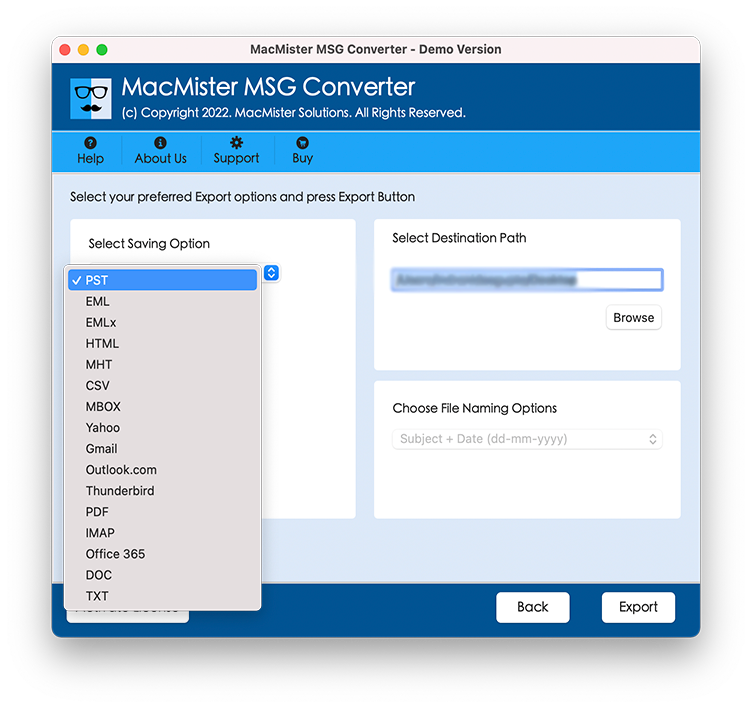
Step 5: Select the destination folder where you want to save the converted files.
Step 6: Click the Convert button and let the software complete the process.
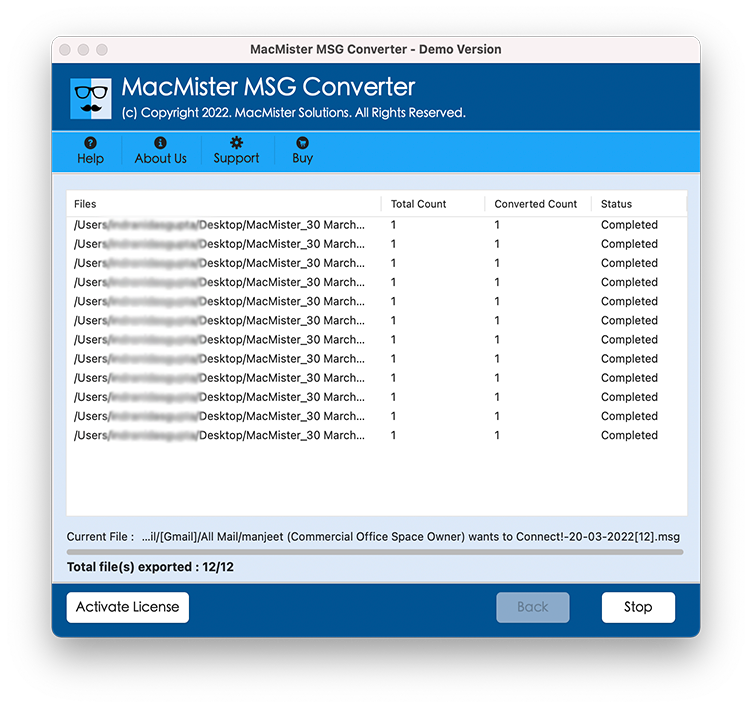
Once the conversion is finished, you can open the generated HTML files in any modern web browser without requiring Microsoft Outlook.
Benefits of Saving MSG Files as HTML
Converting Outlook MSG files to HTML offers several practical advantages, especially if you need to access or share emails outside of Microsoft Outlook.
- Open Emails in Any Browser – HTML files can be viewed in popular web browsers like Google Chrome, Microsoft Edge, Mozilla Firefox, and Safari without installing Outlook.
- Easy to Share – HTML files can be shared via email, cloud storage, or internal company portals, making collaboration much easier.
- Preserve Email Appearance – A reliable conversion process retains the original email formatting, including fonts, colors, images, tables, and hyperlinks, ensuring the content looks professional.
- Better for Documentation – HTML is widely used for project documentation, legal records, customer support archives, and knowledge bases because it is easy to access and organize.
- Long-Term Accessibility – Unlike proprietary email formats, HTML is a universally supported format that remains accessible across different operating systems and devices.
Manual Method vs. the MSG to HTML Tool
| Feature | Manual Method | MSG to HTML Tool |
| Batch Conversion | ❌ No | ✅ Yes |
| Outlook Required | ✅ Yes | ❌ No |
| Convert Multiple MSG Files | ❌ No | ✅ Yes |
| Preserve Email Formatting | Limited | ✅ Yes |
| Maintain Email Metadata | Limited | ✅ Yes |
| Fast Conversion | ❌ Slow | ✅ Fast |
| User-Friendly Interface | Basic | ✅ Simple & Intuitive |
| Supports Large Email Archives | ❌ No | ✅ Yes |
Frequently Asked Questions
Q. Can I open an MSG file in a web browser directly?
Ans. No. Web browsers cannot open MSG files natively. You want to save them to HTML first.
Q. Does converting MSG to HTML preserve the email formatting?
Ans. Yes. A reliable conversion tool preserves fonts, colors, images, tables, hyperlinks, and the overall email layout.
Q. Can I convert multiple MSG files at once?
Ans. The manual Outlook method only supports one file at a time. The Software allows batch conversion of multiple MSG files in a single process.
Q. Do I need Microsoft Outlook to convert MSG files?
Ans. The manual method requires Outlook. However, professional conversion software can simplify the process and eliminate the need for repetitive manual work.
Q. Is HTML a good format for email archiving?
Ans. Yes. HTML is widely supported, easy to view in any browser, and suitable for long-term email storage and sharing.
Conclusion
Saving Outlook MSG files to HTML makes your emails more accessible, portable, and easier to share across different platforms. While Microsoft Outlook provides a basic Save As option for individual emails, it is not practical for converting large numbers of MSG files.
If you regularly work with Outlook email archives, the software offers a faster and more efficient solution. It supports batch conversion, preserves email formatting and metadata, and generates HTML files that can be viewed in any web browser without relying on Microsoft Outlook.
Try MSG to HTML Migration tool Today
Need a quick and reliable way to convert Outlook MSG files to HTML? MSG to HTML Tool for Mac helps you batch convert MSG emails while preserving their original formatting, metadata, and folder structure. Download the free trial today to experience fast, secure, and hassle-free email conversion on both Windows and Mac.
| |