How to Export Mulberry to Outlook on Mac OS and Windows OS?
Introduction
Mulberry is an open-source email client that works with both Windows and Linux. However, originally created for macOS. The program supports protocols including LDAP, IMAP, IMSP, ACAP, and iCalendar and adheres to stringent internet standards. To ensure secure communication, it also provides a number of security features, such as digital signature processing and message encryption. Mulberry has long been valued for its reliability and advanced email management features, but many users eventually choose to migrate to Microsoft Outlook for better features, collaboration, or platform consistency. If you are willing to move from Mulberry to Outlook on Mac OS, Windows OS, or both, exporting your data correctly is essential to avoid losing important emails, folders, and attachments. And this blog provides you guidance on overall approach to tackle how to export Mulberry to Outlook, helping you understand the process clearly before you begin.
Advanced Mulberry to Outlook Tool to Export Mulberry Emails to Outlook
MacMister MBOX converter for Mac is an impeccable solution to convert, and migrate email data from Mulberry to Outlook preserving the integrity and structure of the original messages. The tool supports MBOX file, which typically contains a large collection of email messages stored sequentially in a single file, and accurately extracting essential components such as headers, sender and recipient information, subject lines, message bodies, attachments, timestamps, and folder hierarchy. The Tool can also export this data into other formats like PST, EML, MSG, PDF, HTML, or directly into email clients and cloud services, ensuring compatibility and accessibility across different systems.
Mulberry to Outlook Conversion solution enable exporting multiple emails from Mulberry to PST files at once. This robust software also handles large file sizes, reducing the risk of data loss during conversion. The tool enables batch processing to improve efficiency. Overall, an MBOX converter simplifies the complex task of email data migration by providing a reliable, automated, and user-friendly way to make Mulberry -based email data usable in modern email environments. The solution supports both Mac and Windows Operating Systems and its free demo functionality enables to export 25 emails from Mulberry to Outlook free of cost.
Features of Mulberry to Outlook Tool
Here are the some important features of a Mulberry to Outlook Tool, in clear points:
- Converts Mulberry (MBOX-based) mailboxes directly into Outlook based PST format.
- Preserves original email structure, including folders, subfolders, and hierarchy.
- Maintains email integrity by keeping headers, subject lines, sender/receiver details, and timestamps intact.
- Supports conversion of emails with attachments without data loss.
- Allows selective conversion providing checkboxes.
- Handles large Mulberry mailbox files efficiently without size limitations.
- Ensures accurate conversions prevent formatting issues.
- Supports batch conversion for multiple Mulberry mailbox files to Outlook.
- Compatible with all major versions of Microsoft Outlook.
- User-friendly interface suitable for both technical and non-technical users.
- Secure and reliable conversion process with minimal risk of data corruption.
How to Export Mulberry to Outlook on Mac OS and Windows OS? -Working Note
Extract Mulberry MBX (MBOX Variant) Files
Accessing the Mulberry mailbox files, which are kept in the MBX format which is a variation of MBOX. All of your emails are contained in these files, which you must extract in order to import them into Outlook. Mulberry mailboxes are located in the following default locations.
• C:\Documents and Settings\Administrator\Application Data\Cyrusoft\Mulberry\Mailboxes\
Or
• For Windows 11, 7, 8, 10,:
C:\Users\(Your Username)\AppData\Roaming\Cyrusoft\Mulberry\Mailboxes
Copy the MBX files to any relevant folder. Your emails will be moved into Outlook using these files in the following step.
With a specialised Mulberry to Outlook Converter, converting Mulberry emails to Outlook PST is simple and quick. To finish the procedure quickly, adhere to following five steps:
Step1: Firstly start, install and launch the MBOX to PST Tool on your computer.
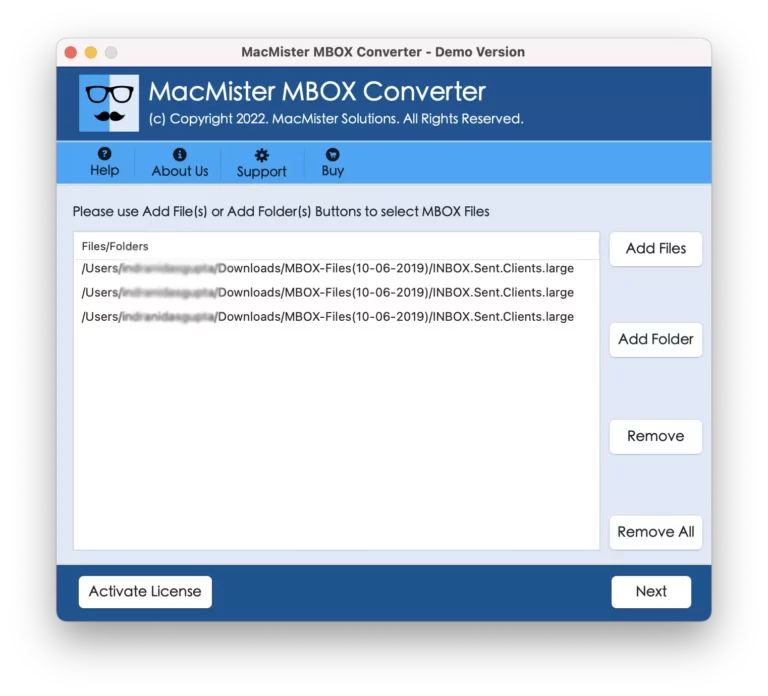
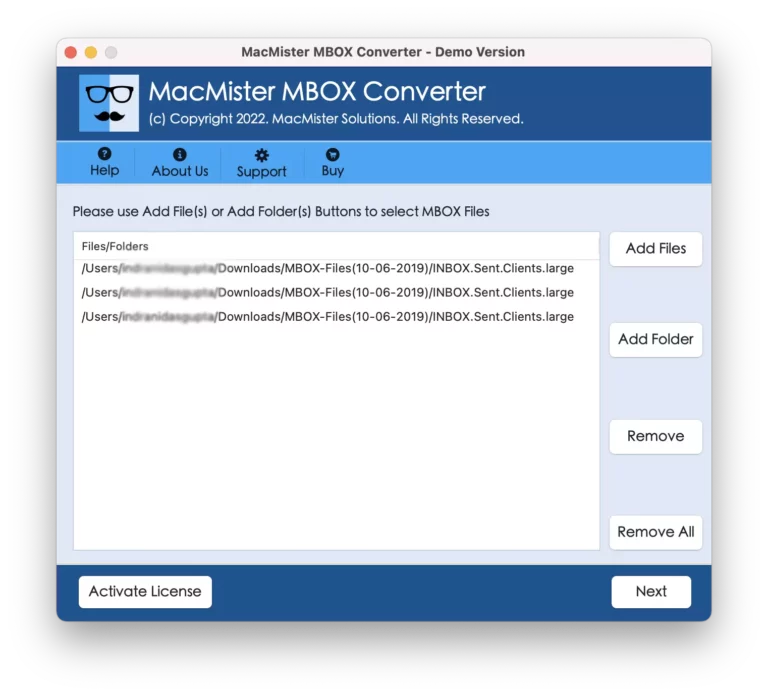
Step2: Now simply upload the Mulberry mailbox files that require conversion.
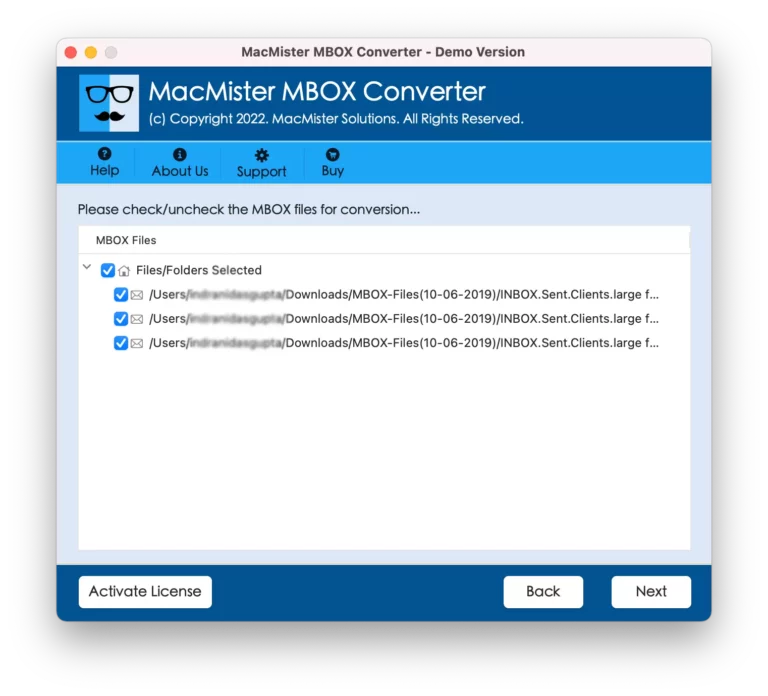
Step3: To continue, choose the MBOX files and click Next.
Step4: Then choose PST as the output format and select the folder in which the converted file will save.
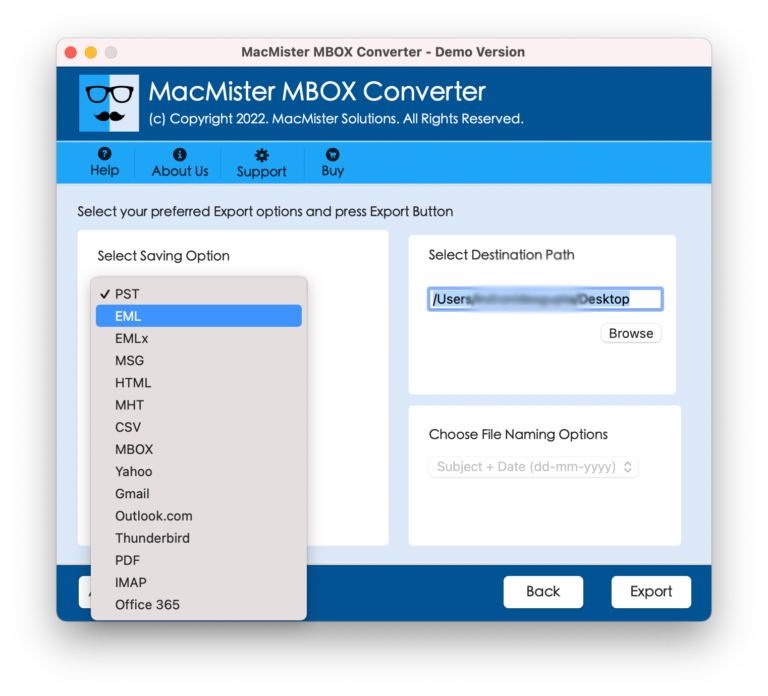
Step5: Start the conversion process click on the Export and give its few seconds to finish.
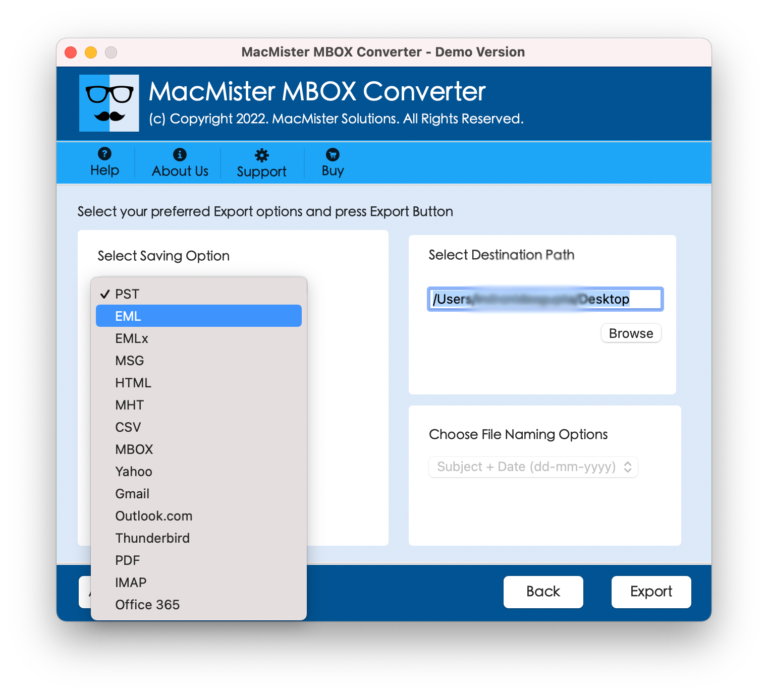
After that, Open Microsoft Outlook, use the Open & Export >Import/Export options to load the PST files into Outlook. Now, all of your Mulberry emails will be successfully transferred to Outlook, making them fully integrated with Outlook’s capabilities and accessible across devices.
Read more:
How to Open MBOX in Horde on Macbook
Wrap Up
Exporting emails from Mulberry to Outlook on Mac OS and Windows OS becomes so simple with the right steps and preparation. If you opt for outlined steps it is a smooth and reliable process. Understanding how Mulberry stores email data and how Outlook accepts imported files is the key to a successful migration. By following a structured approach, you can ensure that your emails remain intact, accessible, and well organized in Outlook across both operating systems. Once the export is complete, you’ll be able to know how to export Mulberry to Outlook, and take full advantage of Outlook’s advanced features without leaving your important Mulberry data behind.