How to Import MBOX in Horde on Macbook? – Top 2 Method
Introduction
Are you an email user who often rely on MBOX files to store large volumes of mailbox data? Are you willing to switch email clients, keeping old backups in the securest platform? Then let me tell you, importing all your MBOX files into a webmail platform like Horde can be extremely beneficial. However, many MacBook users find the process quite hectic due to limited native support, as we know, Horde does not directly support MBOX, and lack of step-by-step guidance may cause disruption. In this article, we are going to discuss on how to import MBOX in Horde on Macbook in a simple and effective manner. You’ll learn the best methods to ensure your emails import safely without data loss. By the end of this guide, you’ll have a clear understanding of the MBOX to Horde import process on Mac OS so eventually you will be able to access your MBOX emails seamlessly within Horde.
User Query
Hello, I am Alana, I am employed in an IT company. One of my tasks at work is to import the MBOX files to Horde. I tried the manual approach, but as a user with a non-technical background, it is really hard for me to understand. Please provide a straightforward migration method for quickly import large volumes of MBOX to Horde. Thank you
Method 1: A Time-Saving Approach to Import MBOX in Horde on Macbook in Bulk
MacMister MBOX Converter for Mac– A reliable way for MBOX to Horde conversion, which completes the migration in a matter of seconds without causing any data loss. Bulk of MBOX files and all of their attachments are imported by the program in a single processing. There is no file size restriction that enables large-sized MBOX file importable to Horde seamlessly. When the migration is finished, the utility creates a TXT file. All pertinent conversion-related information is included in the file, which users can store for later analysis. The app runs on all Mac OS editions for example Catalina, Monterey, Catalina, High-Sierra, Mojave and many more. Take a demo facility of the software that enables to import 25 MBOX emails to Horde free of cost.
Working of MBOX to Horde Converter- How to Import MBOX in Horde on Macbook?
Step1: Launch MBOX to IMAP Converter in Windows OS any version.
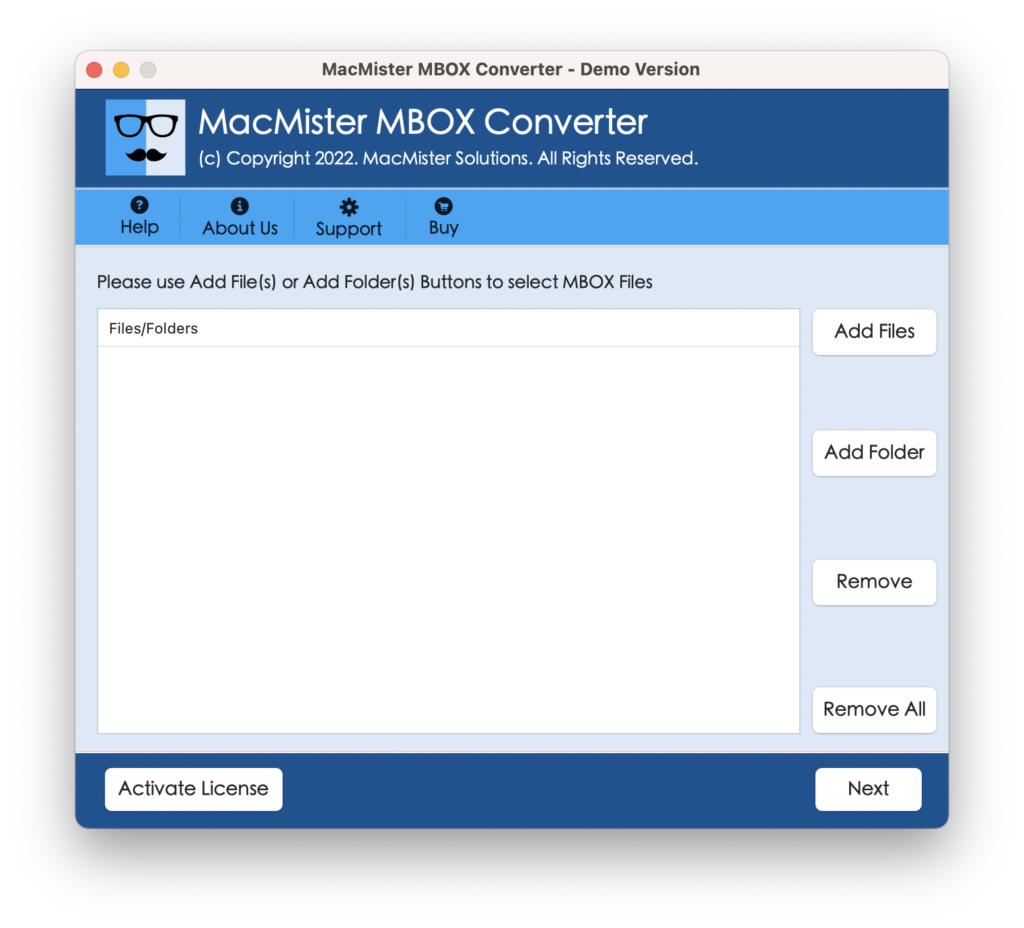
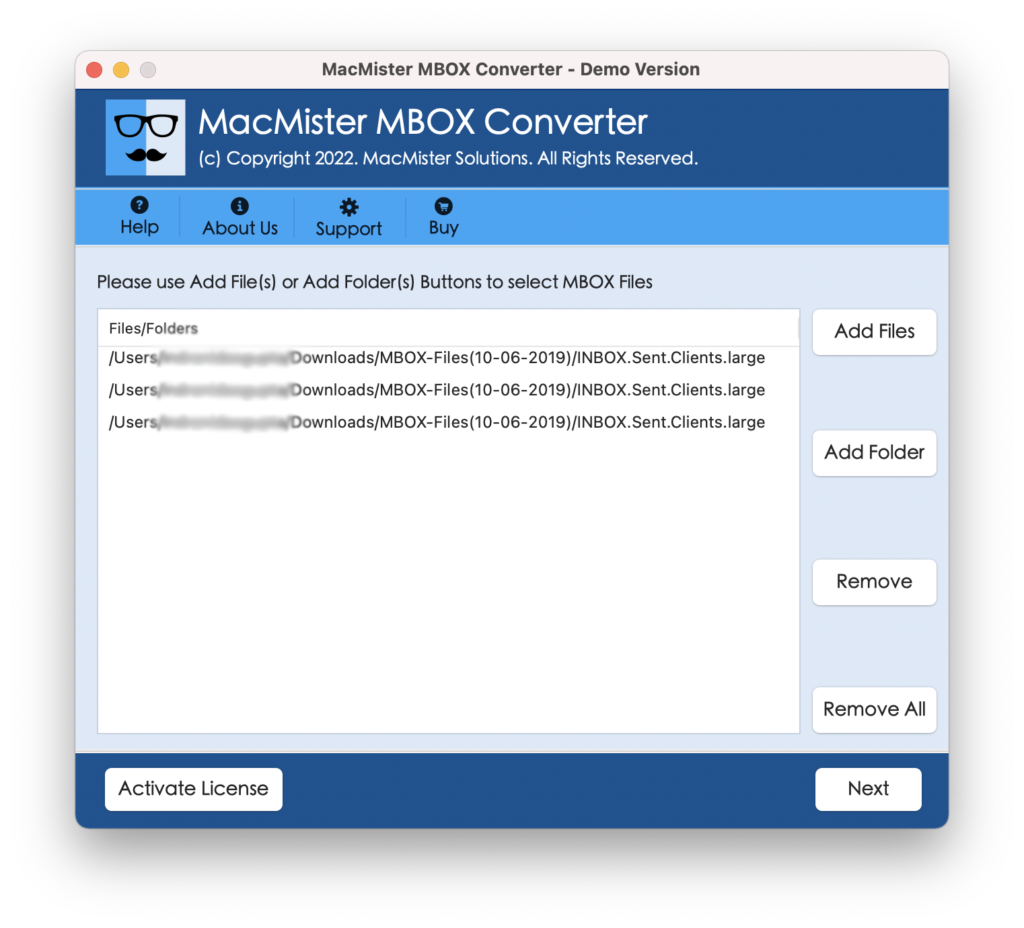
Step2: Now using “Add File and “Add Folder” options choose MBOX files that you want to import into Horde.
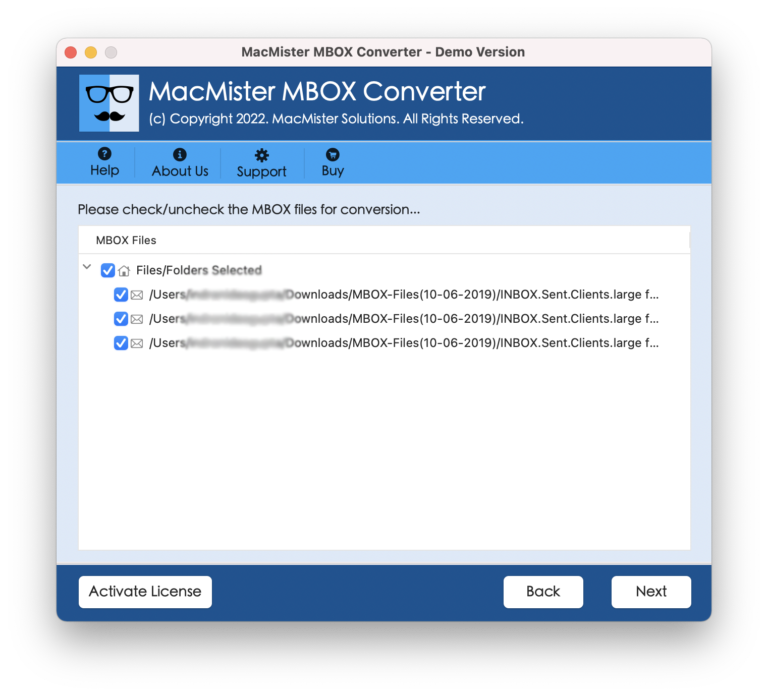
Step3: Now select IMAP from many Select Saving options.
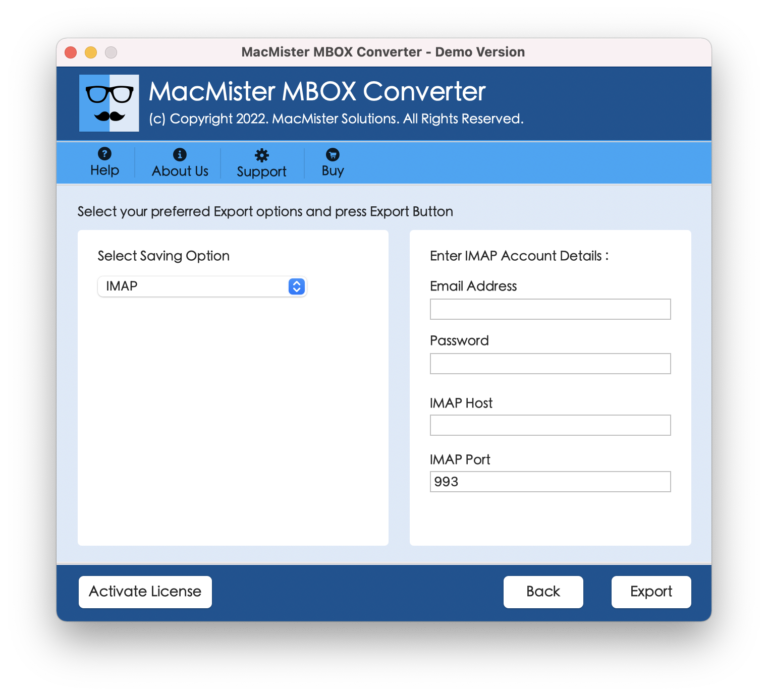
Step4: Users must fill some required information now such as IMAP login ID, Password, IMAP Port No. and IMAP Host. Now proceed further.
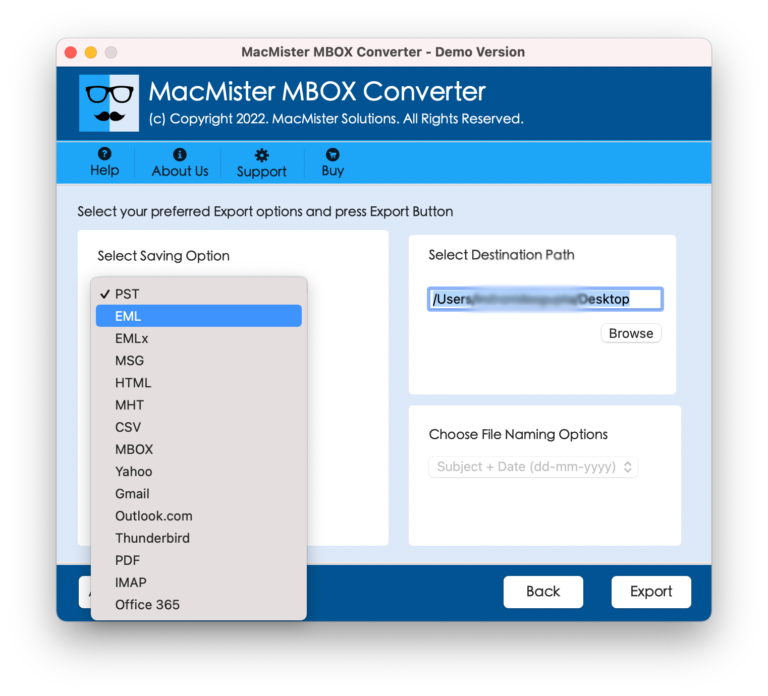
Step5: Click on “Export” to start conversion from MBOX to Horde. After a few seconds there is a success message appears. Click Ok to end the task.
Method 2: Manual Method to Import MBOX to Horde
Follow few simple steps to manually import MBOX to Horde:
- Open Thunderbird email client.
- Navigate to the Add-ons area and search and install the ImportExportTools NG extension.
- In Thunderbird, press right-click on the local folders or email account. Choose ImportExportTools NG > Import MBOX File.
- Select the .mbox file that you want to import.
- Navigate to File > New > Existing Mail Account.
- Enter your password and email address of Horde.
- To sync with the server, set up the account using IMAP settings.
- Drag and drag email from the imported MBOX folder to the desired folder in the Horde account once both accounts (MBOX and Horde) are visible in Thunderbird.
- Open your Horde webmail account and log in. Verify that every email has been transferred successfully.
Is Manual Method a Practical One?
There is a free manual method for users to import MBOX to Horde. However, the process is so not so easy that users with non-technical backgrounds find it extremely challenging to comprehend how it operates. It is not practical to use this method when there are a lot of MBOX files to import because it is also very time-consuming and stressful. The inability of users to view the complete components MBOX emails in the imported files is one of the primary disadvantages of the manual method. Additionally, users can face issues while importing large-sized and numbers of MBOX files.
Read more:
Let’s Sum Up
I hope your questions regarding how to import MBOX in Horde on Macbook has been answered. Since the tool doesn’t involve any such complications, its operation is straightforward. The tool enables to give the user an accurate conversion result as quickly as possible. With the given software, MBOX to Horde Conversion is a task that even non-technical users may complete without any problems. The program is compatible with all versions of Mac OS editions as well as Windows OS, including 11, 10, 8.1, 8, Vista, XP, and more. Additionally, the program offers a free demo that allows users to export the first 25 MBOX emails to Horde in order to assess its functionality before making a purchase.