How Can I Export Outlook Contacts to iCloud on Mac?
Many Mac users are finding an approach to import Outlook OLM contacts to iCloud on Mac. The process requires appropriate planning and implementation. Moreover, it requires a secure technique that keeps the data safe when importing Outlook contacts to iCloud on Mac. So, coming across such requirements, MacMister decided to write an article that will help users in accomplishing the required task within seconds.

Also Read
iCloud is a cloud-based service offered by Apple for securely managing the desktop database on the cloud such as important files, documents, images, videos, notes, passwords, etc. You can even share them easily with your family and friends. However, iCloud email account offers free storage of up to 5GB. In case you have a large amount of files and folders, then you need to subscribe to iCloud+.
Benefits of using iCloud Service
- Easy and secure sign-up.
- Allows choosing the apps that one needs to sync with iCloud.
- Simple customization.
- Access iCloud data from Windows and Web Browser.
- Facilitate extracting iCloud data on any device easily.
- Keeps stored data up to date.
- Offers data encryption facility with 2 FA (factor-authentication).
- Sharable with family and friends.
How to Import Outlook (OLM) Contacts to iCloud on Mac?
To import OLM contacts to iCloud on Mac, make use of Mac OLM Converter software. The application is equipped with smart options which makes the process easy and worth investing. The GUI of the tool is easily manageable and technical as well as non-technical users can access it in a snap and import OLM contacts to iCloud without taking help from a third party.

Several wonderful features of the software help in saving user’s time and perform the bulk process at once. If you want an experience of the entire application working, then download the trial edition now.
Steps to Directly Export Outlook Contacts to iCloud Mac
Step 1. Run OLM to iCloud Tool on macOS.

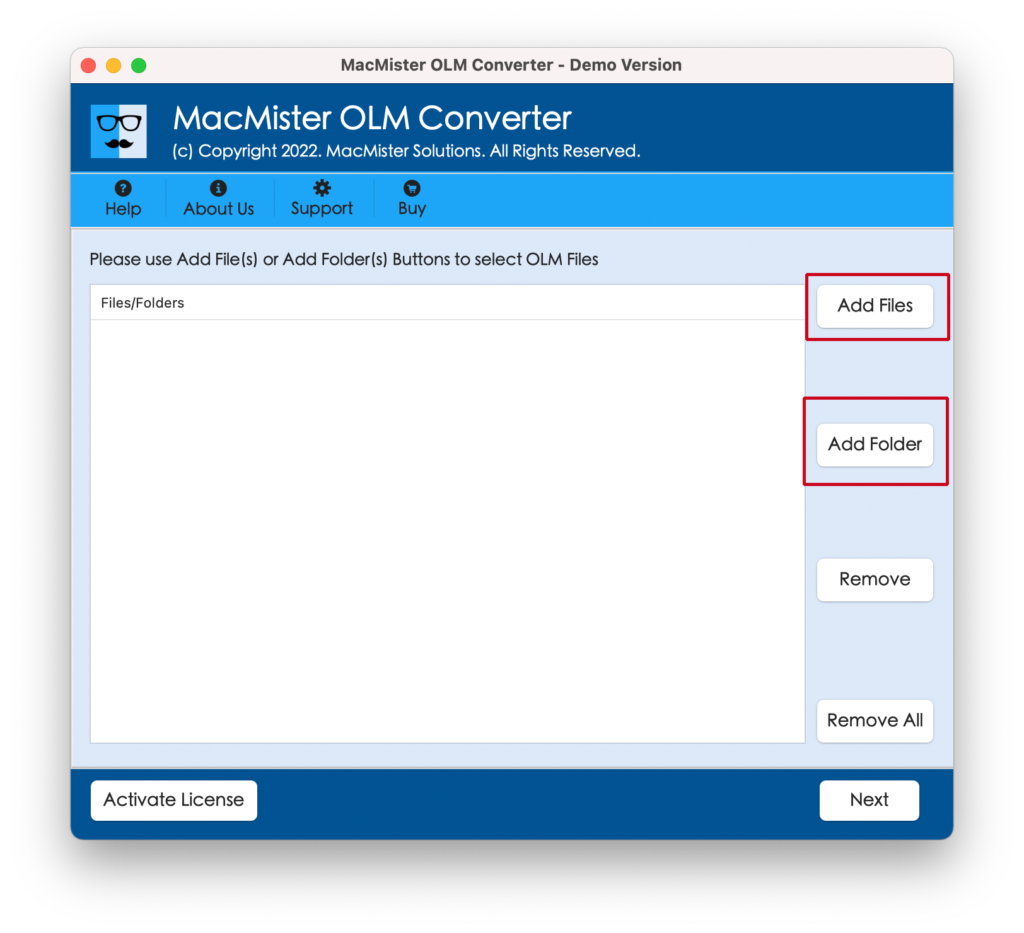
Step 2. Load OLM contacts files and folders by using Add Files and Add Folder buttons. Click Next.
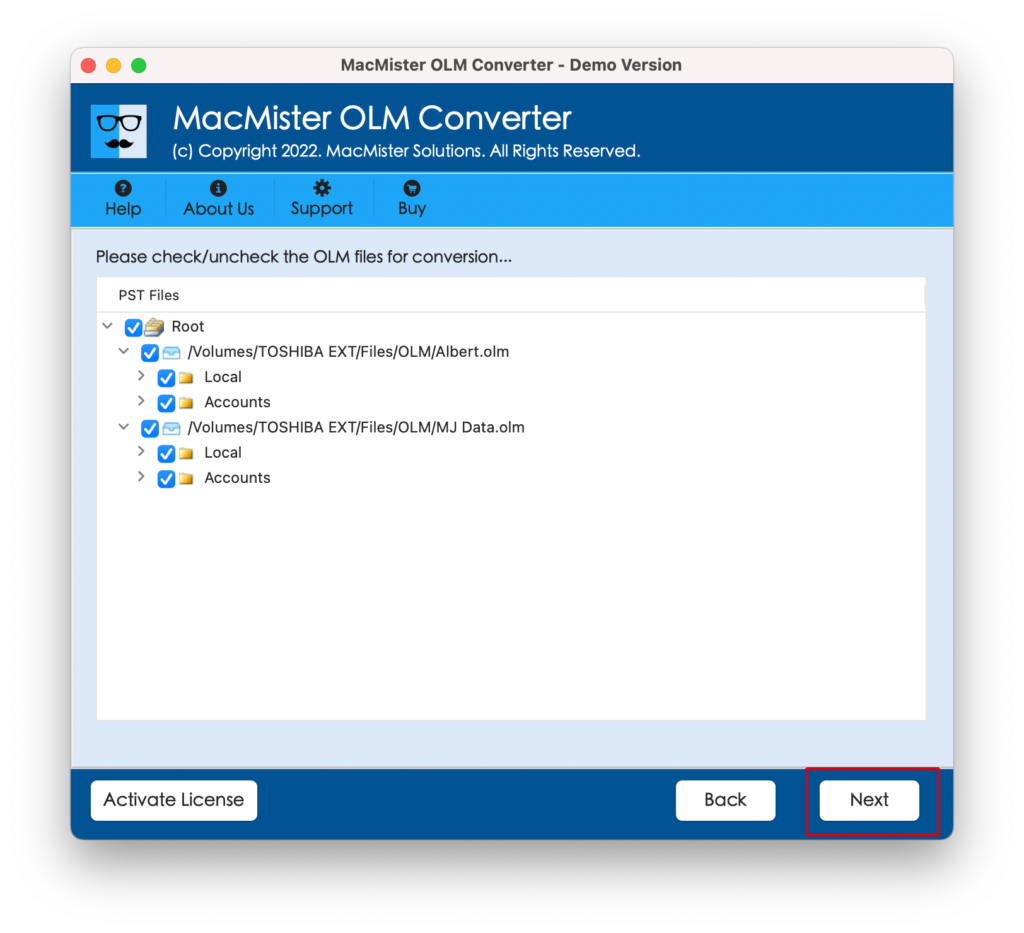
Step 3. List of selected OLM contact files/folder start appearing. They will be displayed with checkboxes so that required users can implement selective migration, if necessary otherwise click Next.
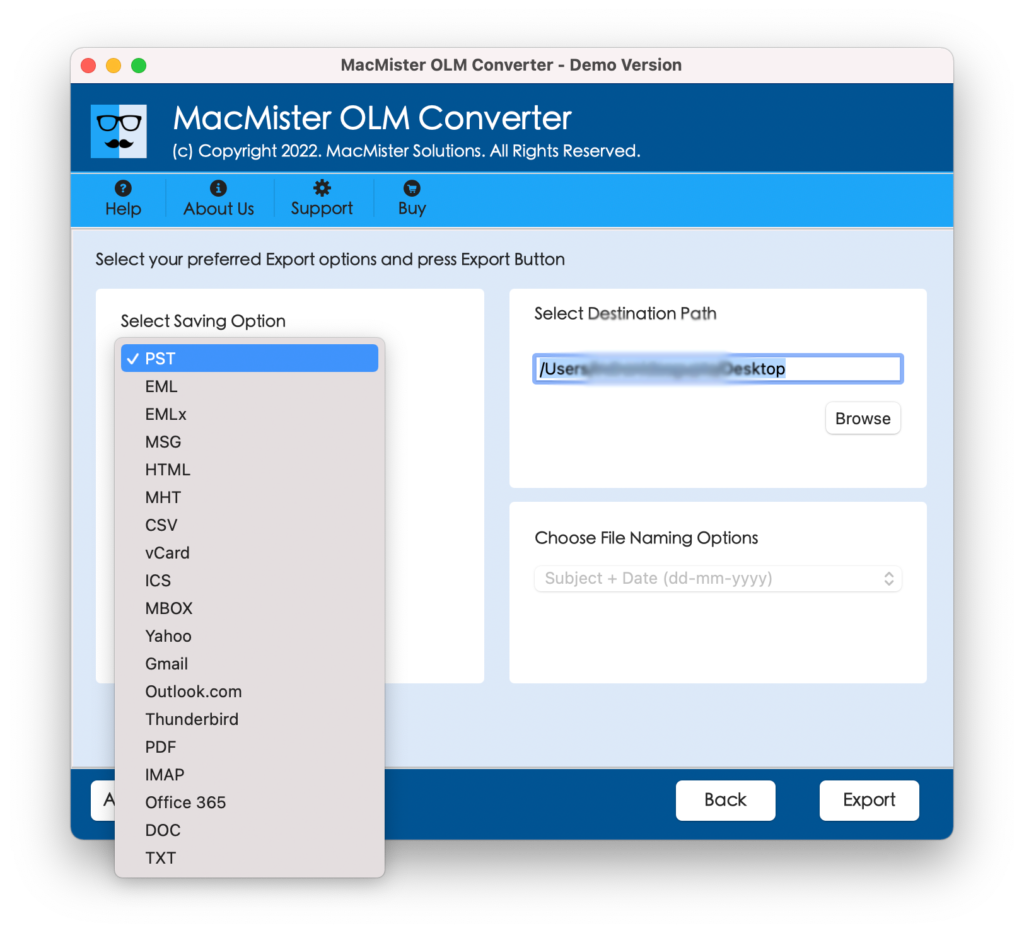
Step 4. Click Select Saving Option and choose vCard/VCF option from the list.
Step 5. Select location to save the resultant file and click Start Backup button.
Step 6. Check the process through Live Conversion report as shown below. It will display the total count left for conversion, total count converted and status.
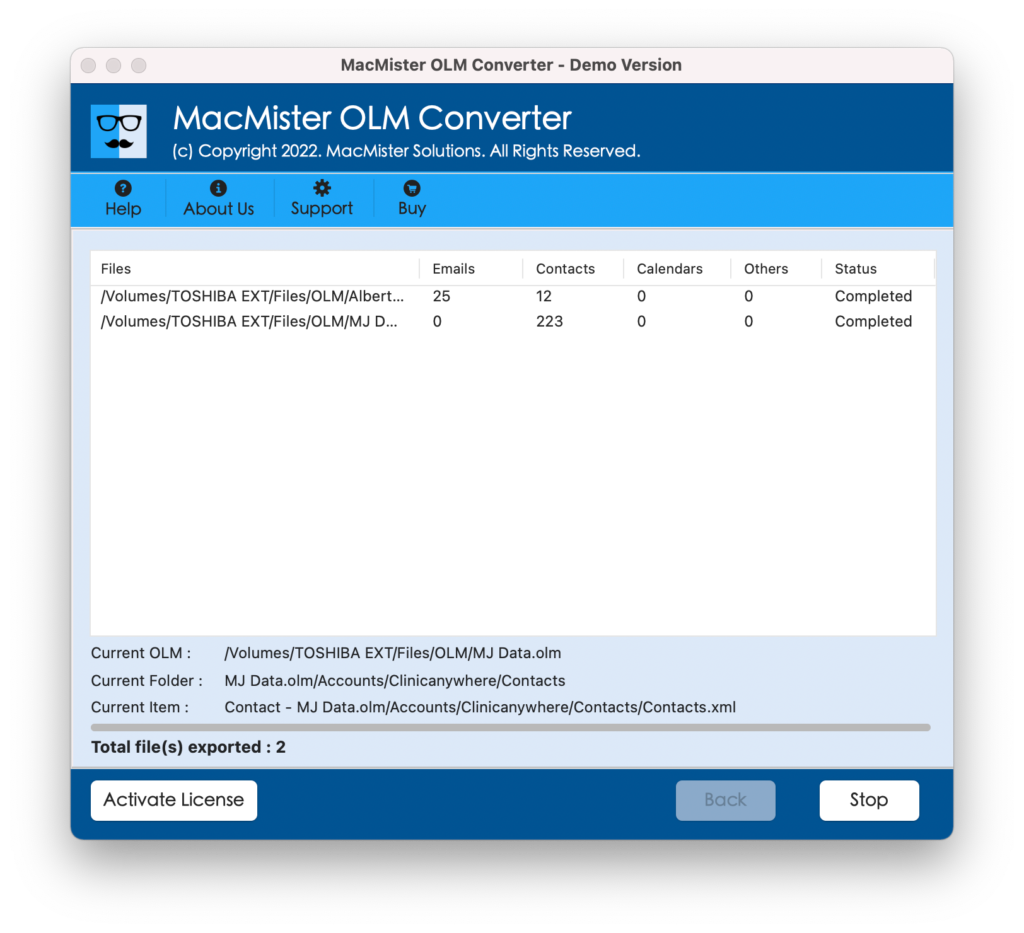
Once process gets terminated, “Conversion Completed” message will be shown to you. Click on OK and you will see auto-generated log report on your screen. It will show all the conversion related information such as saving option, total count of items converted, saving path, start and end time conversion etc.
Import Resultant vCard/VCF File to iCloud
- Login to iCloud.com
- Enter your Apple ID details.
- Go to Contacts and click settings icon appearing
- Choose Import vCard option.
- Go to the location that you specified earlier when saving vCard and click on it.
Now all contacts stored in vCard will successfully uploaded to iCloud contacts.
Remarkable Traits of Wonderful Solution
Batch import OLM contacts at once
The software provides the option of Add Folder to batch import OLM contacts to iCloud at once. Just keep all the necessary/unlimited OLM contacts in a single folder and upload it on the application by clicking the same option. Tool will analyse, list all the files and export all of them at once.
Performs Conversion without Data Loss
The app not only implements the batch conversion but also responsible for converting OLM contacts precisely. The tool has the capability to maintain the originality of OLM contacts during the process. Each and every little details such as name, phone number, address etc. remain intact even after conversion.
Includes Three Simple Steps Procedure
The advance solution is programmed with three simplified steps that not only save users time but guarantees accurate data. Simply load OLM contacts, choose the saving option and click the Export button. Once these steps are applied successfully, tool will give the desired output in minimal time.
Easily Operable and Manageable GUI
The GUI of the software is easy to manage and can be operated by all organizations as well as individual users. By clicking few simple clicks, users will be able to transfer unlimited OLM contacts to iCloud account with exact formatting properties and structure.
Support all Outlook for Mac Editions
The utility has the potential to export OLM contacts of all Outlook for Mac editions. The software smoothly transfers Outlook for Mac 2019, 2016, 2011 and all earlier previous versions OLM contacts to iCloud efficiently.
Note. For more details and experience, download the free trial edition of the software. It will help you to transfer 25 OLM contacts to iCloud free of cost. Contact our support team if you need any assistance when importing Outlook contacts from Mac to iCloud.
Conclusion
The complete guide will give you the idea of how to import Outlook OLM contacts to iCloud quickly. Utilize the amazing technique which will help you to securely upload Outlook contacts to iCloud on Mac. And, the most important thing to remember, take backup of all your contacts first and then perform the import process. So, go ahead, get the freeware version now and explore its entire functioning and linked features without second thought.