Gmail Labels Missing After Google Workspace Migration? Here’s How to Preserve Them
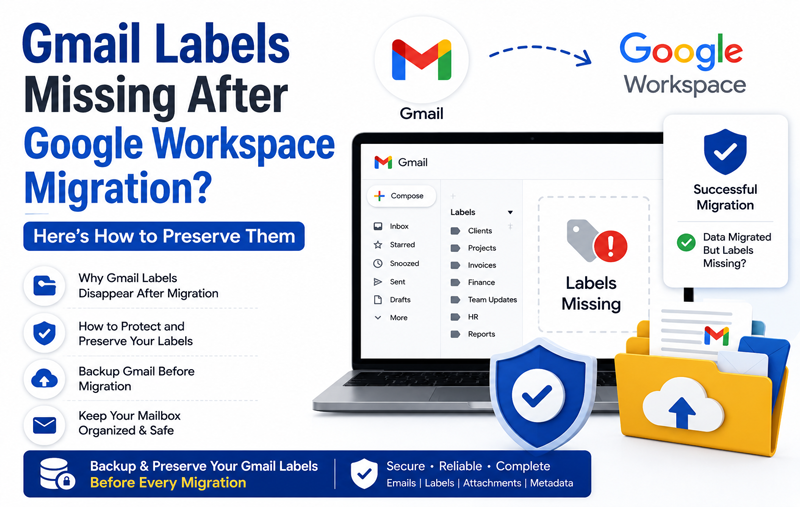
Migrating from one Google Workspace account to another is usually a smooth process, but many users notice an unexpected issue once the migration is complete—their Gmail labels are missing. While the emails themselves may still be present, the labels used to organize inboxes often disappear, merge incorrectly, or lose their hierarchy. This can make it difficult to locate important conversations, client emails, or archived messages.
In some cases, missing Gmail labels may also occur alongside Gmail synchronization problems, making it difficult to determine whether the issue is caused by the migration or an incomplete mailbox sync. If your Gmail account isn’t updating properly across devices, check out our guide on Gmail Emails Not Syncing? 12 Easy Fixes + Backup Guide before proceeding with advanced troubleshooting.
Gmail labels are more than simple folders. They help users categorize emails, assign multiple tags to a single message, and maintain an organized mailbox. During migration, however, not all tools preserve this unique label structure. As a result, businesses and individuals may spend hours reorganizing their mailboxes after the migration.
In this guide, we will explain why Gmail labels disappear after Google Workspace migration, how to prevent this issue, and the best way to preserve your mailbox structure before making the move.
Understanding Gmail Labels
Unlike traditional email clients that use folders, Gmail uses labels to organize messages. One email can have multiple labels at the same time without creating duplicate copies. For example, a single email can belong to:
- Clients
- Finance
- Invoices
- 2026 Projects
This flexibility makes Gmail easy to manage but also creates challenges during migration because many migration methods are designed to transfer folders—not Gmail’s label-based system.
Why Do Gmail Labels Go Missing After Google Workspace Migration?
Several reasons can cause Gmail labels to disappear after migration.
1. The Migration Tool Doesn’t Support Gmail Labels
Many migration tools only copy email messages and attachments. They ignore Gmail-specific metadata, including labels, categories, and nested label structures. Once the migration finishes, emails arrive successfully, but the organization is lost.
2. IMAP Migration Converts Labels into Folders
IMAP is commonly used for email migration because it’s widely supported. However, IMAP treats Gmail labels as folders. If an email has multiple labels, only one folder may be created, or duplicate messages may appear. Some labels may not transfer at all.
3. Incorrect Google Workspace Migration Settings
Google Workspace’s Data Migration Service offers several configuration options. If archived emails, system labels, or specific mailbox sections are excluded during migration, associated labels may also be skipped.
4. Multiple Labels on a Single Email
One of Gmail’s biggest advantages is assigning multiple labels to one message. Unfortunately, not every migration solution can recreate these relationships in the destination mailbox, causing some labels to disappear.
5. Interrupted Migration
Network interruptions, OAuth authentication issues, storage limitations, or incomplete synchronization can result in partially migrated mailboxes where labels and folder structures are missing.
Common Signs of Label Loss
If labels aren’t preserved during migration, you may notice –
- Custom Gmail labels are missing.
- Nested labels become flat folders.
- Archived emails appear in the Inbox.
- Folder hierarchy changes unexpectedly.
- Multiple labels are reduced to one folder.
- Finding old emails becomes difficult.
Why Preserving Gmail Labels Matters
Losing Gmail labels isn’t just an inconvenience—it can significantly impact productivity.
For businesses, labels are often used to organize customer support tickets, invoices, HR communications, legal documents, and project discussions. Without them, employees spend valuable time searching for emails instead of working. Preserving labels also ensures –
- Faster email retrieval
- Better mailbox organization
- Easier compliance and auditing
- Reduced risk of missing important communications
- Smooth transition after migration
How to Preserve Gmail Labels Before Migration
Review Your Existing Labels
Before starting the migration, review your Gmail labels and remove outdated or unnecessary ones. This helps simplify the migration process.
Verify Migration Tool Compatibility
Choose a migration solution that supports –
- Gmail labels
- Nested labels
- Multiple labels per email
- Folder hierarchy
- Email metadata
Not every migration tool offers these capabilities.
Create a Complete Gmail Backup
Always create a full backup before migrating your Google Workspace account. A backup should include –
- Emails
- Attachments
- Gmail labels
- Folder hierarchy
- Metadata
- Read/unread status
- Email headers
Having a backup ensures you can restore your mailbox if something goes wrong.
Is Google Takeout Enough?
Google Takeout is useful for exporting Gmail data, but it has limitations.
It can export emails in MBOX format, but it doesn’t automatically restore Gmail labels or recreate the original mailbox organization when imported elsewhere. This often requires additional software and manual effort.
Best Practices to Avoid Label Loss
Follow these recommendations before migration –
- Use OAuth authentication whenever possible.
- Test the migration with a small mailbox first.
- Ensure sufficient storage in the destination account.
- Avoid modifying labels during migration.
- Compare email counts before and after migration.
- Verify that all labels appear correctly after completion.
Use an Advanced Gmail Backup Solution to Preserve Gmail Labels
When mailbox organization is critical, relying solely on Google Workspace migration tools or IMAP-based methods may not be enough. While these methods can transfer email messages, they don’t always preserve Gmail’s unique label structure, metadata, or mailbox hierarchy. If your inbox contains years of categorized emails, client conversations, or department-specific labels, losing that organization can lead to unnecessary confusion and extra work after migration.
A more reliable approach is to create a complete backup of your Gmail account before starting the migration. Having a backup acts as a safety net, allowing you to access your emails even if the migration process doesn’t transfer labels correctly or encounters unexpected issues.
MacMister Gmail Backup Tool Mac & Windows is designed to simplify this process by securely backing up Gmail mailboxes while preserving important mailbox properties. Instead of downloading only the email content, the software maintains essential email information such as metadata, attachments, read/unread status, timestamps, and the original folder hierarchy wherever supported by the selected export format. This ensures that your backup remains well-organized and easy to access whenever needed.
 |  |
The software supports secure OAuth authentication, eliminating the need to use less secure sign-in methods. Once connected, users can select the required Gmail account, choose the desired mailbox folders or labels, and export emails into multiple file formats such as PST, PDF, EML, MBOX, MSG, HTML, TXT, and others. This flexibility allows users to keep a portable copy of their mailbox for future reference, migration, compliance, or legal documentation.
Another advantage is the ability to perform selective backups. Instead of downloading the entire mailbox, users can back up emails based on date range, specific folders, or categories. This feature is particularly useful for organizations managing large Gmail accounts, as it saves both storage space and backup time.
For businesses handling multiple employee accounts, the tool offers a streamlined backup experience that helps IT administrators secure important mailbox data before performing domain changes or Google Workspace tenant migrations. Creating verified backups beforehand reduces the risk of accidental data loss and provides an additional layer of protection if any unexpected migration errors occur.
Using a professional backup solution also supports long-term email archiving. Organizations often need to retain emails for regulatory compliance, internal audits, or future reference. Keeping an independent backup ensures that important communications remain accessible even if account settings change, subscriptions expire, or mailbox content is accidentally deleted. The backup process is straightforward –
- Download and install MacMister Gmail Backup Tool.
- Sign in securely using your Gmail account.
- Select the mailbox folders or labels you want to back up.
- Choose the preferred output format and destination location.
- Start the backup process and wait for completion.
Once the backup is finished, you have a secure copy of your Gmail mailbox stored on your local system. Even if labels are altered or lost during the Google Workspace migration, your original mailbox data remains safely preserved. This proactive Email Backup for software Mac approach not only minimizes migration risks but also provides peace of mind, ensuring that your valuable email data and mailbox organization are protected before, during, and after the migration process.
Conclusion
Missing Gmail labels after a Google Workspace migration is a common issue, especially when using migration methods that don’t fully support Gmail’s unique label system. Although your emails may still be available, losing labels can make mailbox management much more difficult.
The best way to avoid this problem is to prepare before migrating. Review your mailbox, choose a migration method that supports Gmail labels, and create a complete backup of your account. With the right preparation and a reliable backup, you can migrate confidently while preserving the organization that keeps your inbox efficient and easy to navigate.
Before migrating your Google Workspace account, create a complete Gmail backup to protect your emails, labels, attachments, and mailbox organization. MacMister Gmail Backup Tool helps you securely archive Gmail data in multiple file formats, ensuring your important email structure remains safe even if labels are lost during migration.
| |