How can I Export my entire Outlook Email on Mac?

The write-up here provided detailed information on how can I export my entire Outlook email on Mac. Also, we will go through step-by-step guide of a manual process to implement the process. This will help in holding the emails for future use. Furthermore, we are offering reliable and secure automated solution to export entire Outlook email on Mac.
Mac users highly depend on Apple Mail to handle email communication. But after the launch of Outlook for Mac, it became top choice among professionals. Notable features such as message unsend, customizable toolbar, enhanced search, email scheduling, and others has made Outlook for Mac an exceptional choice.
However, organizations carry out backup process to attain additional security and protection of important emails from data loss threats, including data breaches and accidental deletion. Therefore, the blog here discussed complete guide to export entire Outlook email on Mac to prevent data loss. Besides, organizations will receive additional benefits by performing the same which we will discuss in the further segment.
Why Users Need to Export Entire Outlook Email on Mac?
There are several reasons why one needs to export entire Outlook email on Mac. Some of them are highlighted here –
- Taking backup of Outlook email help securing essential emails against possible threats of data loss.
- In case a user is moving or upgrading to a new device, then exporting emails from Outlook Mac is important.
- Organizations performing regular archiving process to meet compliance and regulatory needs.
- Locally stored copies of mailbox data allow users to share them with office team members.
- Exporting Outlook for Mac data help users in emptying storage space.
How can I Export my entire Outlook Email on Mac?
Export Entire Outlook Email on Mac Manually
After going through above discussed scenarios, we have discussed the most suitable manual solution to export Outlook emails on Mac. So, follow the below illustrated guide to get desired result.
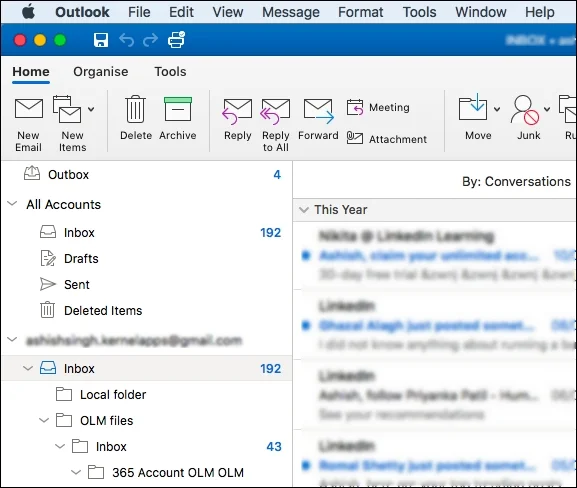
Step 1. Run Outlook email client on your Mac.
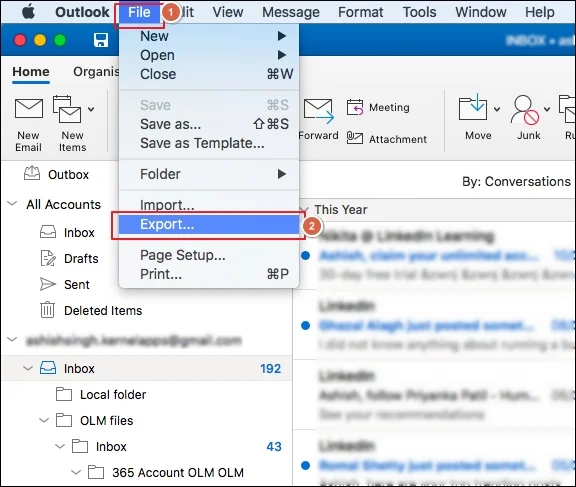
Step 2. Go to File tab and continue further by clicking Export.
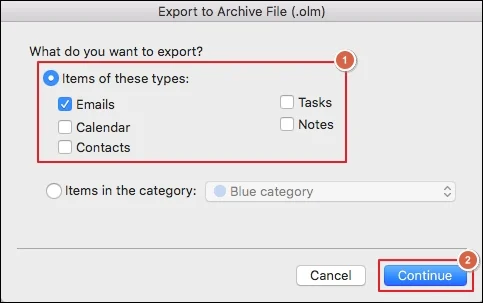
Step 3. Export to Archive file (.olm) screen will appear, mark emails option and tap Continue.
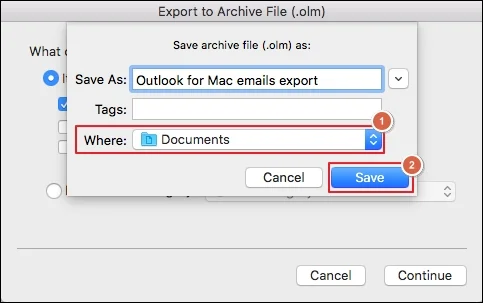
Step 4. Choose where you need to save mailbox data and tap Save.
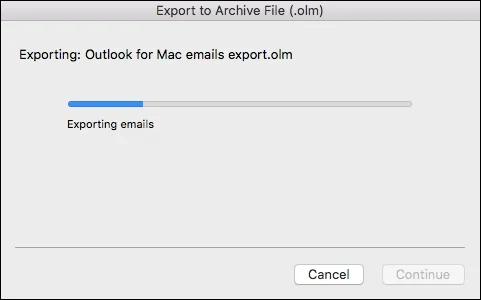
Step 5. Outlook will start exporting its emails in .olm file.
Step 6. After emails are exported, tap Finish button to close the screen.
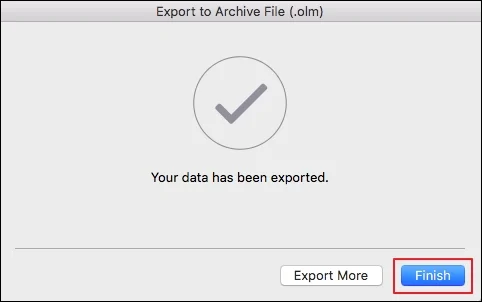
Step 7. Email messages are saved at specified location.
Export Entire Outlook Email on Mac Directly
Now, as you are already aware of a detailed process to export entire Outlook email on Mac using manual approach. Let us take help of a direct solution and know how to directly export emails from Outlook on Mac.
MacMister OLM Converter for Mac & Windows is a solution that instantly batch export Outlook emails on Mac at once along with contacts, calendar and other data items. The software is simple yet reliable and highly secure. All technical and novice users can perform the operation effortlessly and export entire Outlook emails on Mac into 15+ saving types such as PST, EML, HTML, DOC, IMAP, Yahoo Mail, PDF, TXT, Office 365, and more.
Moreover, the application contains wide ranging features with the help of users can obtain the desired results without any issues. Besides, a freeware version is available which is useful in evaluating and analyzing the detailed software working for free.
Step-by-Step Software Steps to Export Entire Outlook Email on Mac
Step 1. Download, launch, and run the app on Mac OS.
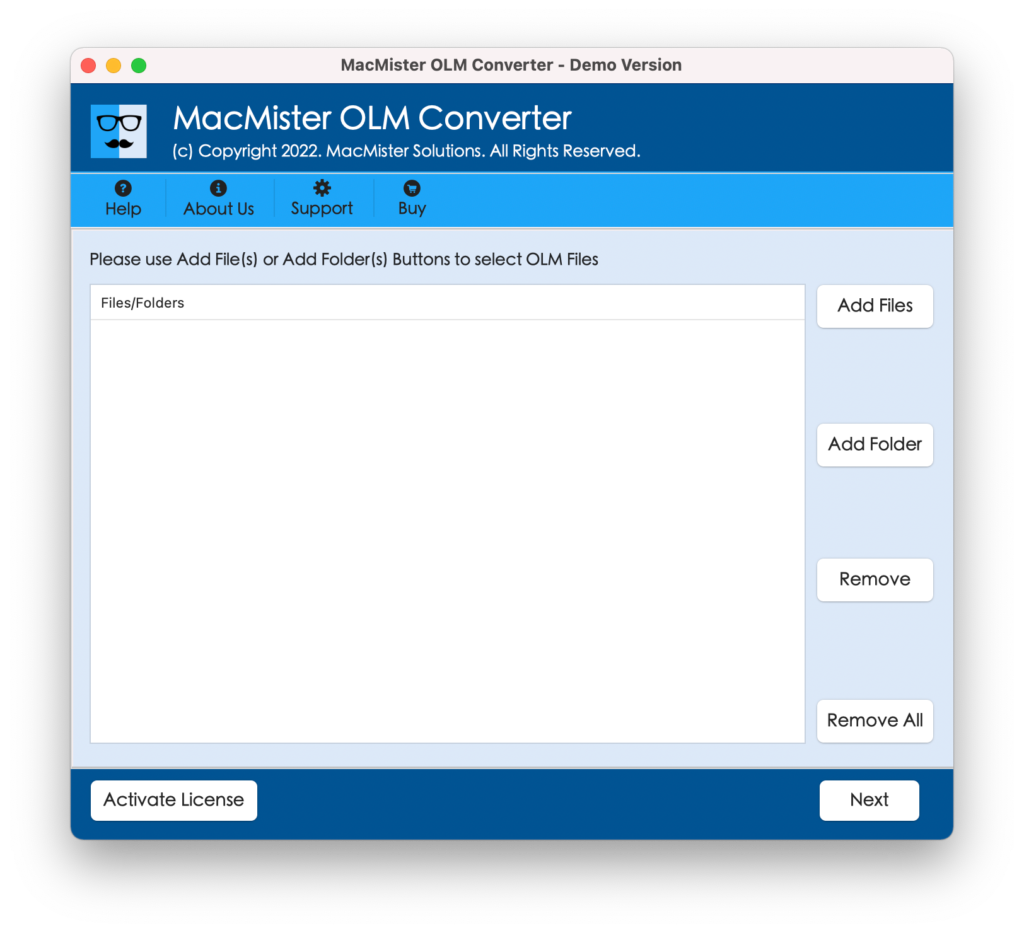
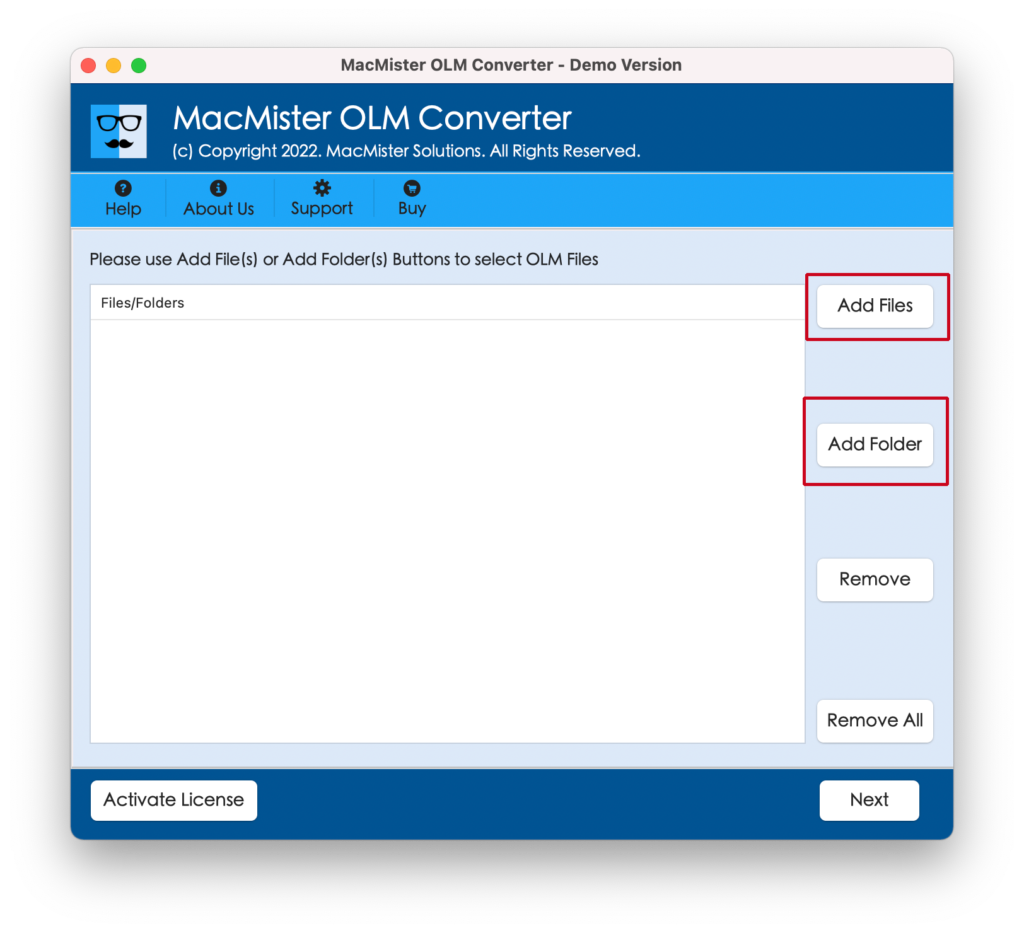
Step 2. Use the dual buttons i.e. Add File(s)/Add Folder to load OLM files individually or OLM files folder on the tool. Tap Next to continue.
Step 3. Now, OLM files will be listed. Each will display with a checkbox. By default the checkboxes will be selected. However, user can perform the selection as per requirements to export required OLM files on Mac, if needed. Click Next to continue.
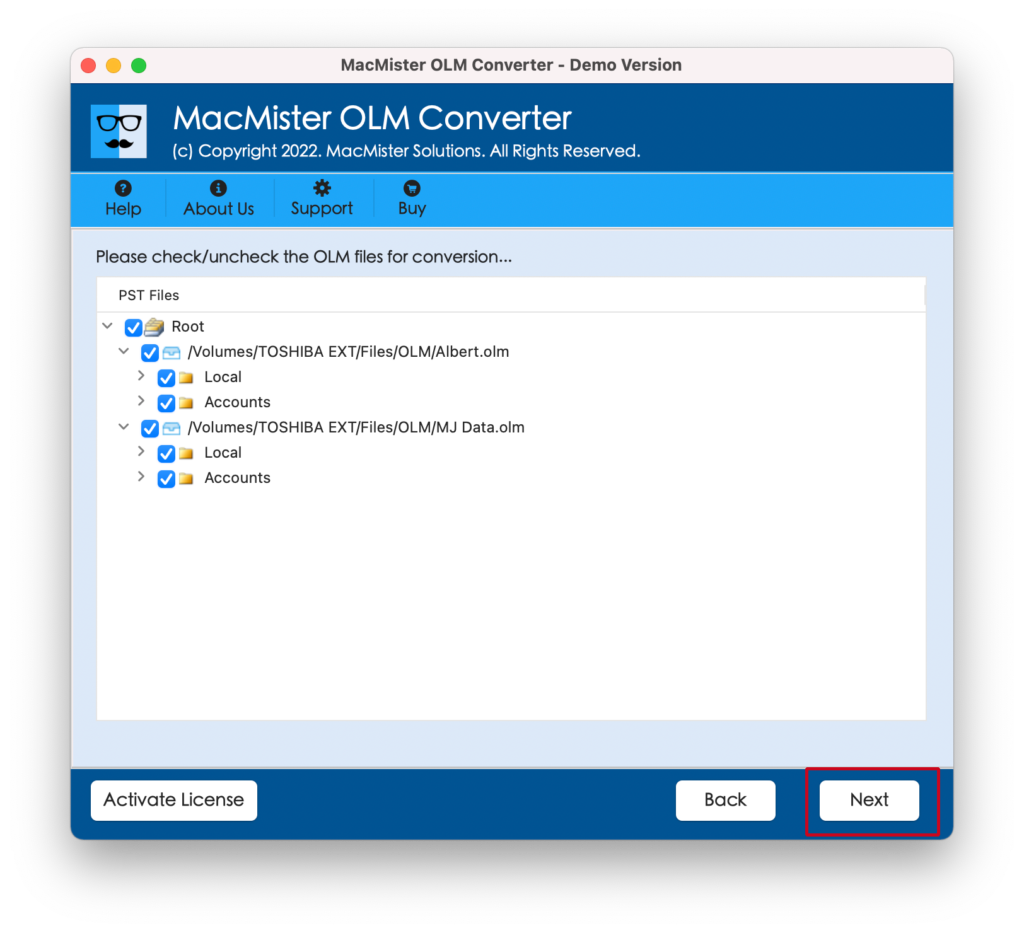
Step 4. Tap Select Saving Options and pick required saving type from the menu.
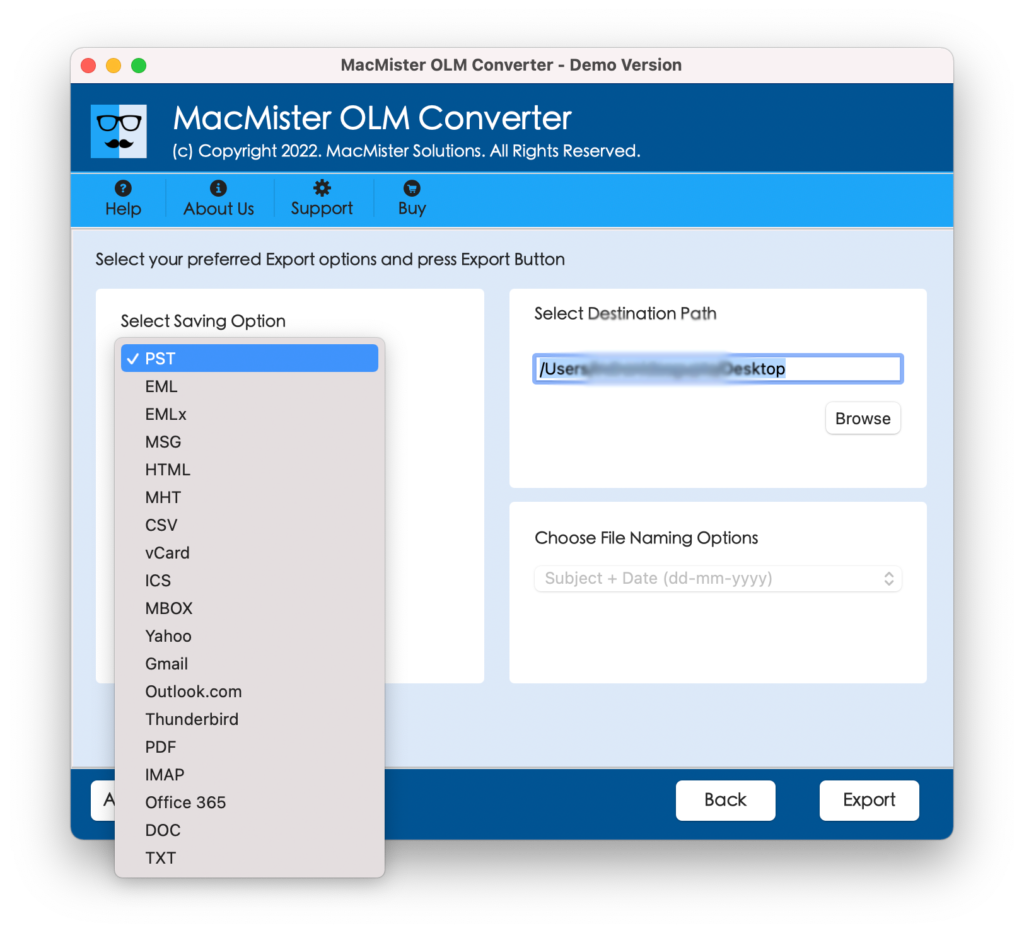
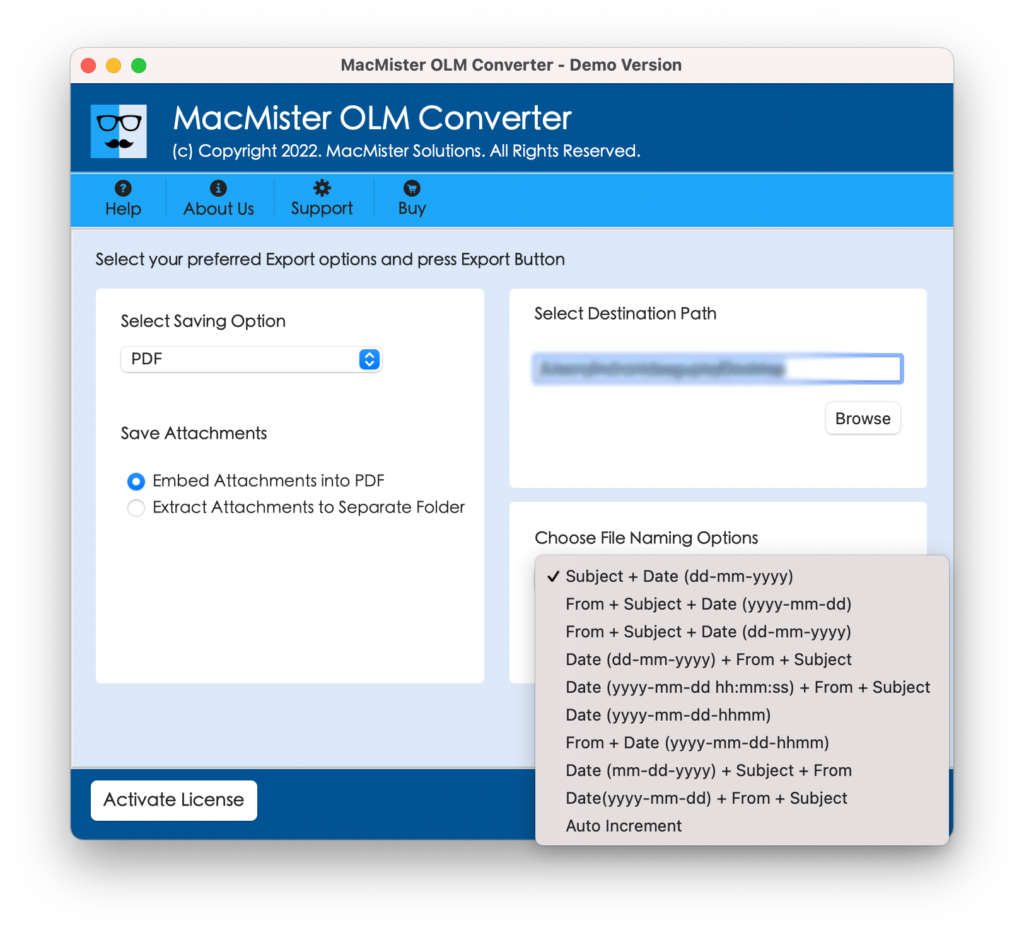
Step 5. Set sub-options of a chosen saving type according to the requirements and tap Export.
Step 6. The Live Conversion Report window will open which will show the live email export status of Outlook Mac.
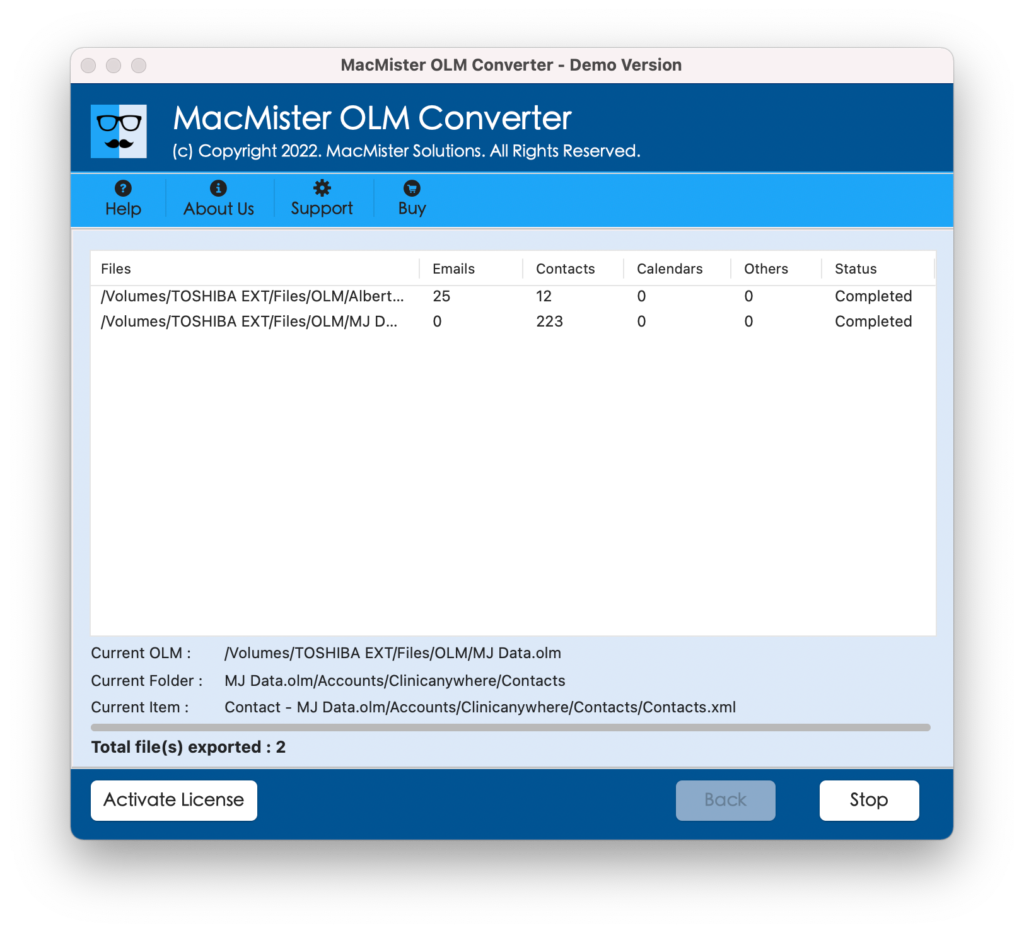
Within seconds, the process will complete and then “Conversion Completed” notification will appear on the screen. Click OK and then view resultant files by navigating to its specified location. After accessing the required resultant file, you will see that the tool has perfectly implemented the process. The entire email message will display with original content and precise metadata properties.
Why to Choose Direct Solution?
Direct solution is equipped with great amount of features; some of them are discussed here –
- Able to batch export entire Outlook emails on Mac at once.
- Easily export Outlook emails along with contacts, calendars, journals, tasks, etc.
- Allow users to export entire Outlook email into 15+ saving types such as PST, PDF, MSG, EML, HTML, TXT, DOC, Yahoo Mail, Office 365, and more.
- Protects data originality and metadata properties of entire Outlook emails during export.
- Able to handle the export of large size OLM files with ease.
- Built with Add File(s)/Add Folder buttons to upload Outlook email files on the application pane for export.
- Live Conversion Report displays the live export details of Outlook emails.
- Available for Mac & Windows OS (all versions supported).
Epilogue
In the above segment we have explored different ways to fix how can I export my entire Outlook email on Mac.? The first method is manual and is completely free to use. But, the steps are technical and lengthy. Novice users will face challenges when exporting Outlook emails manually. The second method is direct and has the ability to batch export Outlook emails on Mac at once. It is built with friendly steps and secure environment. Users with professional and non-professional skills can operate the app with ease and export Outlook email on Mac without any issues. Additionally, it has exceptional features that help users in attaining the desired outcome with 100% accuracy. The direct method is available with a freeware version. It allow users to export 25 Outlook OLM files free of cost.