How do I Export and Save Emails from Outlook for Mac on MacBook?

If you want a quick and effective solution to export and save emails from Outlook for Mac on MacBook, then stick to this blog till the end. Because, here we have discussed a reliable and safe approach that securely functions on Mac and help Mac users to export and save emails from Outlook on MacBook with attachments and other items instantly.
Overview of Outlook for Mac
Outlook for Mac is a most used email client of Mac OS. Several professionals have configured Mac Outlook on their Mac systems to handle digital communication in a large amount.
In today’s era, email clients have made work easier for many individuals and businesses. Without needing any physical travel, users can send their important files and documents from one place to another worldwide. These email applications helps in collaborating and connecting with others sitting on a different part of the world effectively.
Outlook for Mac is an email platform that many Mac users prefer to manage their personal database such as email messages, contacts, calendars, tasks, notes, etc. But sometimes due to unavoidable circumstances such as crossing of the maximum storage limit, or any other technical error, users need to immediately export and save emails from Outlook for Mac.
However, email client provides an in-built option with the help of users can export their entire database and save the same on desktop at desired destination path. The application use OLM file type that save the email application data items such as emails, calendars, tasks, etc.
Let’s see how to export Outlook for Mac emails in OLM file.
Steps to Export Emails from Outlook for Mac in OLM file
Archive Outlook for Mac database in OLM file to reduce mailbox size. Save the file at any location on Mac for safekeeping.
Step 1. Open Outlook on your Mac and click Tools.
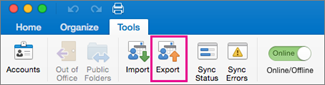
Step 2. Select Export option from the list.
Quick Note. In case you unable to find Export option, make sure that you are using the latest version of Mac Outlook. To do the same, go to Help, click Check for Updates. If all Outlook updates are applied and still you not able to see any Export button, then look for the same option in File menu.
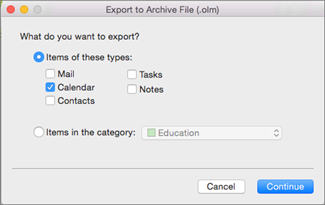
Step 3. Export to Archive File (.olm) window appears. You can select the necessary items that you want in OLM file and click Continue.
Step 4. In Save As field, insert the required name by which you want to save OLM file. Then, on the left, under Favorites, select Downloads and press Save button.
Step 5. After clicking Save button, the process will start and when it finishes, a notification will appear on the screen displaying Finish button. Click on that button to quit the process.

The process will help you extracting the important database of Outlook for Mac in OLM file.
OLM file is a platform-dependent file format. Sometimes, during emergency, users need to immediately want to open OLM file on the system. This can take a lot of time because importing OLM into Outlook for Mac is a lengthy process. So, they look for a technique that can save OLM file into easily accessible file format or in a file type that suits them the most. Now, without taking more time, let’s understand the process with the help users can export and save emails from Outlook for Mac on MacBook.
How do I Export and Save Emails from Outlook for Mac on MacBook? – [SOLVED]
The cost-effective and secure method to save emails from Outlook for Mac on MacBook is Mac OLM Converter by MacMister. It is a brilliant solution that offers 15+ saving options to Mac users to save emails from Outlook for Mac OLM file. The simplified GUI and easy operational platform is accessible effortlessly by all types of users. Also, the three easy steps provide users the opportunity to finish the conversion of unlimited OLM files in few seconds.

Moreover, the application provides many beneficial options and features that one can opt to get the desired results in a short time. However, there is a trial edition as well that allow users to check the process of the tool for free.
Working steps to Export and Save Emails from Outlook for Mac on MacBook
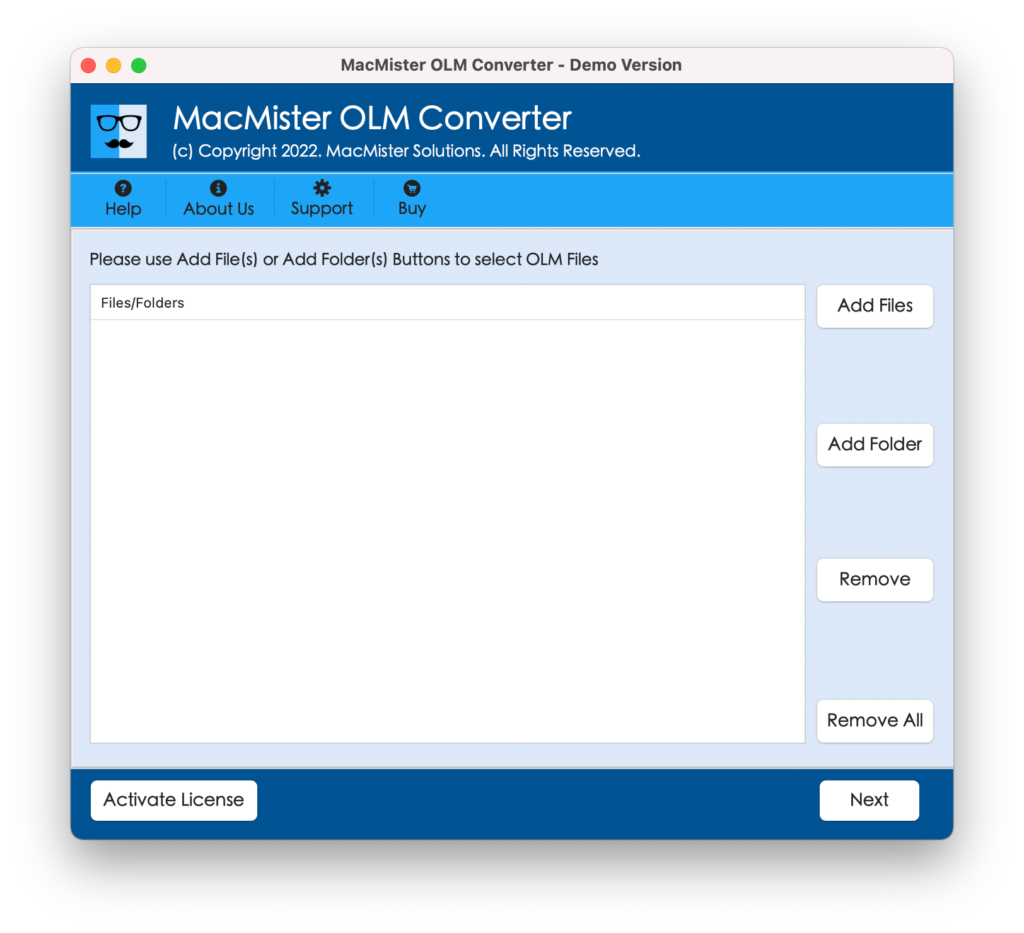
Step 1. Download, install, and open Mac OLM Export Tool on your MacBook for conversion.
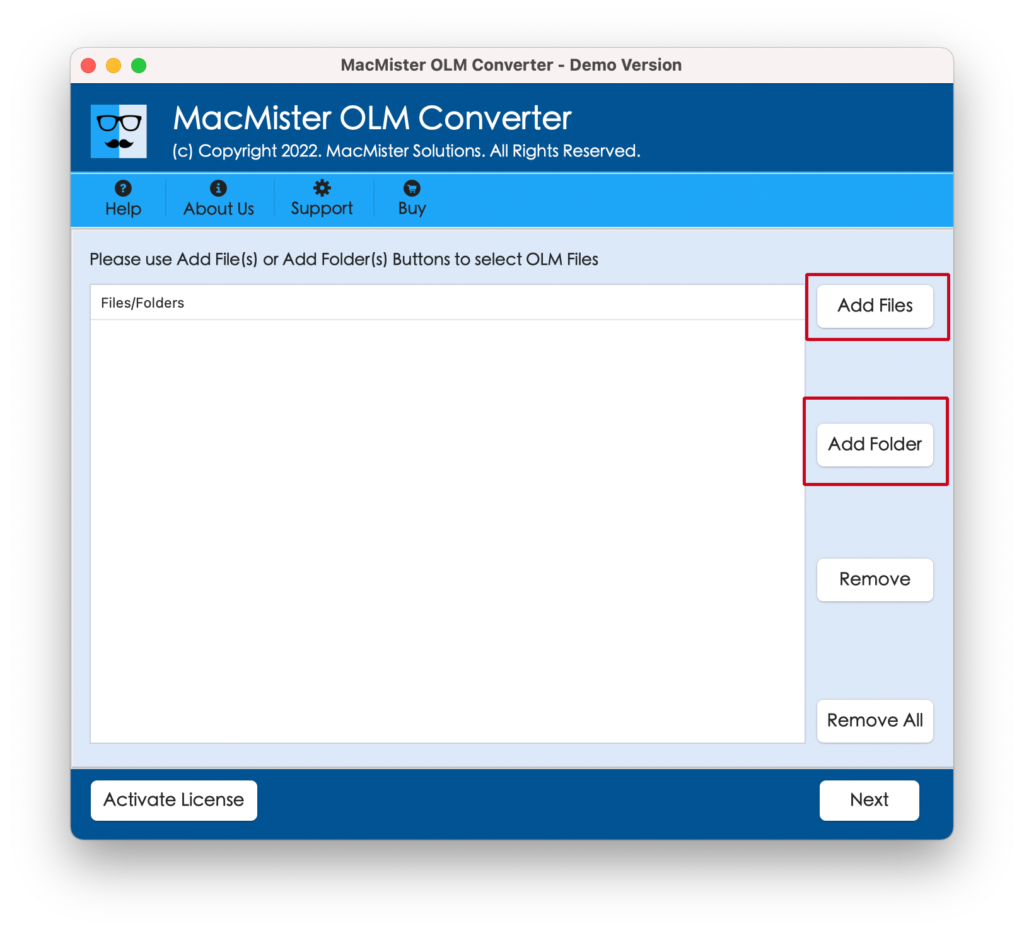
Step 2. Now, you can use either Add File(s) button or Add Folder button to add necessary OLM files/folder to add essential OLM database on the application. Click Next.
Step 3. The tool will scan the selected files and list them on the software pane with checkboxes. By default, all checkboxes are selected but you can perform the selection as per your requirements if you want to export selected Outlook for Mac OLM files on MacBook. Click Next.
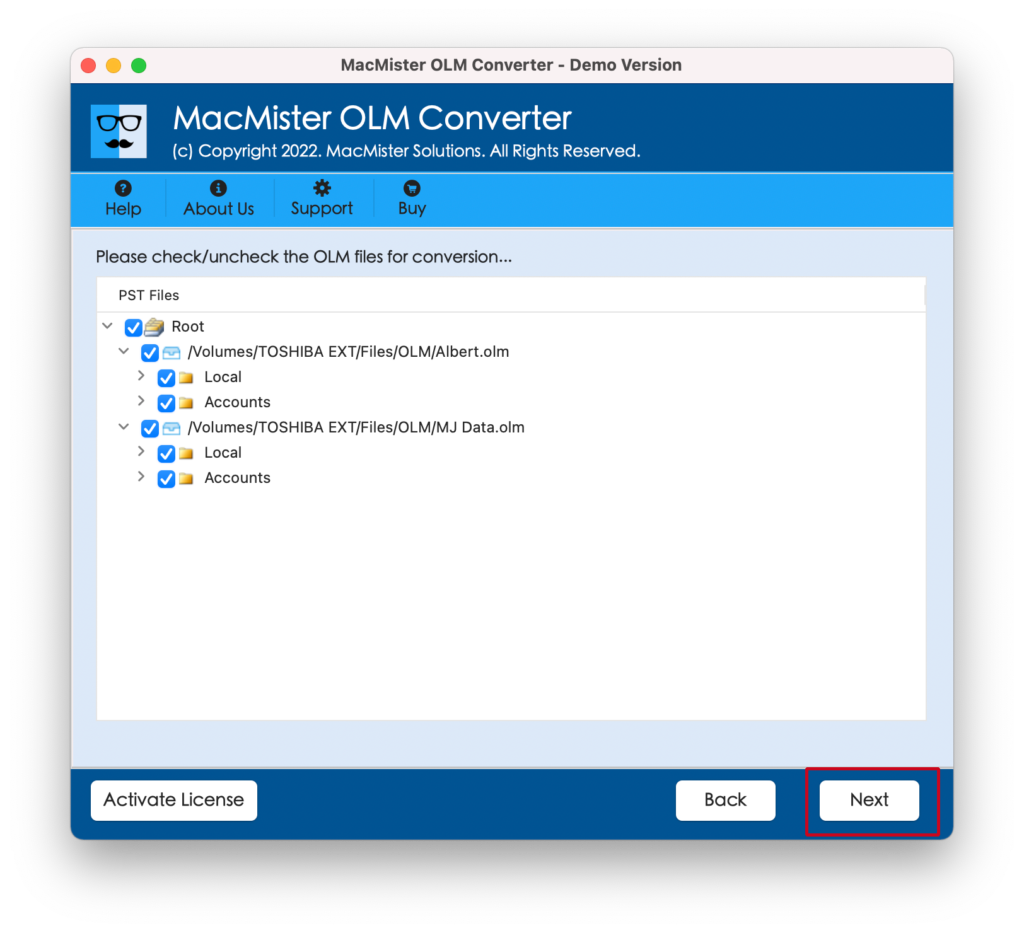
Step 4. Go with Select Saving Options property and choose the saving type in which you want to save Outlook for Mac emails.
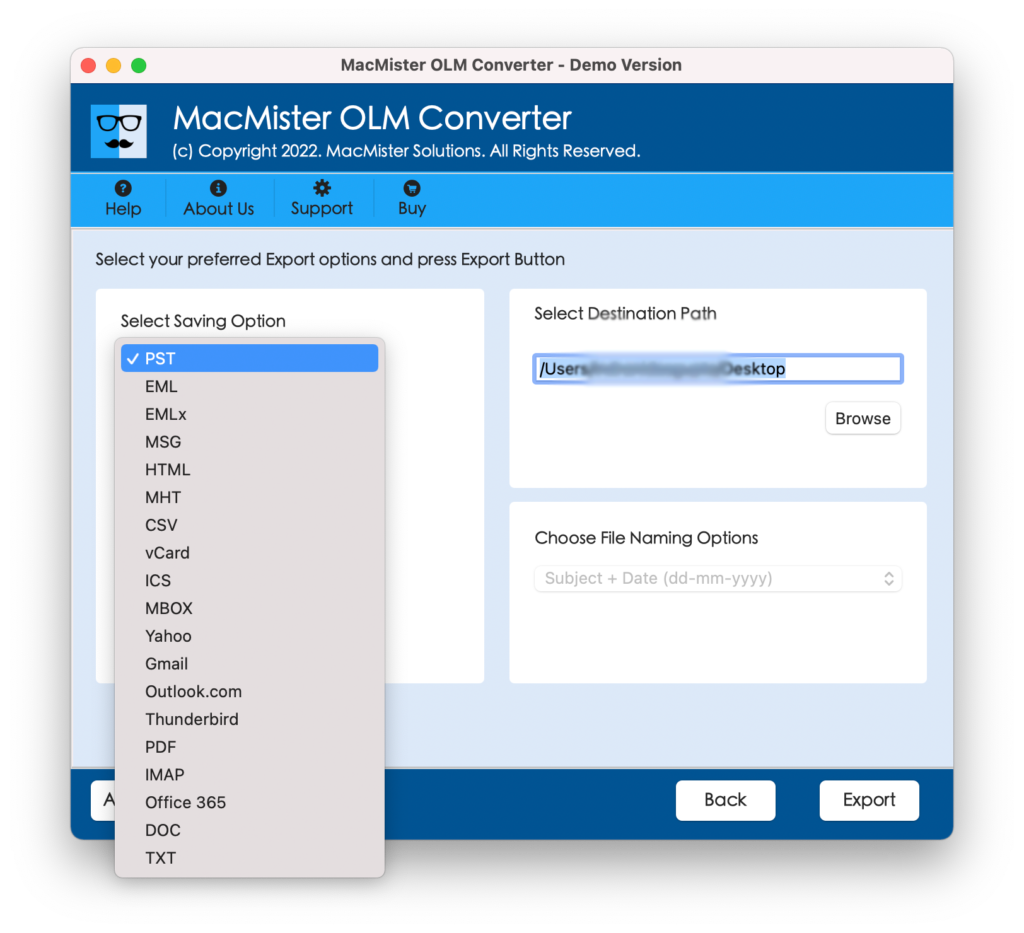
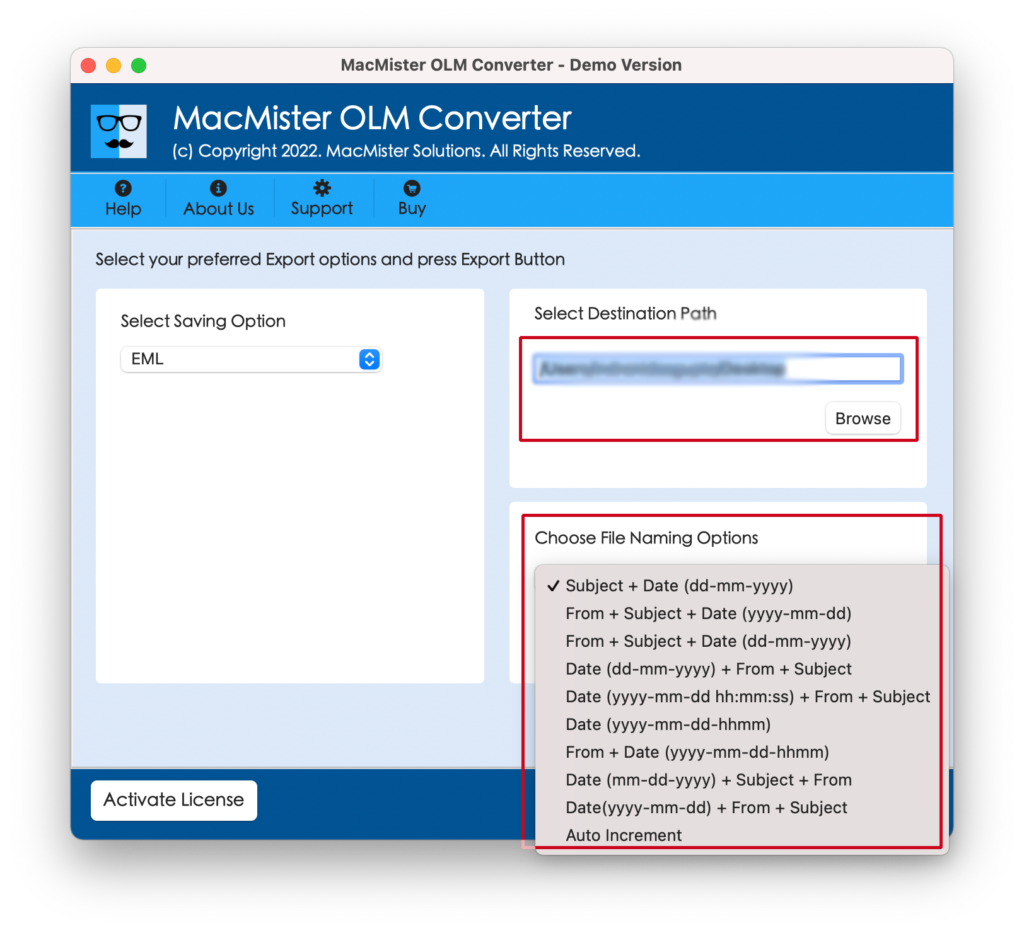
Step 5. Each saving option has sub-options. Set them as per the requirements and click on Export.
Step 6. The conversion is live and users will see Live Conversion Report through which they can track the conversion status of OLM files.
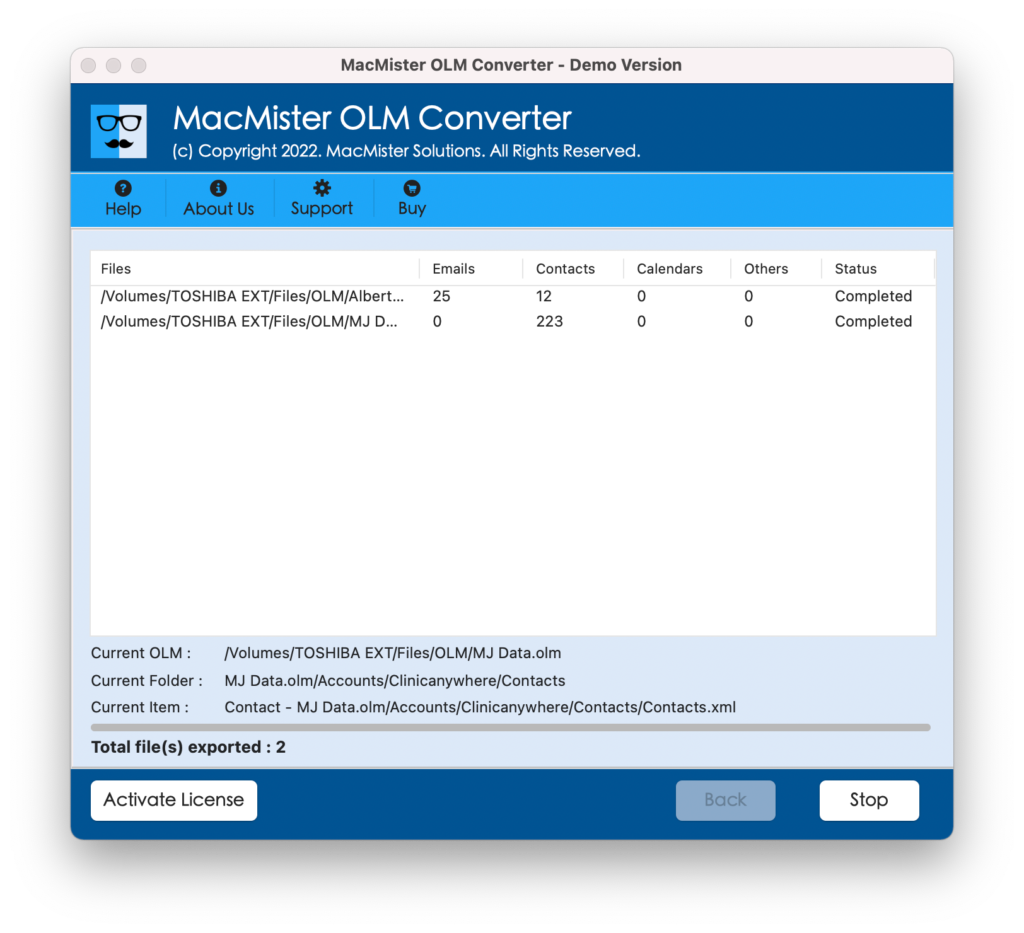
The whole process will take few seconds to finish and then a notification will appear confirming conversion is successfully completed. Click on OK and then go to the location where the resultant files are saved and open the required file to check the result. However, you will see that the content is accurate and the data is appearing with correct formatting properties.
Epilogue
The write-up has discussed an easy way to resolve “how do I export and save emails from Outlook for Mac on MacBook”. The mentioned solution is simple, straightforward, and secure. Mac users can download the utility and perform the process with ease without facing any data alteration. The app allows to export and save emails from Outlook for Mac OLM to MBOX, PST, PDF, MSG, EML, EMLx, MHT, HTML, TXT, CSV, DOC, IMAP, Thunderbird, Yahoo, Gmail, G Suite, and more. Also, a freeware version provides the advantage to check the conversion process for free. Moreover, users will be able to export and save first 25 files from Outlook for Mac free of cost.