How do I Transfer my Cox Email to Outlook on Mac & Windows?
Are you trying to configure Cox Mail into Microsoft Outlook but wondering how do I transfer my Cox email to Outlook email account safely? Searching for a simple and stress-free solution for the same? No worries, read the article carefully and you will encounter a solution that will directly transfer Cox email to Outlook in few seconds.
However, there are two ways to transfer Cox email to Outlook. One is using a manual method and another using a professional third party tool. We have discussed both the solutions; you can pick the suitable one and add Cox email to Outlook on Mac & Windows.
Method 1. Manually Transfer Cox Email to Outlook
Things to Note before implementing the process:
- Cox email address and password.
- Incoming Mail Server address: imap.cox.net.
- Incoming Mail Server Port: 993.
- SSL: Yes.
- Username: Specify the Cox Mail username.
- Password: Specify Cox Mail password that you use to login cox.net account.
- Outgoing Mail Server Address: smtp.cox.net.
- Outgoing Mail Server Port: (SSL or SSL/TLS Encryption: 465) and (TLS only or no Encryption: 587).
- Authentication Needed: Yes.
- Username: Provide first part of Cox Mail email address.
- Password: Specify the same password you using to login cox.net account.
Steps to Setup Cox Email to Outlook
Step 1. Open Microsoft Outlook.

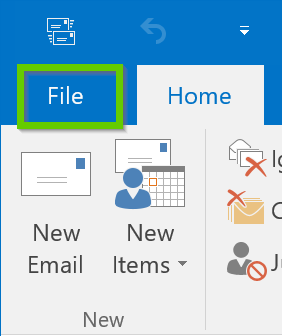
Step 2. Go to File menu.
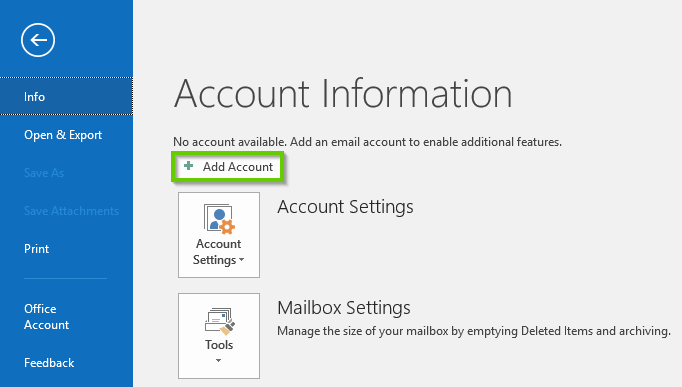
Step 3. Tap Add Account button.
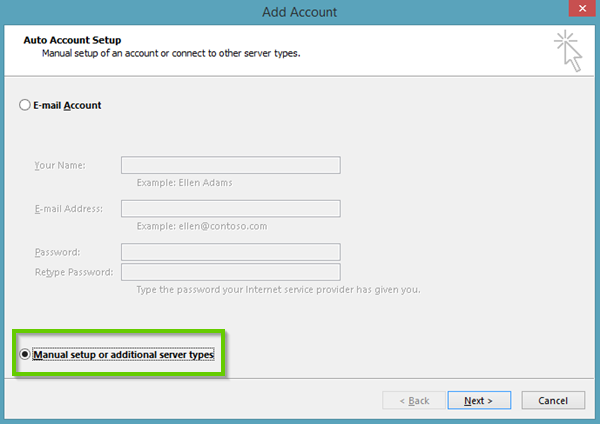
Step 4. Select the option Manual Setup or Additional Server Types and click Next.
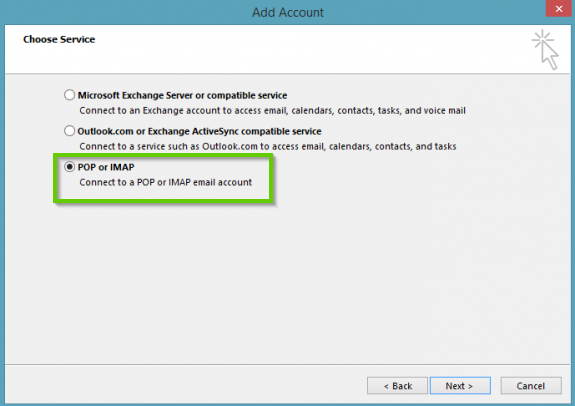
Step 5. Select POP/ IMAP option and press Next.
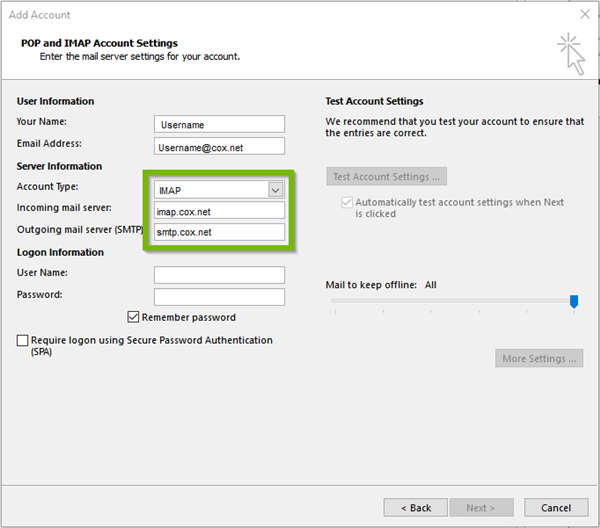
Step 6. In POP and IMAP Account Settings window, provide your Name and complete Email Address.
Step 7. Select IMAP as Account Type. Provide Incoming mail server as imap.cox.net and Outgoing Mail Server (SMTP) as smtp.cox.net.
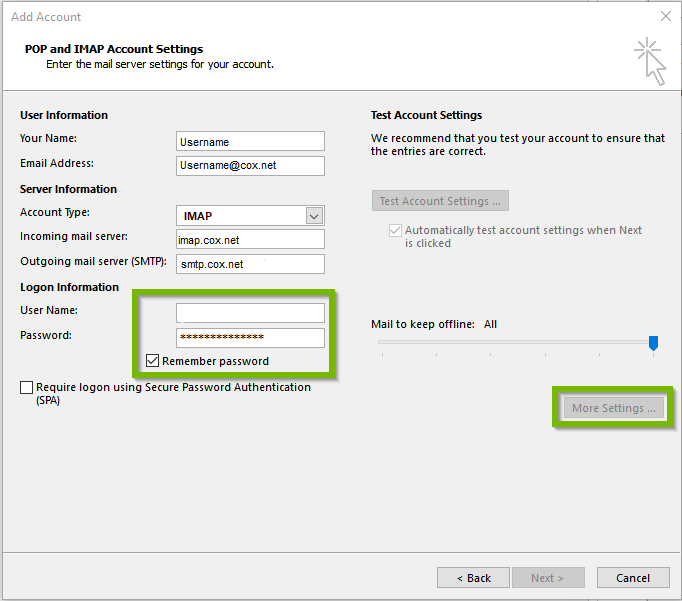
Step 8. Next in the Logon information, fill your username and password and tick the checkbox of Remember Password. Then, click More Settings button.
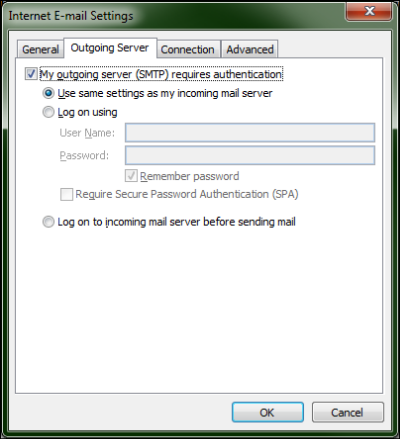
Step 9. Navigate towards Outgoing Server Tab and continue by enabling My outgoing server (SMTP) requires authentication option as well as Use the same settings as my Incoming mail server option.
Step 10. Click Advanced Tab. Set Incoming Server (IMAP) to 993, choosing SSL as encrypted connection. Set Outgoing Server (SMTP) to 587, choosing TLS as encrypted connection.
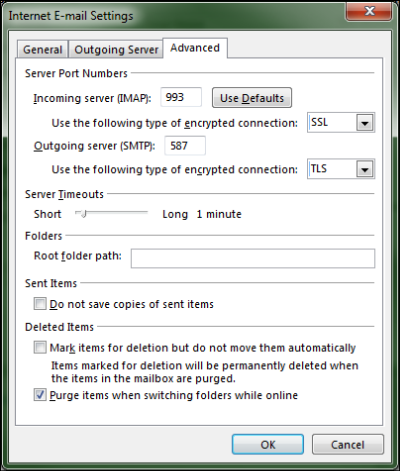
Step 11. Tap OK button and then Next to finish the process.
Step 12. Click on Close after account properly logged in.
Step 13. Press Finish button.
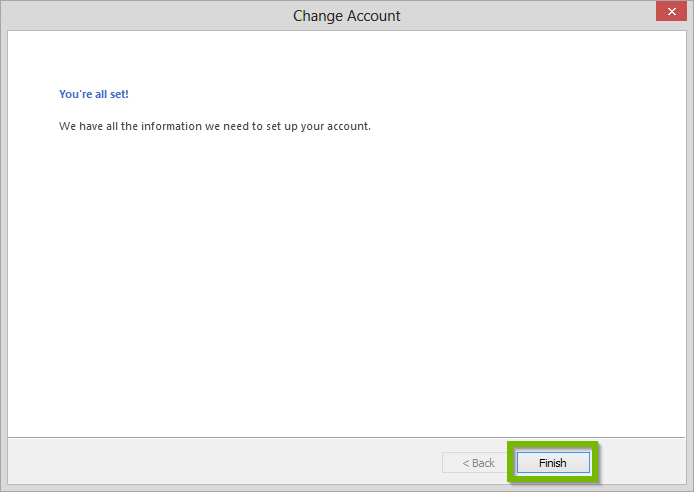
Now, all the Cox emails will automatically arrive in your Outlook account. However, the steps are suitable for technical users. Thereby, non-professionals are recommended to operate the process under expert’s assistance. Because, missed out of a single step can hamper the entire configuration of Cox Mail to Outlook.
Method 2. Directly Transfer Cox Email to Outlook
The easy and simple process to transfer Cox email to Outlook is MacMister Email Backup Software for Mac & Windows. With the help of the tool, users can directly add all Cox Mail emails to Outlook with attachments at once. It even has a friendly interface which is suitable for both professional and non-professional users. Also, the application has a three-step process which takes few seconds of users to successfully transfer Cox email to Outlook.
Moreover, the software is programmed with many features which can be utilized by users to attain the desirable results. However, the free demo version of the application is an additional advantage given to users to evaluate and analyze the migration of Cox Mail emails for free.
Working Steps to Transfer Cox Email to Outlook
Step 1. Download, and run MacMister Cox Mail to PST Converter for Mac on a Mac system.
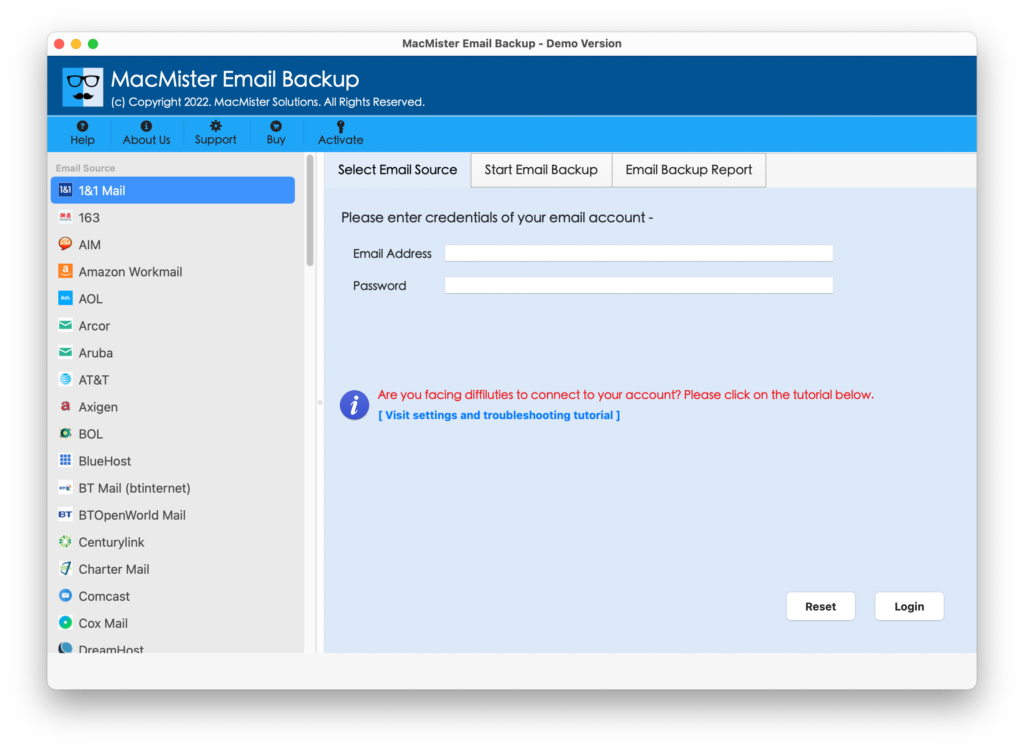
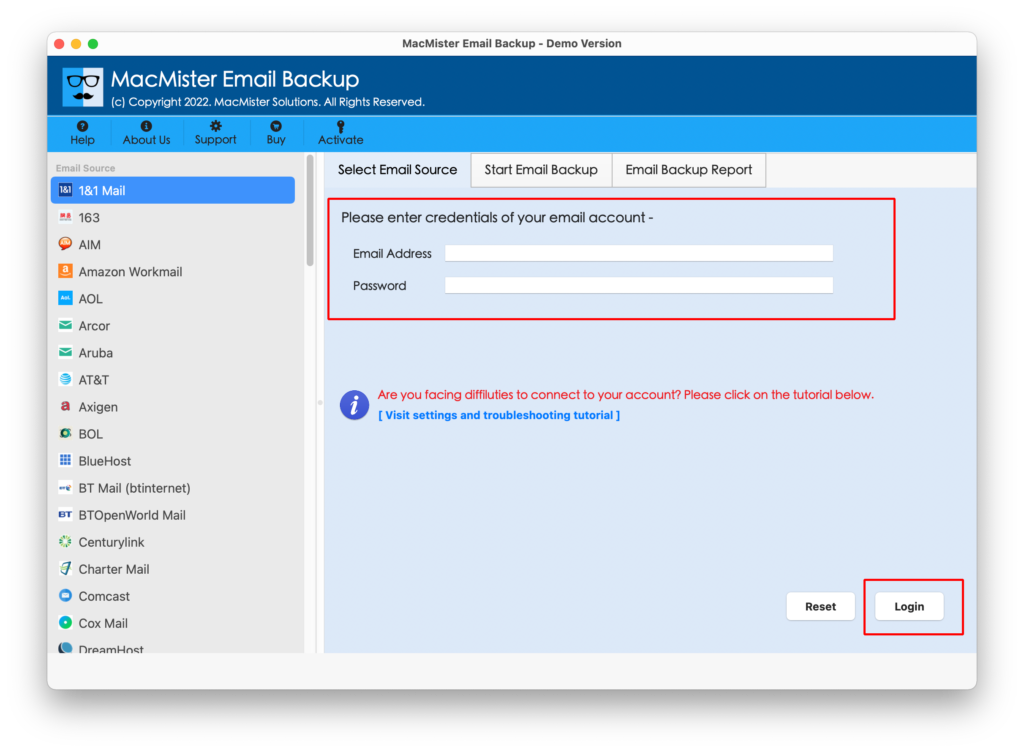
Step 2. Select Cox Mail option from the left. Enter Cox Mail login details. Click Login button.
Step 3. The tool will authenticate Cox Mail account and list all Cox Mail mailboxes on the left one-by-one.
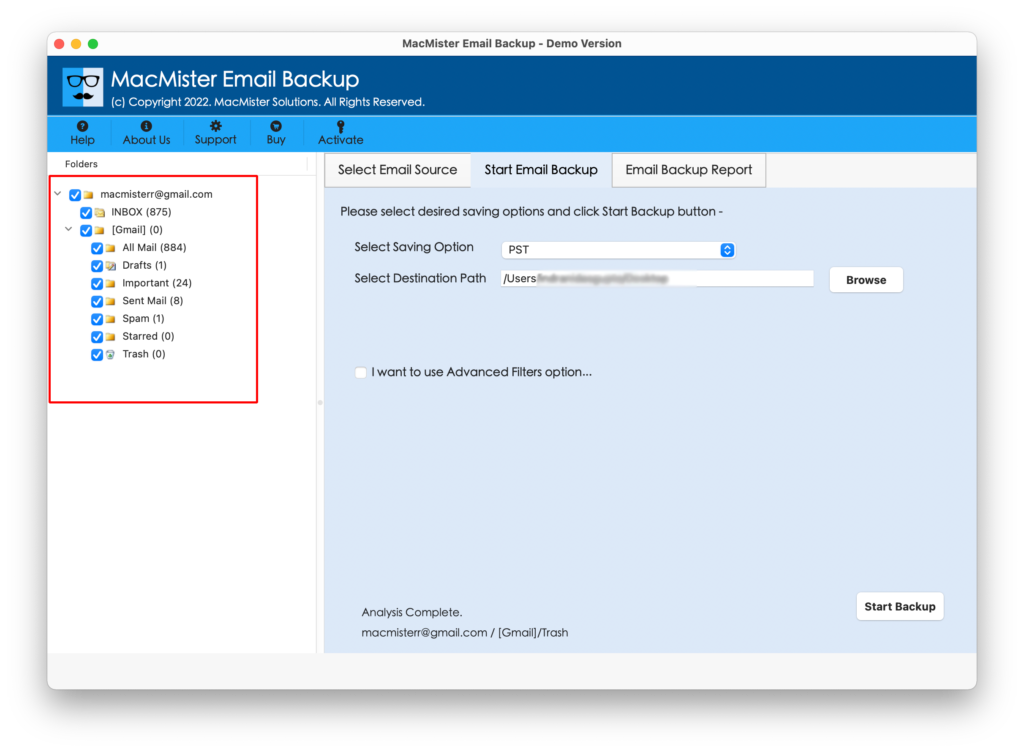
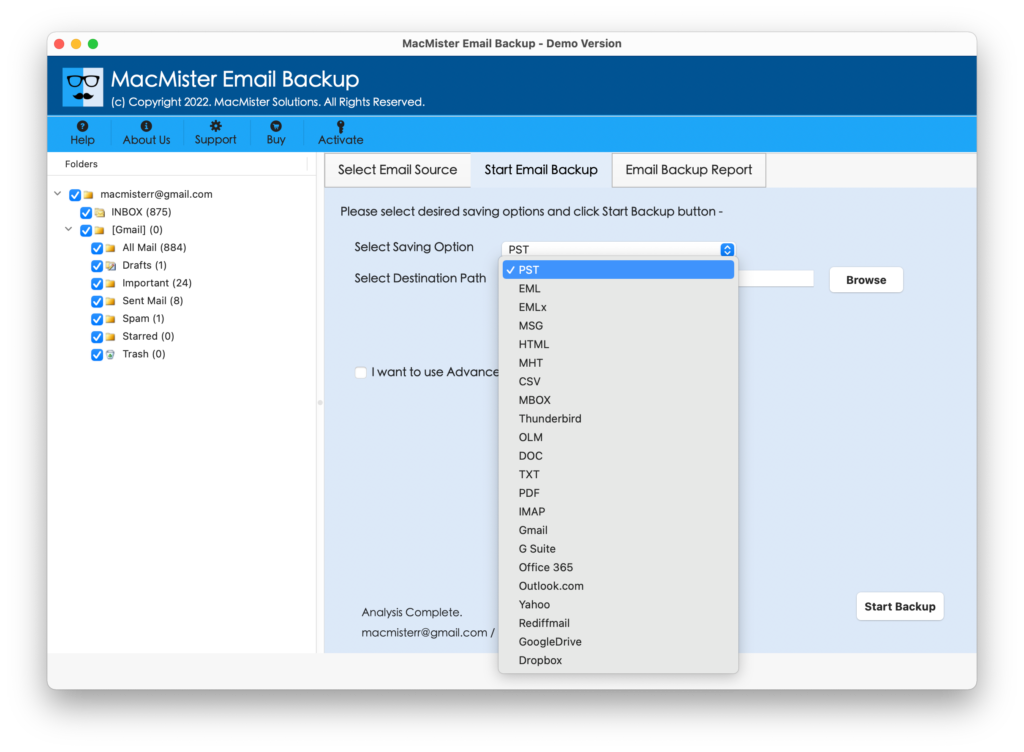
Step 4. Go towards right and by clicking Select Saving Options, choose PST or OLM option from the menu.
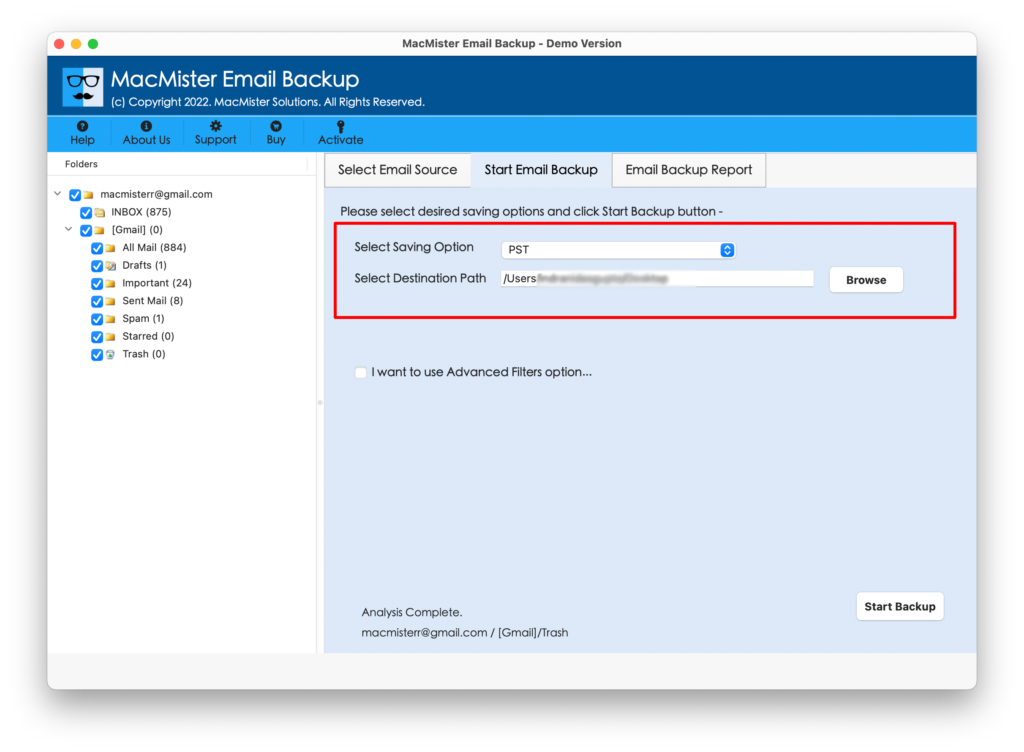
Step 5. Set the sub-options of PST or OLM according to the requirements. Apply necessary Filters for transferring specific Cox email to Outlook and then click Start Backup button.
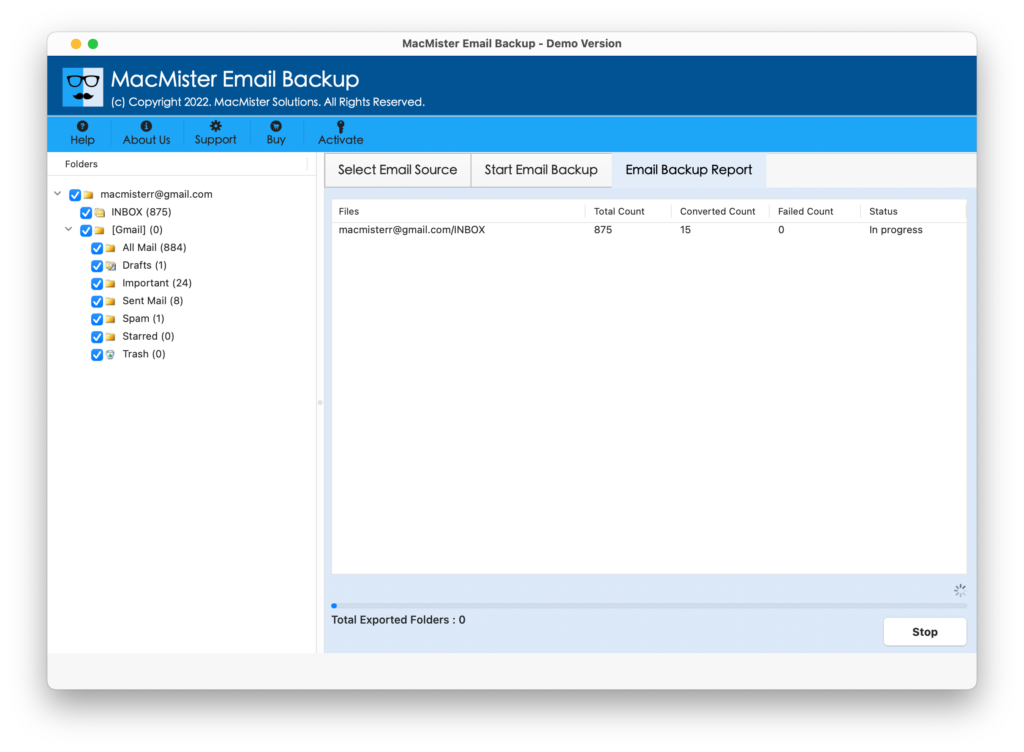
Step 6. The process starts quickly and then the app will show Email Backup Report, displaying the ongoing migration progress of Cox Mail emails.
The whole process finishes in few seconds with a pop-up message confirming that the process is completed successfully. Tap OK button and import resultant PST or OLM files into Outlook on Mac or Windows. However, you will find no change in the email messages. They will appear with accurate content and formatting properties.
Why MacMister Cox Mail to Outlook is a Preferable Solution by Expert’s?
MacMister Cox Mail to Outlook is a safe solution to use and thus it is highly recommended for exporting Cox email to Outlook. It has many advanced features which will help user in obtaining the desired output. Some of them are:
- Directly transfer Cox email to Outlook on Mac & Windows with ease.
- Protects the Cox Mail account details throughout the process.
- Built with Filters such as date range, from, to, subject, etc. to transfer specific Cox Mail emails and attachments.
- Preserves the data originality of Cox Mail emails during the transfer.
- Offers simple and friendly GUI which is operable by all technical and novice users.
- It will not alter the folder structure while transferring Cox Mail mailboxes into Outlook.
- Shows the live migration report of Cox emails to Outlook.
- Besides PST or OLM file saving options, also supports 15+ commonly used file formats and email servers such as PDF, MSG, EML, EMLx, MHT, HTML, DOC, IMAP, Thunderbird, Office 365, Gmail, G Suite, and more.
Epilogue
The write-up here focused an effective approach to fix “how do I transfer my Cox email to Outlook?” on Mac & Windows. MacMister Cox Mail to OLM Converter for Mac & Windows is designed in a safe and secure way, thus not only protects the migration but also safeguard the Cox Mail account details during the process. One can download its trial edition and check the entire process by transferring first 25 Cox Mail emails to Outlook free of cost.