How MacBook Open MBOX File without Thunderbird?
Did you recently move to a new MacBook with lots of MBOX files and now wondering how MacBook open MBOX file without Thunderbird email client? Looking for a safe and easy method to implement the necessary task? No worries, just read the article and you will come across a solution that will help in opening MBOX file without Thunderbird by transforming MBOX files into readable content.
MBOX is a mailbox file that stores users email messages and attachments. It is widely utilized by several email clients for email storage and one of them is Mozilla Thunderbird. There are many Mac users who are using Thunderbird email service for handling digital communication. It is a free and open-source email application that works similar to other email clients like Microsoft Outlook, Apple Mail, eM Client, and more. A fully functional platform that is being served as personal information manager with calendar and contact-book, chat client, RSS feed reader, news client, etc. Also, the email application is not only Mac-based, it is also compatible with Windows OS.
However, the email client also provides the inbuilt option with the help of users can export their necessary emails in MBOX file. This is generally useful whenever users need to change their Mac system or they are moving from Windows to Mac OS.
So, let us understand how to export MBOX files from Thunderbird on Mac & Windows.
How to Export MBOX Files from Thunderbird on Mac?
- Open Mozilla Thunderbird. Go to the top-right of the screen and click on three-vertical lines appearing. Tap Add-ons.
- This will open new window, click on Up & Coming.
- There are several Add-Ons options present, search Import/Exportusing Search bar. Quickly put the same for download and do proper installation. After correctly installing it, the software will show a message that will ask to start Mozilla Thunderbird again.
- Now, in Thunderbird, go to the desired mailbox, right-click on it and tap All Mail option. Click Export folder from the menu appearing.
- Choose the desired location to export Thunderbird emails to MBOX file.
- Now, go to the specified location and open the folder where all emails are exported. Right-click on the necessary file and rename it by adding .mbox extension in its name. For e.g. if a file is XYZ then rename it as XYZ.mbox.
This way users export MBOX files from a Thunderbird email client. Although the file is accessible with the help of any text-editor but that would be of no use. Because this will not show the entire content properly. Therefore, experts recommend to transform MBOX files into PDF if a user is having a file that contains sensitive data.
Why PDF is Preferable over other File Formats?
PDF is a portable, flexible, reliable, and highly secure format. It is free to use and is easily accessible through any device from anywhere anytime. Using this file has many benefits, some of them are specified here –
- PDF file is easy to view and share.
- The document will be shown with accurate graphic and layout elements on all the devices.
- Works perfectly well on all the operating systems such as Mac, Windows, Linux, etc.
- Support inbuilt option of password that can be used to protect PDF file that contains sensitive data.
- Preserves the non-text elements irrespective of the document original format.
- Easily compress large file without affecting the document quality.
- Equipped with digital signature and watermarks that prevents the data from theft.
How MacBook Open MBOX File without Thunderbird?
The easiest way to perform the necessary task is by utilizing MacMister MBOX to PDF Converter Mac Tool. The software is friendly, advanced, and easy-to-use. It is easily manageable by all professional and novice users. Even, the steps are limited and take less time of users to finish the whole process successfully.
Moreover, there are many features available in the application so that users can use them as per their requirements and open MBOX file without Thunderbird accordingly. It is also available with a trial edition so that users can check the process of the tool for free.
Working Steps to Open MBOX File on MacBook without Thunderbird
Step 1. Download, install, and open MBOX to PDF Tool on a MacBook.
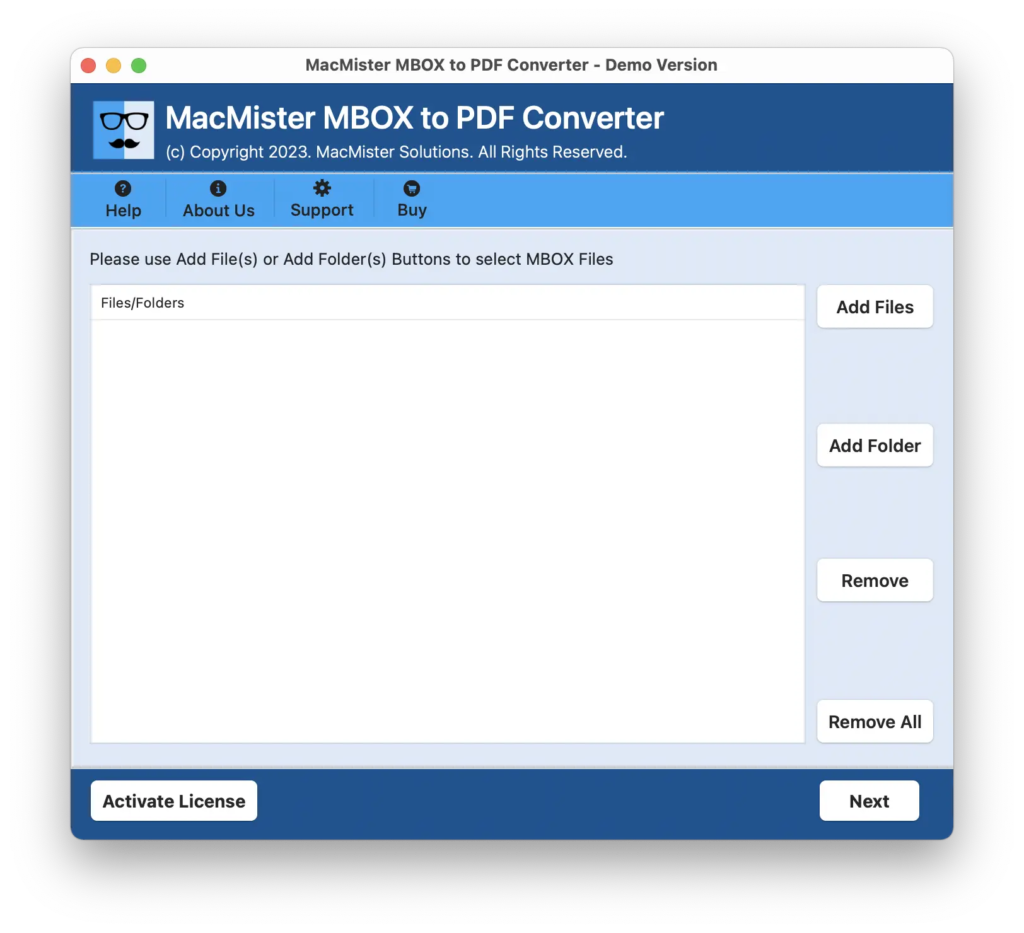
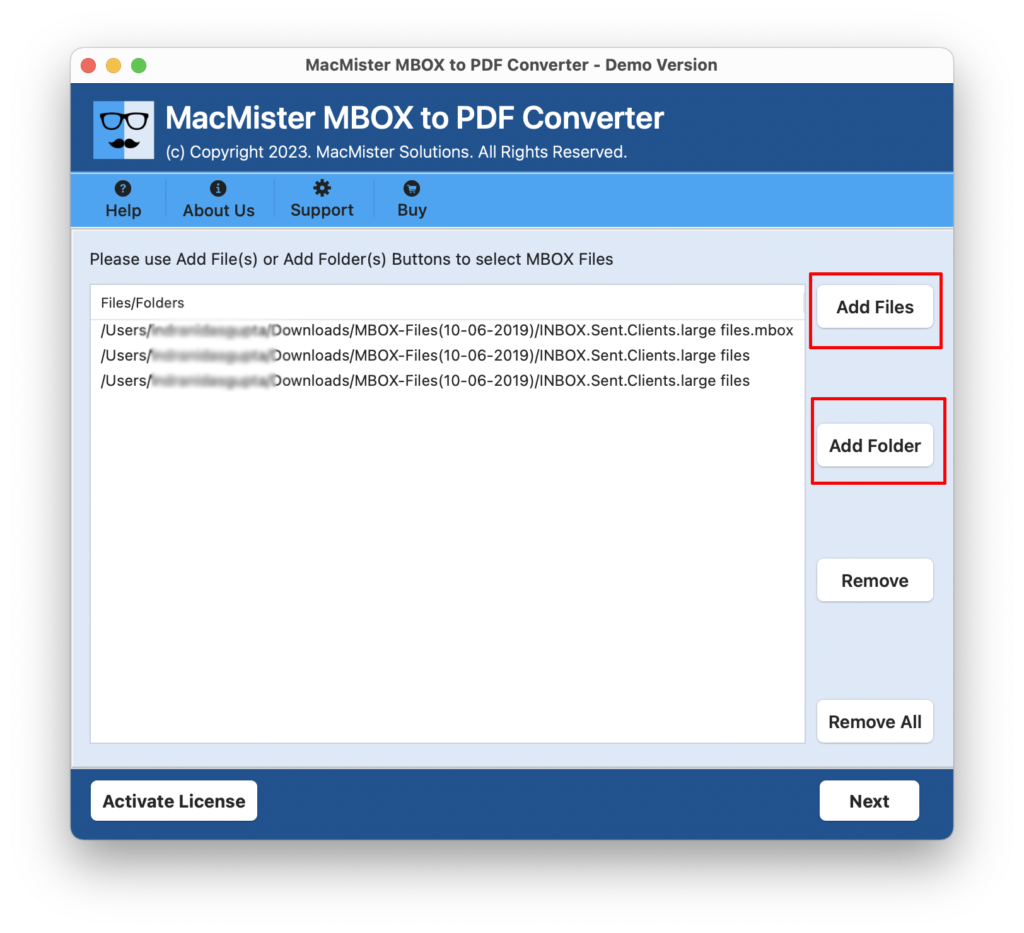
Step 2. Add MBOX files by using dual options such as Add File(s)/Add Folders. The Add File(s) option will allow users to add required MBOX files on the tool and Add Folders enable users to add multiple MBOX files folder on the tool for batch conversion. Use the required option to load MBOX files and tap Next.
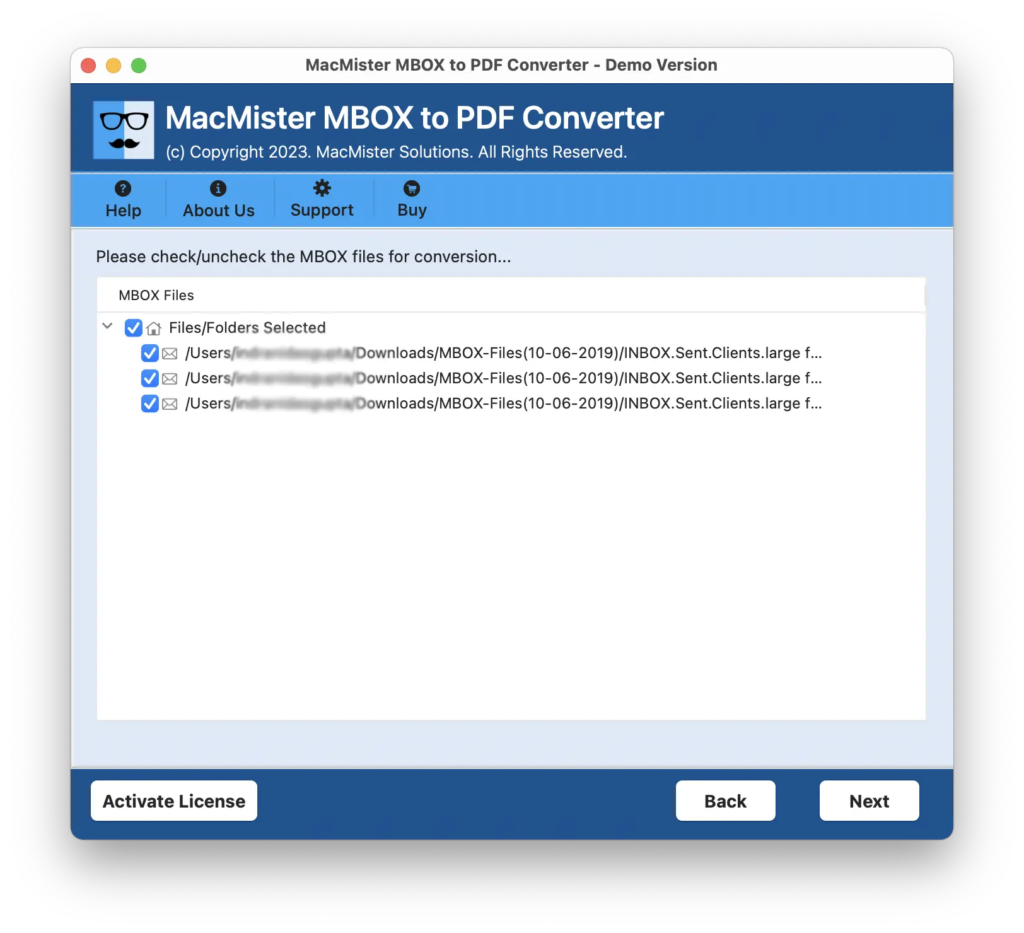
Step 3. The software will show MBOX file one-by-one with selected checkboxes. However, users can also deselect the checkboxes of unnecessary loaded files, if required. Click Next.
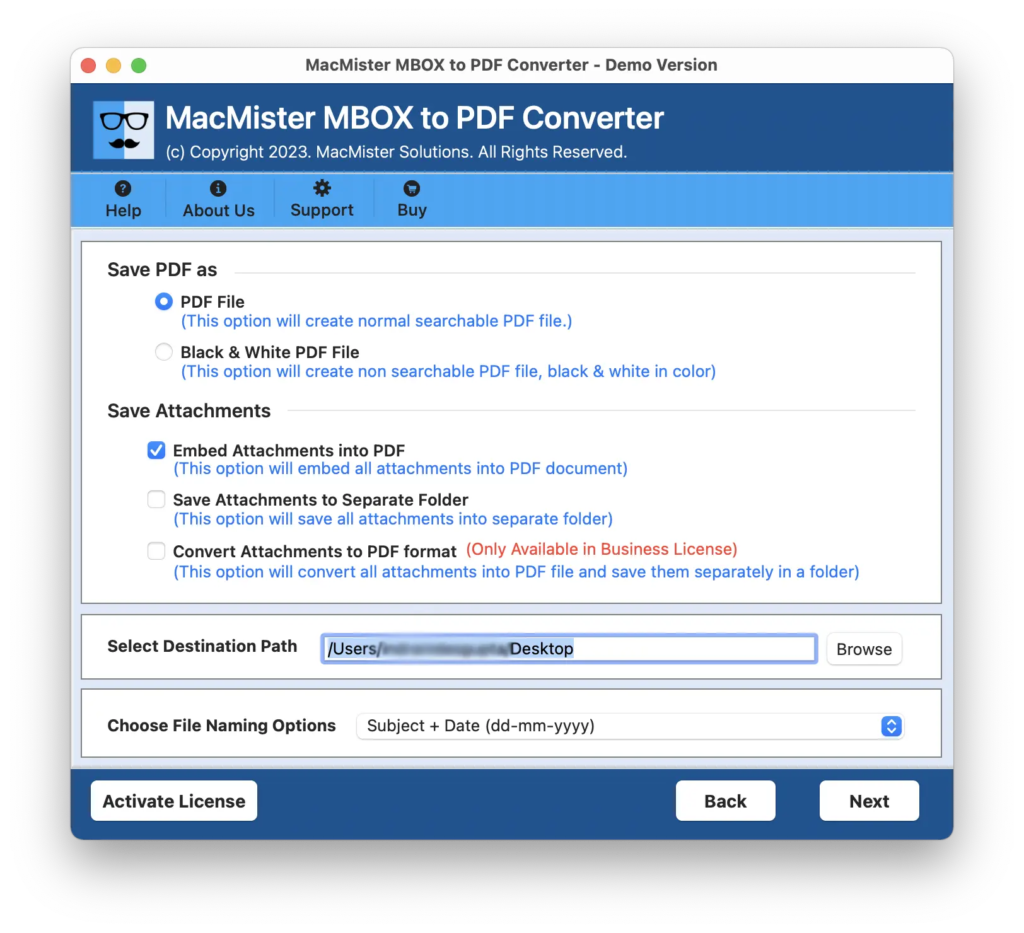
Step 4. Now, on the next window, there are multiple options available. Apply them as per requirements and click Next.
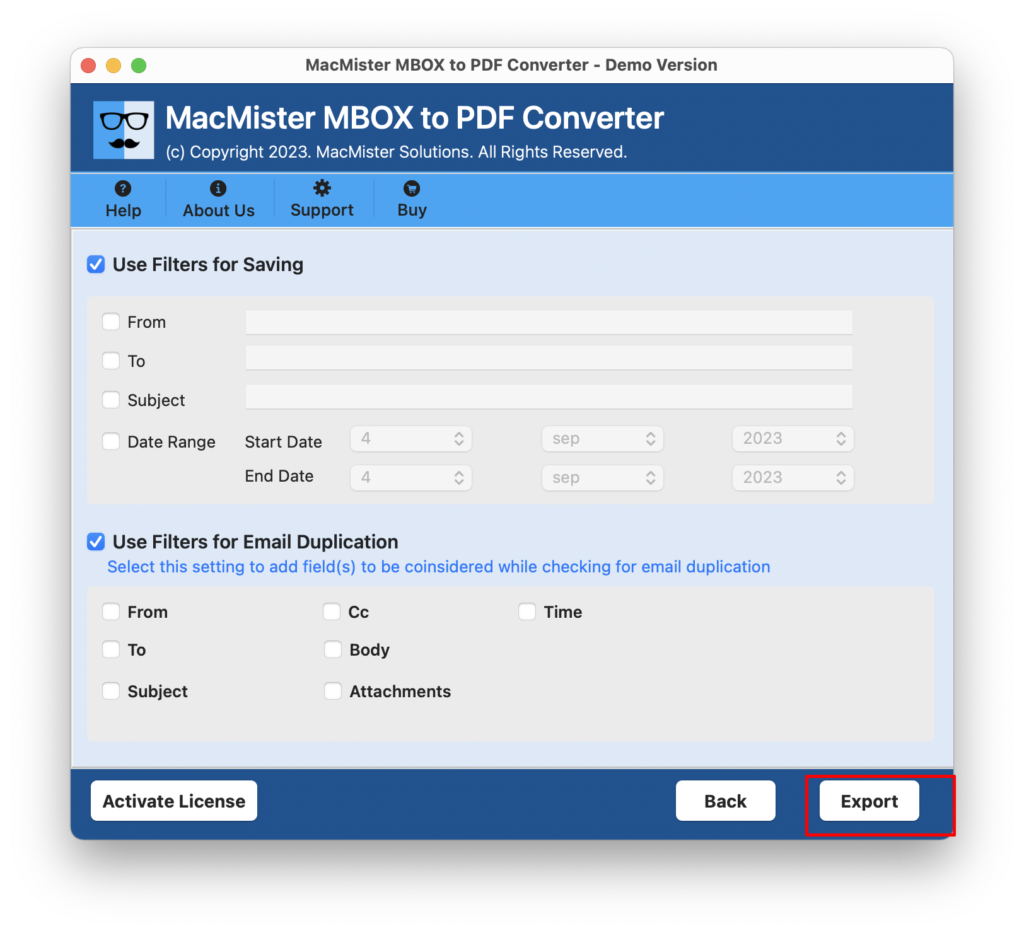
Step 5. Users can also use Filters for specific file conversion and for email duplication, if needed. Last, click on the Export button.
Step 6. The software will start the conversion and show Live Conversion Report which will display the conversion status of MBOX files.
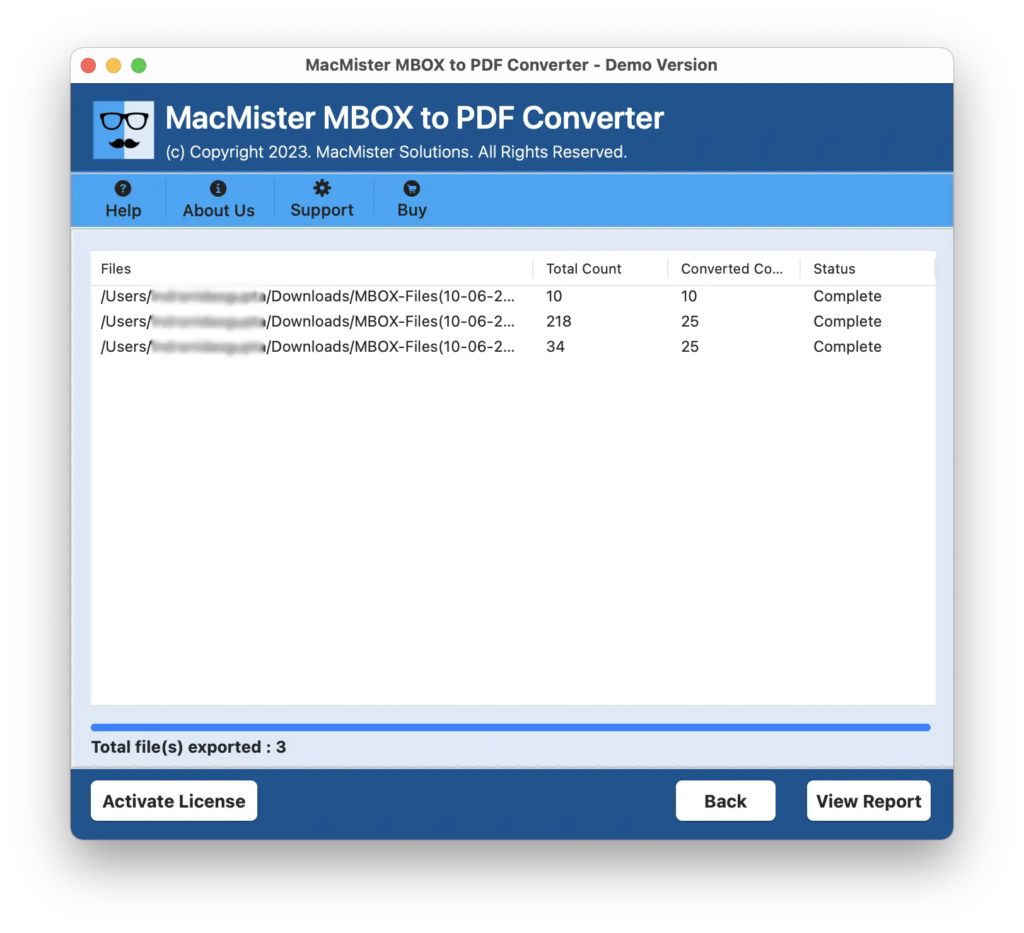
The application will finish the process in few seconds and then show Conversion Completed messages which confirms the successful completion of MBOX to PDF conversion on MacBook. Click OK button and go to PDF file location. Now, open the required PDF document to check the result. You will see that the PDF document is appearing with accurate content, formatting properties, and layout. So, without any worries, one can take help of the tool to open MBOX file on MacBook without Thunderbird.
Conclusion
In the segment, we have offered a method that will fix “How MacBook open MBOX file without Thunderbird”. MacMister MBOX to PDF Mac is definitely a unique way to fix inaccessible MBOX files on MacBook. The tool provide the opportunity to transform MBOX files into PDF and view the required content right away without facing any data alteration. It is a certified application and highly recommended by experts due to its time-saving and reliable functionality. Download the free demo of the application and know the complete software steps for free. It will open first 25 MBOX files on MacBook without Thunderbird free of cost.