How to Add DreamHost Email to Outlook on Mac & Windows?
Are you transferring your email account from DreamHost to Outlook and thereby wondering how to add DreamHost email to Outlook with ease? Continuously searching for a smart and effective approach for implementing the same process? If yes, then not to take worries anymore, just read the article and you will come across a method that will safely add DreamHost email to Outlook on Mac & Windows with 100% accuracy.
DreamHost webmail is a popular email service provider, known for offering secure and spam-free environment to manage emails from anywhere at any time. It is a web-based email platform which is easily accessible through any web-browser. Moreover, users will receive multiple email plans which can be billed monthly or annually for up to five email addresses. Each email address contains 25 GB of free storage space and ad-free webmail.
Microsoft Outlook is another widely used desktop-supported email application which allows sending or receiving emails, managing calendar, and more. It is a part of MS Office Suite for desktop which is easily operable on multiple platforms such as PC, Mac or mobile devices. Moreover, the email application helps you to organize email, managing or sharing calendar, file sharing through cloud, integration with popular email providers such as Gmail, iCloud, and Yahoo Mail, easily maintain contact details and notes as well as track tasks.
Why Users want to add DreamHost Email to Outlook?
There are several reasons why users sometimes need to add DreamHost email to Outlook. Some of them are:
- Outlook allows its users to access their necessary emails in offline mode.
- Microsoft has added robust security options in Outlook which protects users’ data from malicious attacks.
- Outlook also acts as a personal information manager for users as it helps managing email messages, calendar, journals, contacts, etc. according to users requirements.
- MS Outlook supports easy integration with POP/IMAP emails and also able to integrate with other Office apps such as Word, OneNote, PowerPoint, Teams, etc.
- Outlook is equipped with shared calendars that are useful to set tasks and event reminders.
How to Add DreamHost Email to Outlook on Mac & Windows?
The simplified and precise way to add DreamHost email to Outlook is by utilizing MacMister Email Backup Software for Mac & Windows application. It has the ability to directly transfer all emails from DreamHost to Outlook with attachments without data alteration. The tool is programmed with a user-friendly interface so that professional and non-professional users can operate it effortlessly. It also has limited working steps which will save users time and efforts, helping them to accomplish the necessary process in minimum time.
Moreover, one will encounter countless beneficial features that can be utilized and applied as per requirements to obtain necessary results. One can also download the freeware version of to understand the entire working and features of the application for free.
Working Steps to Add DreamHost Email to Outlook on Mac
Step 1. Download and run DreamHost to OLM Converter for Mac on Mac.
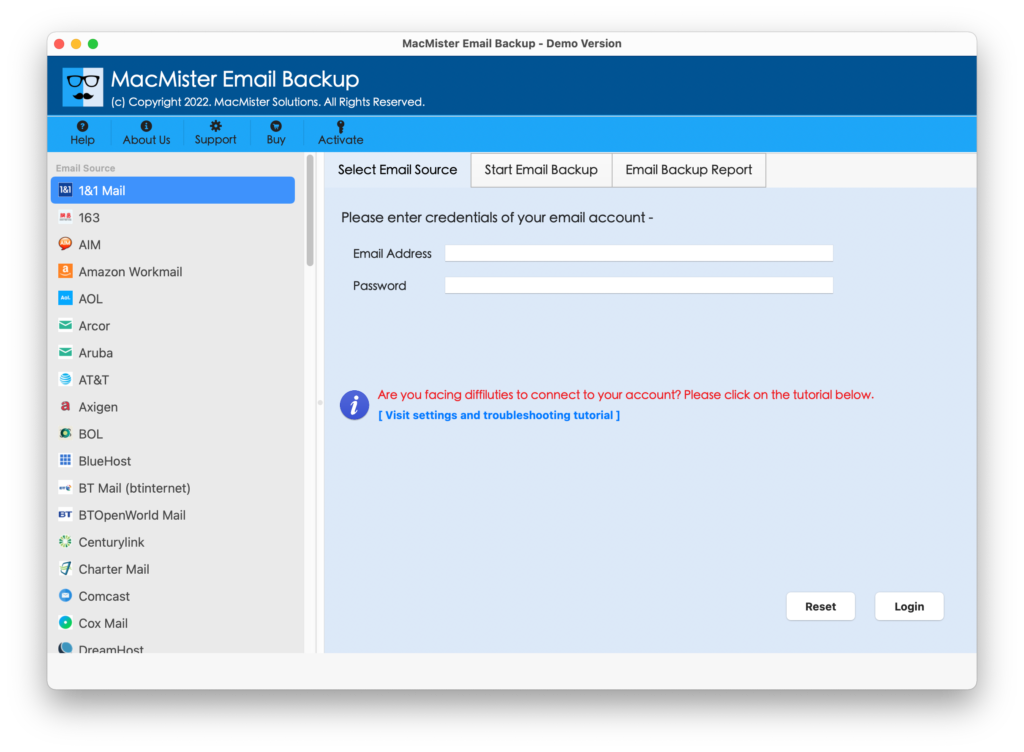
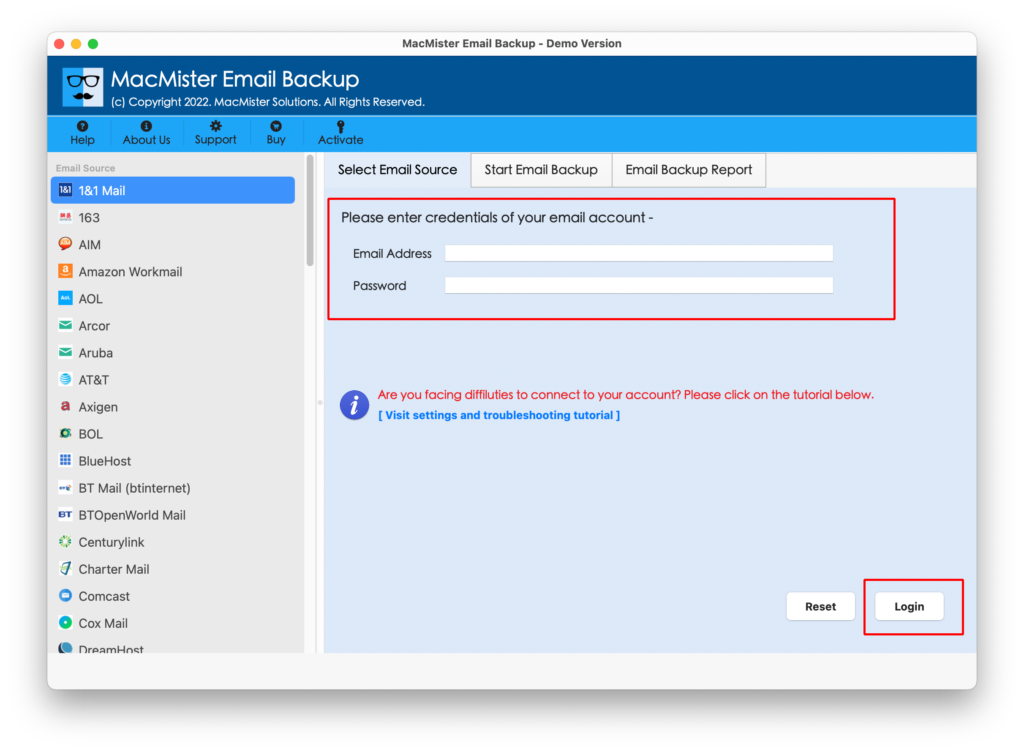
Step 2. Select DreamHost option from the left. Enter DreamHost login details. Click Login button.
Step 3. The DreamHost account will be authorized by the tool and then its mailboxes start appearing on the application pane on the left.
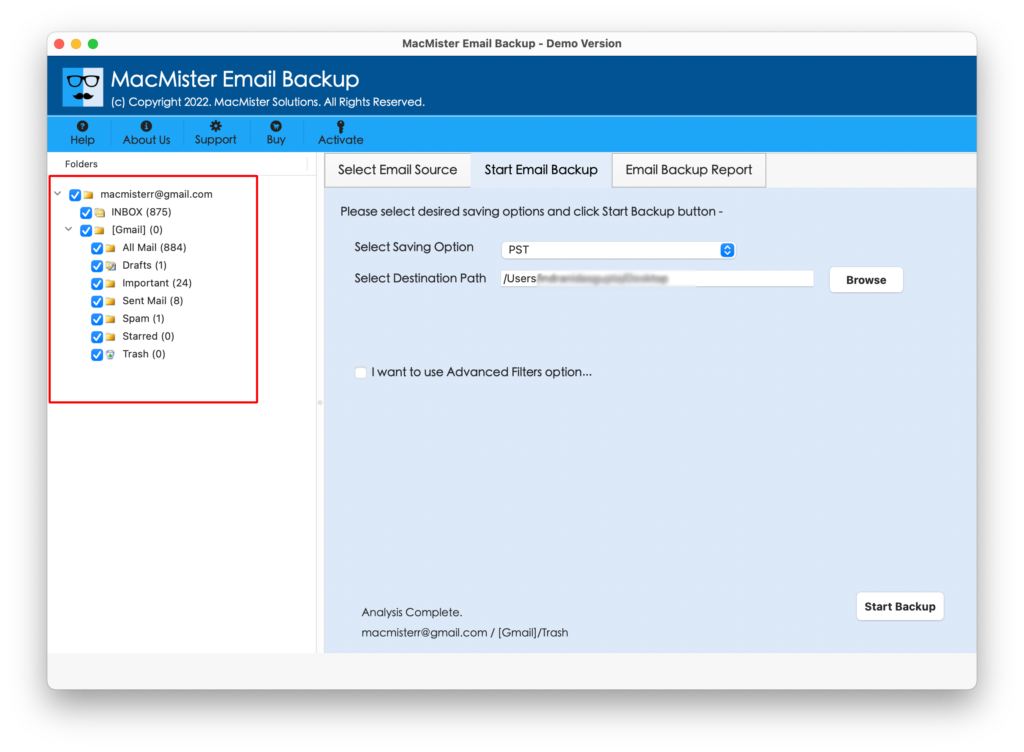
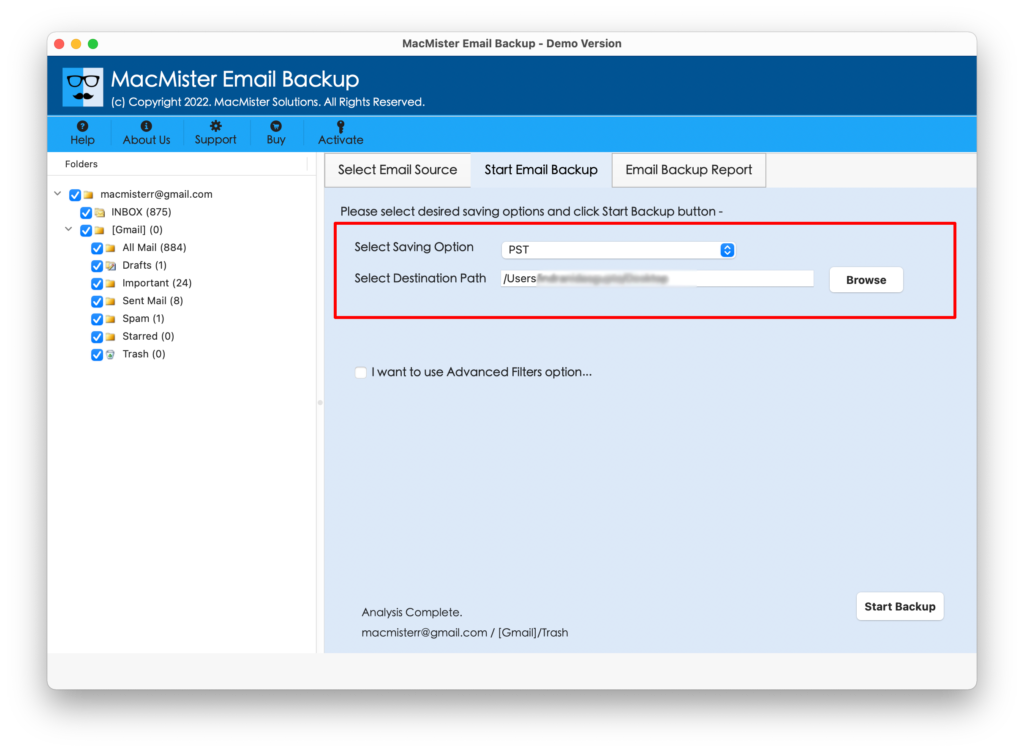
Step 4. Go towards right, click Select Saving Options, choose either OLM/PST to save DreamHost emails.
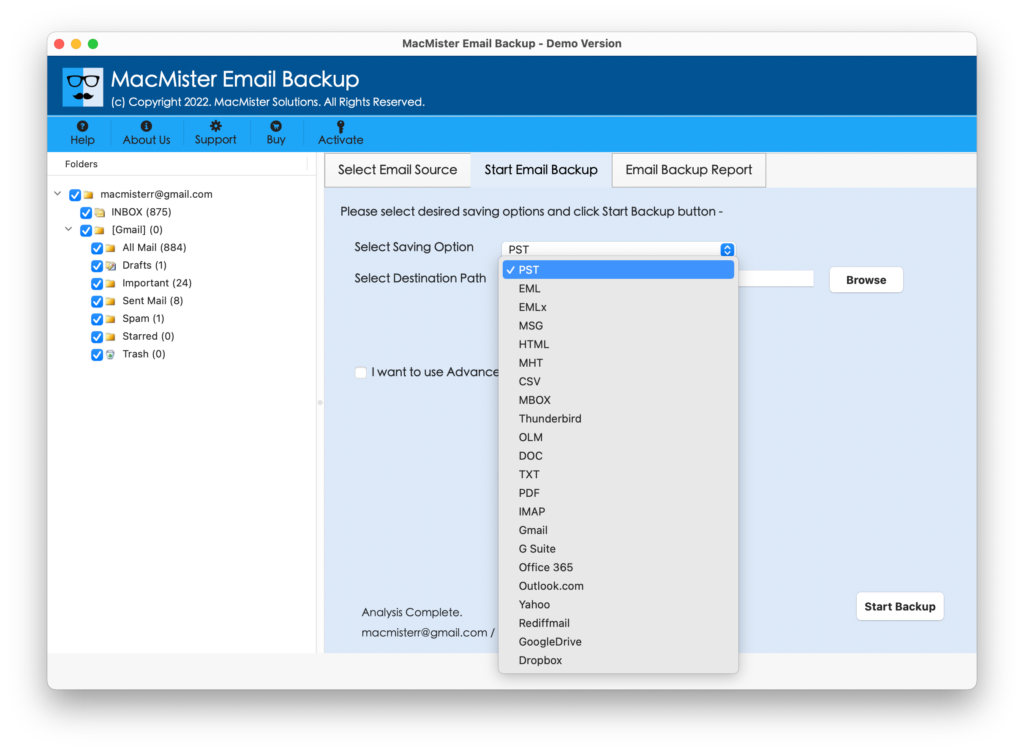
Step 5. Utilize Filters section if you want to add specific DreamHost email to Outlook on Mac. Last, click Start Backup button.
Step 6. The migration will immediately start and an Email Backup Report will be generated that shows the ongoing backup status of DreamHost emails.

The entire process finishes in few seconds and then a pop-up will appear notifying that the migration is completed successfully. Click on OK and import OLM to Outlook on Mac. Check the steps from below.
Guide to Import OLM into Microsoft Outlook for Mac
Step 1. Run Microsoft Outlook on Mac OS.
Step 2. Go to Tools and select Import.
Step 3. Go with the Import Outlook for Mac archive file (.olm) option. Quick Note. If you have added DreamHost emails into PST, then select Import Outlook for Windows archive file (.pst) option. Click Continue.
Step 4. Go to the location where OLM/PST files are saved after migration. Select them and press Import button.
Step 5. The import will complete in few seconds. Now, after Outlook for Mac main account screen appears, go to the left navigation pane and under On My Computer, you will find all the imported files.
However, you can choose the required file to verify the result. You will find no alteration in any of your emails. Each email will appear with correct layout, content, and formatting properties. Still, if you have any issues, then you may contact MacMister Support.
Why to Choose MacMister DreamHost to Outlook Tool
MacMister DreamHost to Outlook app is a perfect solution to safely add DreamHost email to Outlook on both Mac & Windows OS. The tool has variety of features that are useful in achieving the desired results in a short time. Some of them are mentioned here:
- Directly add DreamHost email to Outlook with attachments on Mac & Windows.
- Provides multiple features to transfer specific emails from DreamHost account to Microsoft Outlook.
- Besides PST & OLM, one can use the solution to save DreamHost to Outlook with emails into 15+ other saving options such as PDF, MSG, EML, IMAP, Gmail, Office 365, Yahoo, and more.
- Designed with a user-friendly interface which is easily operable by all professional and non-professional users.
- Capable to add unlimited DreamHost emails to Outlook at once without damaging the original data files.
- Generates Email Backup Report which shows the current migration progress of DreamHost emails.
- Windows users can download Windows edition of the tool on all Windows OS versions including Windows 11.
- Mac users can utilize Mac version of the app and operate the same on Mac OS Sonoma and its earlier versions.
Quick Note. Download FREE DEMO to check more Software Features & Options for Free.
Epilogue
In the article, we have discussed a method to fix “how to add DreamHost email to Outlook?” on Mac & Windows. However, migrating cloud emails into desktop-based email application is not an easy process. Thus, it is recommended to use a secure method when adding emails of any webmail service into a different email application. MacMister DreamHost email to PST Converter for Mac & Windows is one such solution which safely handles the migration and also protects the DreamHost account details during the process. Even, it is programmed with top-level features that provide the necessary results to users. Download the free demo now and add first 25 DreamHost emails to Outlook free of cost.