How to Backup Bluehost Email to Gmail on Mac & Windows?
Are you migrating to Gmail platform from Bluehost? But do not want to leave all the essential emails behind and thus wondering how to backup Bluehost email to Gmail on Mac with emails and attachments without losing data? Searching for a hassle-free solution for the same? Not to worry, read the segment and you will discover a method that will help you to successfully backup Bluehost email to Gmail on both Mac & Windows.
Bluehost webmail is a simple and friendly web-based email service provider that enables users to retrieve their email accounts through Bluehost server from anywhere anytime. Many users like Bluehost services because it provides the ability to generate straightforward account i.e. open Bluehost webmail panel, go to create account, navigate to settings and add email address. And to access Bluehost email account services, follow the steps.
- Login to Panel.
- Navigate to Advanced settings.
- Choose the Email accounts option appearing in Email section.
- Select the necessary account from the list and click on the link that read “Check Email”.
In case you want to setup business email in Bluehost, follow the steps:
- Go to the link to create an account or Sign-in to your existing account.
- Navigate to Advanced option on the left on a Dashboard appearing.
- Under Email Banner, you will find Email Accounts.
- Click blue “Create” button appearing on the right.
- Choose the necessary domain you need from the drop-down menu.
- Enter username in a preferred format.
- Add a password or allow Bluehost to generate a strong password for email account.
- Optional: Navigate to “Edit Settings” to set optional setting such as choosing the storage space you need for Bluehost business email.
What is a Need to Backup Bluehost Email to Gmail?
Bluehost contains easy webmail setup. At the same time, it delivers affordable services whether you require single account or hundreds of it. Additionally, Bluehost webmail make your emails retrievable from anywhere as long as your device is connected to the internet.
Unfortunately, it has few drawbacks as well that force users to backup Bluehost email to Gmail webmail service. Some of them are:
- Server response time is slow.
- Limited storage capacity.
- High-performance servers only available with Pro plan.
- Not suitable for projects that depends on website performance.
- Login page not properly works.
That is why a lot of people are chasing Google Mail platform. It is an email application which is introduced by Google itself and since its launch it is quite improved. Earlier, it contains a simple operational environment with just 1 GB of interface. Now, it comes with advanced productivity tools, robust security measures, and a good amount of storage space which is free to use. And, a business requires more space, than a Google One subscription service is also available which that has multiple licenses that a user can opt to extend the storage capacity.
How to Backup Bluehost Email to Gmail on Mac & Windows?
The easy and powerful way to backup Bluehost email to Gmail on Mac is MacMister Bluehost Email Backup Tool for Mac & Windows. The application is reliable, secure, and equipped with a friendly interface. Anyone can independently handle the operational and perform the task with ease. Even, the steps are limited and take minimum time of users to backup entire Bluehost webmail emails to Gmail at once. And, the result will be 100% accurate.
Moreover, the software delivers numerous features that can be applied to get the desirable results in a short amount of time. However, it has a free demo as well that are useful to backup Bluehost email to Gmail on Mac free of cost.
Working Steps to Backup Bluehost Email to Gmail on Mac
Step 1. Download, install, and run MacMister Bluehost Backup Tool for Mac on macOS.

Step 2. Select Bluehost from the left. Enter Bluehost webmail credentials. Press Login button.
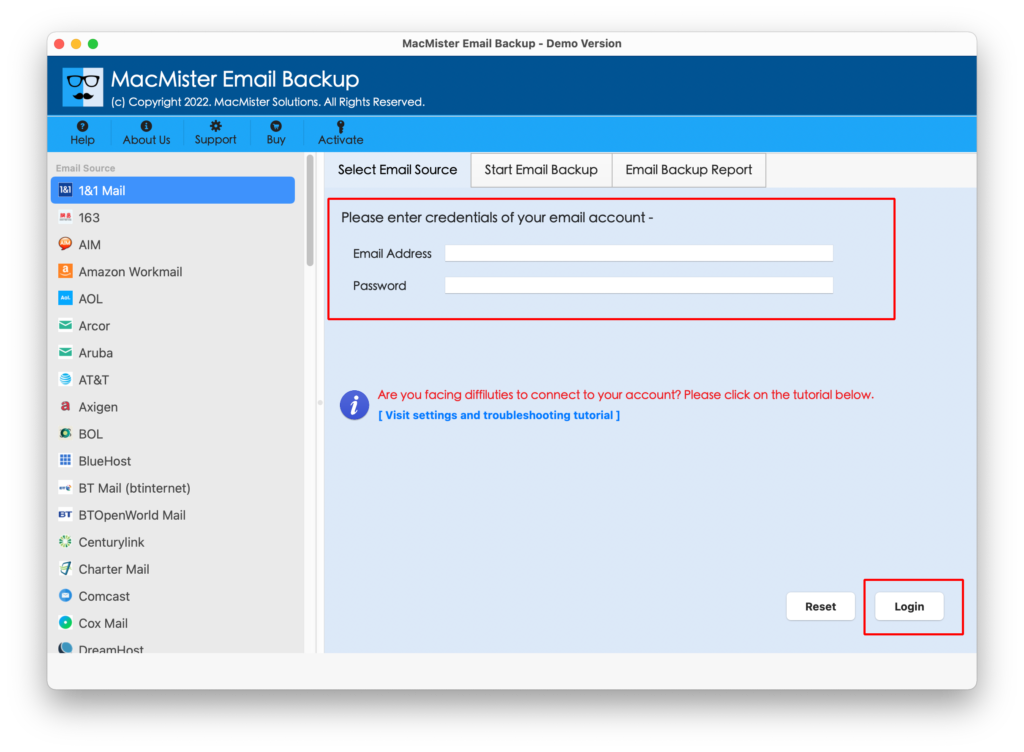
Step 3. The Bluehost webmail account will successfully connect with the tool and its items will immediately appear on the app.

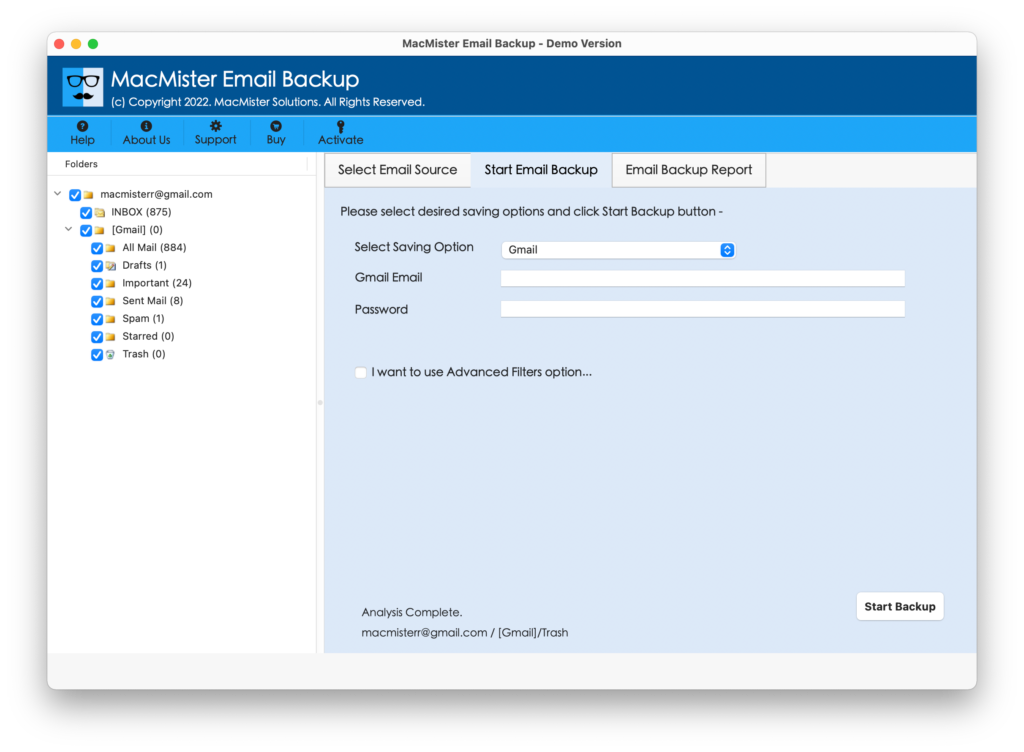
Step 4. Go to the right pane of the app and click on the Select Saving Options to choose Gmail option from the list.
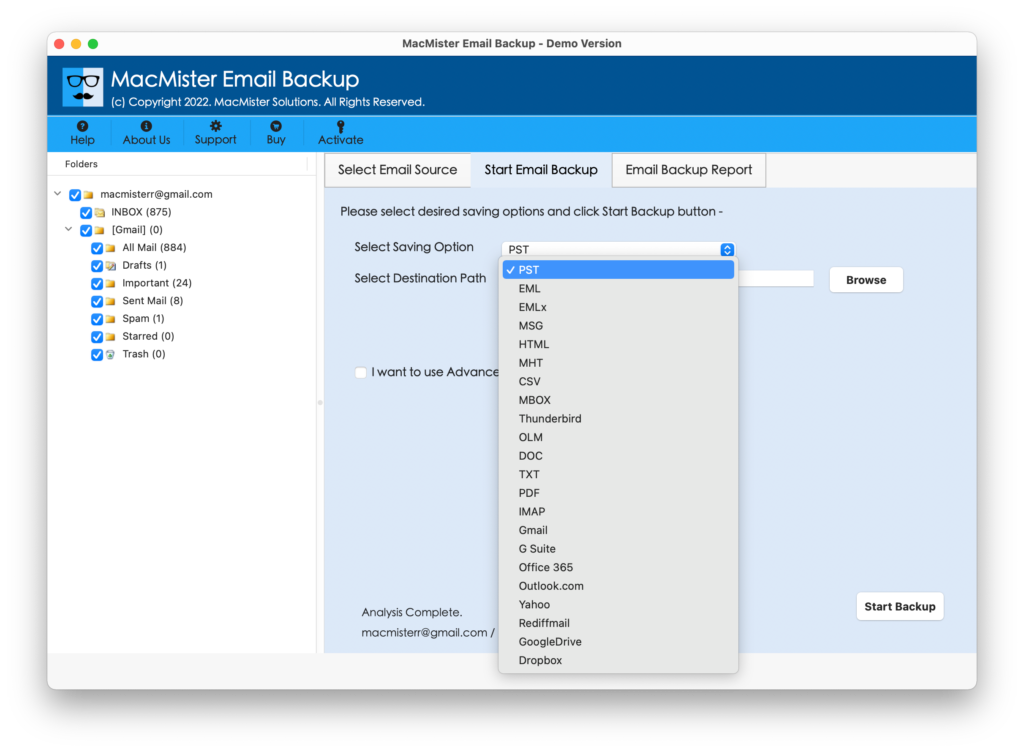
Step 5. Provide Gmail email address with app password in required fields and click on Start Backup button.
Step 6. The software will show Email Backup Report that displays the current backup progress of Bluehost email messages.
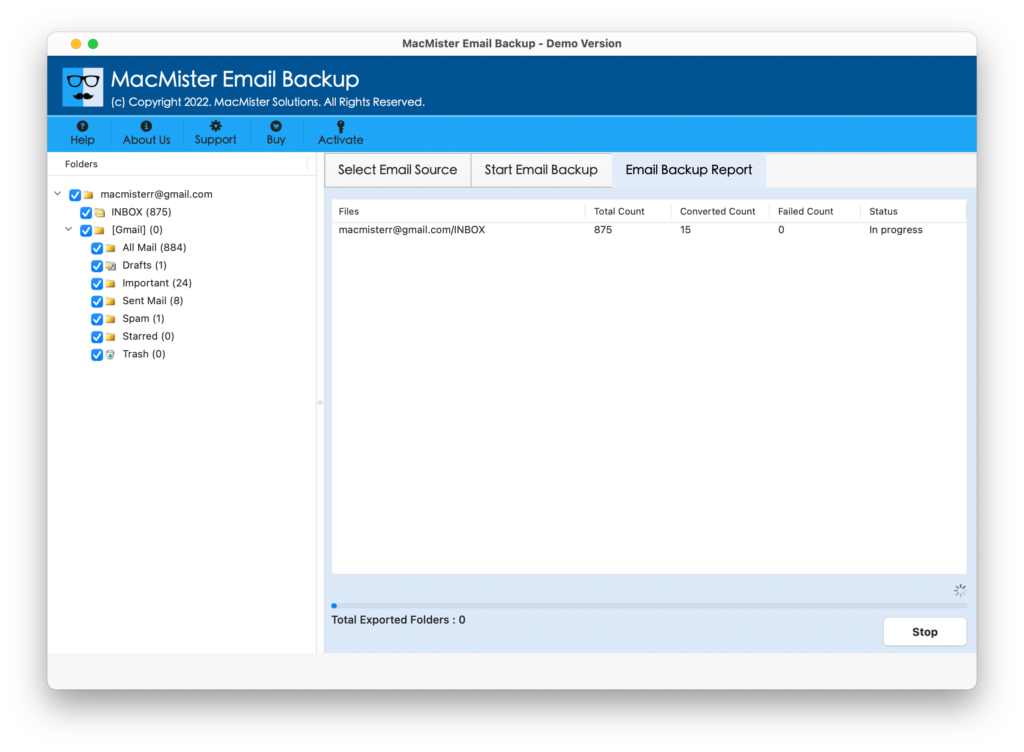
The process successfully terminates with a notification message “Process Completed”. Click on OK button and then head towards Gmail account to access resultant files. You can choose the required email message to check the output. However, you will see that the email content is accurate and it is appearing with correct formatting properties.
Why to Choose Bluehost to Gmail Backup Tool for Mac?
The above-mentioned software is perfect when it comes to backup Bluehost email to Gmail on Mac & Windows. It is equipped with beneficial options that help users to precisely implement the migration process without data loss. Some of them are:
- Directly backup emails from Bluehost to Gmail with attachments accurately.
- Offers multiple Filters that help users to perform Bluehost email migration according to date range, subject, from, to, etc.
- Besides Gmail, also provides other saving options such as PST, PDF, MBOX, MSG, EML, EMLx, MHT, HTML, DOC, IMAP, Gmail, G Suite, Yahoo, and more.
- Keeps the originality of Bluehost emails as it is after the process and even takes care of the formatting properties.
- Preserves the folder structure of Bluehost account during backup.
- Simple interface with a three-step process that will take little time to finish the whole migration.
- Both Mac & Windows users can download the tool on any version of operating system and perform the process without any difficulty.
- Generate log report which will show the summary of backup such as file count, saving option, start and end time of process, etc.
Quick Note. Download TRIAL VERSION to explore software the entire range of features and options.
Epilogue
The blog has offered the direct methodology to backup Bluehost email to Gmail with attachments on Mac & Windows. You can also try MacMister IMAP Backup Tool for Mac as it ask to enter Bluehost webmail credentials with IMAP host and IMAP port number and then allow to directly perform the migration. The process will perform smoothly and delivers the results without any alteration. Download the free demo now and test the migration of Bluehost emails by taking backup of first Bluehost email messages to Gmail free of cost.