How to Backup my PST Files Automatically on Mac & Windows? – [SOLVED]
Want to learn how to backup PST files on Mac OS? Then, this MacMister tutorial has delivered some methods that you can practice to backup PST files automatically or manually. And, also introduced a professional safe solution that backup PST mailboxes more effectively.
Why PST File Backup is Important?
- Do you feel scared of losing the data accidentally on the hard drive?
- Has your anxiousness clouded your mind because there is not enough space left to backup files locally?
- Are you panicked because all the local backups were lost due to local accidents?
Drop the baggage of concerns and let’s discuss some methodologies that will help you out to backup PST files on Mac OS X.
Overview of Outlook PST Files
PST is an abbreviation of Personal Storage Table. They are personal folder files in Microsoft Outlook. When a user export data items on the desktop from their Outlook, they will get the archive file representing the .pst extension. The storage limit offered for a single PST file to users is 2 GB. The feature enables users to access previously downloaded/synchronized calendar details, tasks, contacts, and emails without network connectivity.
Because the stored data in PST contains a lot of essential information and that is why people cannot afford to lose PST files.
Where PST Files are saved on Windows?
Step 1. Open Windows Outlook and go to File.
Step 2. Click Account Settings appearing on the right pane and again click on Account Settings.
Step 3. From the Data Files tab, click the entry and select Open Folder Location.
By default, PST folders will save in the following locations:
Windows 10:
- drive:\Users\yourusername\AppData\Local\Microsoft\Outlook
- drive:\Users\yourusername\Roaming\Local\Microsoft\Outlook
Windows 7 or Vista: C:\Users\AppData\Local\Microsoft\Outlook\
Windows XP: C:\Documents and Settings\Local Settings\Application Data\Microsoft\Outlook\
What is the Need to Backup PST File?
PST is a common information storage file type. When one will download email from Gmail to Outlook or syncs Google Calendar with Outlook Calendar, everything will get saved in a PST file on the computer.
However, no one can afford to lose PST file because it carries the essential data of not only individuals but organizations as well. Therefore, sometimes it becomes critical to protect and manage PST files stored on a desktop. And, thus PST backup is important.
Moreover, many times Mac users receive their crucial data through PST from a Windows client. It creates an unavoidable challenge for them. Because Mac uses its own email clients that supports different file extension. And, there are limited email applications that run on both Mac and Windows operating systems. So, Mac users start searching for a technique that could help them out to backup their important PST database on Mac OS X.
How to Backup PST Files Automatically on Mac & Windows?
PST Converter for Mac & Windows is a perfect utility for every client who wants to backup PST files automatically on Mac OS. It is an advanced utility that carries a simple user-friendly environment with quick operational processing that will save the users time and help to backup PST files in minimum time. With the help of the application, users will be able to backup PST files into 15+ saving options on Mac OS X i.e. PDF, MSG, OLM, EML, EMLx, MHT, HTML, DOC, CSV, IMAP, Thunderbird, Yahoo, and more.


Moreover, the tool possesses many smart features that allow performing the process according to precise requirements to obtain the desired result. However, the tool has a trial edition with the help of which users can check the procedural steps to backup PST files automatically on Mac OS for free.
Step-by-Step Process to Backup PST Files on Mac
Step 1. Run PST File Backup Tool on Mac OS.
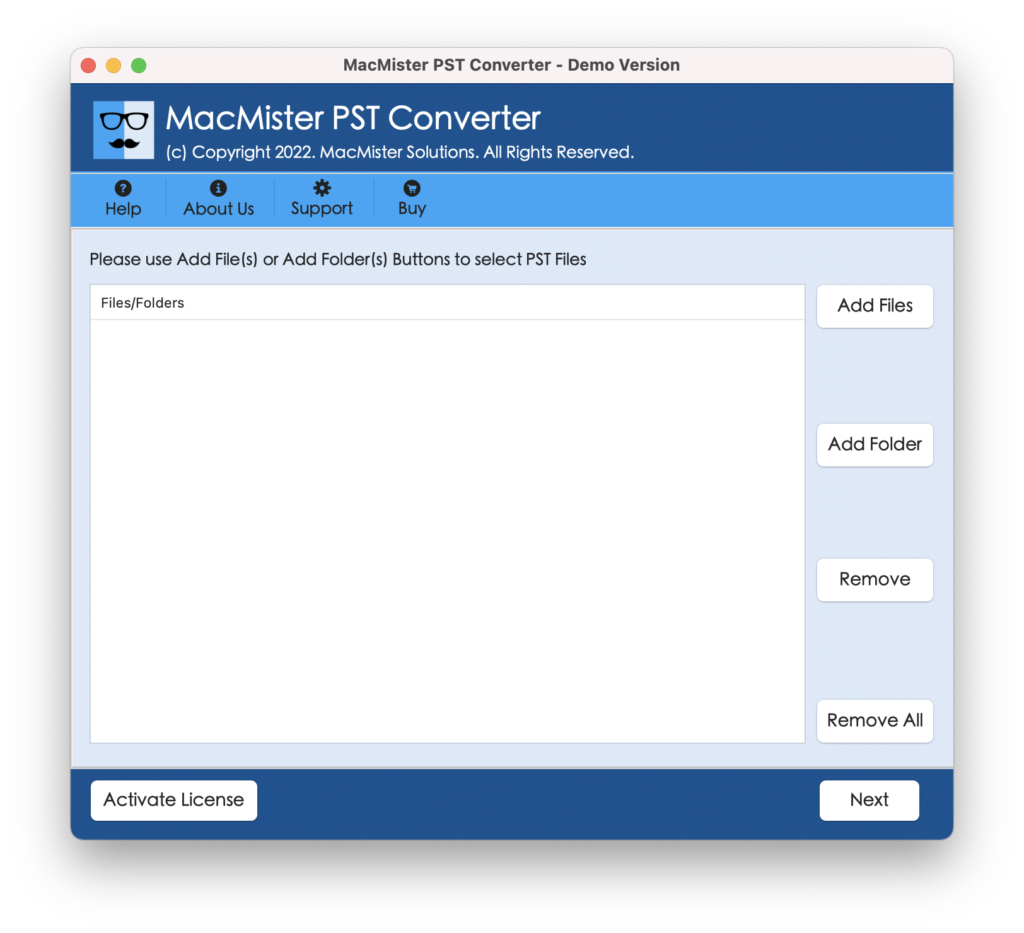
Step 2. Load important PST folders by using the Add File(s) and Add Folder buttons. Click Next.
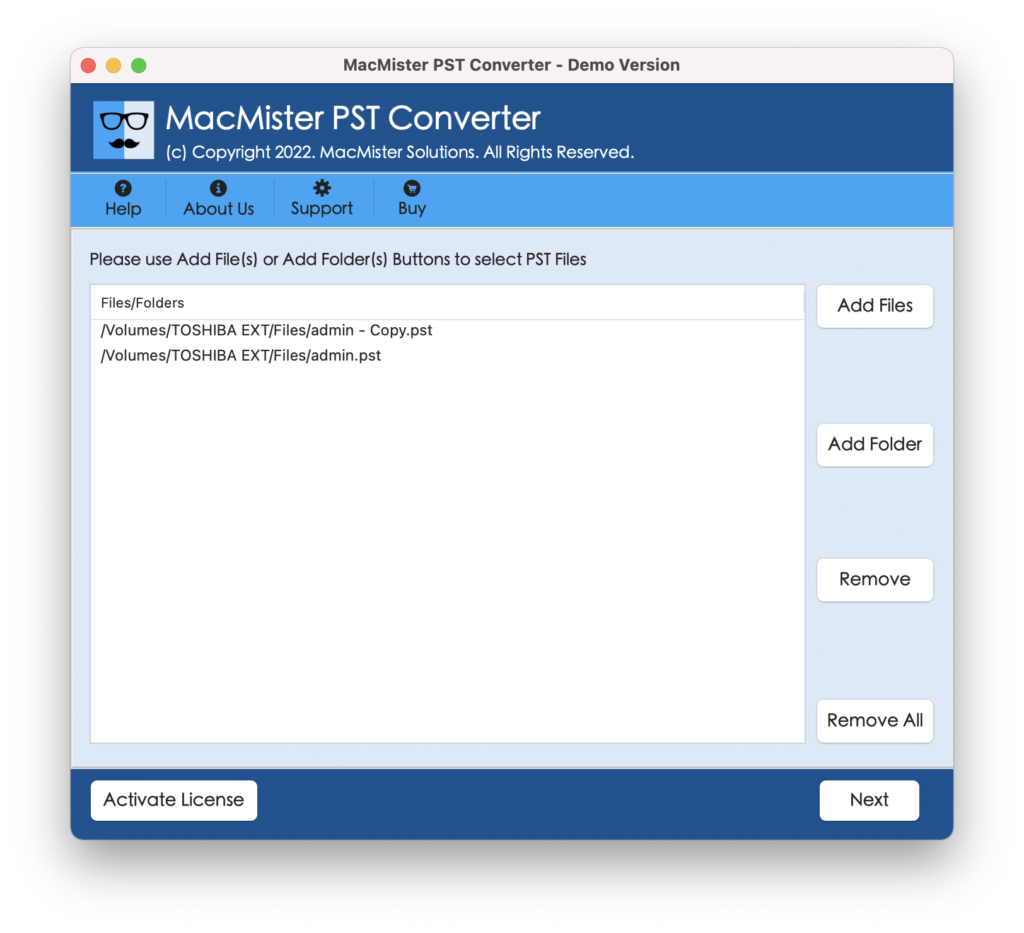
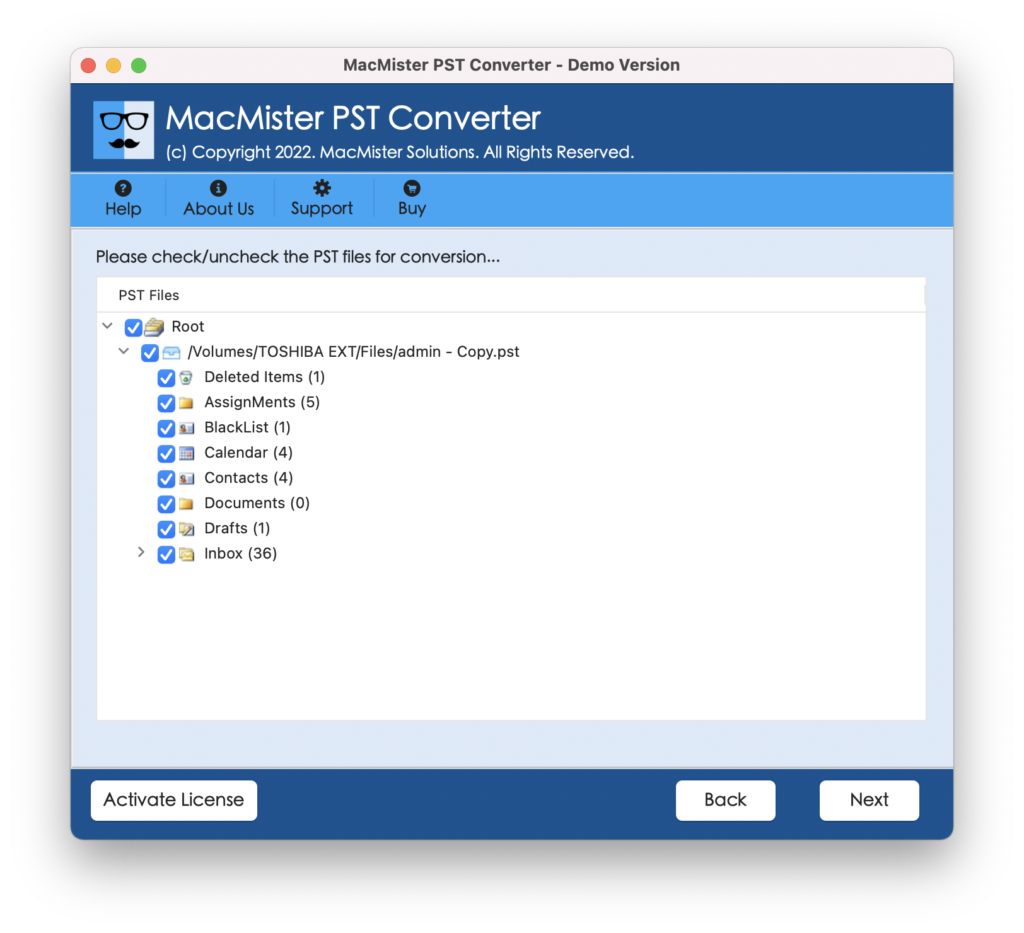
Step 3. The selected PST mailboxes will appear on the software as a list with checkboxes. Users can use the checkbox to backup selective PST files. When done, hit Next button.
Step 4. Choose the saving type by clicking Select Saving Option.
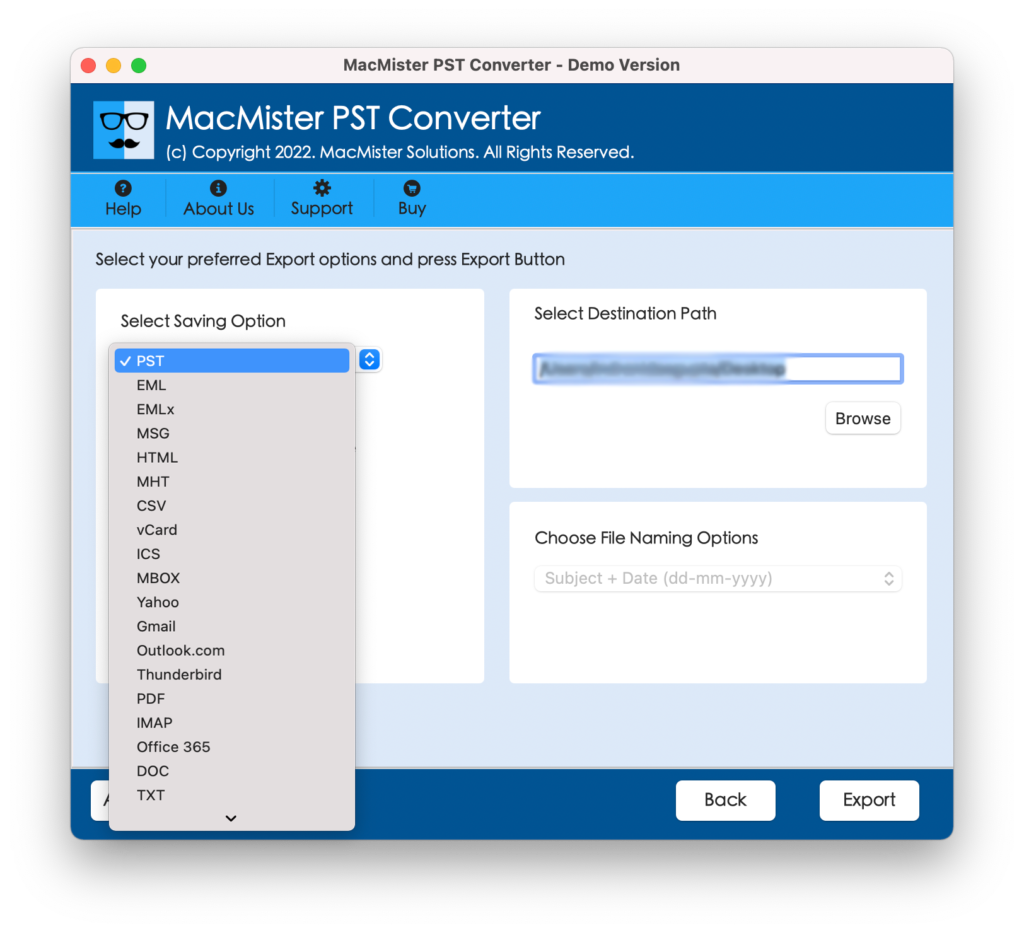
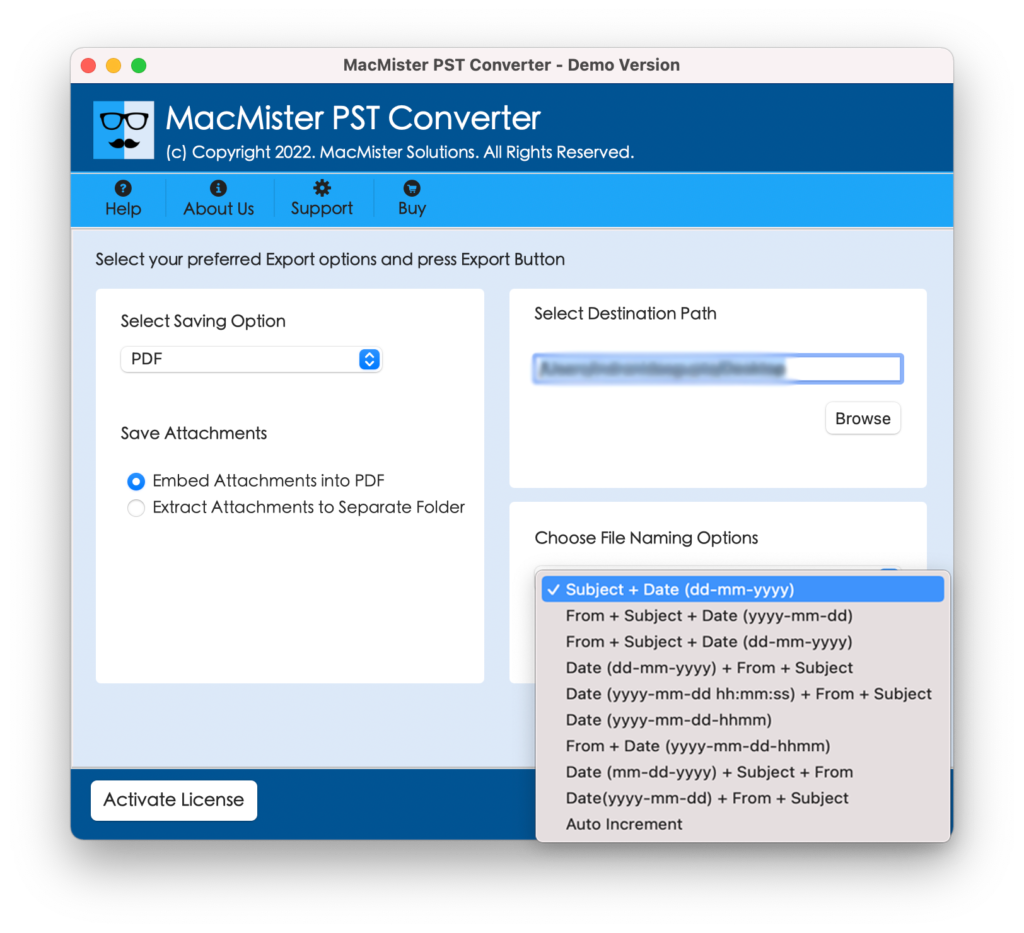
Step 5. Each saving option is programmed with sub-options that users can apply and set as per their needs to gain the desired result. After this, hit Export button.
Step 6. The PST File Backup Process is now live and will be shown on Live Conversion screen. However, users can track the backup status as well from the same.
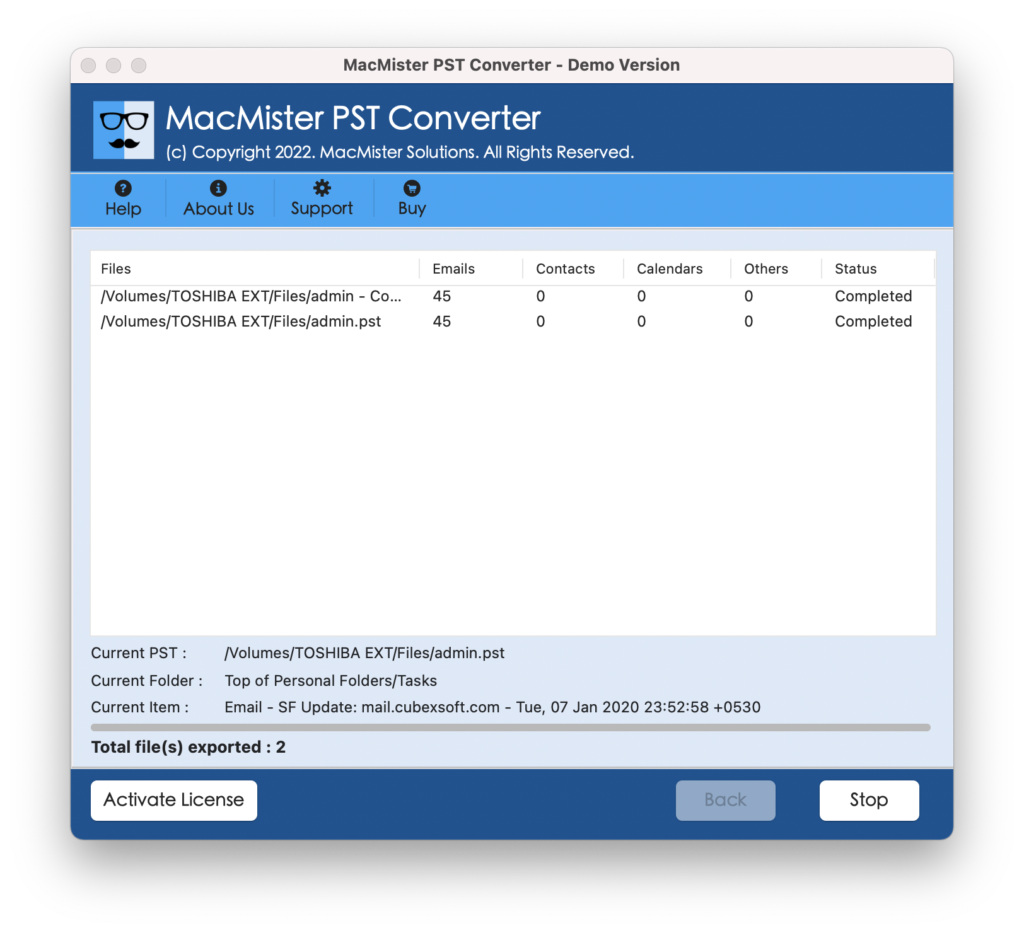
Now, go to the location where resultant files are saved. The backup process will be performed without data alteration and show the 100% accurate content and metadata properties.
Why to Choose MacMister’s PST Backup Tool?
There are innumerable benefits of choosing the solution and some of them are:
Supports 15+ Saving Options
The software has Select Saving Options property that includes 15+ saving types. Users can backup PST mailbox folders to MSG, PDF, MBOX, OLM, EML, EMLx, MHT, HTML, DOC, CSV, IMAP, Thunderbird, Yahoo, Gmail, Office 365 and more.
Easily Backup PST Files in Batch
The tool includes Add Folder option that will help users to backup PST files in batch. However, to do this, users need to keep the essential PST files in a single folder and load the same by using Add Folder property. Once it gets loaded, users will then backup all of them at once.
Simple and User-Friendly Interface
The application is programmed with a friendly environment and three simple operational steps. Anyone ranging from professional to novice users can effortlessly manage the software and backup PST files automatically.
Avail Dual Options to Add PST Files
The utility has two options to add PST files on the software i.e. Add File(s) and Add Folder. The Add File(s) property allows to load individual important PST files on the tool and Add Folder button will help to add a folder containing the unlimited PST files list on the application.
Backup PST File on all Mac & Win OS
The software is programmed with two different software versions i.e. Mac and Windows. Users can download and install the suitable application on any version ranging from the earlier to the latest & backup PST files automatically.
Note. Download the trial edition to know more features and options of the application.
Final Thoughts
The blog has discussed a direct method to backup PST files automatically on Mac. The PST Email Backup Software Mac is a solid approach for every user who want to backup PST mailboxes on both Mac and Windows OS. The output obtained by the users will be 100% accurate as well. Download the freeware version straightaway and check the backup process of PST files. With the help of the software free demo, users will be able to backup first 25 files from each PST folder free of cost.