How to Clear Outlook Cache Mac? – Know Top Ways

Summary
Outlook cache is a storage space on the device where Outlook preserves its temporary files. Such files increase the speed of data loading and processing in Outlook. But as time passes, after cache gets overloaded, it can cause opposite effect such as Outlook slows down, not able to sync emails properly, and even at times get crashed. However, clearing cache does no damage. In case you clear Outlook cache on Mac, it will only erase those temp files. The rest of the emails, calendars, contacts, and other items will be saved. So, in the following guide, we will explore different manual methods as well as a professional solution to fix “how to clear Outlook cache Mac?”
When to Clear Outlook Cache Mac?
If cache data is enhancing the speed of Outlook processing, then why one should clear it? Yes, it is true that it makes the Outlook functioning faster. Thus, you do not have to wait each time you access the mailbox. But, when cache files are accumulated with time, then Outlook loading speed as well as its functioning will automatically get slower.
Here’s what happens when the cache gets cleared –
- Unnecessary and extreme temp files are deleted.
- Outlook attempts to resync new data from the server, thereby improving Outlook’s performance.
- Once the Outlook rebuilds the cache, it may slower Outlook processing.
- It instantly backup Outlook data to protect the data from any type of loss.
Why it is necessary to Clear Outlook Cache Mac?
Erasing Cache in Outlook is simply similar to wiping the desk to navigate things easily and to work without taking any burdens. This helps in cleaning up the Mac device as well. Therefore, it is advised to give an instant cleaning to your device once in a month as this will help maintaining the performance of Outlook and Mac OS.
It is highly essential when there is update available for Mac & Outlook. If you encounter slow loading speed or any sync issues, then clear the Cache data instantly.
How to Clear Outlook Cache Mac?
Here are some ways discussed that can be used to clear Outlook Cache –
Method 1. By utilizing Outlook Folder properties
- Move towards navigation pane and right-click on the Exchange folder which is creating a chaos.
- Select Properties and then choose Empty Cache.
- Now, Outlook for Mac will extract new content from the server.
Method 2. Reset Outlook Account (New Outlook Mac)
- Navigate towards Tools, select Accounts and choose the required account.
- Select three dots appearing (…) and click Reset Account.
The steps will clear the local cache and resync every single thing afresh.
Method 3. Clean Cache Files Manually
- Close Microsoft Outlook.
- Open Finder and go to Folder or press (Cmd + Shift + G), then enter the following command – ~/Library/Caches.
- Delete Folders: com.microsoft.Outlook, Containers/Microsoft Outlook/Data/Library/Caches, or TemporaryItems/Outlook Temp
Method 4. Clear Auto-Complete Cache
- Compose new email in Outlook, enter unwanted email address in To: field.
- Click the “X” appearing next to the same in order to erase it from suggestions.
Clear Outlook Mac Cache but Preserve the Data
MacMister OLM Converter for Mac is one of the best and powerful ways to keep Outlook files secure on Mac while erasing the Cache data. At times, the cache has multiple issues. It could harm the data stored in Outlook account and make it inaccessible. So, to prevent the database from loss or any type of corruption, transform OLM files into a more secure file type. By utilizing the application, one can access OLM into 15+ saving options such as PST, PDF, MSG, EML, HTML, CSV, DOC, Gmail, Office 365, Yahoo, and more. Its interface is easily manageable, thus users with technical or non-technical skills can handle the app without any issues.
Additionally, the application is programmed with several beneficial features that enable users transforming OLM files according to the requirements. However, it is recommended to take help of its free demo version and to know its detailed working for free
Step-by-Step Software Working to Change OLM File into Suitable File Type on Mac
Step 1. Download and launch the application on your Mac.
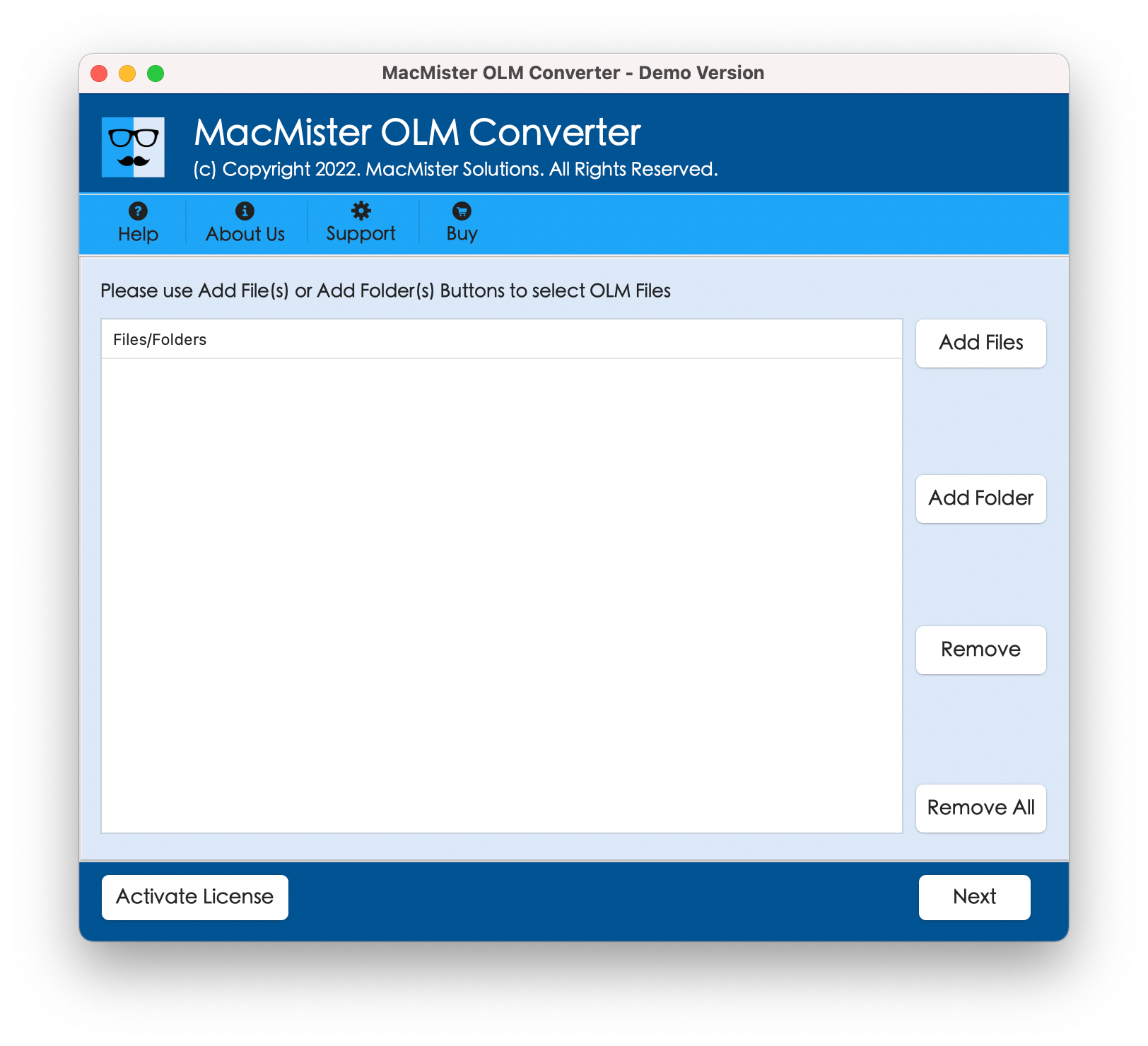
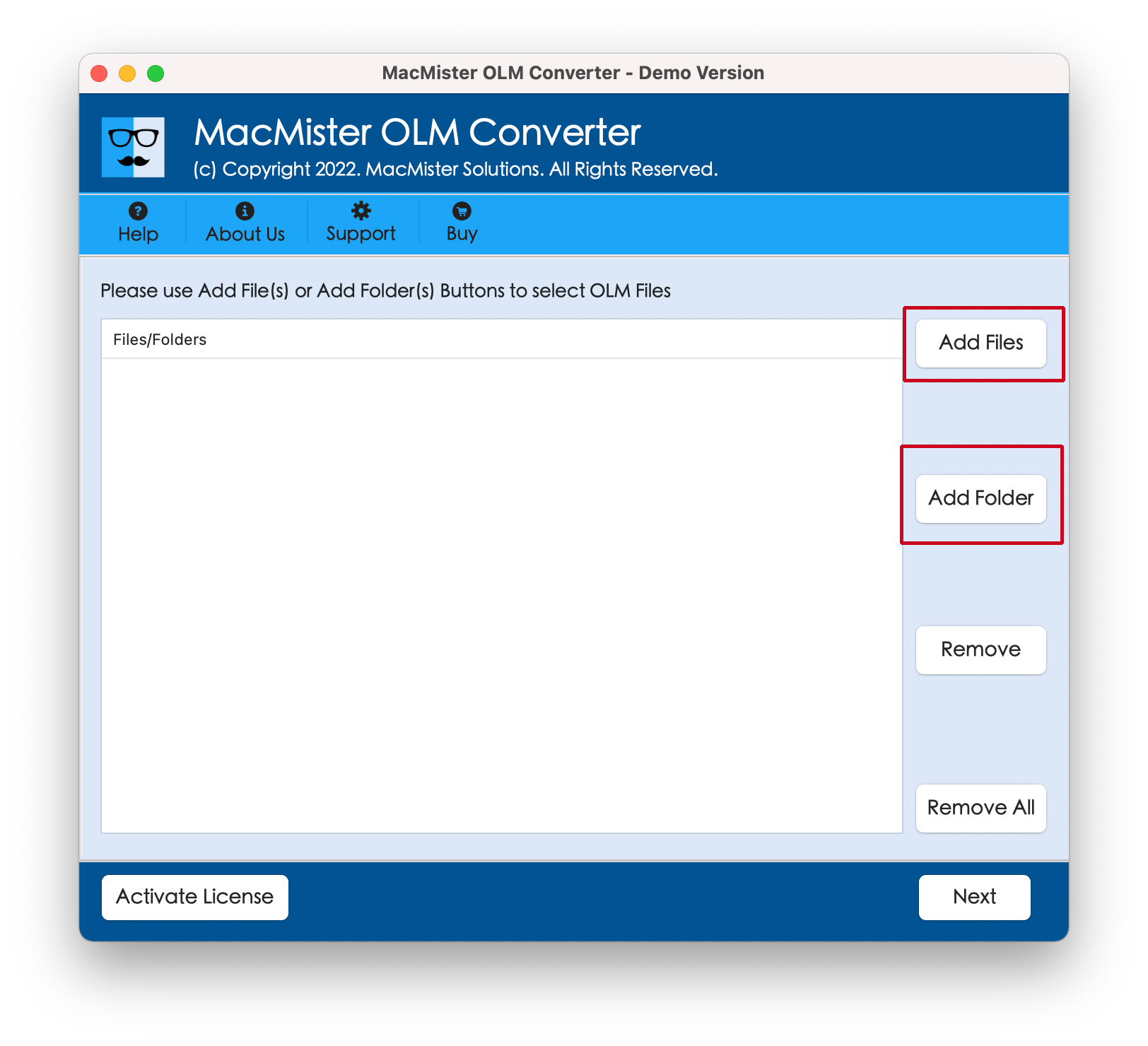
Step 2. Use Add File(S)/Add Folder buttons to load OLM files on the tool and click Next.
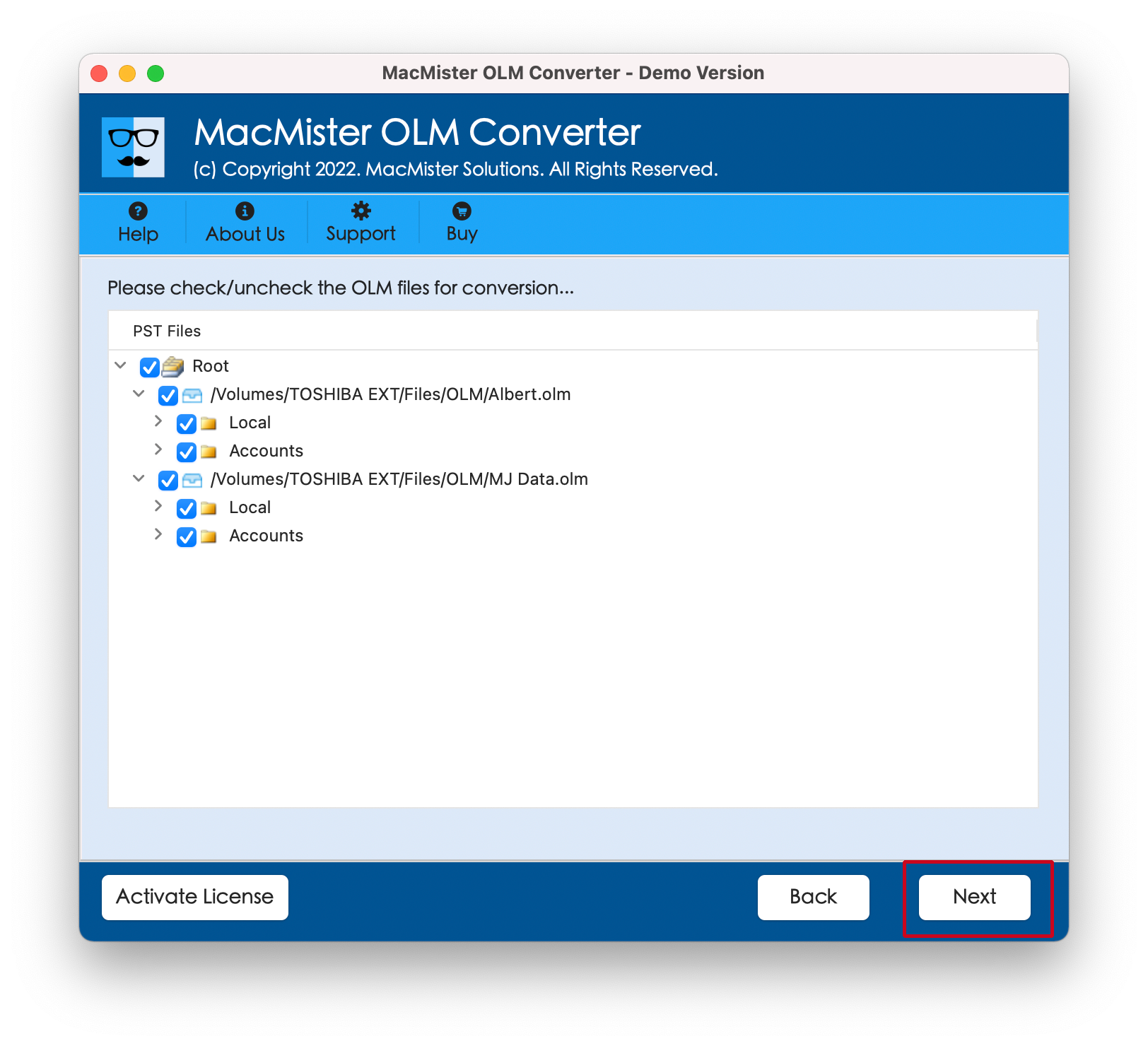
Step 3. Go through the listed on the panel and tap Next to proceed.
Step 4. Click Select Saving Options and choose the required saving type from the menu.
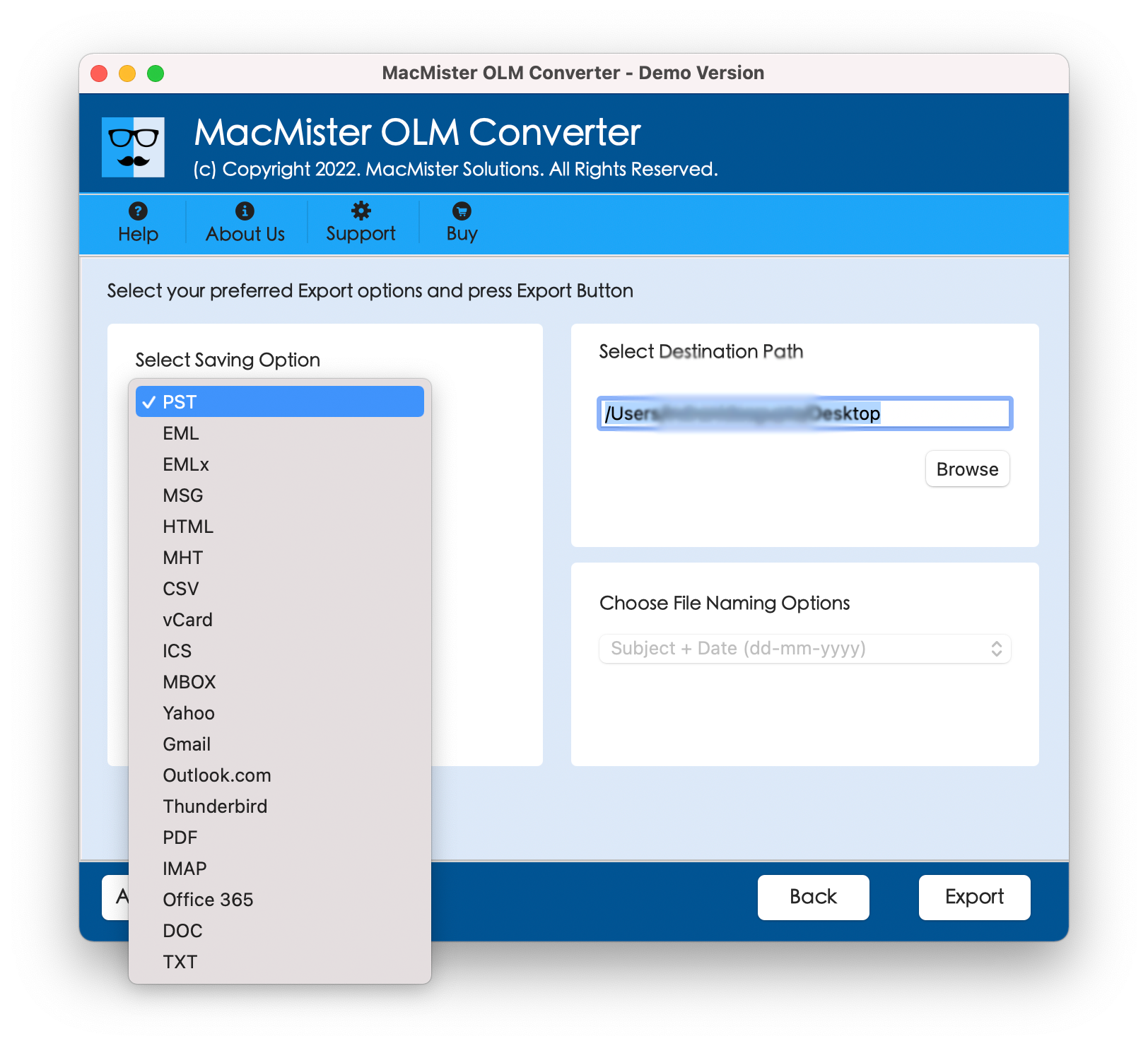
Step 5. Apply sub-options as per requirements and click Export.
Step 6. The Live Conversion Report window will open that shows the live conversion of OLM files to users.
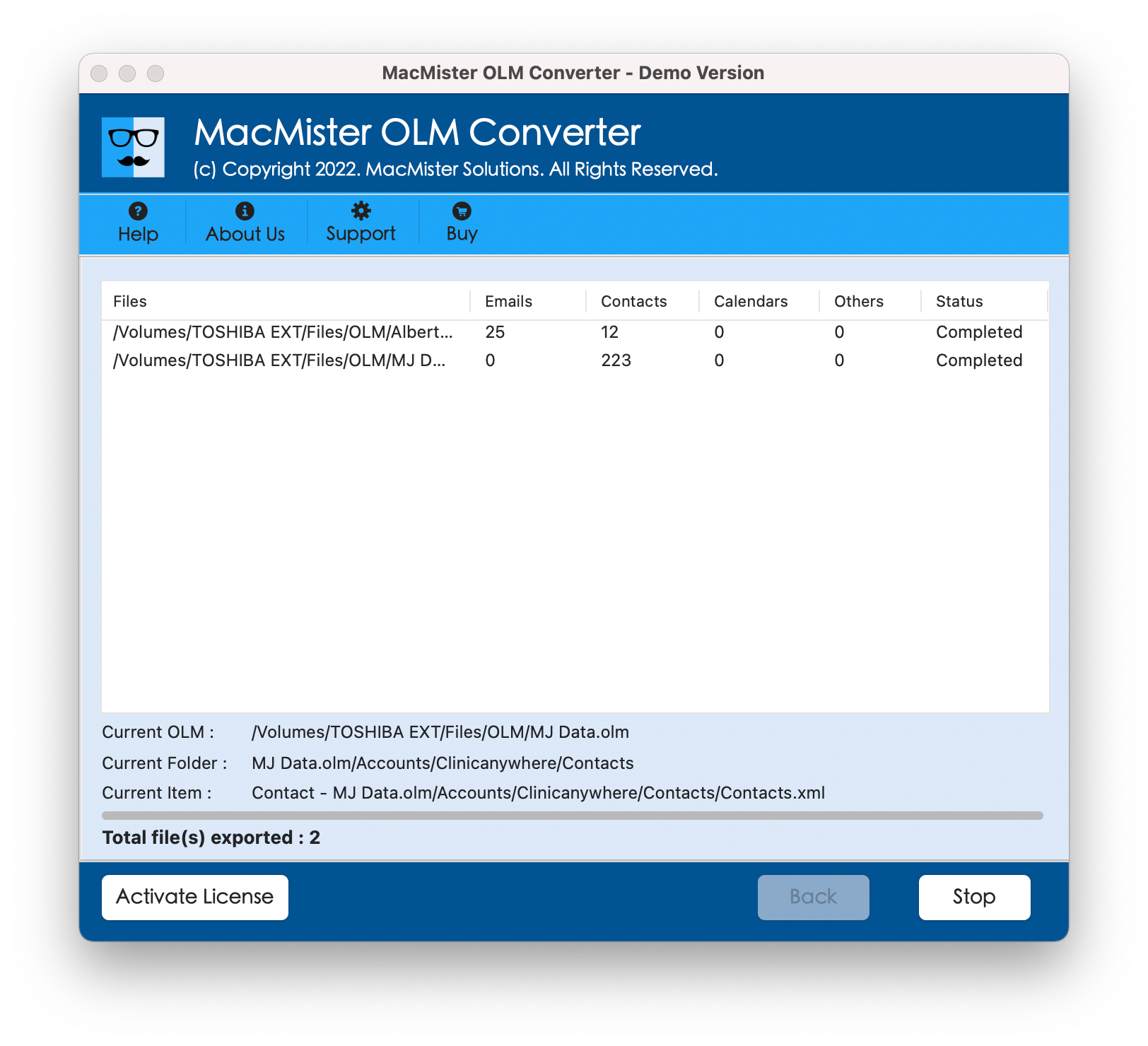
In few seconds, the conversion process will finish and then “Conversion Completed” notifications appear right away. Click OK and then go to the location of a specified path to check resultant files. However, after viewing the data of a required resultant file, one will realize that the tool has accurately carried out the task. The entire data is appearing without any alterations.
Epilogue
In the blog, we have provided top ways to resolve how to clear Outlook Cache Mac. It is necessary to clear Outlook Cache in Mac reguarly in order to improve the performance of Outlook and Mac both. Try the methods discussed here and choose the one that goes with your requirements. However, we have highlighted manual approaches, they are free to use. But, paid solutions are also available. You may choose as per your requirements and clear Outlook Cache in Mac accordingly. For queries, contact MacMister Support