How to Download all Emails from Office 365 in Three Easy Steps?
Are you searching for a best way to download all emails from Office 365 account on Mac or Windows? If yes, then the following segment is exactly what you are looking for! Get the ultimate approaches mentioned here that will securely save Office 365 emails to local storage.
Office 365 is a cloud-based productivity suite that Microsoft has designed to manage large amounts of data files. It has flexible services that ease the work of users and helps in enhancing their workflow. Office 365 is equipped with several powerful applications such as Outlook.com, Microsoft Teams, Yammer, OneDrive, PowerPoint, Spreadsheet, Excel, Word, and many more other advanced apps that can be utilized online to handle day-to-day projects.
Why to download Office 365 Emails to Local Storage?
For any business, the decision to switch to a cloud-based system where all pieces of data can be stored online is one that worth’s deliberating.
Platforms such as Microsoft Office 365 have many beneficial aspects, but it is not necessary that they are suitable for all business types. At times, it becomes mandatory for users to download their critical data stored in Office 365 for many reasons. Some are discussed here:
- Internet Connectivity is a must to access Office 365 account services. It is the biggest disadvantage as sometimes business suffers from a poor internet connection or regular downtime due to which they are unable to access recent files.
- Only the Office 365 Enterprise plan has a good amount of security measures as compared to other licenses. This can be a problem for those who are bounded by a budget. Because they will find difficulty in applying the appropriate security to their confidential database.
- Microsoft performs regular updates with advanced features. So, they are compatible with devices that can handle a sophisticated piece of software.
Therefore, the best option for businesses to safeguard their important files stored in Office 365 is downloading them to local storage.
How to download all Emails from Office 365 in Three Easy Steps?
Method 1. Configure Office 365 with Outlook on Mac & Windows
Before implementing the approach, make sure that Outlook is installed on the system.
Steps to Configure Office 365 with Outlook on Mac
- Open Outlook for Mac and go to Tools appearing in the Menu bar.
- Click Account. The Add an Account window will appear. Click Office 365 from the options appearing.
- Add Office 365 account details in the required fields – Email Address, Method, Username, & Password. After this, click Add Account.
- In the pop-up window, select the checkbox attached with the option Always use my response for this server and then click Allow.
Now, the Office 365 account will be configured with Outlook for Mac email account. The method is useful when Outlook for Mac account is already in use with the other email account.
However, if you do not have an existing profile in Outlook for Mac, then all you need to do is to launch Outlook on the system and a welcome screen will be provided Add Account Wizard. Choose the account type to configure and then follow the instructions from the 3rd mentioned above.
Steps to Configure Office 365 with Outlook Windows
- Open the Start menu. Type Outlook and click on it.
- Enter your Microsoft 365 email address and select Connect.
- Specify additional email addresses that need to be used such as previous or personal email address and click Next.
- Provide the password and click Sign in.
- After all the accounts are added, choose if you want to setup Outlook mobile or wait until later.
- Select Done. The procedure will take several minutes for Outlook to download emails and other data.
Method 2. Automated Solution to Download Office 365 Emails on Mac & Windows
With the help of Office 365 Backup Tool for Mac & Windows, users can directly download emails from Office 365 with attachments without data loss. The application allows users to save Office 365 emails to 15+ saving options such as PST, PDF, MSG, EML, EMLx, OLM, MHT, HTML, DOC, TXT, IMAP, Thunderbird, Office 365, Gmail, Google Drive, and more.
The software-friendly GUI and smart procedural environment is accessible to anyone. No skilled professionals are necessary to operate the app. Even, the steps are non-typical. They will conclude the bulk procedure in a few seconds.
Moreover, the application includes advanced features that will help users to save Office 365 emails with attachments according to their requirements. Download the trial edition and check the procedure for free.
Working Steps to Download Emails from Office 365 on Mac
Step 1. Download and run Office 365 Email Backup Software for Mac on macOS.
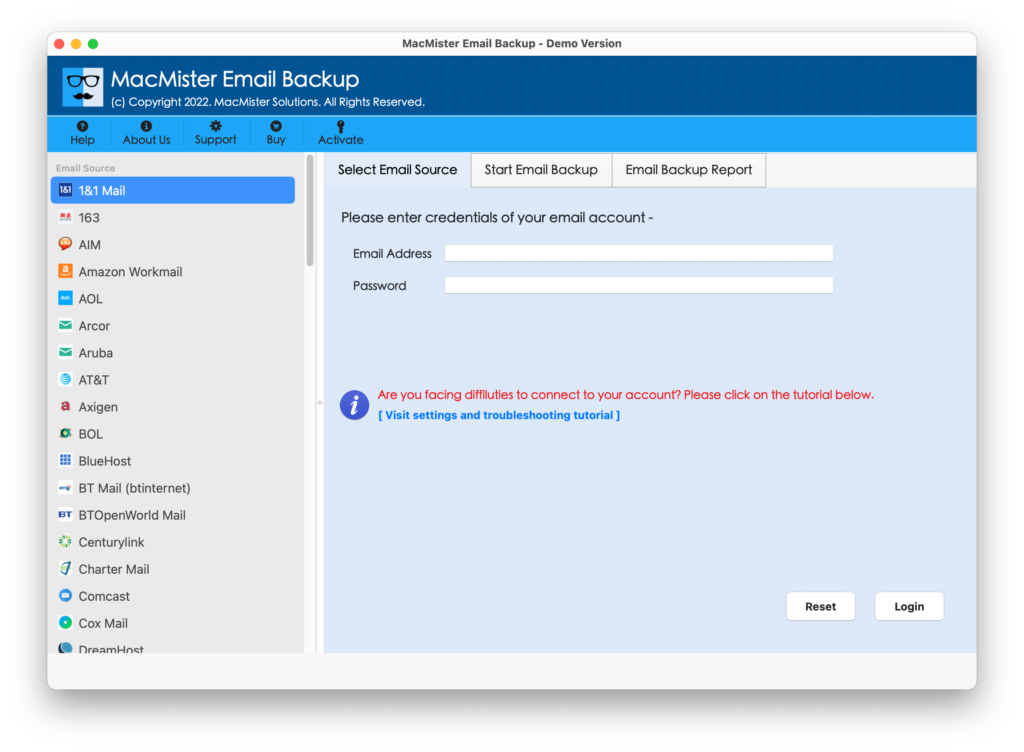
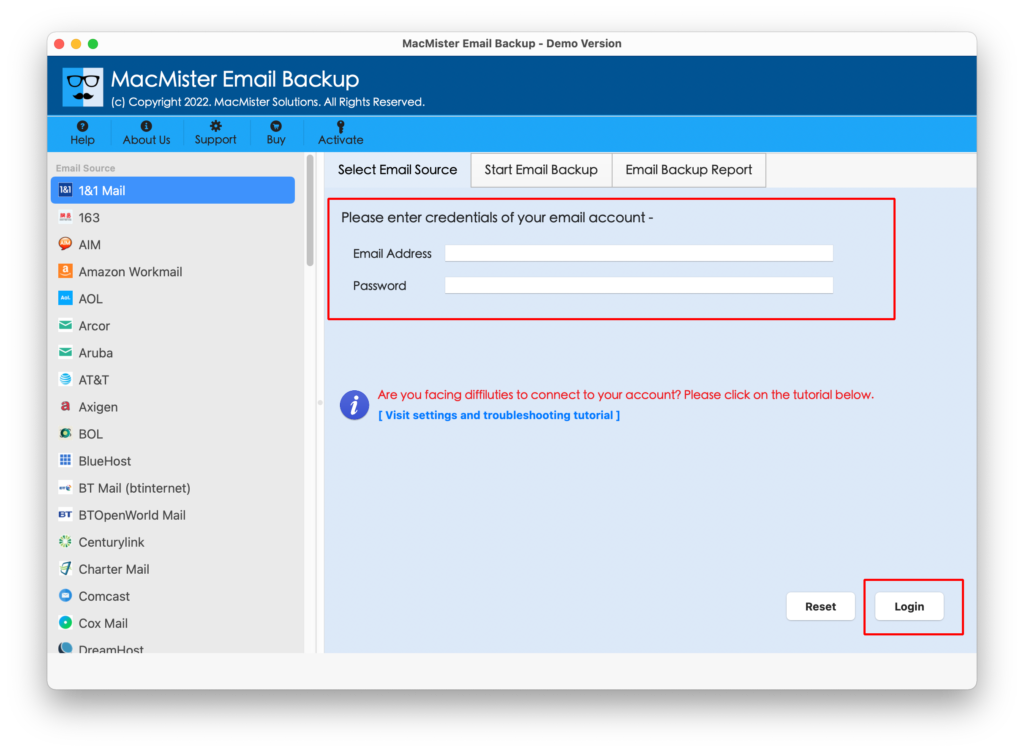
Step 2. Select the Office 365 option from the left. Enter its login credentials and click the Login button.
Step 3. The Office 365 account will connect with the app and its mailboxes will start to appear on the software.
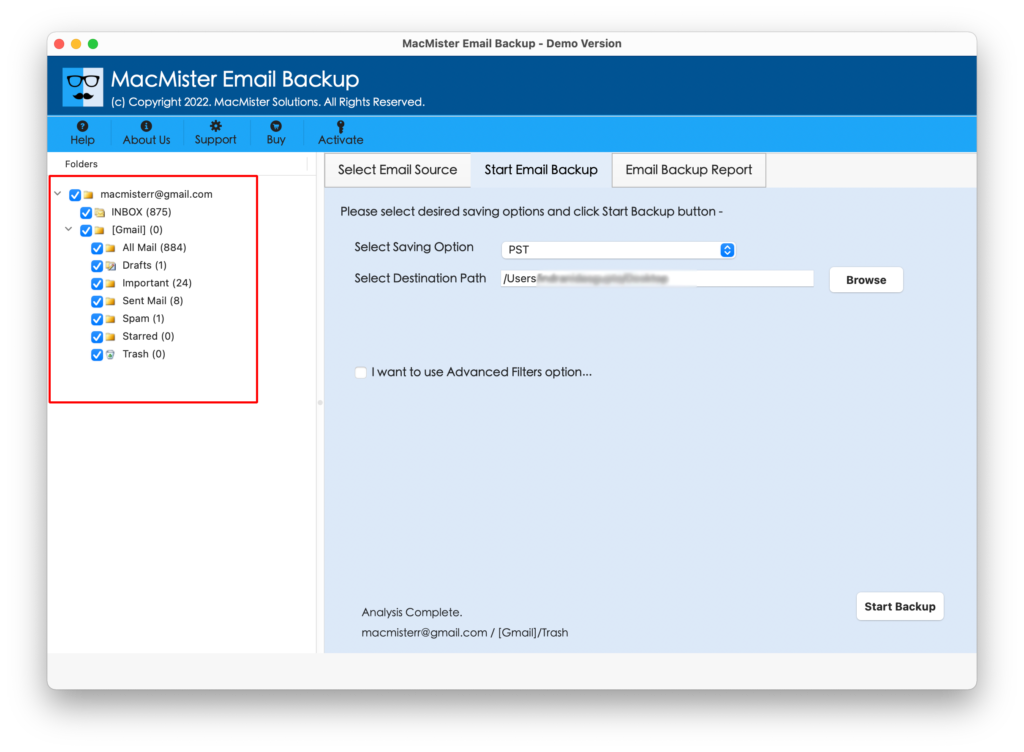
Step 4. Go to Select Saving Options and choose the necessary saving type in which you want to save Office 365 emails.
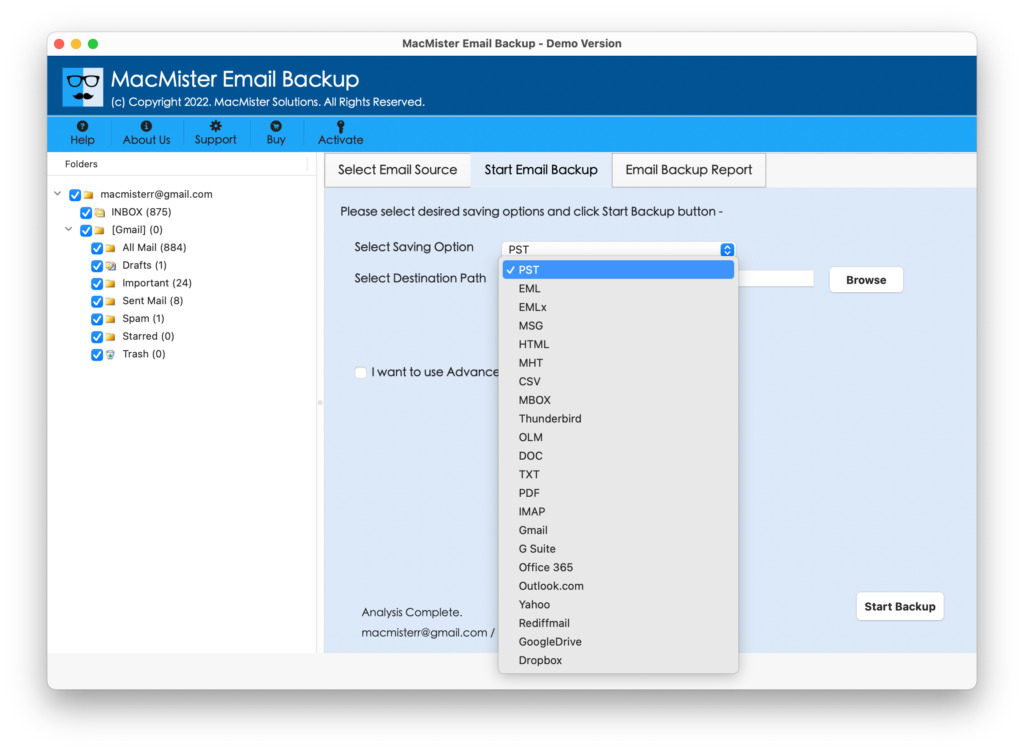
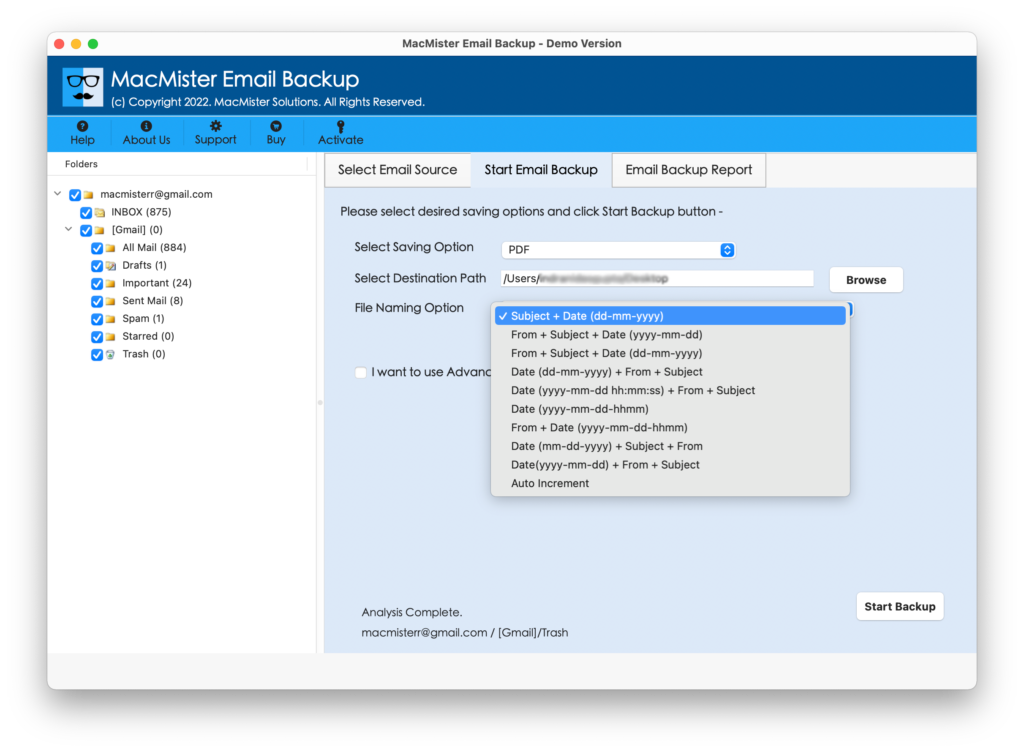
Step 5. Each saving type has sub-options that you can set as per need to save the resultant file according to your requirements. Also, apply Filters if you want to download specific Office 365 account emails. Last, click the Start Backup button.
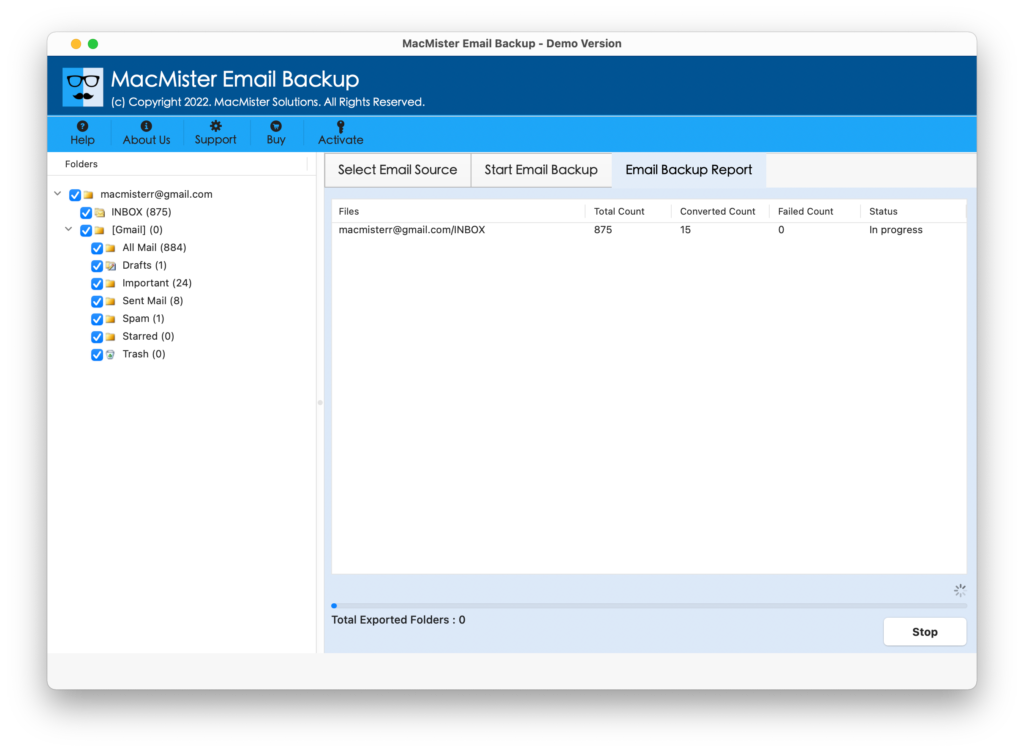
Step 6. The process will start and an Email Backup Report window will appear that will show the current download progress of Office 365 emails.
The whole procedure will take a few seconds and after the completion show a “Process Completed” message to users. Click on OK and go to the location where the resultant files are saved. You can open them and check the result. However, you will see that the content and formatting of all the email messages as well as attachments is accurate.
Method 3. Download Emails from Office 365 as HTML
The method is simple and helps to download Office 365 emails one by one. But, it can consume a lot of time if the count of email messages is large. Follow the steps:
As HTML:
- Navigate to Mail View and open the INBOX folder that has required emails.
- Click on File. Choose Save As. Specify a location path to the emails on the local storage.
- Select the file format as HTML from Save As drop-down menu and click Save.
Wrapping Up
Users can take the help of the above-described methods to download Office 365 emails on Mac & Windows OS. The configuration method can be lengthy and can take a lot of time. And, if the data size is large then it can freeze the Outlook account. So, the best way to perform the process is using an automated secure method. It is simple, effective, time-saving, and highly secure. Anyone can rely on it and download emails from Office 365 with 100% accuracy. Also, the processing of the tool is fast.
Therefore within seconds, it will perform the entire task and deliver the desired results in a short time. It comes with a trial edition so that one can check and analyze the software working before making the final purchase. For any assistance, contact MacMister Support.