How to Export Selected Emails from Outlook Mac?
Want a technique to export selected emails from Outlook on Mac? Not to worry as MacMister Solutions is here to help you out!
Everyone is quite aware of the well-known email application i.e. Microsoft Outlook. One of the most popular email client used worldwide for managing the daily database. It is also known as Personal Information Manager as the email program help users to manage Outlook for Mac user account database such as mails, contacts, calendar and other items. However, users has a lot of data in INBOX folder and many times due to personal circumstances users need to export selected emails from Outlook on Mac.
And, it is not a complicated task when implementing with the right methods. So, here we will be providing a different approaches that will help to export specified Outlook on Mac. Now, in the further section we will be learning the operational steps to perform the required task. Thus, don’t go anywhere, follow the blog for more information.
Multiple Techniques to Export Specified Emails from Outlook on Mac
In the section, we came up with different methods that will help to export Outlook for Mac specific emails with attachments. The first method is totally free to use that allows to carry out the task manually. But, before initiating the process manually, make sure to take the copy of the original emails.
However, the second method will help you to directly export specified emails from Outlook on Mac OS. The technique has the ability to work on all versions of Mac operating system and allows to export specific mails into 15+ saving options.
Method 1. Manual Approach to Export Outlook for Mac Selected Emails
Now, follow the steps and implement the process –
- Go to Mac Outlook and click Tool.
- Choose Export and then Export to Archive File (.olm) screen will be shown.
- Select desired folder to export and press Continue.
- Navigate to Save as and choose Downloads folder and press Save.
- Once data exports, you will get the notification and then click on Finish. Process now successfully completed.
This is the manual procedure which is implementable without any charges. However, it will be suitable when you have few files. In case you need a free method but the files are many, then you can use the solution when you have time. Otherwise procedure will become frustrated when you have not much time to perform manually.
Method 2. Direct Approach to Export Selected Outlook for Mac Mails
To export selected emails from Outlook on Mac, make use of OLM Converter for Mac software. The application enable users to export entire list of Outlook for Mac specified user emails at once without wasting time and with 100% accurate data. The easy GUI of the solution help technical and professional users to use the application effortlessly. And, by operating three easy steps, users can achieve desirable task.

The software has the ability to export selected emails from Outlook on Mac to PST, MSG, EML, PDF, MBOX, ICS, MSG, CSV, DOC, TXT and more. However, you can check the procedure by downloading the trial edition. It will help you to experience and get the idea of the entire process free of cost.
Steps to Export Specified Outlook for Mac Emails on Mac
Follow the below steps to export Outlook for Mac specified mails on Mac at once –
Step 1. Run Mac OLM Converter Tool on macOS.
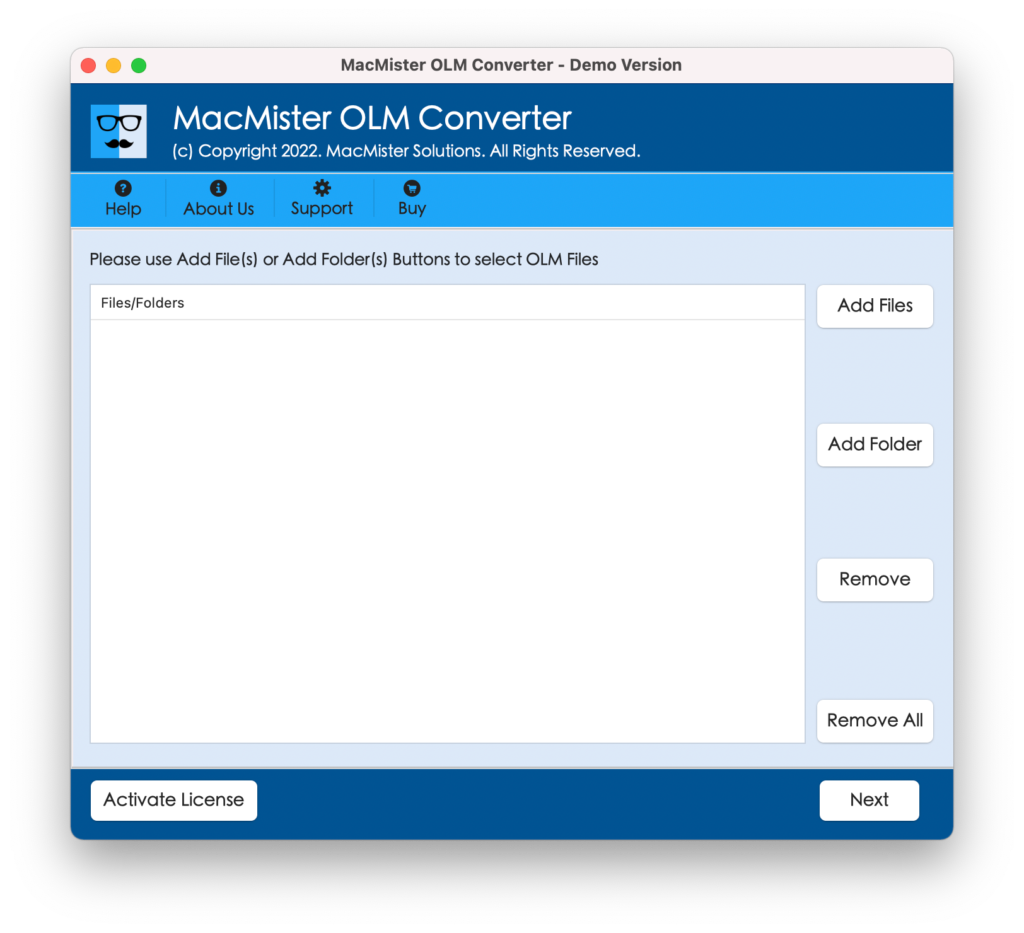
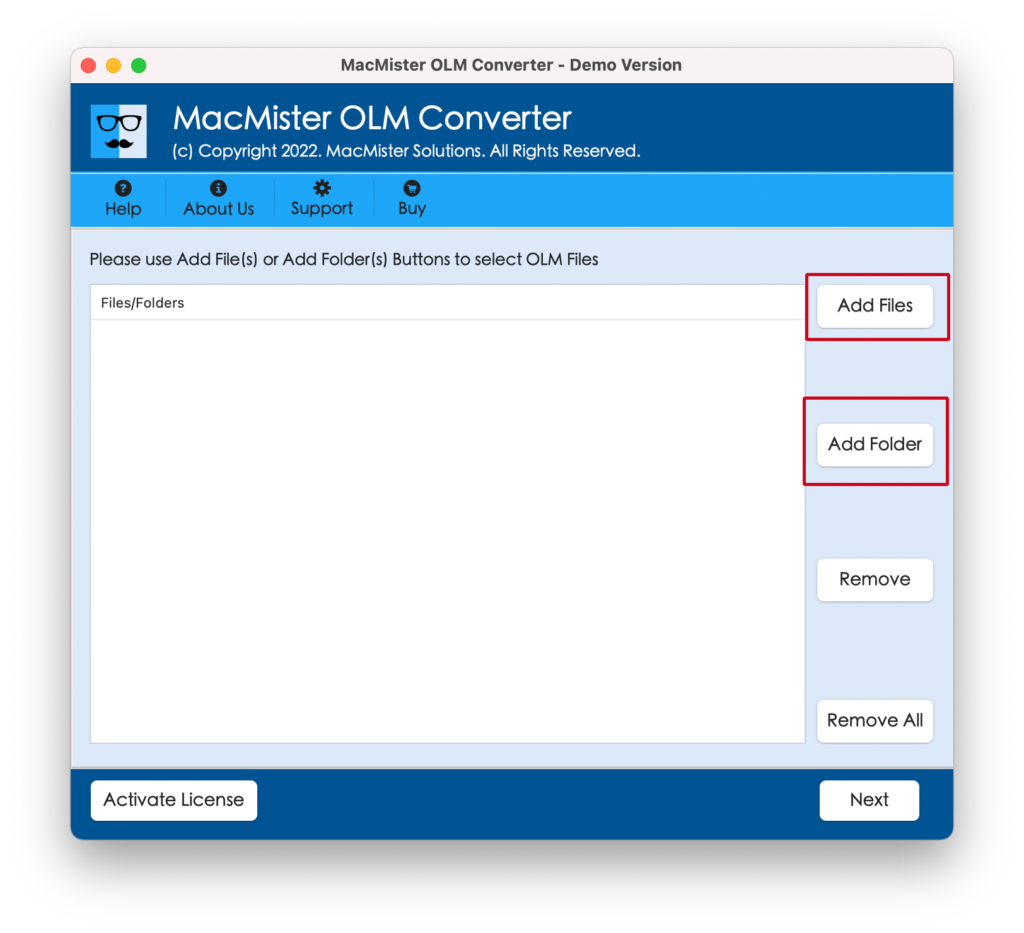
Step 2. Load required OLM emails with the help of Add Files and Add Folder buttons. Click Next.
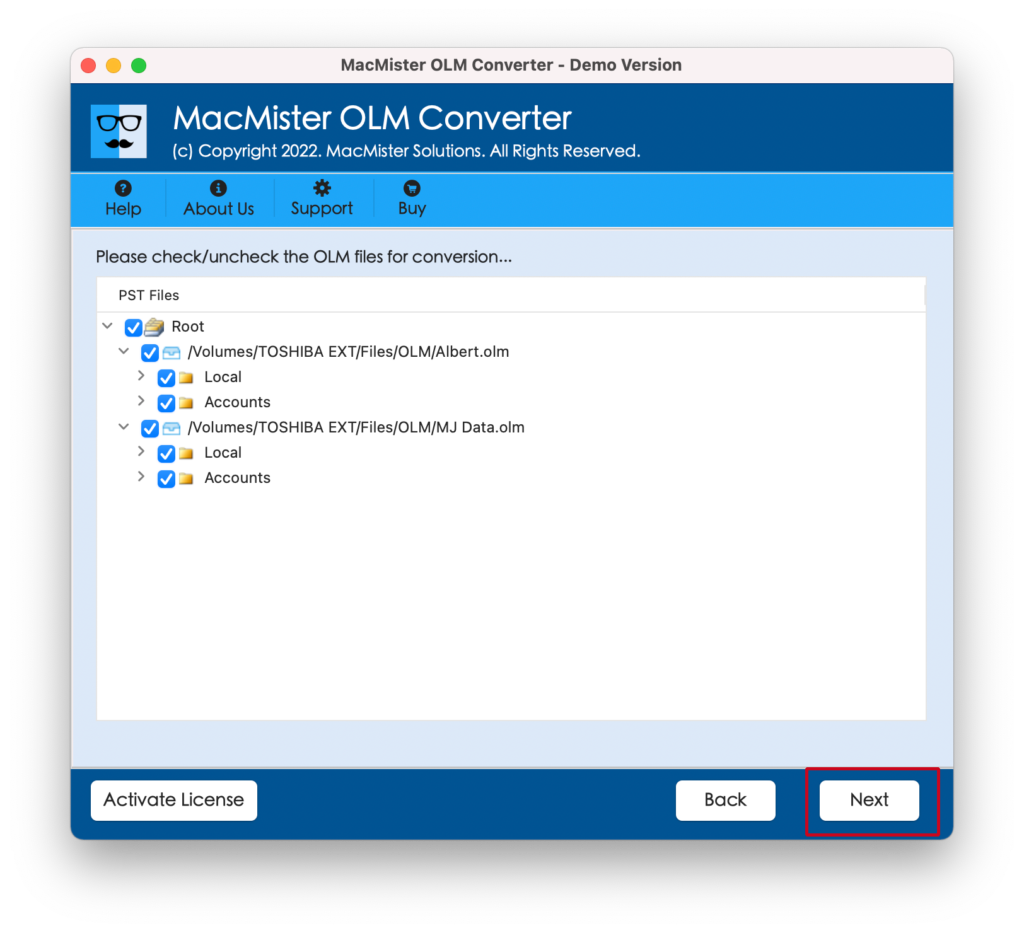
Step 3. Entire list of added OLM mails will appear with checkboxes. The checkbox also help you to export selective files. After this, press Next.
Step 4. Go to Select Saving Option and choose saving type.
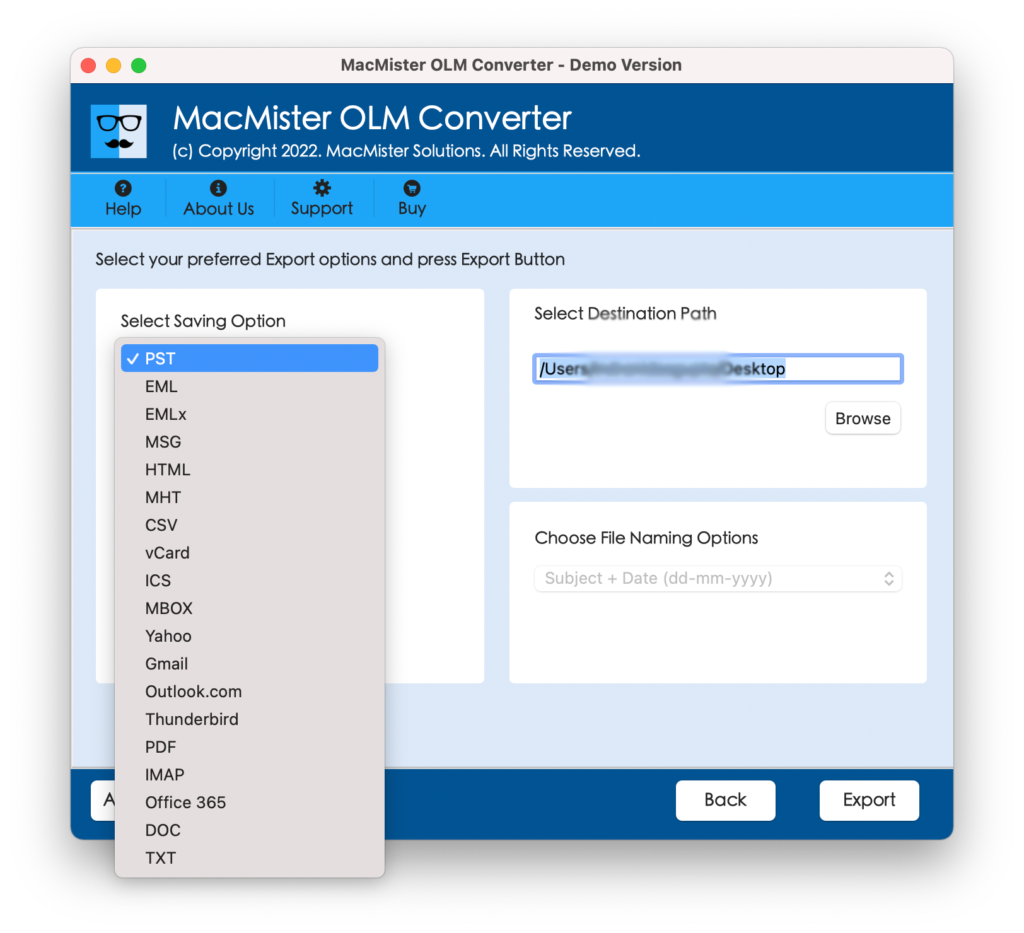
Step 5. Each saving option is designed with sub-options that will help users to save resultant file as per need. When all options are applied, click on Export button.
Step 6. Process will start that you can track easily through Live Conversion screen as shown.
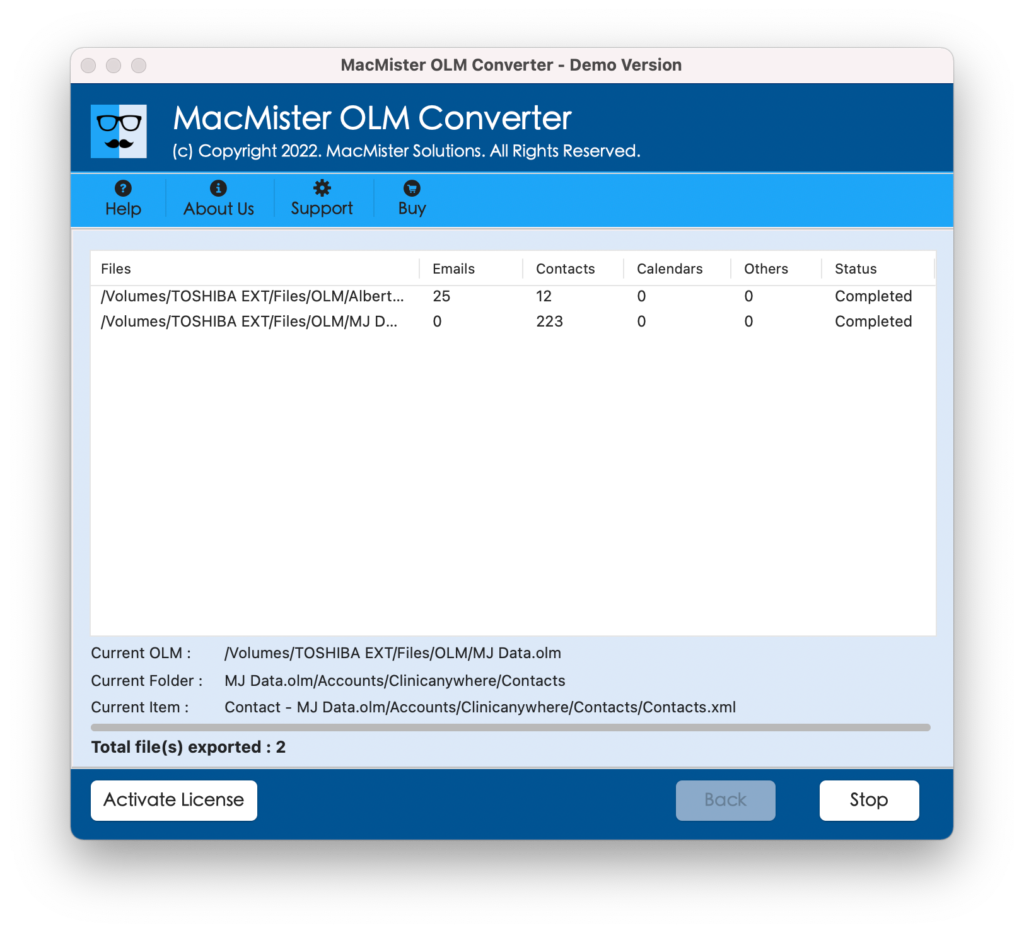
However, users will get the confirmation message, once the process successfully completes i.e. “Process Completed”. Click related OK button to close the message box. Now, check the details of the conversion process with the help of auto-generated log report which will be displayed right after you click on OK button. It will show the total items converted, saving option, saving path and etc.
Note. For any queries, contact technical team of MacMister Solution. The specialised team will discard all your issues and help you to precisely export selected Outlook emails on Mac within seconds.
Powerful Attributes of the Reliable and Direct Solution
Programmed with Simplified Processing
The tool is programmed with simplified processing. In other words, the implementation steps and the GUI of the application is simple, easy and secure. The process can be instantly performed by all technical and novice users.
Supports Multiple Saving Options
To export selected emails from Outlook on Mac, the tool offers numerous saving options. With the help of the tool, users can complete the process by exporting required emails from Outlook on Mac to PST, MSG, MBOX, PDF, EML, EMLx, MHT, HTML, Gmail, G Suite and more.
Save Resultant File at Required Location
The application provides the option of Set Destination Path with each desktop-supported file formats. By clicking the associated Browse button, you can choose and set the location on Mac as per your need and save the resultant data at the same destination without any issues.
Naming Options with Text-Based Formats
With text-based file formats such as TXT, DOC, CSV, MHT etc. the software offers naming options. The list carries the combinations of date, subject and from such as subject+date, from+subject+date, date+from+subject, from+date and etc.
Preserves the Original Quality during Process
The software smoothly performs the conversion and takes care of the original data as well. When the process ends, you will see that the resultant is completely precise. Even, the data integrity is also preserved. So, in short, you do need to worry about the output. It will be maintained by the application throughout conversion.
Operate the Process on all Mac OS Versions
Users can easily utilize and download the tool on entire Mac OS versions. The application is operable on Mac Monterey, Big Sur, Catalina, High Sierra and other previous versions. Thus, you can export specified Outlook for Mac emails on any macOS without worrying about compatible issues.
Last Words
The complete segment highlighted two approaches i.e. Manual and Direct. You can test both the methods first and adopt the suitable one. However, make sure to backup or take copies of your original files before performing the process. Manual process will be quite lengthy, so make sure to take out proper time before starting the migration manually. Whereas, the direct solution allows to directly export unlimited specified emails from Outlook on Mac with attachments effortlessly. You can download its trial edition and know the working process. It will allow to export 25 Outlook for Mac emails free of cost.