How to Export Thunderbird Emails to Gmail on Mac?

Many users nowadays are searching for a process to transfer Thunderbird to Gmail with mails, contacts and other items. However, there are many other ways present for implementing the same process but in the article we will be discussing only the important technique which are mostly used to import Thunderbird emails to Gmail. So, without wasting more time, let us simply experience some multiple ways to export Thunderbird to Gmail with mails and attachments.
Related Posts
Thunderbird is an open-source and widely used email client which is designed by Mozilla foundation. It is quite popular among many organizations and users. People from across the world are utilizing its services for managing their account personal information. The email client not only supports Mac OS but also has the ability to work on Windows operating system.
On the other hand, Gmail is becoming highly useful cloud-based email client these days. Many business and individuals are shifting their accounts in Google Workspace due to many strong reasons. However, users are getting many advantages of creating an account on Gmail. For e.g. the enhanced productivity tools, solid security measures, flexible accessibility, large storage space and more.
Therefore, people are getting more benefit from Gmail than Thunderbird. Thus, plethora of corporates are frequently transferring their accounts on Google Mail. But, the challenge is how to export Thunderbird emails to Gmail. The process is very easy and users do not need take any worries about it. Just read further and one will definitely able to access Thunderbird emails in Gmail account without data loss.
How to Import Thunderbird Emails to Gmail on Mac?
There are basically multiple techniques to export emails from Thunderbird to Gmail with attachments.
- Direct Error-Free Solution
- Importing by applying Gmail Settings
- Using IMAP
Now, we will discuss all of them one by one in the following section.
Method 1. Import Thunderbird to Gmail using Direct Error-Free Solution
Mac Thunderbird Converter is reliable, secure, cost-effective and a direct solution that easily batch import Thunderbird emails to Gmail with attachments in a single time. The tool offers Gmail as a saving option. Users can choose it directly for a process and provide the desired Gmail login details in which Thunderbird emails are required. The process will take just three steps and complete the migration with 100% accuracy.

Any user can use the simple GUI of the tool and apply its powerful features as per requirements in order to get the desired result. The application is designed with a trial edition as well which help users to take the experience of software functioning and its related options for free.
Steps to Export Thunderbird Emails to Gmail with Attachments
Step 1. Download, launch, and open Thunderbird to Gmail Tool on macOS.
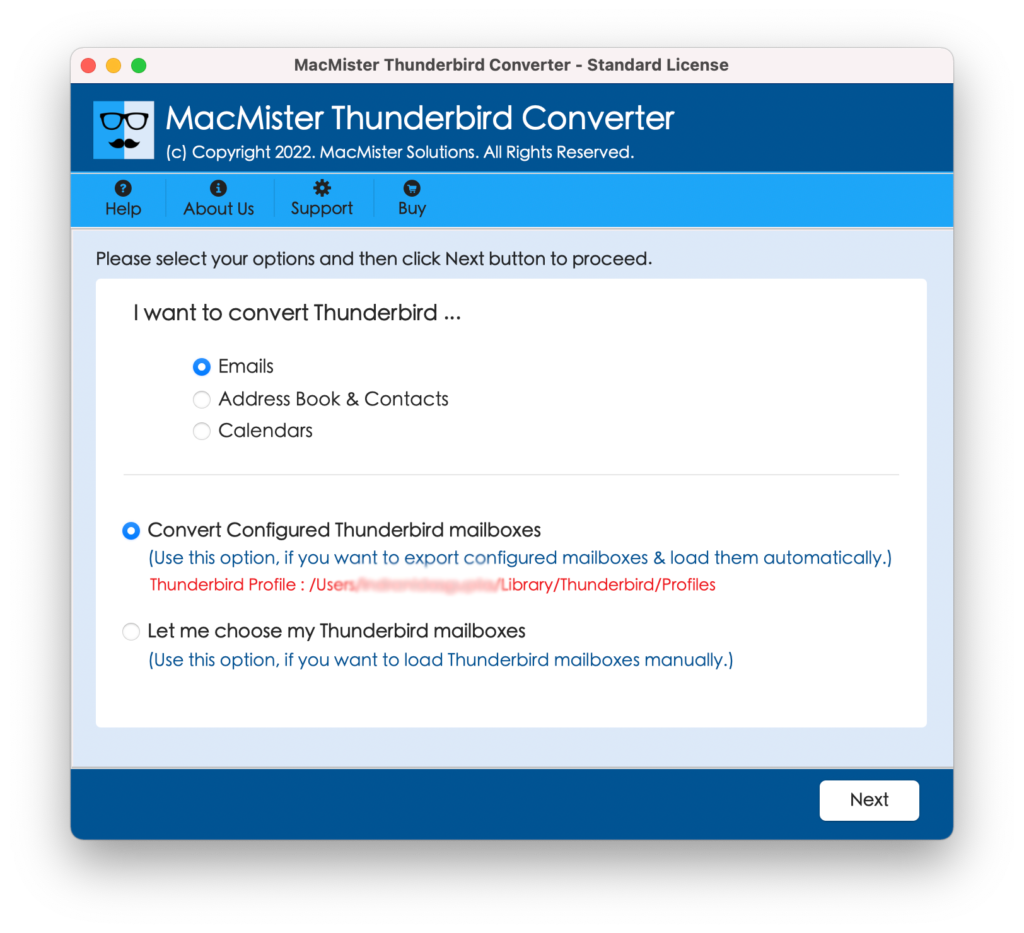
Step 2. Apply the selections according to your requirements and click the Next button.
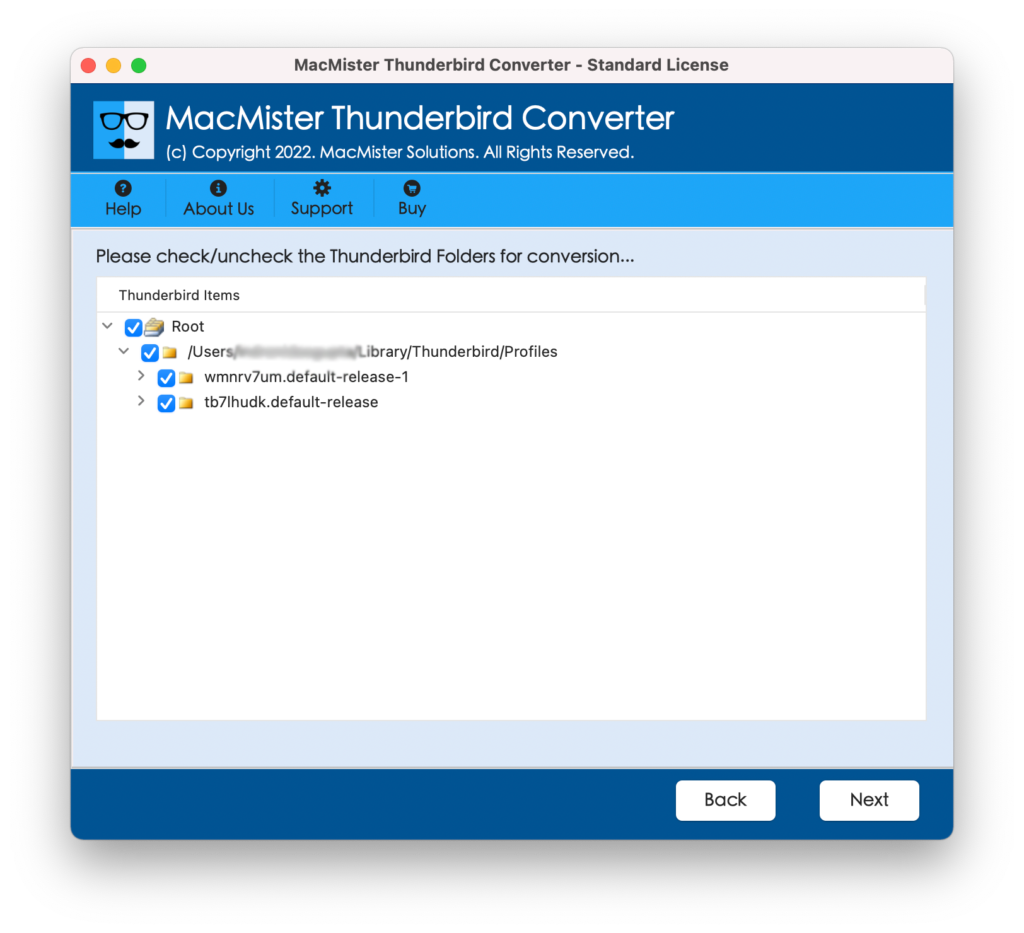
Step 3. Thunderbird mailbox list will quickly appear and each will be displayed with a checkbox. View and cross-check the list of loaded files of Thunderbird. However, the checkbox will help in importing selective emails from Thunderbird to Gmail. Click Next.
Step 4. Go to Gmail after clicking Select Saving Option.

Step 5. Enter required Gmail account credentials and click the Export button.
Step 6. Thunderbird to Gmail process will immediately go live. And, users can even check the ongoing process using the Live Conversion screen.
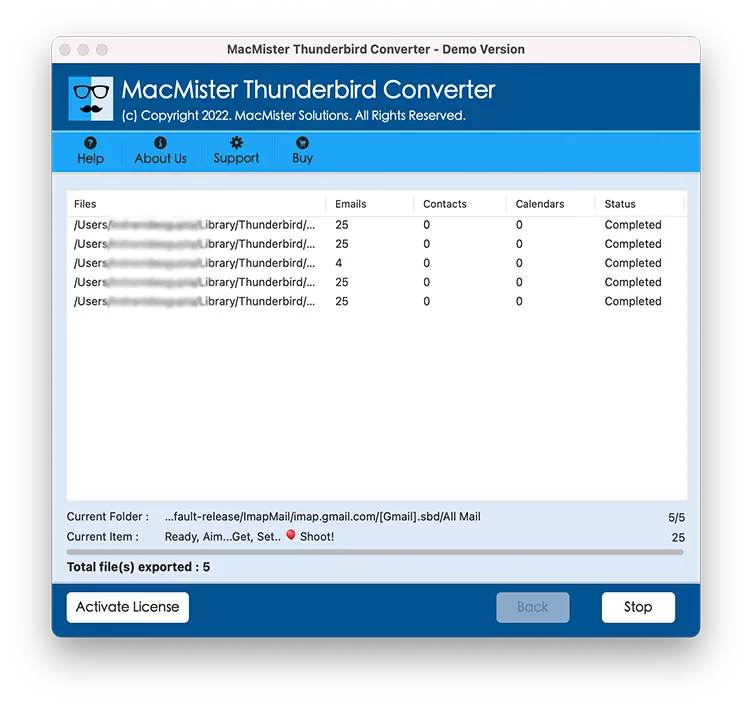
The application will send a notification of “Process Completed” after exporting all Thunderbird emails to Gmail. Click OK and then go to the Gmail account to check the resultant files. Their metadata properties will be precise and the structure of data will also be preserved by the tool during the process.
Method 2. Apply Gmail Settings and Import Thunderbird Emails
Step 1. Login to the required Gmail account and go to Settings which is represented with a Gear icon in the top right corner of the Gmail account.
Step 2. Choose the See all Setting Option and then select the Accounts and Import tab.
Step 3. Click Import Mail and Contact’s option.
Step 4. Provide Thunderbird Mail credentials in Email ID and Password fields.
Step 5. Now, choose desired files to import from the options given and click Start Import.
Step 6. Users will receive a message “your messages are being imported” on the screen once import process completes.
Method 3. Export Thunderbird Emails to Gmail using IMAP
Gmail is integrated with IMAP. So, it stores its emails on IMAP Server. Not only this, it makes the import process very straight through simple drag-and-drop operating. Follow the steps and copy emails from Thunderbird to Gmail:
Step 1. Go to the location where the required email folder is located.
Step 2. Select required email messages to import.
Step 3. Right-click on a select email file.
Step 4. Select Copy to option appearing in a menu and enter Gmail credentials as well as select the mailbox folder that needed to import in Gmail account.
Step 5. Now, go to the specified Gmail account to check the imported Thunderbird messages.
All the methods are implementable, so users can adapt them according to their requirements. However, it is recommended if a user has a plethora of files then it will be wise if they go for a direct method. Moreover, those who do not want to take the chance of data loss, can also go with Thunderbird to Gmail Migration Tool and perform the process.
Last Words
There are three methods mentioned in the article for user suitability. They all provide a way to import Thunderbird emails to Gmail on Mac with attachments. But, the only advice is to use an approach that is fast, secure, and reliable. And, make sure to have a backup of Thunderbird files before starting with any method. In case a user wants to check a direct procedure, then the free download option is available. By downloading it on Mac, users will be able to export the first 25 Thunderbird emails to Gmail directly free of cost. This will give them an idea of the software working and the features it offers to users.