How to Handle More than 1,048,576 rows in Excel?

Is your Excel sheet is closing suddenly while you are trying to open it? Regretting on storing the data beyond its specified limit, now wondering how to handle more than 1,048,576 rows in Excel? Looking for a solution that can resolve the issue quickly? Not to worry because in the article we have discussed a solution that will help you to manage large Excel file with ease.
Excel is a Microsoft application which is introduced as a part of Microsoft Office Suite. It helps in organizing, analyzing, and manipulating data. However, Excel is a great source for data entry, data management, and financial analysis. It is mostly used by organizations including hospitals, banking sector, marketers, analytical professional, retail associates, etc. to maintain large number of records.
Microsoft Excel is one of the most used software application in business industries. It is useful to:
- Enter data in Strings, Numerical Type of Data, or Dates in the Excel Cells as well as Save Files for future purpose.
- Helps in developing tools and dashboards.
- Interaction with other applications becomes easier.
- Allows to present data in Charts.
- Perform data analysis using Pivot Table.
But Excel files get corrupted easily, because the more data you store the more will be the risk of losing it. Thus, maintaining an optimal size for Excel files is necessary.
Sometimes images, pivot table cache, embedded objects, excessive formatting, and large amount of data increase the file size which is not the whole truth. After appropriate research, many found that some of its features also impact the file size such as formulas and functions, comment and notes, defined names, external links, data validation, VBA code, Themes, sharing files, custom views, and more. Thus, it is important to maintain the records from time-to-time otherwise your entire database is at risk.
How to Handle More than 1,048,576 rows in Excel?
There are many technical manual approaches available but all are complicated and may take your lot of time. So, it is recommended to go with the direct and secure one i.e. MacMister CSV Splitter for Mac Tool. With the help of the application, users can split big Excel file into multiple CSVs with ease. It is a simple and friendly tool that professional and non-professional users can handle independently and perform the required task effortlessly.

Moreover, the application has many features and options that can be applied to obtain the desired results. However, you can download the trial edition of the software and test the working steps of the application for free.
Working Steps to handle more than 1,048,576 rows in Excel with the help of the tool on Mac –
Step 1. Download and launch MacMister Excel Splitter on your Mac system.
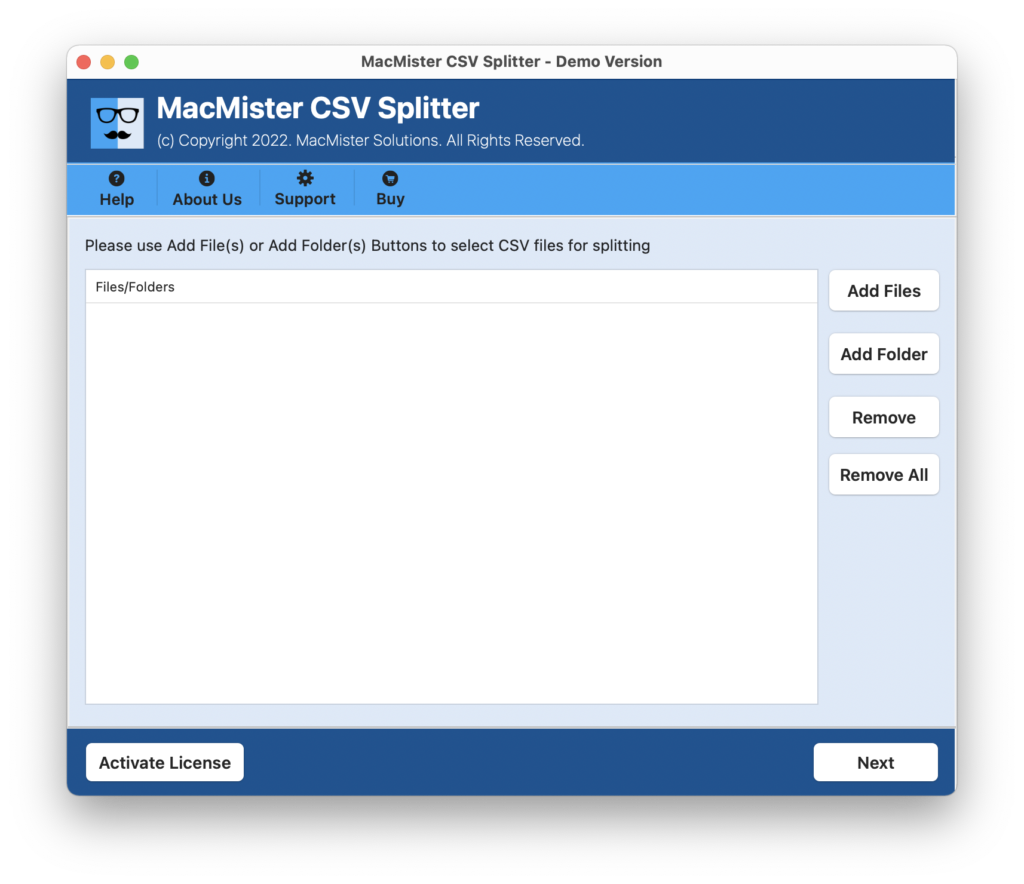
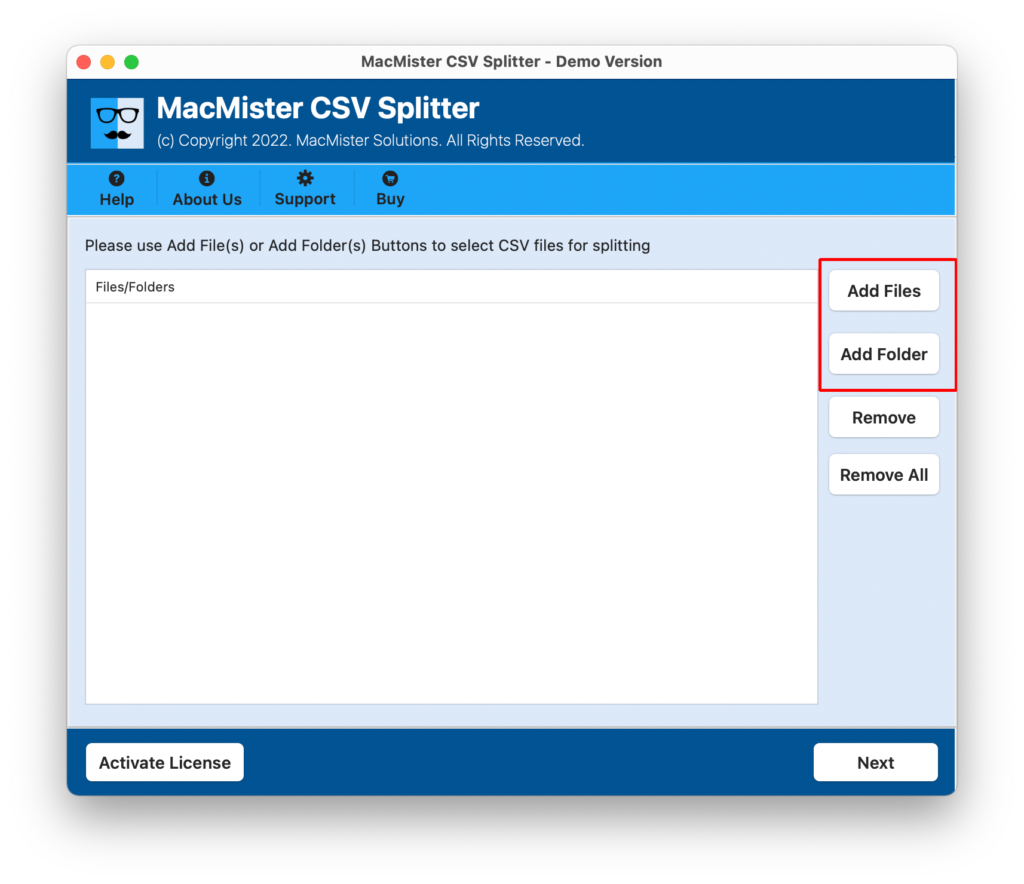
Step 2. Add CSV files which are big in size with the help of Add File(s)/Add Folder buttons and click Next.
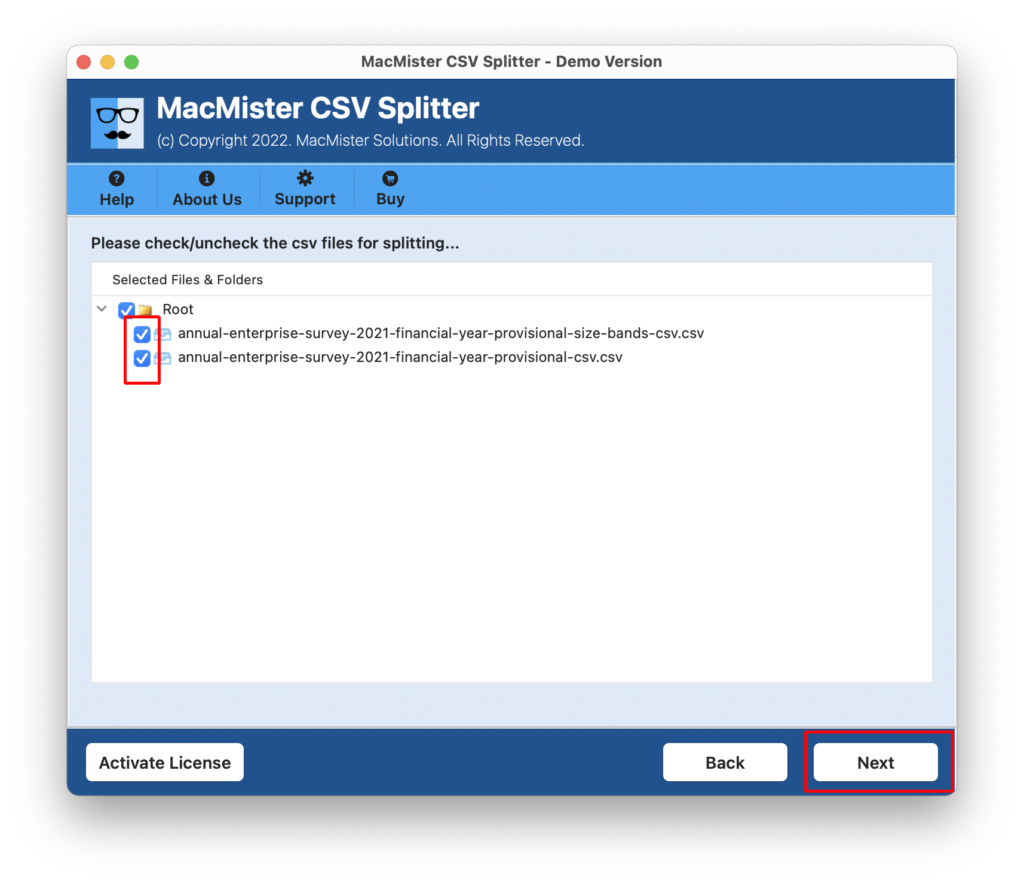
Step 3. The software will immediately list .csv files with checkboxes on the software one-by-one. By default all the checkboxes are selected but you can deselect them and select them again to manage only selected CSV files. After this, click on Next button.
Step 4. Now, click on Browse button and set the destination path of your choice to save resultant files.
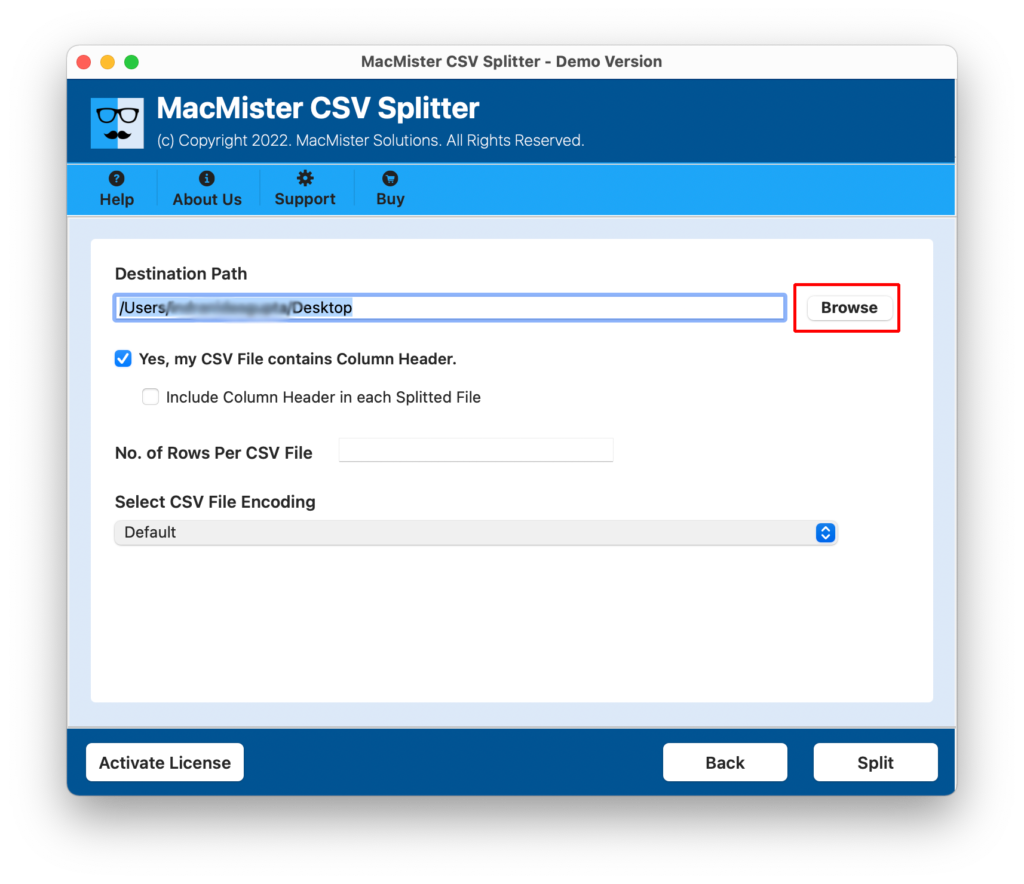
Step 5. Select the checkbox of Include Column Header if you want to add column header in every resultant CSV file.
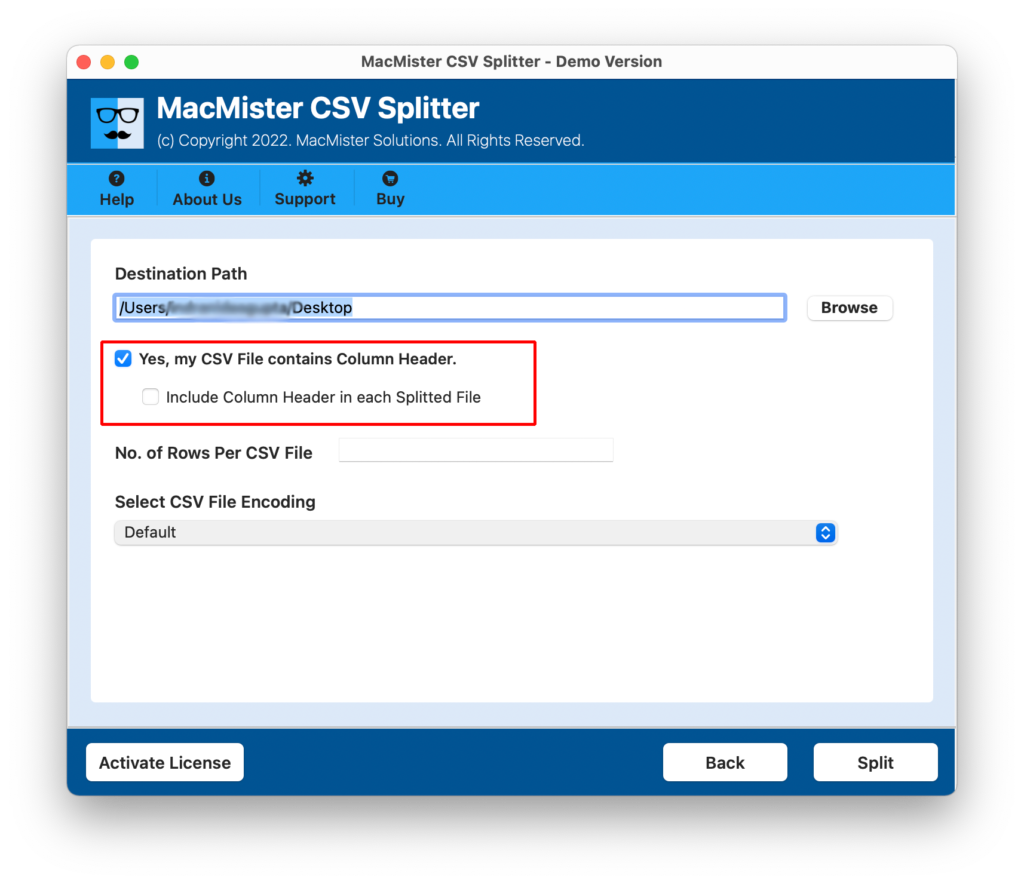
Step 6. You can also set no. of rows to break large Excel file as per number of rows specified.
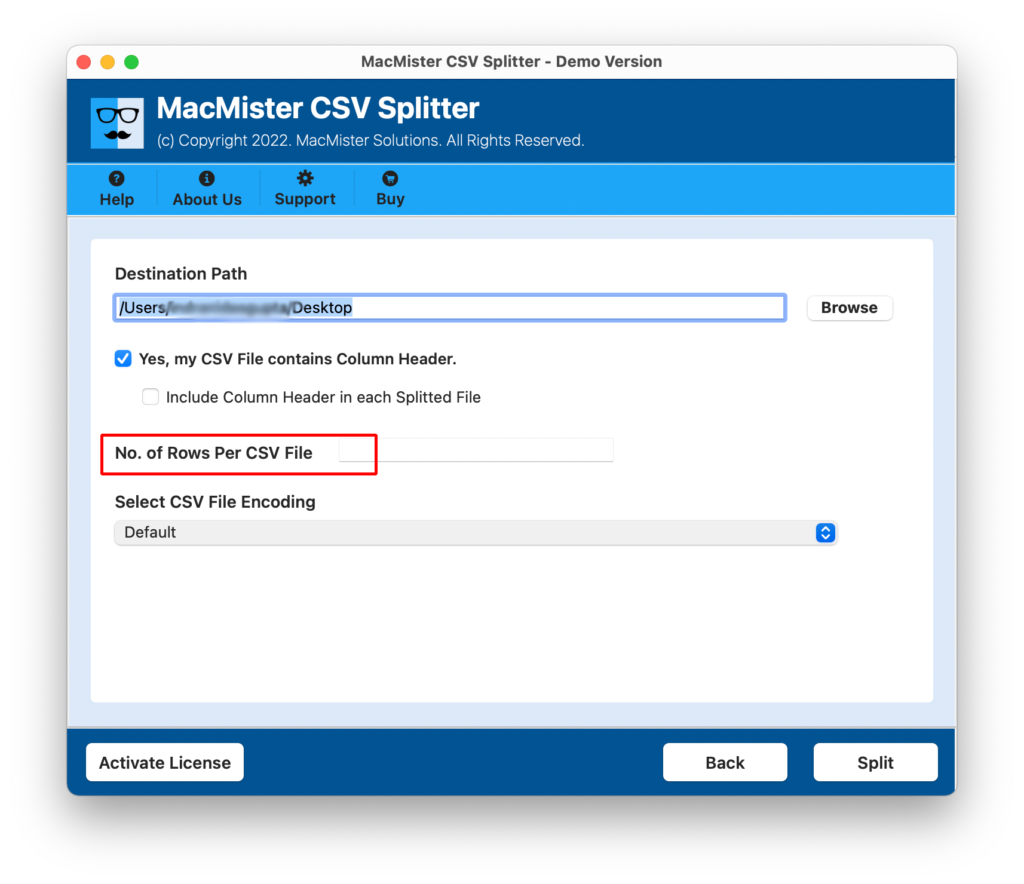
Step 7. Choose necessary CSV encoding option and click on Split button to start the process.

Step 8. The tool now shows the live split progress that can be used to track the split status of Excel files.
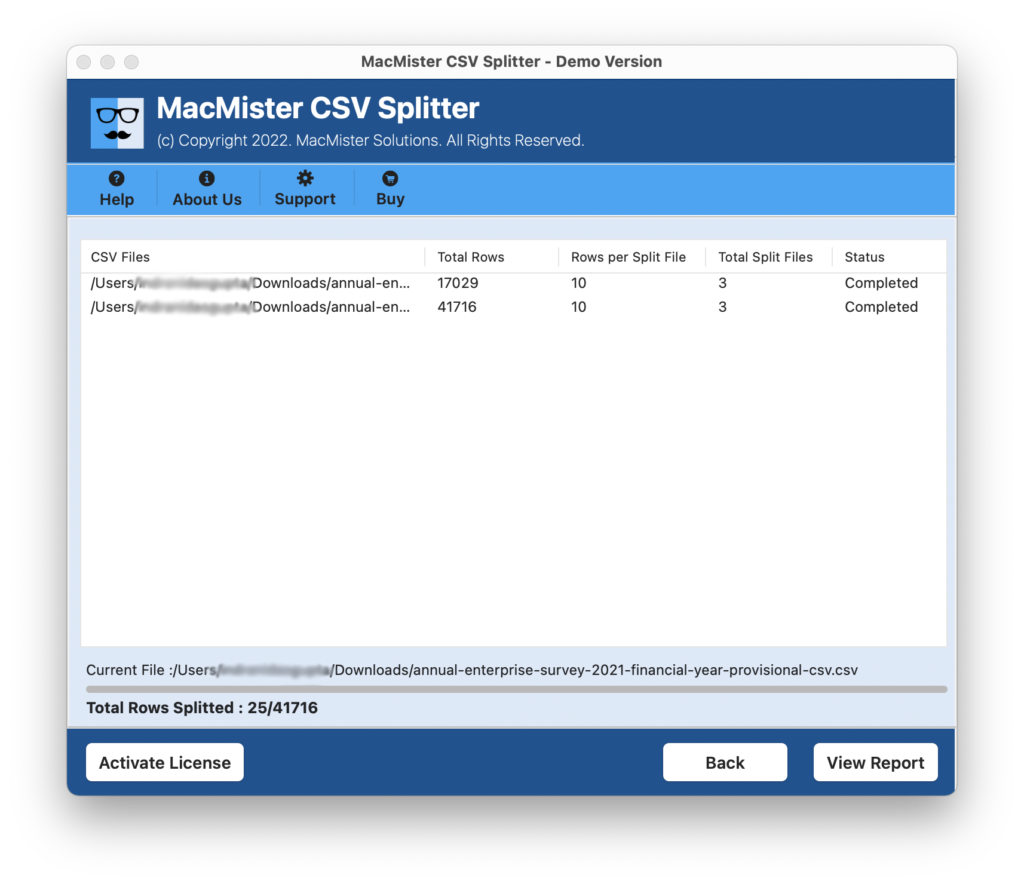
The process will finish with a pop-up window confirming “CSV Splitting Completed Successfully”. Click on OK and go to location where resultant files are saved. However, you can open the necessary file to view the results.
Overall, it is a wonderful solution which is full of powerful features. Some of them are highlighted below –
- The simple and intuitive interface is accessible by professional and non-professional users.
- Supports dual options i.e. Add File(s) and Add Folder buttons to add necessary Excel files on the tool.
- Able to manage multiple large Excel files with ease.
- Allow users to save resultant files at desired destination path.
- Offers Include Column Header option to add column header in every split file.
- One can set row count and implement the process accordingly.
- Multiple encoding options are available such as Default, UNICODE, ASCII, UTF32, UTF7, and more.
- Compatible with Mac OS versions including Mac OS Sonoma.
Quick Note. Download FREE DEMO of the application to Experience all Software Features and Options.
Epilogue
In the write-up we have discussed an instant and safe solution to resolve “how to handle more than 1,048,576 rows in Excel?” The above discussed application is secure and reliable. Anyone can utilize it and implement the required task without facing any difficulties. It also provides free demo that can be used to understand the whole process for free.
Quick Note. For any guidance, you can contact MacMister Support.