How to Restore Folders in Microsoft Outlook?
Have you ever accidentally deleted folders in Microsoft Outlook and now wondering how to restore them quickly? If yes, then you no need to take any worries as here we will explain how to restore folders in Microsoft Outlook whether a user is using Outlook desktop app or Outlook Web App.
Restore Folders in Microsoft Outlook – Different Techniques
It is important to remember that Outlook does not remove the folder entirely when you delete it. However, Outlook first dump them into Trash or Deleted Items folder automatically that act as a backup for easy restore. In fact, there are other options available even after emptying Deleted Items folder. Outlook has “Recoverable Items” bin in which it keeps the deleted emails for a certain amount of time.
Let’s explore some methods discussed below.
Method 1. Restore Deleted Folders in Microsoft Outlook
The simple technique to restore deleted folder in Outlook is to search the erased folder in Deleted Items. The same section may also appear as Trash in some Outlook versions. To perform the same, follow the below steps –
Step 1. Open Outlook email client.
Step 2. Go to Trash or Deleted Items folder in folders list.
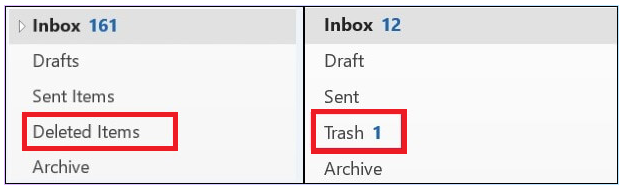
Step 3. Check for deleted folder
Step 4. Right-click on the required folder to restore.
Step 5. Click Move and select Other Folder.
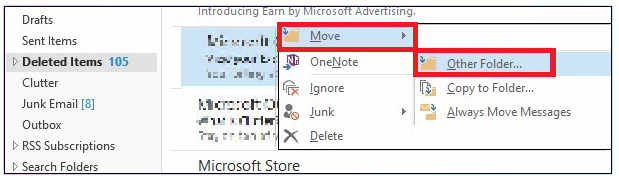
Step 6. Choose the desired location to restore deleted folder.
Step 7. Tap OK button to complete the process.
Method 2. Restore Erased Folder in Outlook 365 or Exchange Server
In server environments such as Exchange Server or Outlook 365, there is another layer of safety present. If you not able to find your folder in Trash or Deleted Items, then you may look for folders in Recoverable Items option. And to do the process, follow the below steps –
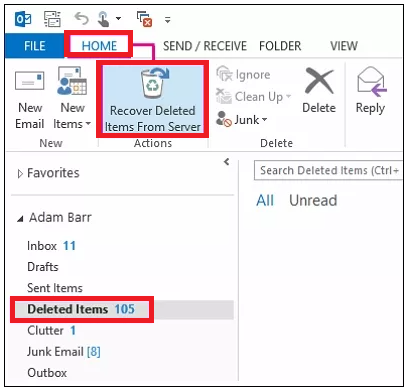
Step 1. Navigate towards Deleted Items folder.
Step 2. Go to Home tab present in the Ribbon.
Step 3. Tap “Recover Deleted Items” option (search for the envelope icon appearing with the arrow).
Step 4. Or, try to find the same in a Folder menu.
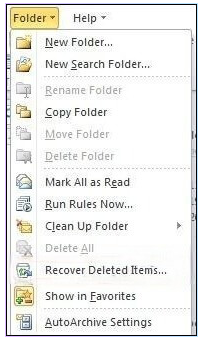
Step 5. Go through the list of recoverable items and choose the necessary folder for restore.
Step 6. Click Restore Selected Items.
Step 7. Check the folder list. The recovered folder will display in its original path.
Method 3. Recover Deleted Folders in OWA (Outlook Web Access)
Users can restore folders in Outlook Web and this can be done by using the below steps –
Step 1. Login to OWA on the device.
Step 2. Go to Deleted Items folder and right-click on the same.
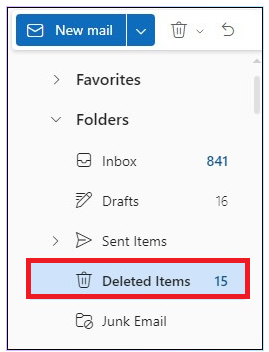
Step 3. Select the option Recover Deleted Items.
Step 4. Search for deleted folders in the list.
Step 5. Select the checkbox and tap Restore option.
Why Recovery is not working?
In case the above methods do not work, still there are some options available which can be used to restore folders in MS Outlook.
- Contact IT admin as they could suggest some Outlook recovery tools for the same.
- Search for offline copies of Outlook folders.
- Try to find auto-archived folders.
It is also essential to remember that at times conventional recovery methods cannot be applied. Below some other alternative approaches discussed to restore folders in Outlook.
Method 4. Working with IT Admin
If you work in a corporate environment, then the IT administrators have solid recovery tools at their disposal.
Step 1. Write down the following details before initiating contact with IT admin –
- Accurate name of a deleted folder.
- Approx. deletion date and time.
- Folder’s original path.
- Essential emails or items specifically remember being in the folder.
Step 2. Contact IT admin with –
- Clear info of the recovery techniques that you have already used.
- Provide all the above details (Step 1).
- Urgency level.
Step 3. They may
- Retrieve Exchange Server Backup Archives.
- Restore folders from backup systems available for organizations.
- Take help of specialized methods that aren’t reachable to regular users.
- Restore items beyond normal retention period.
Method 5. Go through Offline Backups
If you regularly backup Outlook data, then here are the steps discussed to restore deleted Outlook folders from the same –
Step 1. Go to Outlook Data File Backup Location
- Search for .pst files or .ost files in your backup location.
- Check for Windows backup if it is enabled.
Step 2. Restore folders from a backup file
- Open Outlook.
- Navigate to File, choose Open & Export, then select Open Outlook Data File.
- Afterwards, go to backup location.
- Choose .pst file.
- Wait for the file to load in a folder list.
Step 3. Search and restore Outlook folder
- Search for the loaded backup file in a folders list.
- Then, go to the desired folder to restore.
- Afterwards, right-click and select “Copy Folder”.
- Next, choose the destination in the current mailbox.
- Lastly, tap OK to complete the restore.
Method 6. Verifying Auto-Archive
Outlook’s auto-archive option could have preserved your folder. So, check if you can restore deleted folder from Outlook’s archive.
Step 1. Search for an Archive file
- By default, archived file is location in C:\Users[YourUsername]\Documents\Outlook Files\archive.pst
- Confirm the location mentioned in Auto-Archive settings by navigating towards File > go to Options > and click Advanced.
- Scroll down until you see Auto-Archive Settings.
- Note the location of archived files.
Step 2. Retrieve the Archive
- Open Outlook, go to File, click Open & Export and select Open Outlook Data File option.
- Now, navigate towards archive file.
- Afterwards, choose archive.pst file.
- Archive will display in a folder list.
Step 3. Restore data from archive
- Expand archive folder structure.
- Look for a missing or deleted folder.
- If it appears, right-click on the same and click Move folder.
- Next, choose the destination in active mailbox.
- Finally, tap OK.
In case standard recovery options fails, then you may use such techniques to restore deleted folder in Outlook.
Restore Deleted Folder in Outlook using Automated Approach
Another way to prevent Outlook folder from missing or deleted is MacMister PST Converter for Mac & Windows. It enables users preserve Outlook folders into 15+ saving types with 100% accuracy. Anyone can perform the operation as it is built with a friendly and intuitive environment. Additionally, it has features with the help of one may obtain the results as needed. However, MacMister also has OLM Converter for Mac users. The solution is capable to restore Outlook for Mac folders into 15+ saving types. Both are available with a free demo.
Epilogue
In the write-up, we have explored multiple processes to restore folders in Microsoft Outlook. If the manual techniques fail, then make use of a professional solution. It is quick, reliable, secure, and more effective. Manual approaches are free to use but they can only be performed by users under expertise guidance. Whereas automated approach can easily operated by all types of users. Users with non-technical background can also make use of it to restore folders in MS Outlook.