Migrate & Transfer Eudora Mail to Outlook | Tutorial for Both Mac & Windows Users
Are you currently in a search of proficient approach to export Eudora Mail to Outlook on both Mac and Windows? Unable to find the suitable solution for the same! Don’t worry because MacMister Solutions will take care of everything!
Eudora is an email client which is compatible with both Mac and Windows operating systems. The first Eudora lightweight version i.e. Eudora OSE was introduced in 2010 and since then it is in use by most of the users and organizations. The email client is integrated with multiple protocols as well such as POP3, SMTP and IMAP. Moreover, it stores the entire list of Eudora emails in a single folder and save the same in a file that supports .mbox extension. But, the most important concern is why users these days are preferring Outlook over Eudora email client.
Reasons to Export Eudora Mail to Outlook
Undoubtedly, Eudora is a powerful email platform and many users are still using it. The main issue why several organizations are moving to Outlook is due to lack of security features. Eudora highly lacks in advance security measures whereas Outlook covers everything. The email client was last updated in 2010 and after that it has never received any official support. However, Outlook is also supported by both Mac and Windows, so users do not need to change the email platforms to access Eudora emails in Outlook.
Some main benefits of using Microsoft Outlook over Eudora
- Easy message accessibility in an organization environment
- Able to manage contact list of users.
- User-friendly and easy navigational GUI.
- Calendar features will help users to create appointments and meeting schedule.
- Keyboard commands to perform tasks quickly.
- Outlook login is possible through multiple devices.
- Delivers well-secured email servers that helps keeping the user accounts safe and secure.
How to Export Eudora to Outlook on Windows and Mac?
Mac MBOX Converter is a strong choice for those who wants to batch export Eudora emails to Outlook with attachments on Mac. The software carries easy and intuitive approach so that users can handle the application without any stress and migrate Eudora to Outlook in seconds. There are only three working steps which are quick to implement and use. Moreover, this will save the time of users as well and help them in performing the batch migration in minimum time.
Even the features designed in the software will allow users to export Eudora Mail to Outlook as per requirements. However, users can use the trial edition and test the software working for free.
Note. There are basically two versions of the tool. One is for Mac and another is for Windows. Users can download and use the software as per need and export Eudora Mail to Outlook without any issues.


However in the following section, MacMister has discussed the steps for both Mac and Windows operating system. Users can go through the suitable solution and transfer Eudora Mail to Outlook accordingly.
Steps to Migrate Eudora to Outlook on Mac
Step 1. Run Eudora to OLM Converter on macOS or Windows.
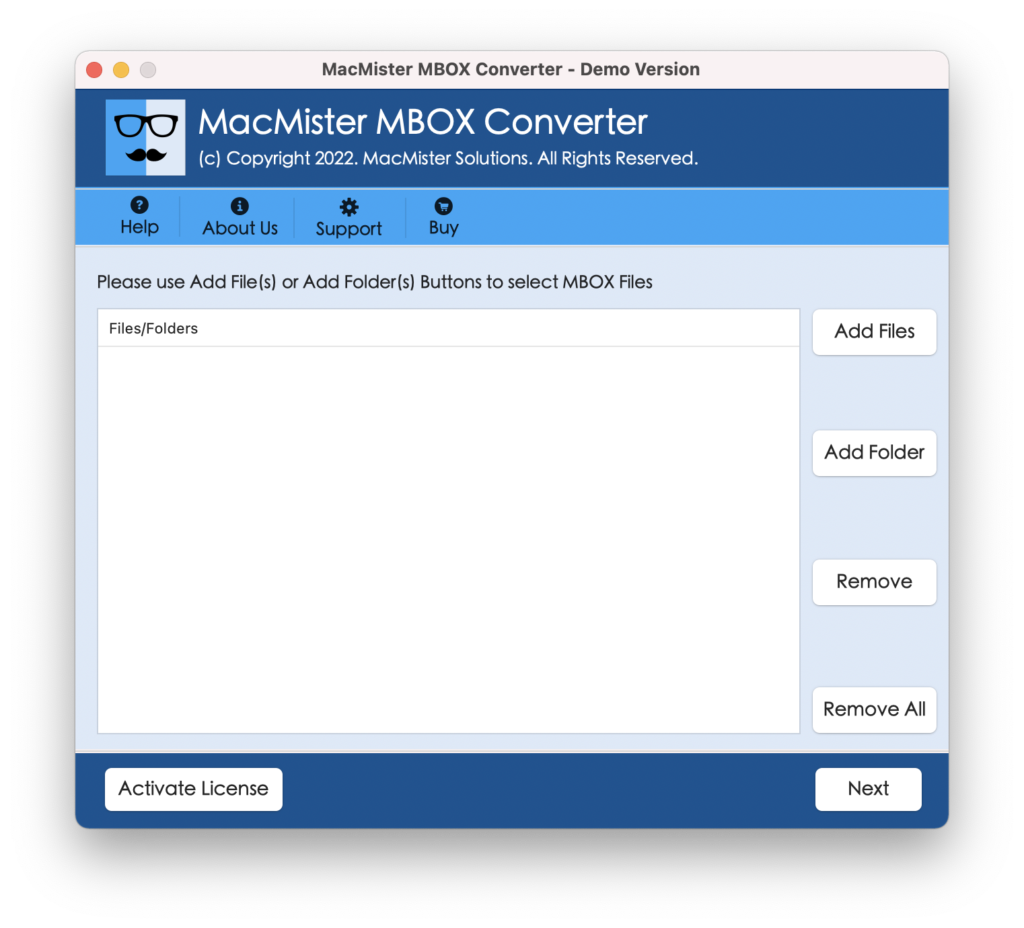
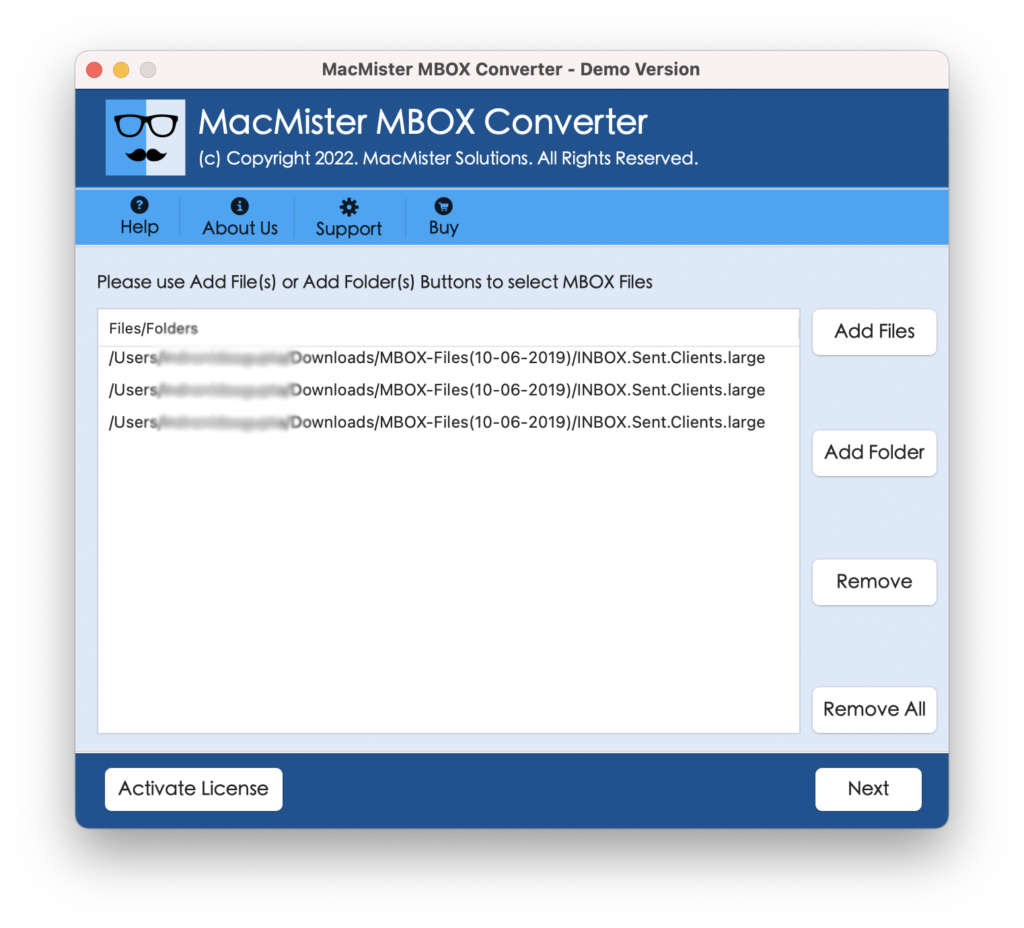
Step 2. Upload Eudora mailboxes with the help of dual options i.e. Add Files and Add Folder. Click Next.
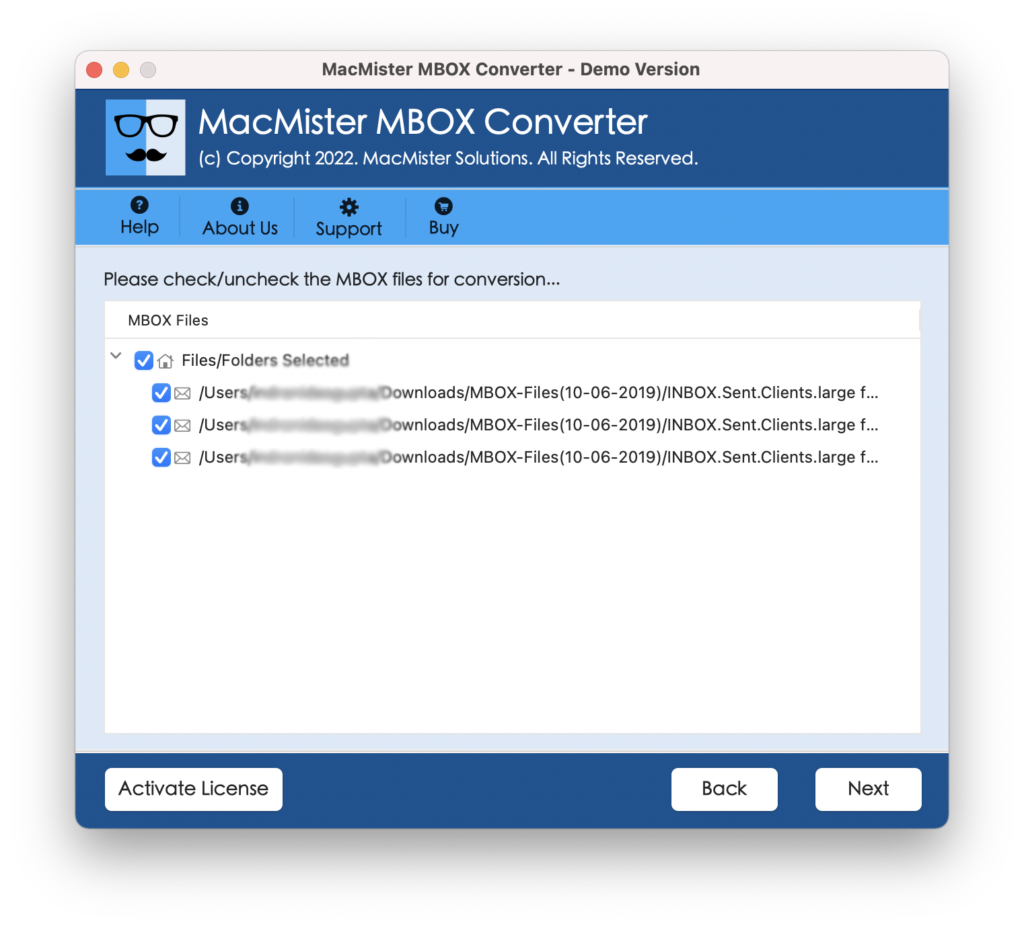
Step 3. Tool now start listing Eudora mailbox files. However, they will appear with checkboxes so that users can import selective Eudora files as well, if needed. Otherwise, click on Next.
Step 4. Now, select OLM saving type from Select Saving Option.
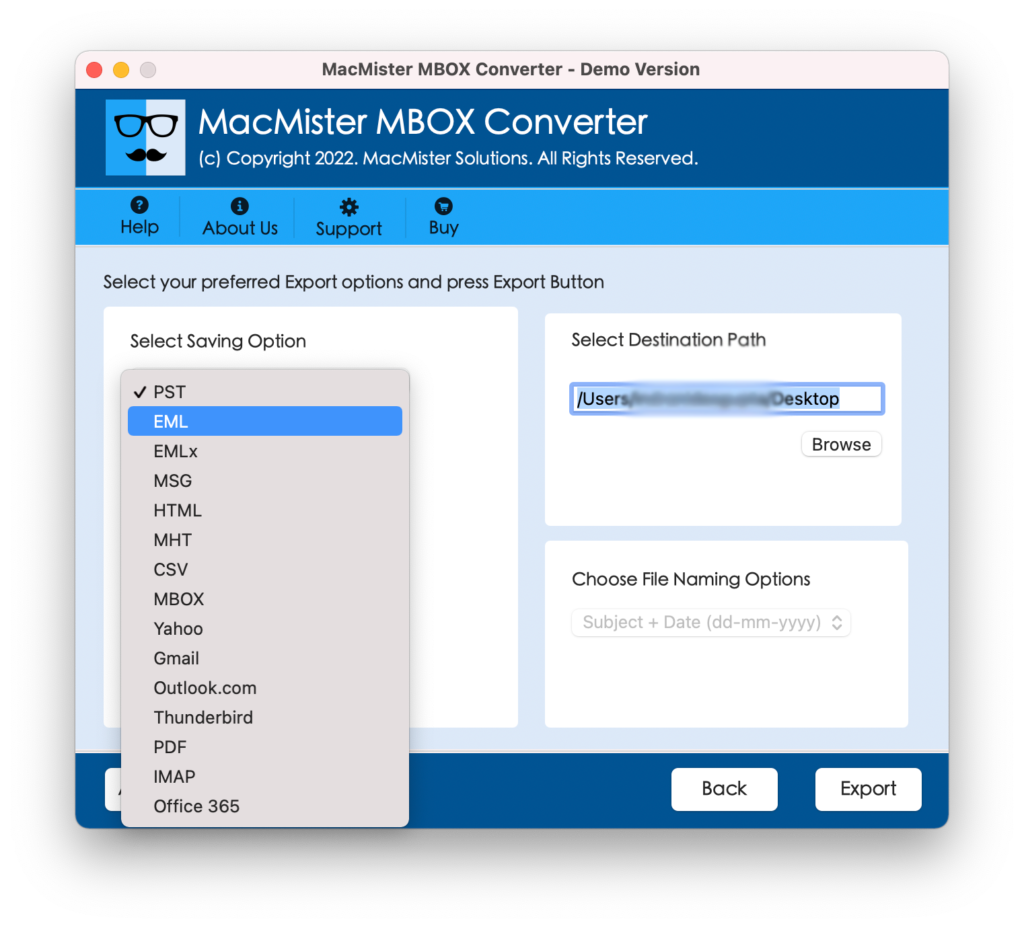
Step 5. Apply the other options of OLM file type as per need and start the process by clicking on Export button.
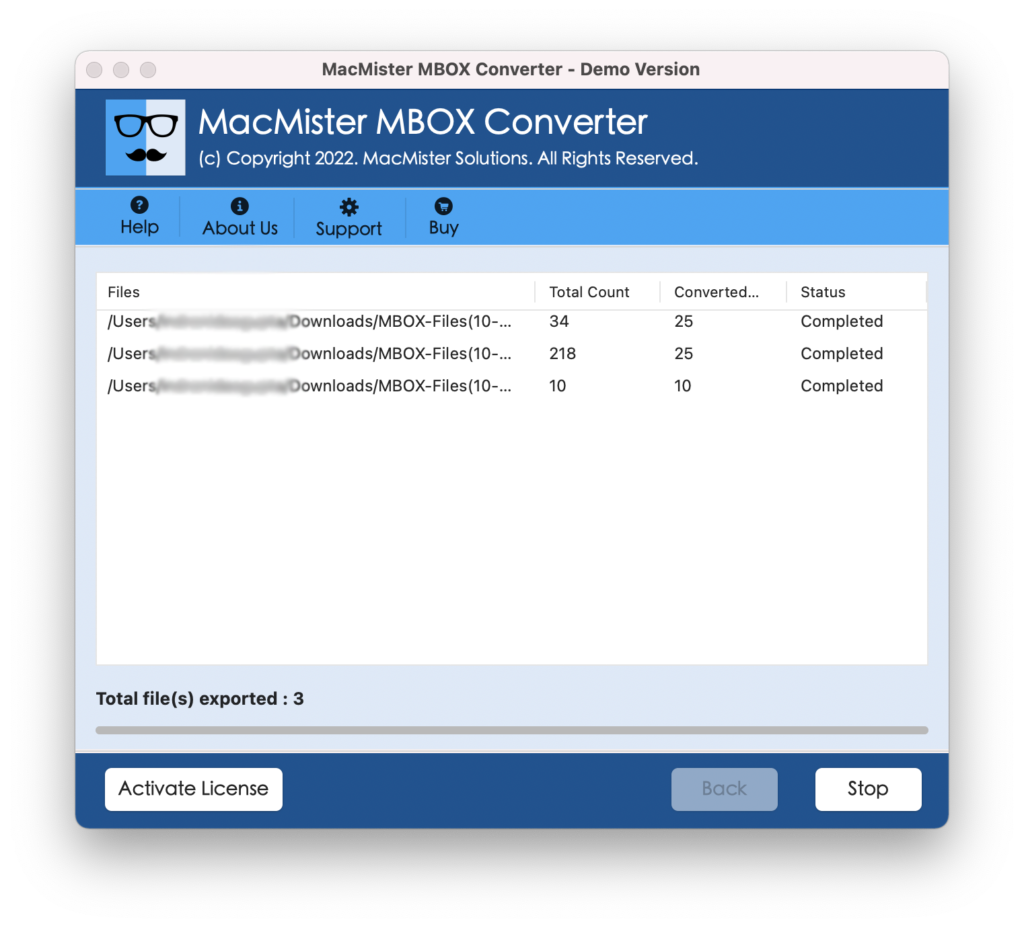
Step 6. Eudora to Outlook process is live and one can track the status also by viewing the Live Conversion screen as shown-
Process will take only few seconds and complete with a message “Conversion Completed”. Now go to the location where OLM file is saved and import it in Microsoft Outlook for Mac email client.
Import OLM File in Outlook for Mac
Follow the steps and check how to import OLM file in Outlook for Mac:
Step 1. Open Outlook for Mac email client on macOS.
Step 2. Go to Tools tab and select Import option.
Step 3. Now, from the Import screen, choose Outlook for Mac archive file (.olm) and click on Continue.
Step 4. Browse the location where OLM file is saved and then press Import.
Step 5. Imported items will be shown in navigation panes under On My Computer.
Steps to Migrate Eudora to Outlook on Windows
Step 1. Run Eudora to PST Converter on Windows system.

Step 2. Go to Add Files and load the required Eudora mailbox MBOX files on the software pane.
Step 3. List of MBOX files will display. Select the required file and its related email lists will start appearing one by one. However, users can even view the email data in a Preview section.
Step 4. Go to Export and choose PST file from Select Saving Option.
Step 5. Apply PST sub-options as per requirements and click on Convert button to start the conversion process.
Step 6. Check the live process status of Eudora to PST conversion.
Now, after the successful conversion, the application will show “Process Completed Successfully” message on the screen.
Go to the location where resultant file is saved to check the converted file. After this, import PST file in Windows Outlook.
Process to Import PST File in Windows Outlook
Follow the steps correctly and import PST file in Windows Outlook:
Step 1. Open Windows Outlook on Windows system.
Step 2. Go to File, Select Open & Export and choose Open Outlook Data File option.
Step 3. Open Outlook Data File Window will appear. Browse the location where PST file is saved. Choose the same and click on OK.
Step 4. You will now see that a new folder with Outlook Data File name will appear in Outlook folder’s pane on the left.
Note. Both procedures will deliver the result with 100% accuracy. Still, if in case, you face any issues, then MacMister technical team is here round the clock. Contact them anytime and they will make sure that you will get the best support.
Last Words
In the article, we have highlighted the conversion steps for both Windows and Mac operating systems. Users can choose the suitable technique and perform the process. Both provides free demo version and allow users to test the GUI and procedural steps of the tool as well as the features of the application for free. Moreover, one can export 25 Eudora emails to Outlook with attachments free of cost.