Solving the Dilemma: How do I Move PST Files to Online Archive?
Discover the easiest way to resolve how do I move PST files to online archive. This guide provides all the necessary instructions and tips to simplify the process and optimize your email storage.
Microsoft Outlook is a popular email client that is widely used by organizations for managing their daily communication and tasks. However, the use of PST files can sometimes pose security risks and other issues. As a result, many users prefer to move their PST files to an online archive for added protection and convenience.
Office 365 has become a popular choice for many organizations as they transition to remote work. This online platform offers a range of features and benefits that make tasks easier and data more accessible for remote workers. With Office 365, organizations can streamline their workflows and ensure that employees have the tools they need to collaborate effectively from anywhere.
Microsoft 365 is a cloud-based platform that provides numerous benefits for remote work, making it efficient and convenient for businesses. With Office 365, IT administrators have the ability to easily resolve errors and provide support, enhancing productivity and streamlining operations in a remote work environment.
Moreover, Office 365 offers users the convenience of accessing their stored data from any location and on any device. This means that when a user transfers their PST files to an online archive, they can easily access, backup, and manage their data without the risk of encountering corruption issues.
Why to Move PST Files to Online Archive?
There are several reasons to move PST files to online archive and here we have listed some of them:
- Anyone can easily find and relocate PST files. They belong to a hard drive or any external removable drive. And, as they become accessible, they are more vulnerable which leads to data loss. And, to avoid such a situation, moving PST files to online archive will be beneficial.
- As earlier discussed, PST files are located on hard drives. Thus, data stored in PST files is susceptible to corruption, storage failures, and system errors. Therefore, to safeguard the data integrity, it is necessary to move them to the appropriate location where they can be easily accessible.
- PST files are device-specific. So, users will not be able to access data from any other device unless it is moved to that device. But, after the PST file is moved to the online archive, users can access it from any system whether it is a workstation or personal laptop.
- Easy data accessibility is a great achievement to move PST files to an online archive as it helps users to retrieve data from anywhere.
- PST files are only accessible using Outlook. Users will not be able to access them from a mobile device until and unless Outlook is installed in the same.
Different Methods to Move PST Files to Online Archive
Here, we will be discussing the methods that will work for both Mac & Windows OS. Also, ensure that Office 365 account is configured in the Microsoft Outlook email client.
Method 1. Manual Method to Backup PST File to Cloud
Windows Outlook
Step 1. Open Microsoft Outlook.
Step 2. Click on File.

Step 3. Go to Open & Export.
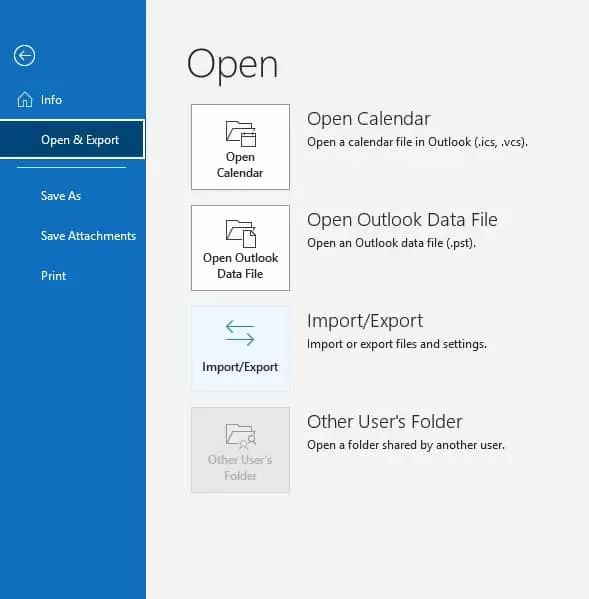
Step 4. Click Import/Export.
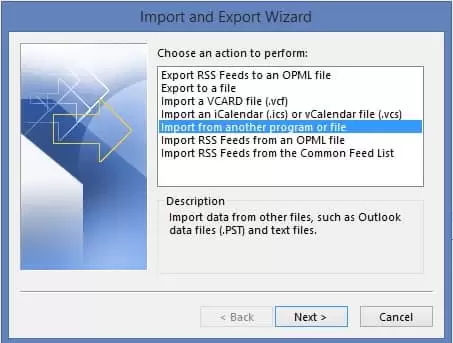
Step 5. Select Import from another program or file from Import & Export Wizard.
Step 6. Click Next.
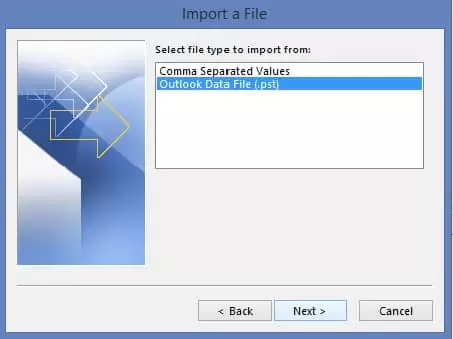
Step 7. From the Import a File Window, select Outlook Data File (.pst) option and press Next.
Step 8. Click on the Browse button and load a path of PST files to import into Outlook. Then, select Replace duplicated with items imported option and then press Next.
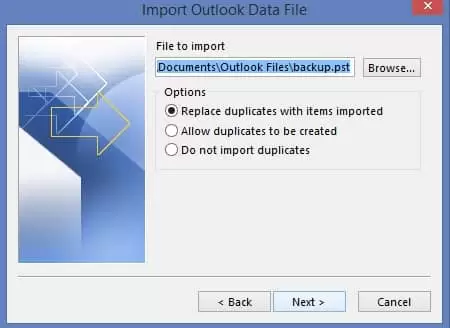
Step 9. Go to Outlook Data File. Choose the required Outlook data file to import and click Open. Click Next.
Step 10. Select the option of Import items into the same folder and then choose Office 365 account. Last, press Finish button.
Mac Outlook
Step 1. Open Mac Outlook.
Step 2. Go to File and click Import.
Step 3. Choose the file type from the import window i.e. Outlook for Windows archive file (.pst).
Step 4. Browse the location to import the PST file and press the Import button.
Step 5. Last, hit the Finish button.
Now, you will see the imported file at desired location. Drag the folder to Office 365 so that you can access it anytime from anywhere.
Automated Solution to Solve How do I Move PST Files to Online Archive
MacMister PST Converter for Mac & Windows is a user-friendly application that allows users to easily import PST files to Office 365 on both Mac and Windows operating systems. The software is designed with a simple and intuitive graphical user interface, making it accessible for both technical experts and beginners. The conversion process is quick and efficient, ensuring that users can move unlimited PST files to their online archive, including emails, contacts, calendars, and other important items, in minimal time.
Moreover, the software contains plenty of powerful features that help users can move PST files to an online archive according to their requirements. And, the trial edition is also available with the help of users can explore the functioning of the app for free.
Working Steps to Move PST Files to Online Archive
Step 1. Run MacMister PST to Office 365 app on a macOS.
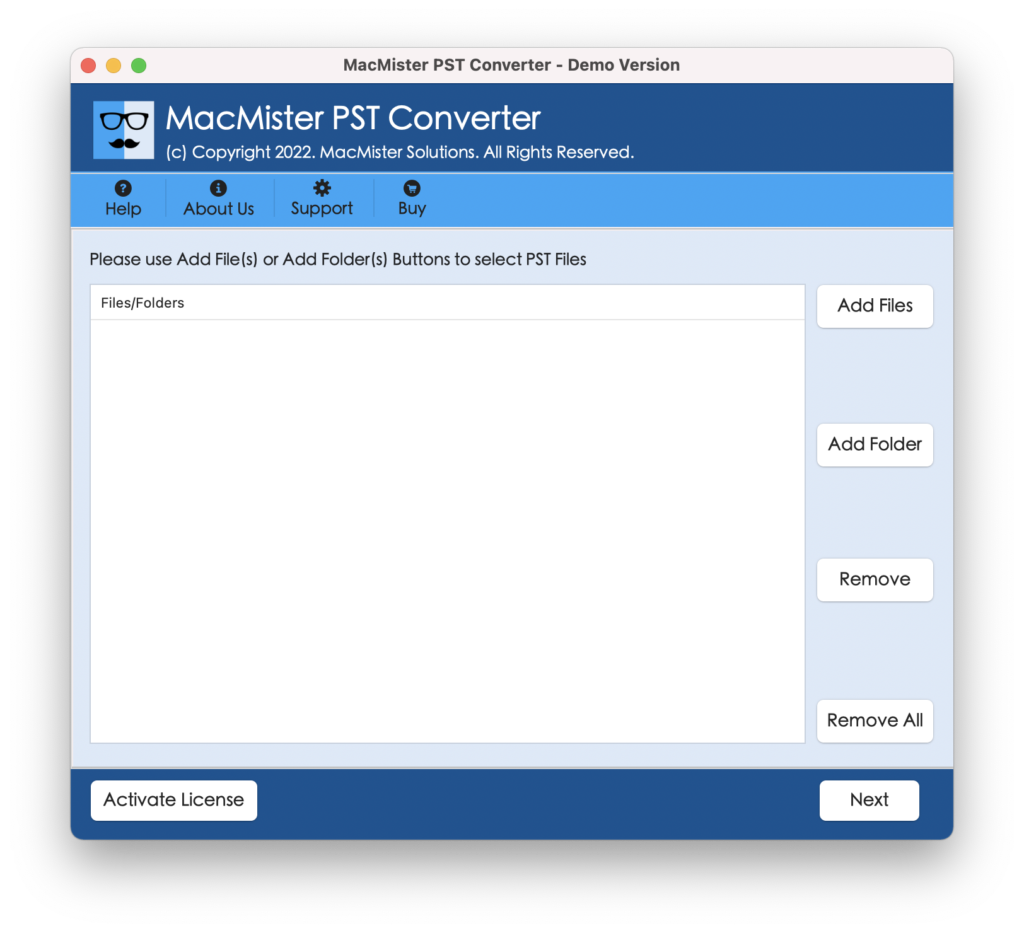
Step 2. Load necessary PST files on the tool using dual options i.e. Add File(s)/Add Folder buttons. Click Next.
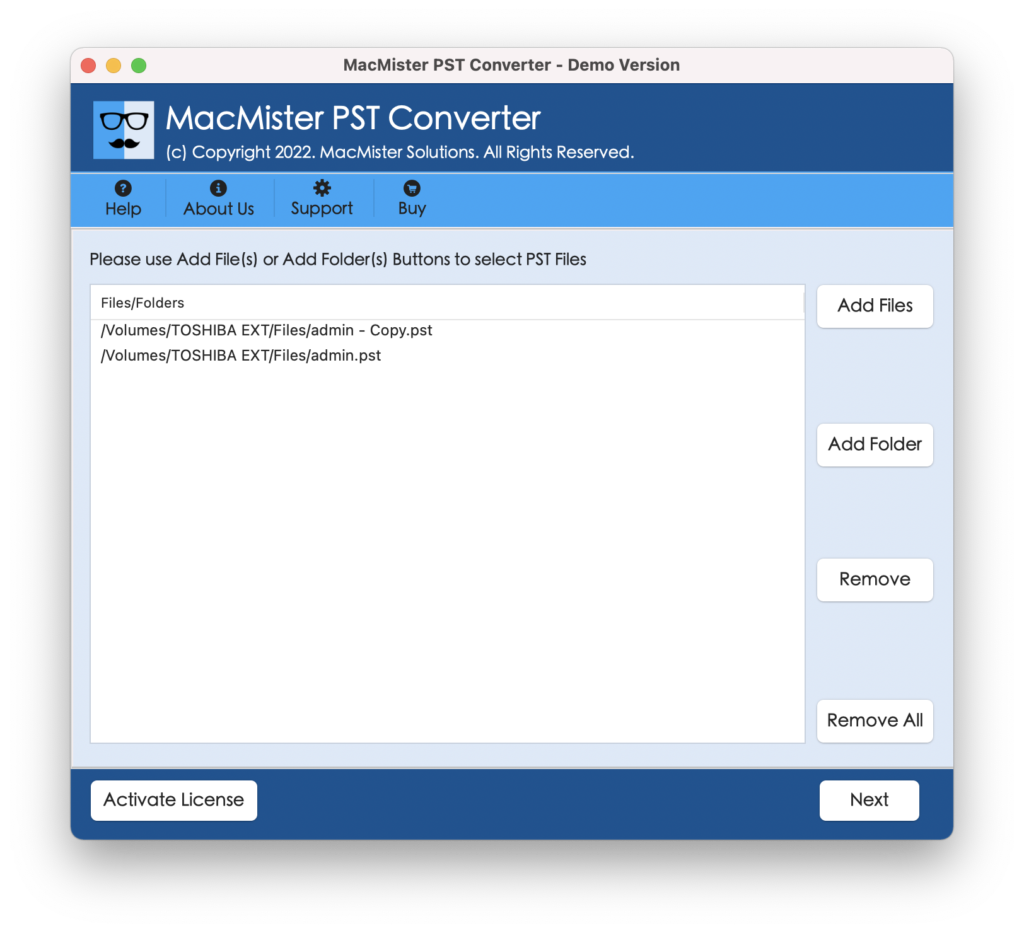
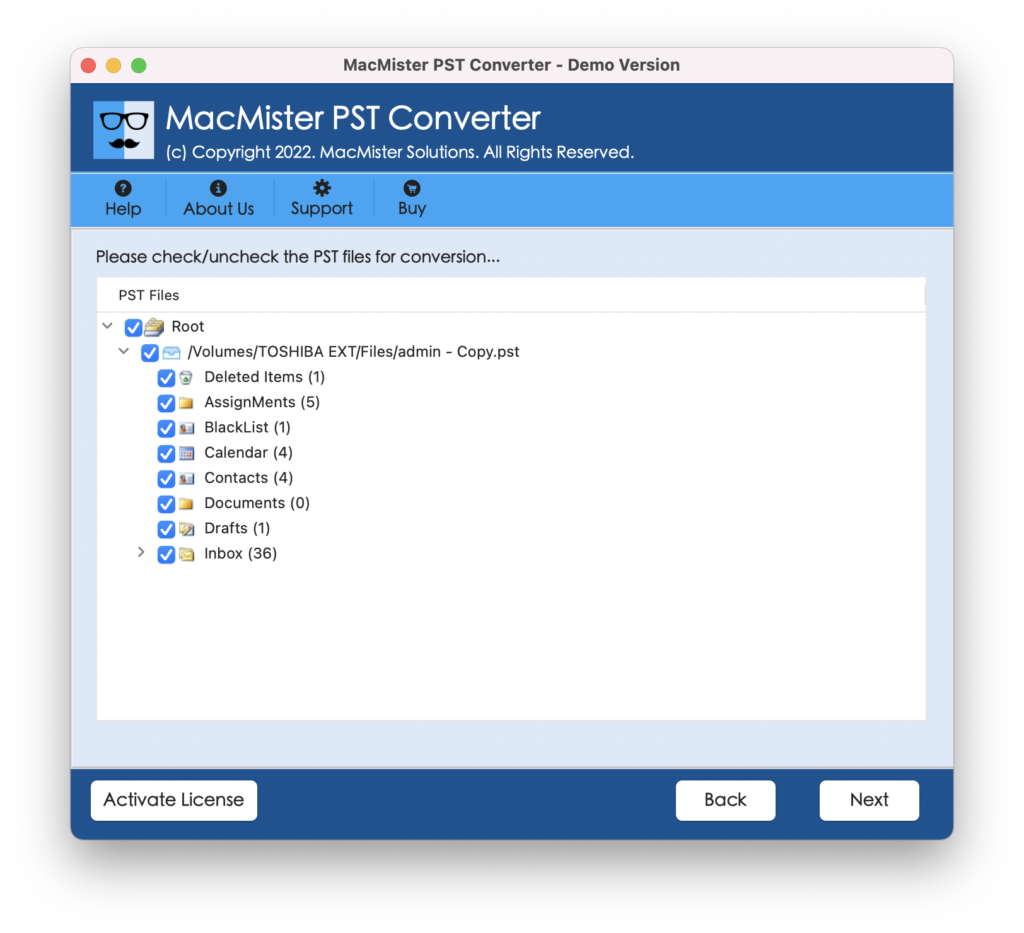
Step 3. The tool will start listing the selected PST files on the app with checkboxes. And, the checkboxes will help users to move selective PST files to online archive, if required. Click Next.
Step 4. Click Select Saving Options and select Office 365 from the list.
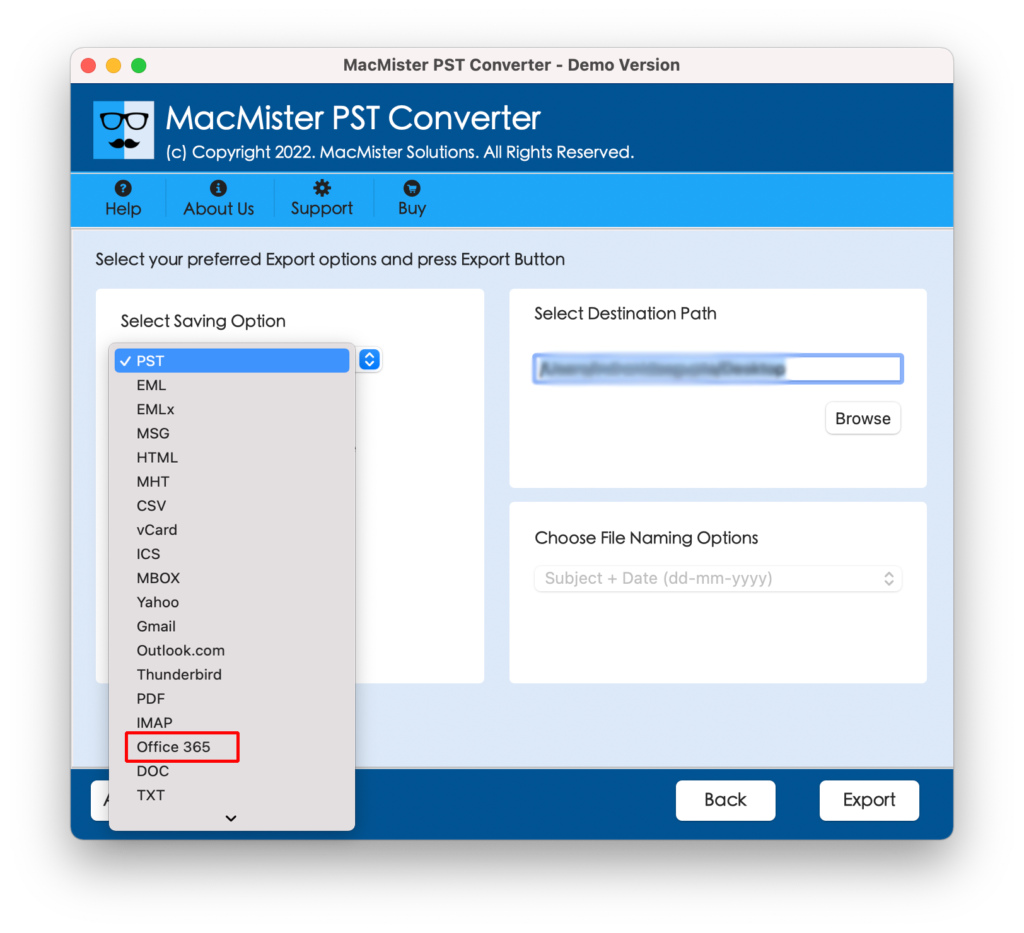
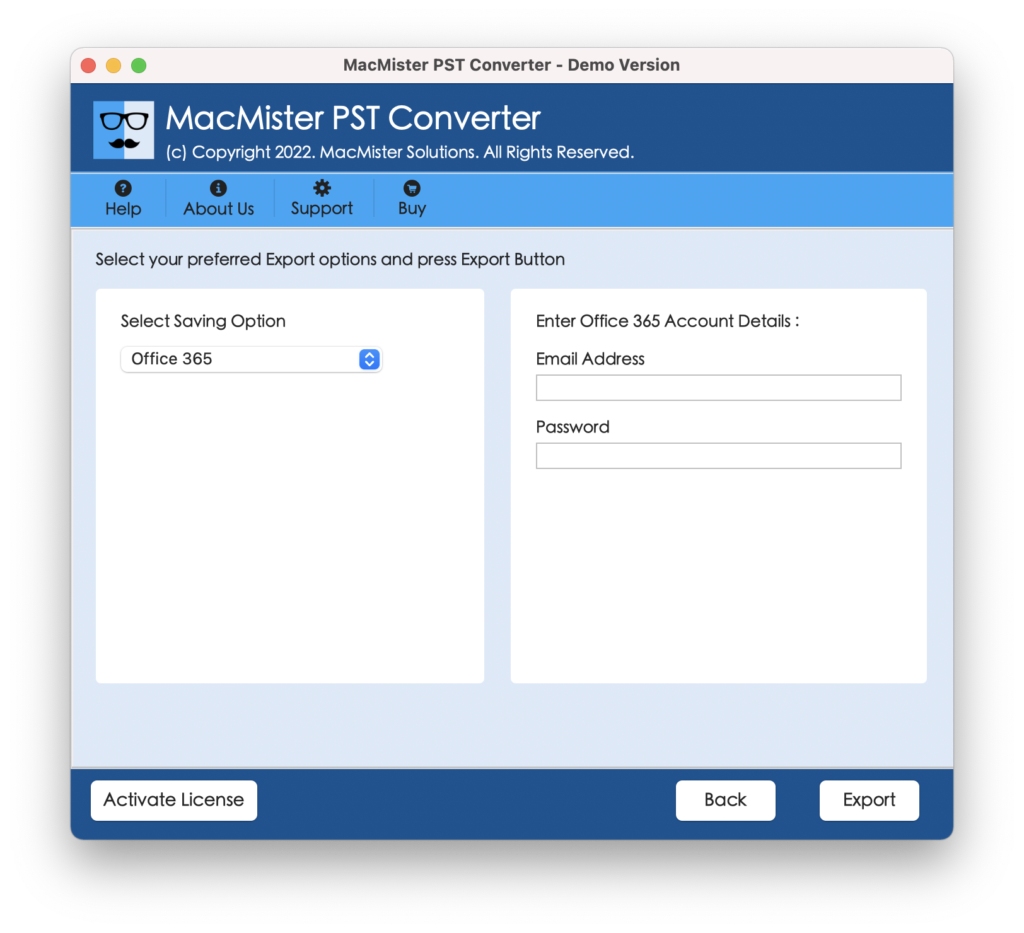
Step 5. Provide your Office 365 email address and password in the required fields and click on the Export button to start the migration.
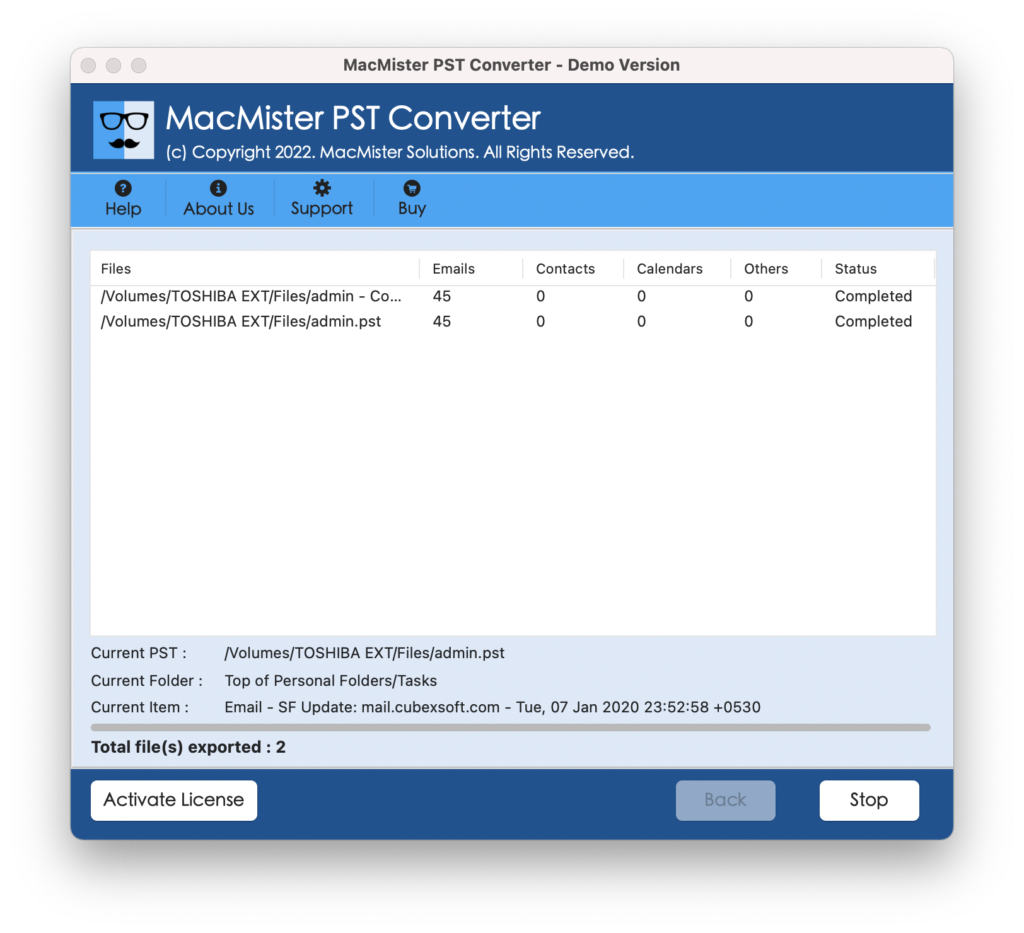
Step 6. The tool will display a Live Conversion screen through which users can track the ongoing migration status of PST files.
Now, you can go to your Office 365 account to verify the results. However, you will see that the files are accurate and the data associated is also precise. Even, the formatting properties will appear without any alteration.
Epilogue
The write-up has mentioned multiple approaches for carrying out the process of how do I move PST files to online archive. Users can opt for a suitable method and perform the migration as per their requirements. However, it is suggested to go with the automated solution as it is certified and guarantees accurate output in a minimum time. Moreover, it is available in a freeware version with the help of users who can analyze the process for free. It also allows you to move the first 25 PST files to online archive free of cost.
And, the best thing is you can move PST files into 15+ saving options other than Office 365 i.e. PST to OLM, MBOX, MSG, EML, HTML, MHT, HTML, CSV, TXT, DOC, IMAP, Thunderbird, Gmail, G Suite, and more.