Opening MSG Files with Outlook for Mac

Are you a Mac user with lots of MSG files? Need a solution for opening MSG files with Outlook for Mac? Then not to rush anywhere else because Mac MSG Converter is here to help you out!
MSG is an Outlook single message file type which is only readable on Windows platform. Many times, Mac users receive MSG files from their acquaintances due to official purpose. And, such a task leads to a challenge because Mac does not support .msg file type. In such a case, they Mac users start searching for an appropriate solution to solve same.
Because plethora of Mac users are currently using Outlook for Mac email client on their machines. And, it a program which only supports OLM file type. No doubt, it is also Microsoft designed email client for Mac. But, Outlook for Windows and Outlook for Mac both varies in file types due to different specifications. Therefore, if a user tries to open MSG file in Outlook on Mac, then the process could lead to an error.
So, to access MSG file in Mac Outlook, one need to perform the migration process. Thus, in the following article we have provided ultimate solution which will help you in exporting MSG files in Outlook for Mac directly on macOS.
Instant and Secure Solution for Opening MSG files with Mac Outlook
To open MSG files with Mac Outlook, make use of MSG Converter for Mac solution. The all-in-one user-friendly method which effortlessly migrate MSG file in Mac Outlook and help you in opening MSG files with Outlook for Mac without data loss. The software provides IMAP Server saving option using which users can enter Outlook for Mac credentials with IMAP Host and Port Number. After this, the tool will directly transfer all MSG files in the respective email account.

Mac MSG Converter application has many wonderful options that help users in opening MSG files on Mac Outlook as per requirement. You can check the complete process on your own by downloading the trial edition.
Steps for Opening MSG Files in Mac Outlook
Step 1. Start MSG to OLM Converter for Mac software.
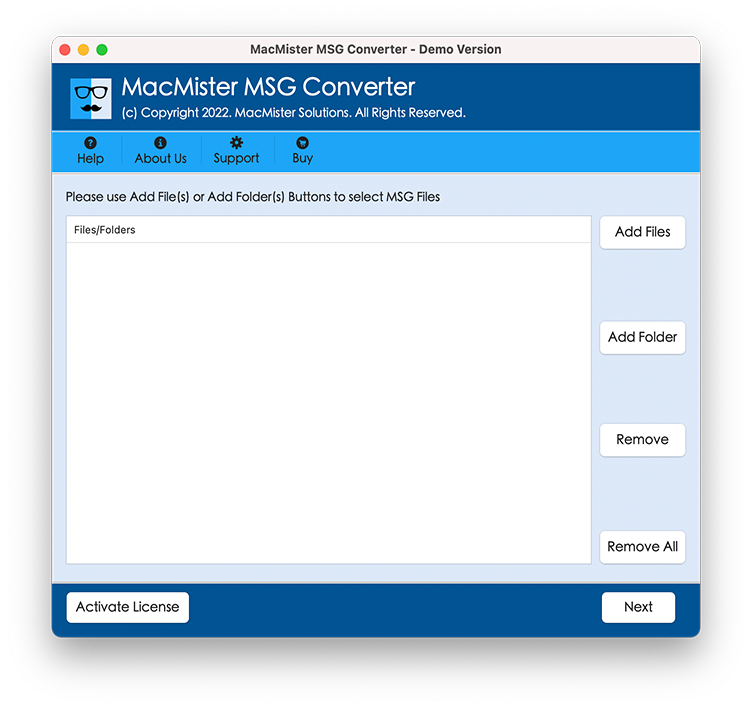
Step 2. Use Add Files and Add Folder and load MSG files which needs to be transferred in required Outlook for Mac account and click Next.
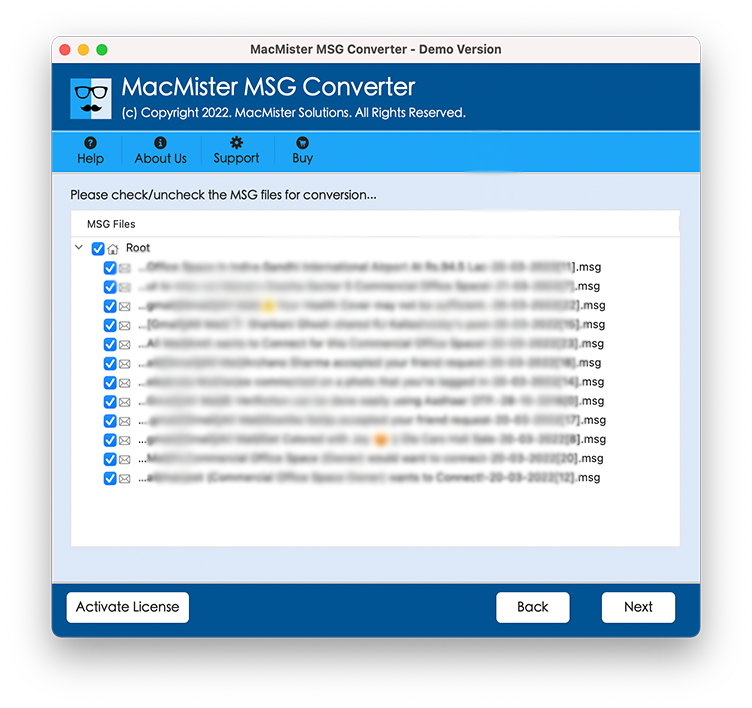
Step 3. The selected MSG files start listing with checkboxes. The checkbox will help in selective file transfer of MSG files (if required by a user). Click Next.
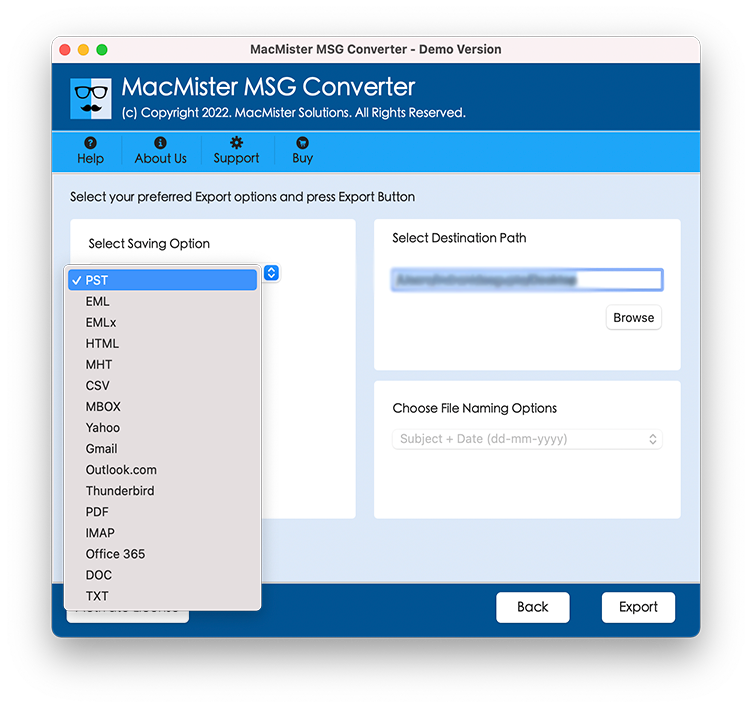
Step 4. From Select Saving Option drop-down menu, choose IMAP Server.
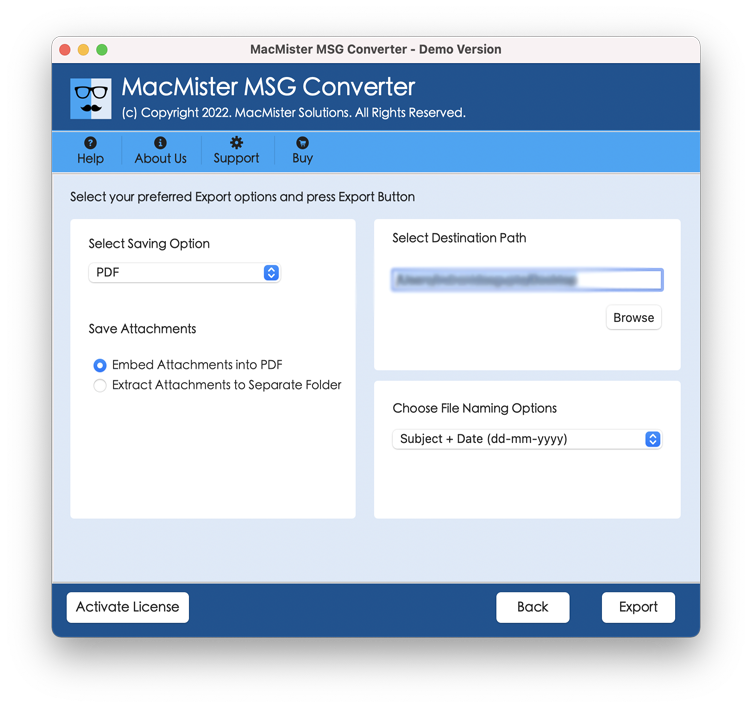
Step 5. Enter credentials of Outlook on Mac with IMAP Host and Port Number. After this, press Export button to start the migration process.
Step 6. Migration will start quickly and shows the on-going process through Live Conversion screen. It will display entire status of conversion process.
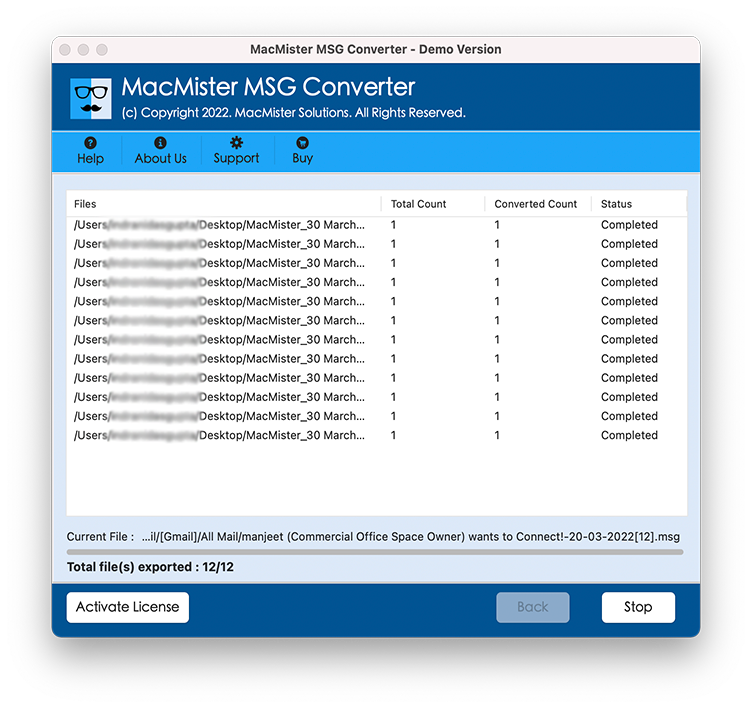
When all MSG files are transferred accurately, tool will give a confirmation message to users i.e. ‘Conversion Completed’. Click on OK to exit from the process. Now, go to the Outlook for Mac account that you have chosen to save MSG files on Mac and check the data integrity of the migrated MSG file. You will see that MSG file originality will be accurate after migration process.
Note. If you find any issue during the process, you can immediately contact our support team. They will help you in getting the required task done as per your requirement. Moreover, you will be amazed with the result.
Advance Features of Ultimate and Wonderful Solution
Open MSG files with Outlook on Mac in Bulk
The software offers advance Add Folder button to achieve the desired process. Simply create a new folder and keep all the desired MSG files in the same. Now, load it on the software pane with the help of Add Folder button. Then, choose the IMAP Server option and click the Export button. The software will move all MSG files in Outlook on Mac directly in seconds.
Maintains the Originality of MSG File Content
The application has the ability to maintain the MSG file content during the process. No matter how many files you are transferring in Outlook on Mac, the software will take care of the same and shows the result without affecting the originality of MSG file. The migration will be done smoothly and without any loss of data.
Direct Migration of MSG Files in Outlook on Mac
The utility provides direct migration facility to the users. The tool has IMAP Server saving option that users can utilize to export MSG files to Outlook on Mac directly. You only need to enter the login details of required Mac Outlook or Windows Outlook account with their respective IMAP Host and Port Number and leave the rest on the application.
Built-Up Easy GUI and Three Easy Step Process
The application is programmed with simple GUI and a friendly working environment which is accessible by any user and organization. The three step process makes the implementation process effortless and help users in accessing the MSG files in Outlook quickly. It will save essential time of users and their efforts as well.
Open MSG File with Outlook on Mac on all Mac OS
The software works on entire range of Mac OS versions. In other words, you can implement the process of opening MSG File with Outlook on all Mac OS versions. It includes Mac Monterey, Big Sur, Catalina, High Sierra and more.
Conclusion
The write-up here discussed an advance technique for opening MSG File with Outlook on Mac. The smart MSG to OLM Converter for Mac comes with many beneficial options which makes the process easy and help in getting the output as per requirement. However, you can practically check the entire process of the solution using free demo. It allows to open 25 MSG files in a required saving option free of cost.