Outlook Data File not closed Properly Error – Fix!
Microsoft Outlook is one of the widely used and popular email client applications for both professionals and organizations worldwide. It allows users to manage emails, tasks, calendars, notes, and other items in a single platform. However, Outlook at times shows recurring error i.e. “Outlook data file was not cleanly closed. This file is being checked for problems.”
The problem is commonly reported across different Outlook versions including 2003, 2007, 2010, 2013, 2016, 2019, and even Microsoft 365. It usually arises when Outlook failed to shut down properly, background processes remain active, or PST data become corrupt.
If you are encountering the error “Microsoft Outlook 2007 data file did not close properly” or “Something is wrong with one of the data files and Outlook needs to close”, then the guide here will offer step-by-step solutions – from instant manual fixes to a professional repair process.
Common User Query – How to fix Microsoft Outlook 2007 data file did not close properly error?
Whenever I run Outlook 2007, I continuously encounter “Outlook data file was not cleanly closed” error. I think I should check it. Outlook seems to open smoothly and everything looks perfect but everytime receiving that error means something must be wrong. So, I am looking for an appropriate solution to fix the issue. If possible, can anyone provide me an alternate way for the same?
Primary Reasons behind Outlook Data File not closed properly Error
The error mainly occurs in Outlook 2007 when header in Outlook data file is damaged or corrupted in any activity. Other primary factors to encounter the error are listed below –
- Outlook data file cannot be properly closed if it is opened by many programs.
- When other programs try to associate with Outlook app.
- If Outlook PST is corrupted or damaged and prevent from Outlook from closing.
- Different add-ins are checked in Outlook program.
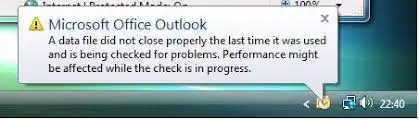
Microsoft Outlook Data File did not close properly – Fix Manually!
MS Outlook user has the ability to repair the error manually. The manual technique is categorized into 5 main workarounds. You may select the required one and close Outlook data file properly. Here, we have discussed all workarounds to resolve Outlook data file not properly closed in Outlook 2019, 2016, 2013, 2010, 2007, 2003, and 2000. Just follow the necessary steps to get better outcome –
Method 1. Utilizing Task Manager to close Data File properly Every Time
Many times, after exiting Outlook app, it does not get closed, it sometimes run in the background by another procedure. In such a condition, you may take help of Task Manager to navigate all the processes. To check where Outlook is open, follow the below steps –
- At first, right-click on the Task Bar located at the bottom of a local system and click the option “Start Task Manager”.
- Click Processes and then choose OUTLOOK.EXE option to proceed ahead.
- At last, tap “End Process” button to quit the procedure.
Method 2. Disable all Unnecessary Add-ins from Outlook
Add-ins could be the main reason for why MS Outlook did not close properly. To fix the issue, make sure to uncheck all unnecessary add-ins that are checked in Outlook, follow the below steps –
Step 1. Initially, run MS Outlook and click File.
Step 2. Go to Options and tap Add-ins.
Step 3. Navigate towards “COM Add-ins” and tap “Go”.
Method 3. By using “regedit.exe” Command
Modifying Registry key using regedit.exe command. This helps in solving or fixing Outlook Data File not closed properly error. But, editing registry requires technical knowledge. So, the process is not recommended until and unless a user is well aware of it. Go through the below steps to fix the error using regedit.exe –
Step 1. Navigate to “Start” button and enter “Run” in a search bar. Afterwards, type “regedit.ext” in Run dialogue box.
Step 2. In Registry Editor, navigate towards this path.
“HKEY_CURRENT_USER\Software\Microsoft\Office\14.0\Outlook\Addins\”
- Now, use numerical subkey and mention DWORD value.
- Select RequireShutdownNotification in this subkey.
- Perform right-click on a precise value and tap Modify to proceed further.
- Finally, add the digital 1 in Value Data box.
Method 4. Use INBOX Repair Tool of Outlook to Repair PST if Corrupted
When Microsoft Outlook is corrupted or damaged, users should fix inaccessible or damaged personal folder data file. The inbuilt tool helps in fixing damaged Outlook data files. Follow the steps below to run SCANPST.exe utility.
Step 1. Search for a location of SCANPST.exe and double-click o the same to run Inbox Repair Tool.
Step 2. Opt for PST file for scanning and tap Start.
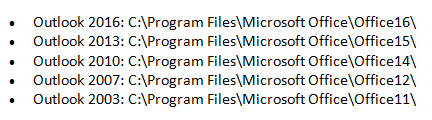
Step 3. According to the Outlook version, go to SCANPST.exe location and go through the steps below –
Method 5. Fix Program Integration Problem
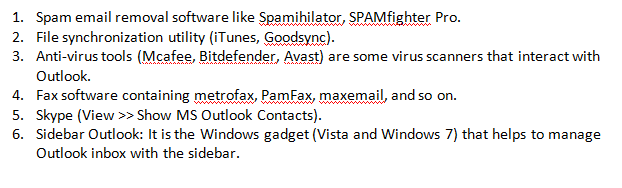
There are different alternatives associated with MS Outlook and has the ability to prevent Outlook from closing but users unable to extract the program which is stopping Outlook from closing. When Outlook did not close properly, the file will be checked for errors causing the problem. Then a user can try to disable all the programs discussed below –
Expert’s Suggested Method to Resolve Outlook Data File Not Closed Properly Error
However, users can opt manual approach to fix Outlook data file not closed properly error. But the manual technique comes with many drawbacks. So, it is advised to choose a method which is secure and reliable and expert’s recommended i.e. MacMister PST Converter for Mac & Windows or MacMister OLM Converter for Mac & Windows. Both the apps are certified and are known for managing Windows Outlook and Mac Outlook data files with ease. With the help of the solutions, users can prevent data file from corruption and any type of loss as they offer 15+ saving options to preserve database of users account. They are designed with a friendly environment. Anyone can easily operate it and implement the task within seconds. Additionally, they possess exceptional features that help in performing the process according to the requirements.
Epilogue
In the write-up, we have offered different ways to fix Outlook data file was not cleanly closed. The manual methods are implementable but it is advised to use them under experts assistance as single mistake can lead to data loss. Novice users are recommended to use the expert’s solutions as they are reliable, secure, and budget-friendly. For any assistance, contact MacMister Support.