Outlook Data PST File is too Large – How to Fix!
In the article, we will discuss how to fix Outlook data PST file is too large to open by using step-by-step guide. As several Outlook users that uses the email client for businesses or personal communication store all data such as emails, contacts, notes, calendars saved in .pst file. But the main concern is Outlook data file is too large as its size limit gets exceeded daily. And thus lots of users are facing this error.
Large Outlook data file not only slower the Outlook performance but also prevent users from accessing emails and other essential data that lead to corruption. So, the guide here will help in fixing “my Outlook PST file is too big” error by erasing unnecessary emails and items, archiving old email files using Import/Export feature and breaking large PST into multiple small parts.
Reasons – Why Outlook Data file is too Large?
Maximum PST file storage relies on the Outlook version such as Outlook 2002 and earlier versions having only 2 GB that supports ANSI format. Outlook 2003 to 2007 possesses 20 GB that supports UNICODE format and besides Outlook 2010, 13, 16, 19, 21, and Office 365 possesses 50 GB of storage limit which can be exceeded further. Then why one encounters “Outlook .pst file too large to open” error? Let’s check it out!
No archiving procedure – In case you are one of those users who store every data in the same PST file and not archive old emails, it results in large Outlook data file error.
Deleted Items not erased – After deleting, data is not removed properly until they are removed from deleted items folder.
Large Emails Usage – Preserving numerous emails can exceed the size limit of PST file causing PST file too large error.
Attached Files – Most space in Outlook is covered by such attachments, and if not necessary they need to be deleted.
Causes after Large Outlook Data File Error
Outlook throws a warning before inaccessible PST file. So, let us take a look at the symptoms causing the error –
- It consumes a lot of time to run as it crashes several times.
- Encountering problem while opening events, folders, emails, etc.
- Slower Outlook performance.
- Emails are corrupted or misplaced due to file corruption.
After noticing the errors, let’s dive into solutions before they become completely inaccessible.
Manual Approach to Fix Outlook Data File Too Large Error
One can resolve the error using manual and automated approaches. Here are different techniques discussed that will instantly fix the issue –
- Erase unnecessary emails and attachments
- Archiving old Outlook database
- Using Import/Export feature
Method 1. Erase Unnecessary Emails and Attachments
The simplest solution is to delete the mailbox by clearing the emails containing attachments which are not required anymore. Also, make sure to empty the junk folder as well.
Steps –
- Run MS Outlook.
- Go to Files or Folders which are not necessary such as sent, inbox, spam, etc.
- Sort by attachments or size to detect large emails.
- Erase emails and attachments by tapping the Delete key.
- Open deleted items folder and clear all the emails.
Method 2. Archive old Outlook Data File
Outlook enable users to transfer older emails into a different file using archiving feature that helps managing PST files easily.
Steps –
- Run MS Outlook, go to File, tap Options and hit Advanced.
- Tap AutoArchive Settings appearing under AutoArchive tab.
- Set the time period to run, such as every 14 days.
- Select the destination where you need to save PST file.
- Apply all settings and Outlook will transfer old data into archive file.
Method 3. Make use of Import/Export Option to Handle Large Outlook PST Files
The feature allows exporting data into new PST file or selected folders. It creates different data categories into small PST files.
Steps –
- Run Outlook, navigate to File, hit Account Settings and tap Account Settings.
- Go to Data File tab and press Add button.
- Make Outlook file and name it and tap OK button.
- Navigate to File, click Open and hit Import.
- Use Import & Export tool, select the Export option and tap Next.
- Select PST file and choose the folder for export. Also, check Include Subfolder option.
- Choose required location to save .pst file by tapping Browse button.
- Tap Finish button.
The manual procedures are implementable but make sure to go through its drawbacks before operating them.
Drawbacks of Manual Process
Even though there are Outlook inbuilt features, still they possesses some limitations that affect system performance –
- Steps are time-consuming as one need to delete, compact, and split manually and this requires lot of time and effort.
- Includes the risk of accidental deletion of PST files and in case they are deleted then the recovery becomes difficult.
- Some manual techniques need technical knowledge or skills to operate.
- The above methods are operable but still Outlook performance cannot be improved.
To prevent the consequences of manual process that affecting the Outlook performance, making Outlook mailbox full, it is recommended to use the alternative solution for the same.
Fix Outlook Data File is too Large to Open Error using Automated Solutions
The best way to fix the error is by using automated solution i.e. MacMister PST Converter for Mac & Windows. With the help of the app, one may manage the storage capacity of Outlook account by transferring large PSTs into cloud-based servers. Users can utilize the solution to save PST files into IMAP, Yahoo, Office 365, etc. The GUI of the software is user-friendly. Anyone can operate it and fix the error with ease.
Moreover, the application has wide ranging features that are helpful in executing the process according to the requirements. Download the freeware version of the app and explore the software in-depth process for free.
Step-by-Step Software Working to Fix PST File is too Large to Open
Step 1. Download and run the app on MacBook.
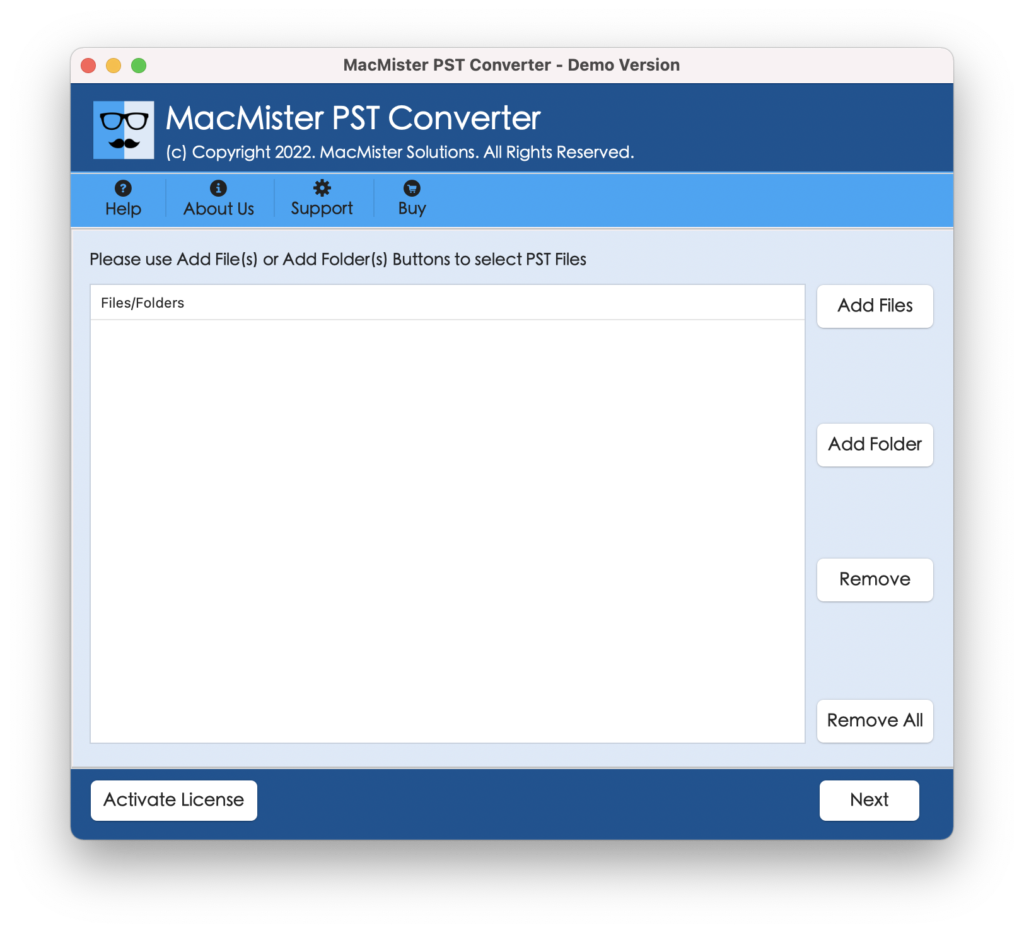
Step 2. Add large PST files/folder using Add File(s)/Add Folder buttons.
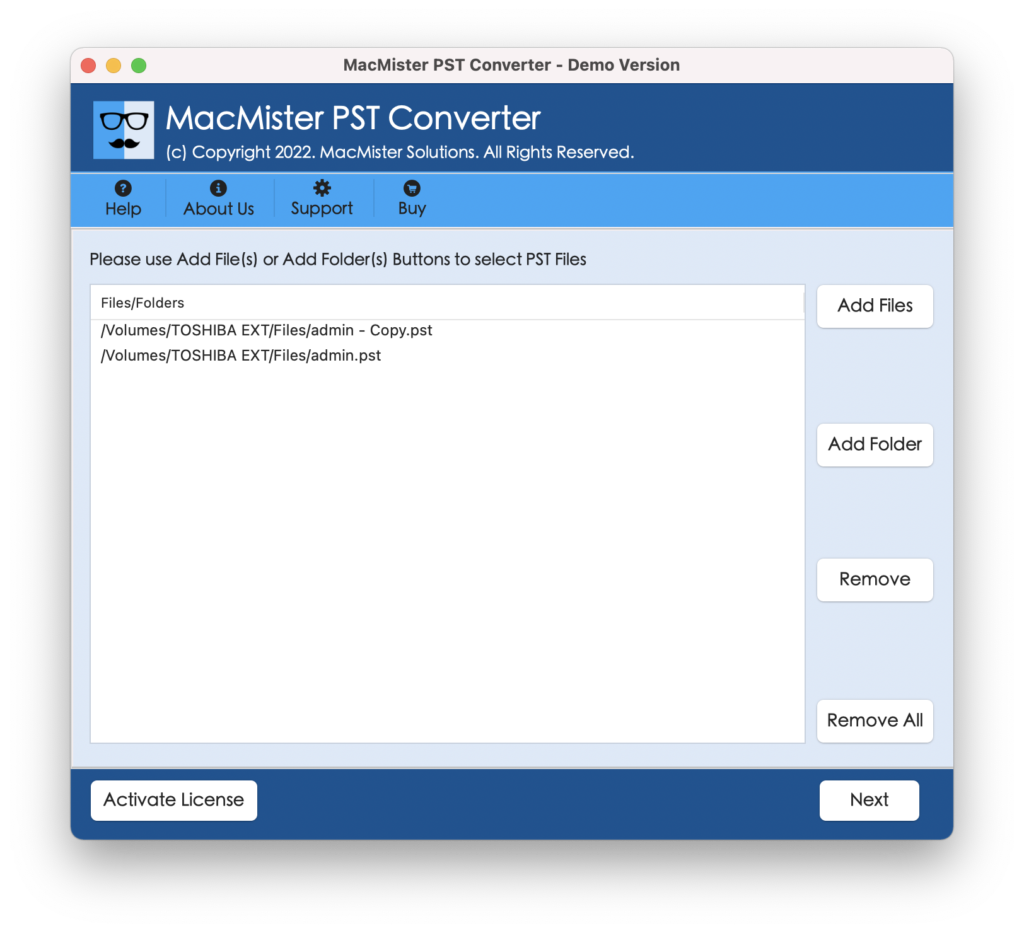
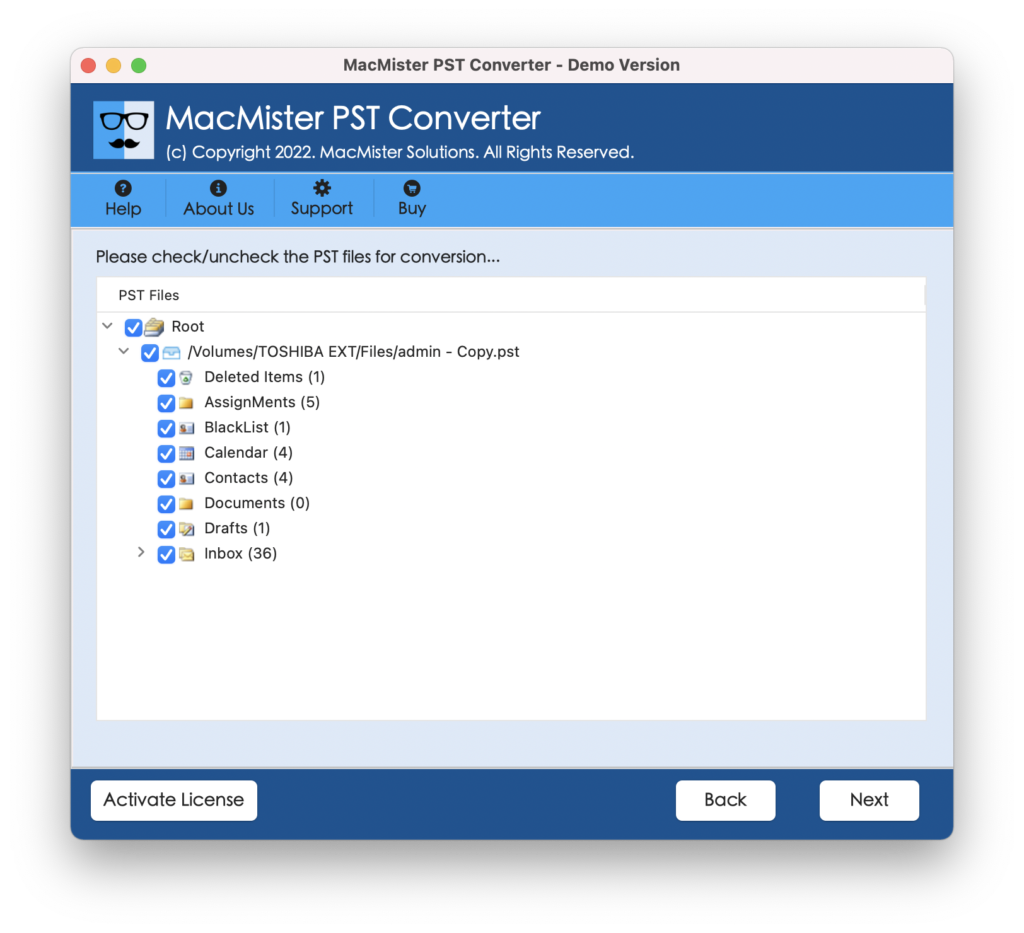
Step 3. Check the files listed and tap Next to proceed.
Step 4. Pick required saving type from Select Saving Options.
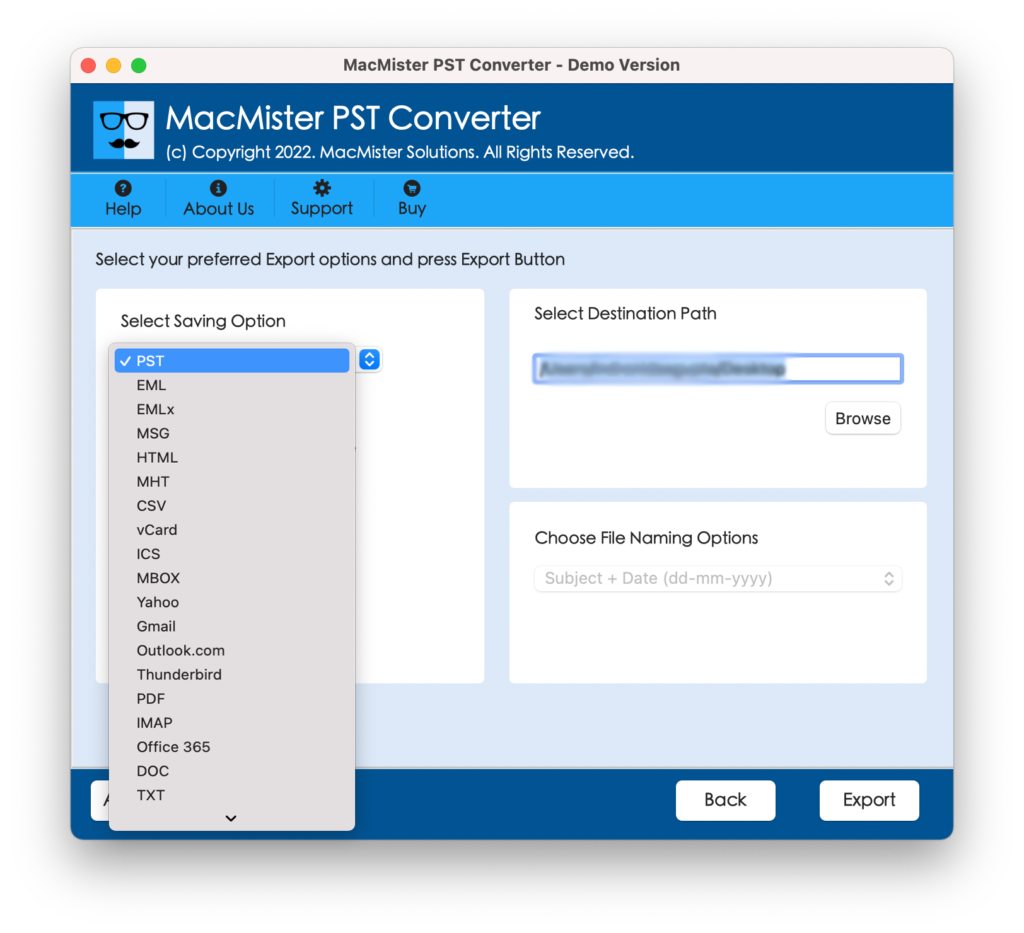
Step 5. Set sub-options as per requirements and tap Export.
Step 6. The Live Conversion Report will generate showing the live conversion of PST files to users.
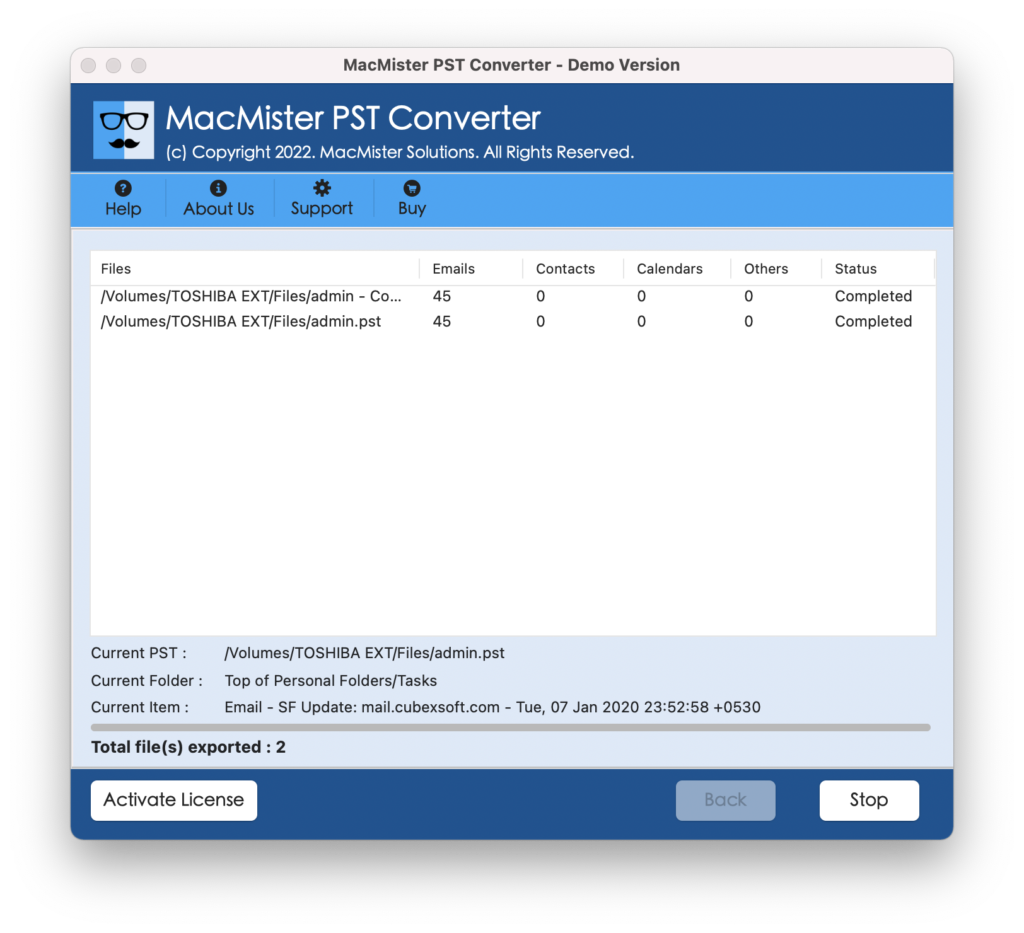
Within seconds, the process will finish and then “Conversion Completed” notification will display. Tap OK button and then go to the specified email server to check resultant files. However, you will recognize that the tool has performed the task very quickly and the results will be 100% accurate.
Benefits of Automated Approach
- Supports direct transfer of PST files into cloud-based servers.
- Able to batch import PST files with all the data items at once.
- Maintains the originality of PST database during the process.
- Possesses a friendly user-interface for easy operation.
- Protects the credentials of cloud account throughout migration.
- Available in Mac & Windows version (supporting all editions).
Epilogue
In the write-up, we have explored different approaches to resolve “outlook data pst file is too large” error. The manual techniques are free but they are complex and time-consuming. Even, they include the risk of data loss. Therefore, it is advised to use automated solution. A direct, cost-effective, and powerful way to fix the error within seconds.