Outlook Error Code 150 Mac – [SOLVED]
Are you dealing with Outlook error code 150 Mac? Searching for different ways to resolve the issue? No worries, go through the entire write-up in which different strategies are explained that could prove helpful in fixing Outlook error code 150 Mac.
Outlook for Mac is indeed one of the most used email applications. But sometimes users have to deal with Outlook for Mac error code 150 that do not allow users to send/receive emails through Outlook email profile. Although it is a top-selling email platform, still people encounter several issues when they use it on different platforms. However, the email client has both Mac & Windows version. On Mac, Outlook generally save users data in OLM whereas on Windows, it creates PST file. Moreover, there is no inbuilt technique that can help in transferring these files or help in making us reading the content of emails. This sometimes result in multiple errors.
One such common error message that several users’ face while trying to access Outlook on Mac i.e. “An unexpected error occurred in Outlook, unable to receive mail, Account: “Outlook Email Account Name”, Error Code: 150”.
The error affect the communication within organization, resulting in serious losses. Here, we will discuss some points that cause Outlook error code 150 Mac and ways to fix it.
What is Outlook Error Code 150 Mac?
The Outlook for Mac error code 150 appears when users unable to send/receive email messages. However, it is a big issue in Outlook for Mac 2011 version. Sometimes, the email can be sent but receiving emails from the client side result in difficulties.
Different Causes of Outlook Error 150 Mac
When facing Outlook error code 150 Mac, it can be either resolved manually or one need to make use of a software. If you can identify the cause of error, then it can be easily fixed. If not, then you can face trouble while determining its exact cause. Still, we have explained few common reasons behind getting Outlook for Mac error code 150.
- Unstable internet connectivity can stop Outlook services.
- Virus/malware have attacked Outlook account, thus affected all your essential files and attachments.
- OLM files folder corrupted during folder installation.
- Inappropriate configuration of file system.
- Outlook is not properly installed on the system.
- Infected files are not clear from the system.
- Corrupted OLM files are still in the system storage.
- Outlook mailbox extended its size limit.
Some more Reasons with Fixes
Outlook for Mac is not completely installed
The inappropriate installation of Outlook email application is sometimes the cause of getting error 150 by Outlook Mac. The incorrect installation steps will stop you from using its most important services i.e. sending or receiving new email messages. So, it is necessary to properly understand its configuration steps and set Outlook for Mac accordingly.
Problems with Internet Connection
At times while working with Outlook for Mac, some users encounter loss of network that cause connectivity issues. Outlook error code 150 Mac will not allow you to send emails to your list without proper internet connectivity. Thereby, make sure that you have good internet connectivity.
Server Connection is not stable
There are some days when Exchange Server is not connected to Outlook for Mac, that eventually result in the disconnection of email client with the server. However, you can exchange words with the Exchange administrator to fix the issue.
Follow the steps to check if Exchange Server is connected with Outlook or not:
- Open Outlook for Mac.
- Go to Tools.
- Click Account.
By using the steps, you will be able to understand if your Exchange Server is connected to Outlook for Mac account or not.
Solution to Fix Outlook Error Code 150 Mac
The most common reason behind receiving Outlook for Mac error code 150 is in the file which a user is trying to send. The file could be corrupted and thus cannot be sent. Therefore, one need to repair the file first to forward it to the receiver.
Also, the improper conversion of file can also be cause of this error. A lot of users make use of manual method to convert Outlook for Mac files that most of times result in corruption or even data loss.
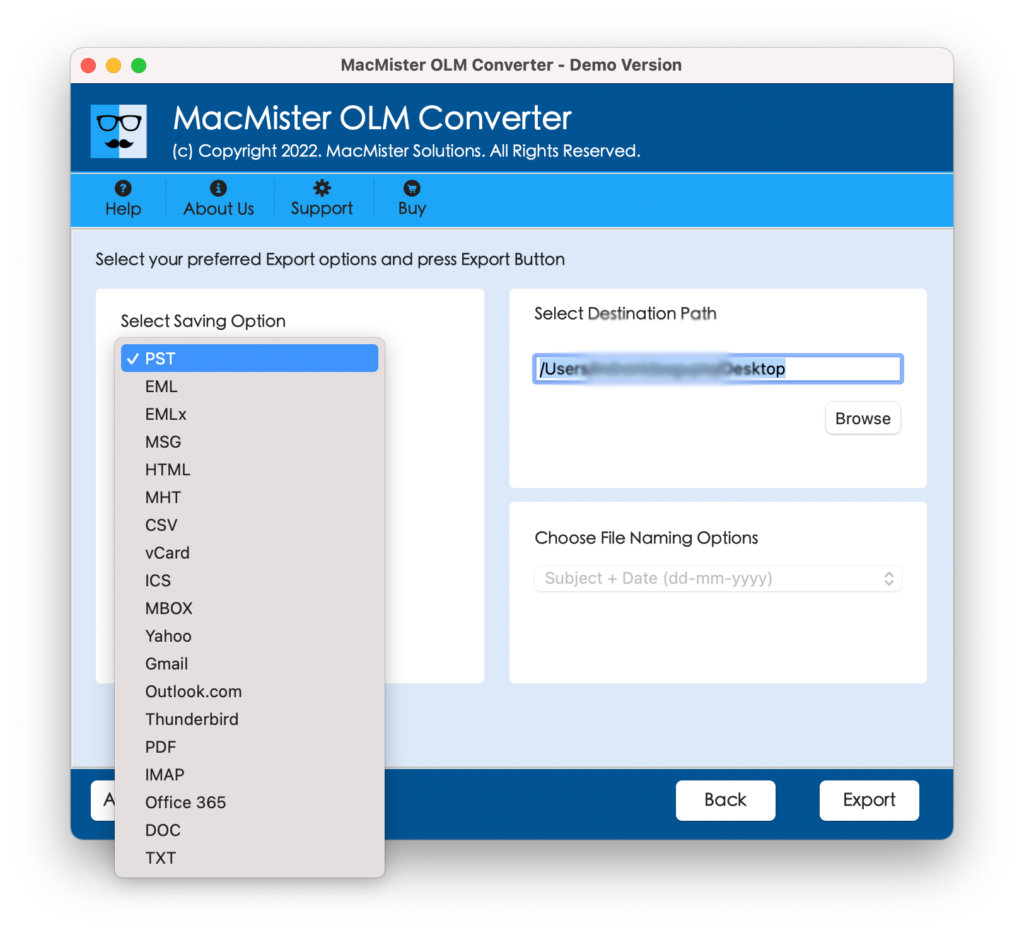
Then MacMister OLM Converter for Mac comes into play. The application performs the batch conversion at once and deliver accurate results in few seconds. It is programmed with a friendly approach as well so that any user can take its benefit and access OLM file content with ease. Download it right away to protect yourself from encountering related errors that you may face in future.
Guide to Resolve Outlook Error Code 150 Mac
Follow the instructions discussed below to fix the error. And before starting the process, make sure to have stable internet connection. Now apply the steps as mentioned –
- Mention credentials of your Outlook account.
- Go to Outlook Settings menu and select Preferences.
- Choose Comcast option and remove current Outlook profile.
- Click OK.
- Add Outlook account by clicking (+) icon once the previous Outlook account gets deleted successfully.
- Check the available accounts present in Outlook Settings menu and choose the necessary account you need to add.
- Delete entire unnecessary emails, junk, folders, and other temp folders once the account is added.
- Restart Outlook for Mac account which will open quickly.
- The process is completed.
Now, a user can make use of Outlook for Mac account again. However, the process is lengthy and time-consuming. Users with non-technical skills will find the steps very challenging. That is why it is recommended to operate it under an expert’s guidance.
Epilogue
After fixing the error successfully, check all the email items again as there are chances that you could face data loss. In such a scenario, it is advised to take a backup of Outlook for Mac account first and then try the above strategies to fix the error.
However, users can do one thing, import their old OLM files into a new Outlook for Mac profile. Thus, MacMister OLM to PST Converter for Mac will resolve the problem. If you wish, you can use the same app to import OLM to MBOX, Office 365, Gmail, Outlook.com, and many other powerful saving options.