Outlook for Mac Email Stuck in Outbox! – Top Powerful Solutions [2026]
Outlook is one of the effective methods to send/receive messages among computer users. But these days, several users are facing an error “Outlook for Mac email stuck in Outbox” while sending emails. In case you have also faced the same, then do not feel stressed as the write-up is here to resolve the issue.
Tip. If you are a Windows user, then you may take help of MacMister PST Converter for Mac & Windows to change PST files into 15+ saving options and preserve them either locally or on a different email server.
There could be numerous reasons why Outlook for Mac gets stuck in Outbox. Thus, here we will be highlighting possible reasons as well as solutions to resolve them. So let’s begin without further ado.
Part 1. Main Reasons causing Email Stuck in Outbox Error
Email Stuck in Outbox Mac is a common error which occurs due to several reasons. The section here will discuss them and offer suitable solutions to fix the issue.
Reason 1. File holding Large Size Attachments
One of the main reasons Outlook for Mac email stuck in Outbox while sending could be due to large size attachment (larger than the default size allowable by a mail server). One may either erase it or move it to the drafts folder and then resize it or remove the attachment if this arises.
Reason 2. View Message before it Sent
An email message will be marked as read if you open it while it is in Outbox, ready to be sent or disappears. The most noticeable sign that a message is stuck is when the message title is no longer displays in bold.
Several Outlook add-ins including popular BCM, Social Connector and others are the reasons why users encounter this error. However, uninstalling such add-ins can be helpful.
Reason 3. Incorrect or Changed Password not Working
Entering incorrect or changed password is another reason for the error. The solution for the same is before operating the account, make sure you have verified the password before and after the modification.
Reason 4. Account is not properly authenticated with the Server
Verify account settings to check why Outlook for Mac email stuck in Outbox. Here’s are the instructions given to perform it –
Step 1. Run MS Outlook, navigate to File tab and tap Account Settings.
Then, go to the Tools menu, click Account Settings, and tap Email.
Step 2. Double-click the account and navigate towards Tools menu. Click Account Settings and select Email.
Step 3. Go to Outgoing Server tab and make sure the details are precisely matching those advised by email provider.
Note. Do not select “regular secure password authentication”.
Step 4. Navigate to advanced tab and verify the port number of outgoing server.
Note. Generally, 25 is used for SMTP accounts.
Reason 5. Default Account is not set
By making use of a pre-configured script provided by admin to set up an email account could be one of the reasons.
Step 1. Go to Account Settings window to check the default account.
Step 2. Click on File and select Account Settings. The default account will appear as the below picture –
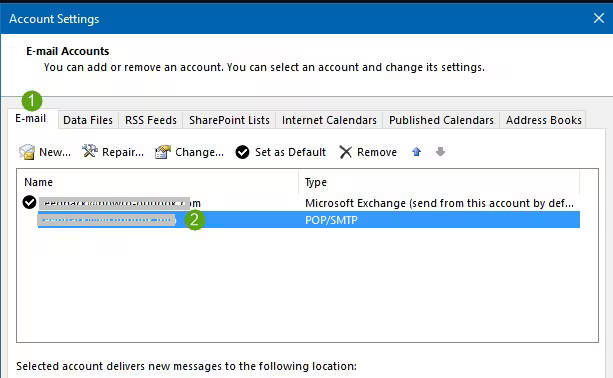
In case no single account is selected, then choose the account and set it as default.
Part 2. Tips to Fix Email Stuck in Outbox Error
Solution 1. Try to Change DNS Settings
Below are the steps mentioned to change DNS settings –
Step 1. Navigate to Apple menu, go to System Preferences and select a network.
Step 2. Select network connection and tap advanced.
Step 3. Click DNS option and hit (+) icon to go through DNS Server lists.
After everything is sorted, you will encounter network improvement in your Mac. And hopefully, the error gets resolved.
Solution 2. Ensure that Outlook is Connected to Internet
In order to resolve the error, first make sure if Outlook is connected to the internet or not. In case the Outlook is offline, you will observe the status is disconnected or trying to connect with the network. Eventually, this will cause the error.
Thus, to fix the error, check internet connection and once it is fixed, you will be able to send emails without any issues.
Solution 3. Force Quit and Restart Outlook
The step could be helpful, here’s how to perform it –
Step 1. Simultaneously press Options + Command + Esc keys.
Step 2. Select Mail from the window appearing and tap Force Quit.
Step 3. Navigate back to Outlook to verify if the issue is solved.
Solution 4. Check the Attached File
At times, instead of having good internet connection, still users encounter the same error. So, the next thing one to need is the size of attachment embedded with email. If the attached file size is large, then also Outlook will not able to send the mail. Thereby, it is recommended to check the attachment size first.
Solution 5. Make use of the Correct Password
Earlier if you have changed your password of the account, then also the error could occur. Thus, if you have modified your password, then ensure Outlook knows it –
Step 1. Navigate to File and click Account Settings.
Step 2. Click Account Settings again.
Step 3. Choose the account and tap Changes.
Step 4. Enter new Outlook password in the password section appearing under Login info.
Step 5. Once the above steps are performed, restart Outlook and check if the error is solved.
Solution 6. Check Settings of Outgoing Server
Step 1. Open Mail, go to Preferences and tap Accounts.
Step 2. Select preferred account.
Step 3. Go for Server Settings, click outgoing account menu and choose Edit SMTP Server list.
Part 3. What if none of the above solutions Work?
If the above solutions don’t work, then it is advised to backup entire data from Outlook account and move into another server. This can be done with the help of MacMister OLM Converter for Mac & Windows Tool. The application has the ability to backup Outlook for Mac data files into PST, PDF, EML, HTML, DOC, IMAP, Gmail, Yahoo, Office 365, and more. Its GUI is easy, simple, and friendly. Technical and novice users can easily perform the operation and transform OLM files into accessible file types and email accounts.
Additionally, the tool has remarkable features which are useful in obtaining the desired outcome in less time. A free demo is available that allow users to backup 25 files for free.
Epilogue
The write-up here offered different techniques to fix Outlook for Mac email stuck in Outbox error. We have highlighted the reasons as well as solutions for the same. However, it is advised to save Outlook for Mac data files locally or on a suitable email server to prevent emails from loss in future.