Outlook Inbox not updating with New Emails! – [Solution 2026]
If you are constantly encountering Outlook inbox not updating with new emails error, then you are not alone in this. This is an issue that many users come across while managing their emails in Microsoft Outlook. When Outlook does not update inbox folder, it interrupt the organization’s communication. There are several reasons why Outlook inbox not updating with new emails. The reason could be different for every user and the devices they take help of to operate Outlook such as smartphones, PCs, etc.
Users with the error will be able to find multiple solutions in the write-up. Here, we will share the stepwise working process on each method to help users fixing Outlook inbox not updating with new emails quickly.
Why my Outlook Email Unable to Update?
Outlook inbox not updating with new emails error encountered for several reasons, some of them are highlighted here –
- The first and foremost reason for getting the error is the outdated version of MS Outlook. So, make sure to update it regularly.
- Poor-internet could be another reason why Outlook unable to update inbox with new emails.
- Incorrect email server details is also one of the common causes for the same. It is advised, to verify server settings and provide correct information.
- Due to corrupt Outlook data file, many users encounter Outlook inbox not updating with new emails error.
- Managing damaged Outlook profile can also prevent inbox from updating.
Such errors at times won’t allow Outlook to update inbox folder with new emails that affects the communication as well. So, it would be wise to explore few easy tips to fix “Outlook inbox not updating with new emails error”.
Recommended Method –
If Outlook not able to update inbox folder, then make use of MacMister PST Converter for Mac & Windows to retrieve all mailbox items. Additionally, MacMister also offers OLM Converter for Mac to extract and preserve data of Outlook for Mac data files.
Different Methods to fix Outlook Inbox not updating with New Emails Error
Many users keep searching for ways to resolve the issue. The methods are characterised into manual and professional techniques. The manual approach offers many tricks that users uses to fix the error. Let’s begin by exploring traditional ways –
Method 1. Check Configuration Settings on Outlook
As we have mentioned earlier that wrong configuration settings could the reason why Outlook not able to update inbox folder. So, follow the instructions discussed below to configure new profile –
- Open MS Outlook and navigate to File tab.
- Choose Account Settings from the drop-down and click Account Settings… again.
- Select email account and hit Change button.
- Cross-check the incoming/outgoing server settings, make sure they are correct and it the details are incorrectly provided, then tap Next to check email account settings.
Method 2. Configure New Outlook Profile
Creating new Outlook profile help users getting rid of damaged Outlook accounts and prevent Outlook from updating inbox folder with new emails. To implement the process, follow the steps listed below –
Step 1. Search for Control Panel in the Start menu and click on it.
Step 2. Now, find Mail option and click the same.
Step 3. Afterwards, click Show Profile button appearing at the top of Mail Setup Page.
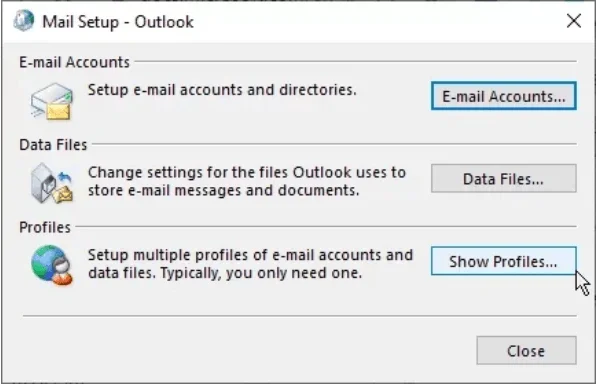
Step 4. Hit Add button to make a new profile.
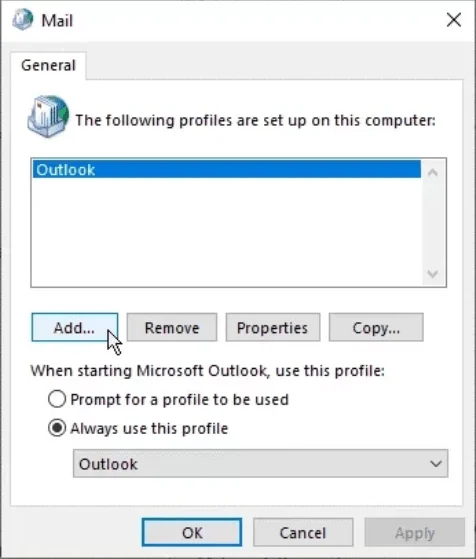
Step 5. Enter Profile name and press OK button.
Step 6. Now, provide the following details such as email address, password, and name. Then, click the Next button to move forward.
Step 7. Confirm if the issue is resolved by retrieving Outlook inbox folder using recently created profile.
Method 3. Deactivate Add-ins via Accessing Outlook in Safe Mode
Now, let’s explore how to open Outlook in safe mode and deactivate add-ins. It will help in fixing Outlook inbox not updating with new emails error.
- Press Windows + R simultaneously on your system.
- After run app opens, enter outlook.exe/safe and press Enter or tap OK.
- Go to File menu and click Options.
- Press Add-ins button and continue with the Go button.
- Click the Add-ins checkbox to disable and tap Remove button.
Method 4. Repair MS Outlook
Here, we will use Control Panel to fix MS Outlook and delete the Outlook account which is not updating Inbox folder. To perform the same, follow the below steps –
Step 1. Open Control Panel.
Step 2. Go to Program and Features.
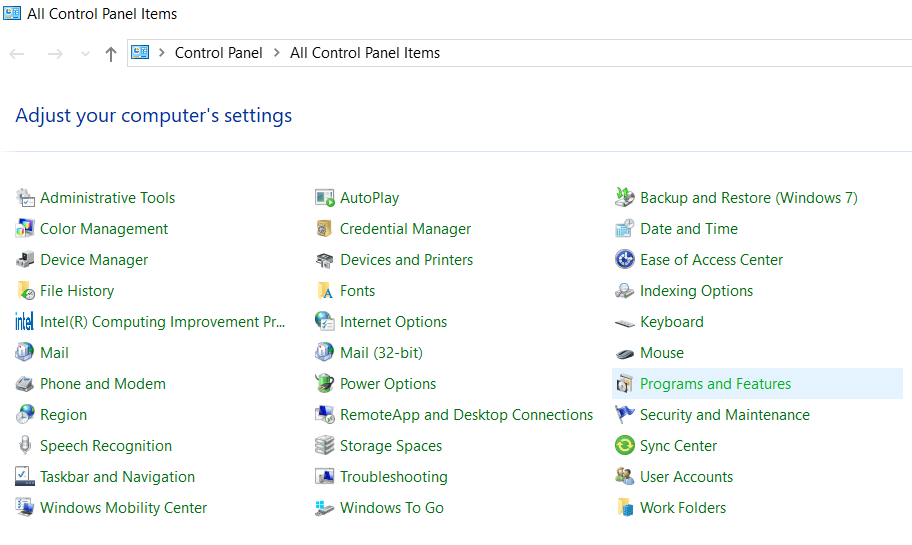
Step 3. Select Microsoft Office from the list of installed apps and tap Change.
Step 4. Now, it offers two options – Quick & Online Repair. It is advised to choose one option from them to start repairing and follow the on-screen instructions to end the task.
By implementing small manual tricks, one can instantly resolve Outlook inbox not updating with new emails error. We recommend to check for corrupt Outlook data file if the error is continuously causing the issue. Somehow it is risky and challenging for users to fix the damaged profile using the same technique.
So, it is wise to go with the professional methods that are recommended earlier. They will store Outlook data files on cloud and allows to empty them from the account to make space for new emails.
Epilogue
When Outlook not able to update inbox folder it cause disruptions with the communication exchange between clients and partners. Therefore, implementing different ways to fix the problem allow users to work effortlessly. Users however can take help of MacMister applications to fix Outlook inbox not updating with new emails error. They are friendly, secure, and reliable. Users can utilize them to manage emails on cloud. Their freeware version is available that are helpful in experiencing the software working in detail.