Public Folders not showing in Outlook! – Know Powerful Fixes
Is it true that your public folders not showing in Outlook despite having Office 365 cloud subscription? However, the situation could be frustrating and can annoy lot of users.
Public folders are a primary feature enabling several people in organization to gain the access to important resources such as archived documentation. So, if such folders disappear without any explanation, users should know then what to do next. One cannot easily move to another collaboration resource such as shared mailbox, as there are many differences between public folders and shared folders.
Though, it is important to note that the problem has few simple fixes users should try out by themselves. Thus, here in the following segment we have highlighted some solutions to resolve public folders not showing in Outlook Mac error. But first, let us explore some reasons responsible behind public folders going visible. It will help in choosing the precise solution for the issue.
Quick Note. Utilize MacMister’s PST Converter for Mac & Windows and OLM Converter for Mac & Windows to save Outlook for Windows data file .pst and Outlook for Mac data file .olm into 15+ saving options.
Public Folders not showing in Outlook – Check Why!
Here are some common causes discussed for the error. Recollect in case you have encountered something alike in your work routine.
- The user lacks correct permissions for the public folder. Or there could be differing deny rule in the parent folder that replaces the user’s granted Allow access.
- The PF mailbox may have collapsed after the assignment. Any issues including decommissioned, malfunctioning or unhealthy mailbox can prevent public folders from appearing in Outlook Mac.
- There is a possibility that MAPI protocol is not enabled on the user’s mailbox that ends blocking Outlook desktop client access (this can be done in both classic and new clients).
- Users themselves may no longer have Exchange Online license. This automatically will prevent them from using different M365 facilities including public folder.
- Admin created overtly aggressive client-side GPO i.e. Group Policy Object that keep the public folders hidden or blocked.
- There could be ongoing Office 365 outage particularly affecting public folder infrastructure.
- Slow network in remote regions can result in content replication delay that hampers the entire display of all content within Office 365 public folder.
- If you are using Autodiscover, then there is a possibility that inappropriate DNS records may prevent Outlook from discovering the public folders.
- Some Outlook client apps such as Outlook for mobile does not support public folders entirely.
- Other reasons such as corrupt Outlook profile or damaged data file can also make public folder disappear.
These are some of the reasons highlighting why public folders are not visible in Outlook. So in the further segment we have offers simplest techniques which users can take help of to resolve the problem.
What Users should do if Outlook Public Folders are Disappear? Apply Easy Troubleshooting
Try Classic Outlook Trick i.e. “Folder View”
The option is visible to all the users who are having classic desktop version of MS Outlook for Mac & Windows. All you need to do is to press two keys at once.
On Mac – Press Command + 6
On Windows – Press Ctrl + 6 on a keyboard
Implementing this will switch the view to “Folders List”. There, you may view every folder present to your account. If this won’t work, then follow the below steps –
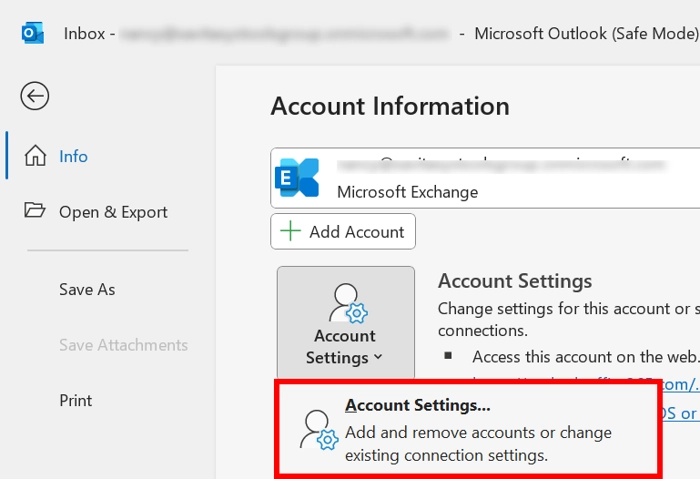
Step 1. Go to File, tap Account Settings and select Account Settings… option.
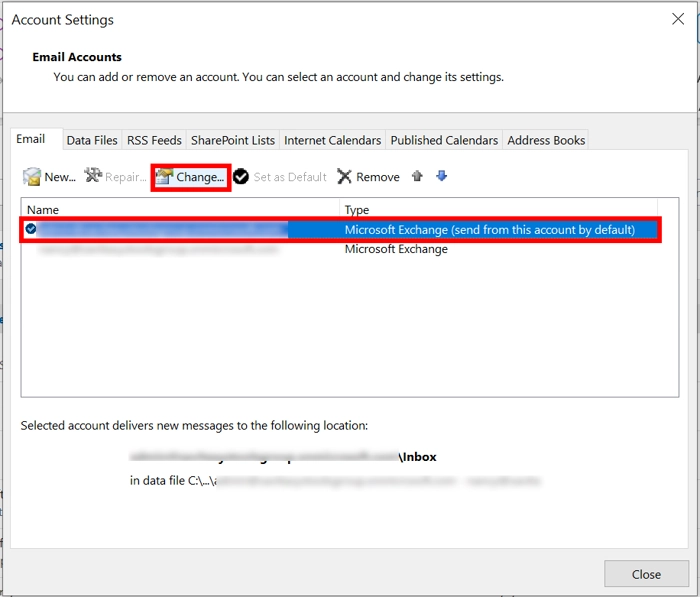
Step 2. Choose Exchange Account and hit Change.
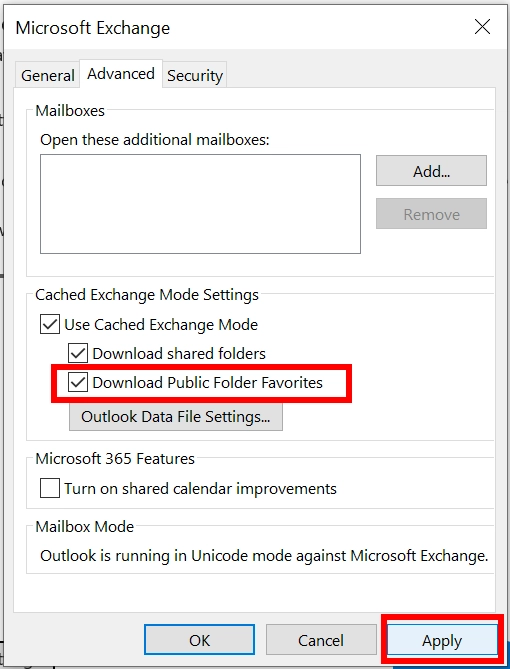
Step 3. Click More Settings, go to Advanced Tab and make sure that “Download Public Folder Favorites” option is selected. Then, click Apply button.
Close the Outlook and open it again or access Outlook using a browser. Desktop email applications will take few seconds to sync with the server whereas the web version will help in viewing the public folder very quickly.
Fix Outlook to Make Public Folders Appear on the Account
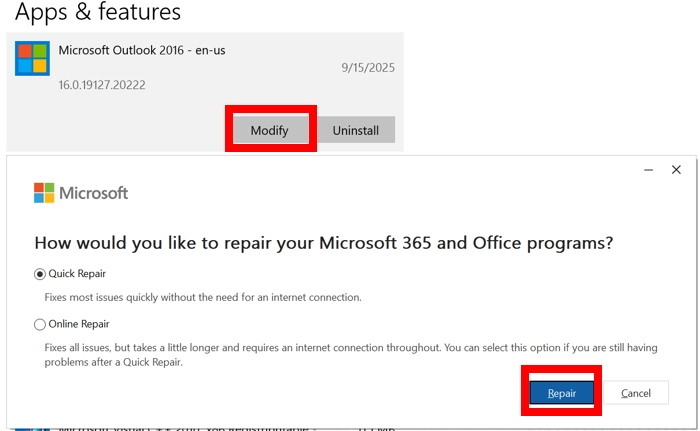
For Outlook 2016 –
Go to Windows icon, right-click on the same and select Apps & Features, select Microsoft Outlook 2016, tap Change and click Quick Repair.
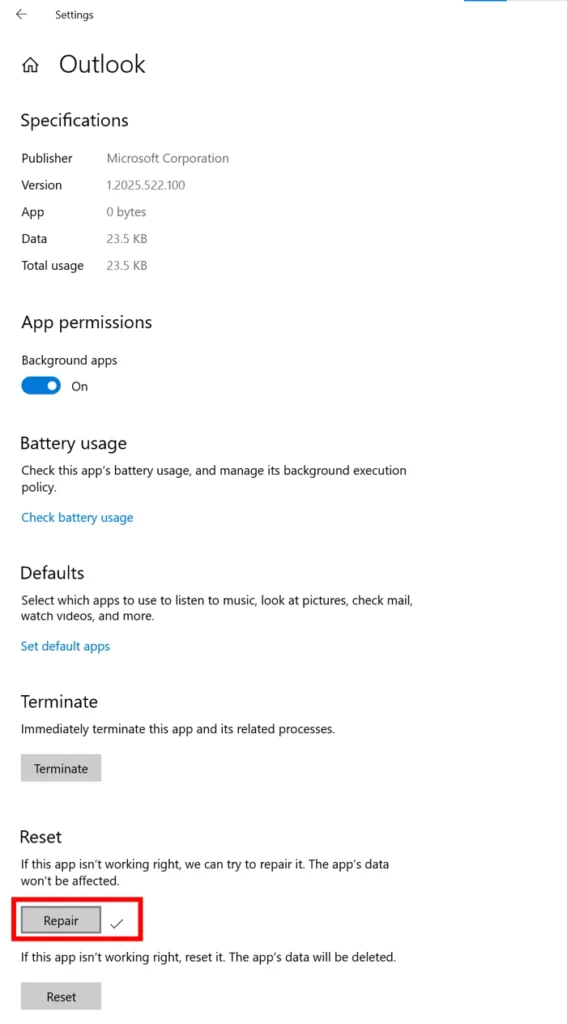
For New Outlook Version –
Go to Windows icon, right-click on the same, click Apps & Features, tap Outlook, select Advanced Options and tap Repair.
How Admins can Retrieve Disappeared Public Folders?
Step 1. Ensure Public Folders are enabled –
Run Get-OrganizationConfig | FL PublicFoldersEnabled
The result will display as “Remote” or “Local”
Step 2. Cross-Check User’s Public Folder Mailbox. Check user is assigned to public folder by using the following command –
Get – Mailbox “userdomain.com” | FL *PublicFolder*.
Step 3. Make use of Microsoft Diagnostic Tool. As an initial first and important step, execute “Cannot access public folders” diagnostic tool within M365 admin center: https://aka.ms/PFCTE
Best Technique to Manage Public Folders in Outlook
The job can be done by migrating Public Folders from Outlook environment. This can be implemented by utilizing trusted solution i.e. MacMister Office 365 Email Backup Software Mac & Windows. With the help of the app, one can directly export public folder data into 15+ saving types without any modifications. It is highly secure and are accessible by anyone with ease. Additionally, its freeware version is also available with the help of users can explore the in-depth software process for free.
Epilogue
Issue such as Public Folders not showing in Outlook can happen with anyone. There is nothing to worry about as it can be resolved easily by applying few troubleshooting ways. By taking help of the above tutorial, one can surely fix the problem. For any queries, contact MacMister Support.