How to Save Outlook 365 Email as EML?

Do you want a solution to save Outlook 365 email as EML on Mac OS? If yes, then simply continue with the following article because here MacMister has discussed a direct and secure technique that will effectively transfer all emails from Outlook 365 to EML with attachments.
Email Clients play an important role in the IT world. Many organizations and individuals use an appropriate email service provider to send/receive emails, messages, files, etc. from one place to another. It has made the task easier for all those who want to urgently transfer data from one location to another. They are programmed according to user requirements. Moreover, they are not just available for desktop. Some cloud-supported email programs are also available that one can access anytime without the installation of any additional application. Outlook 365 is one of the popular cloud-based webmail services that is secure and helps in managing a large amount of users’ daily database.
Why to Save Outlook 365 Email as EML?
A lot of times, users need to move from a cloud to a desktop email client and vice versa. However, the challenge is cloud-based email applications do not provide any in-built option that could save users’ account mailbox items. Sometimes, when a user changes their email platform or when they start to use a desktop-based email client, they need to perform the migration process. Because each desktop-based email program uses a unique file extension to store user emails and attachments with other data.
EML is a file format that is supported by multiple email applications. Thus, users find it flexible for the migration and so they choose the same to save Outlook 365 emails on Mac.
How to Save Outlook 365 Email as EML on Mac OS?
The Office 365 Backup Tool for Mac is an application that helps to save Outlook 365 email as EML on Mac OS with attachments. The tool is direct, safe, and 100% secure to download and use. The friendly GUI and simplified approach is implementable by all professional and non-professional users. Moreover, options like filters will help users to save Outlook 365 email as EML according to a specific date, month, email address, subject, etc. Besides EML, users can use the tool to save Outlook 365 email to Gmail, MSG, MHT, HTML, PST, OLM, MBOX, CSV, IMAP, Thunderbird, Office 365, and more.

The solution is equipped with a list of many strong options with the help of which users will be able to carry out the desired process. Download the free demo of the tool to test the migration process of Outlook 365 email as EML for free.
Steps to Export Outlook 365 Email as EML
Step 1. Run Outlook 365 Email Backup Software Mac on Mac OS.
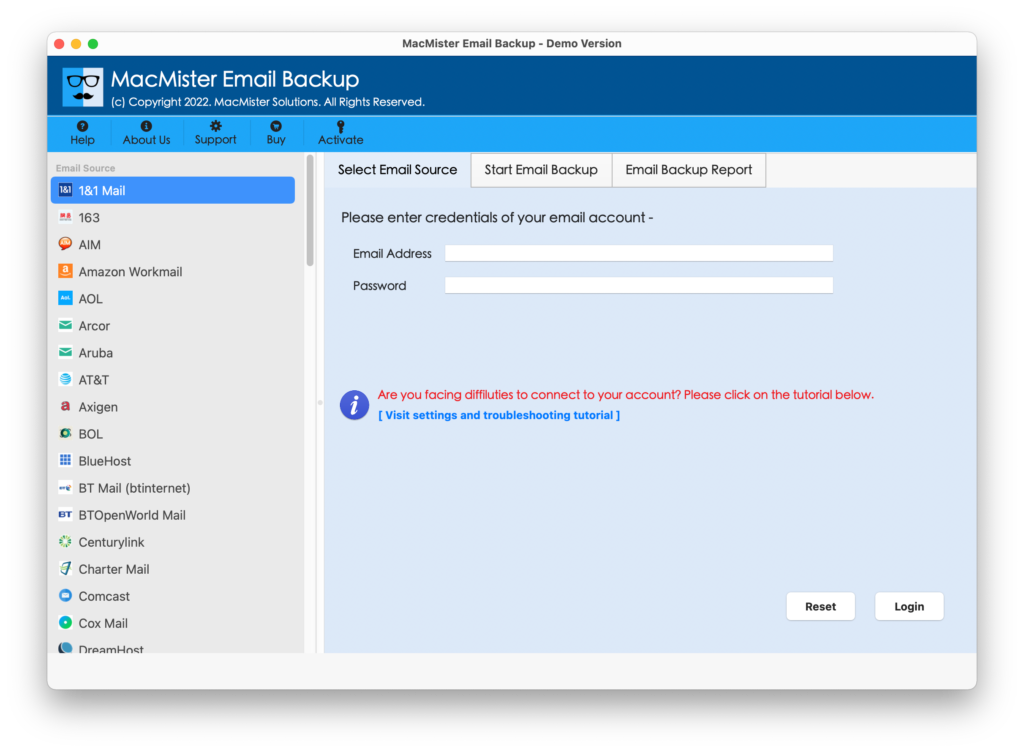
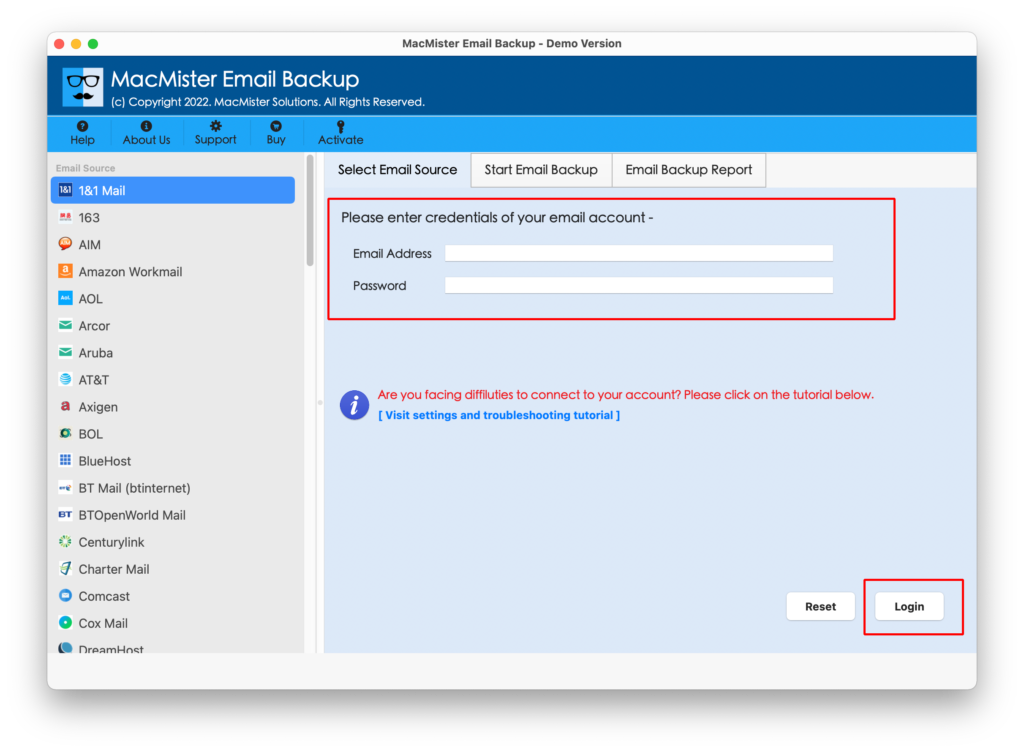
Step 2. Select the Outlook 365 (Office 365) webmail option from the left. Insert the credentials and click the Login button.
Step 3. Outlook 365 account will connect and the tool start loading all the mailbox items of the same on the software pane.

Step 4. Choose EML from the Select Saving Option menu.

Step 5. Provide destination path and other options according to your needs and click Start Backup.
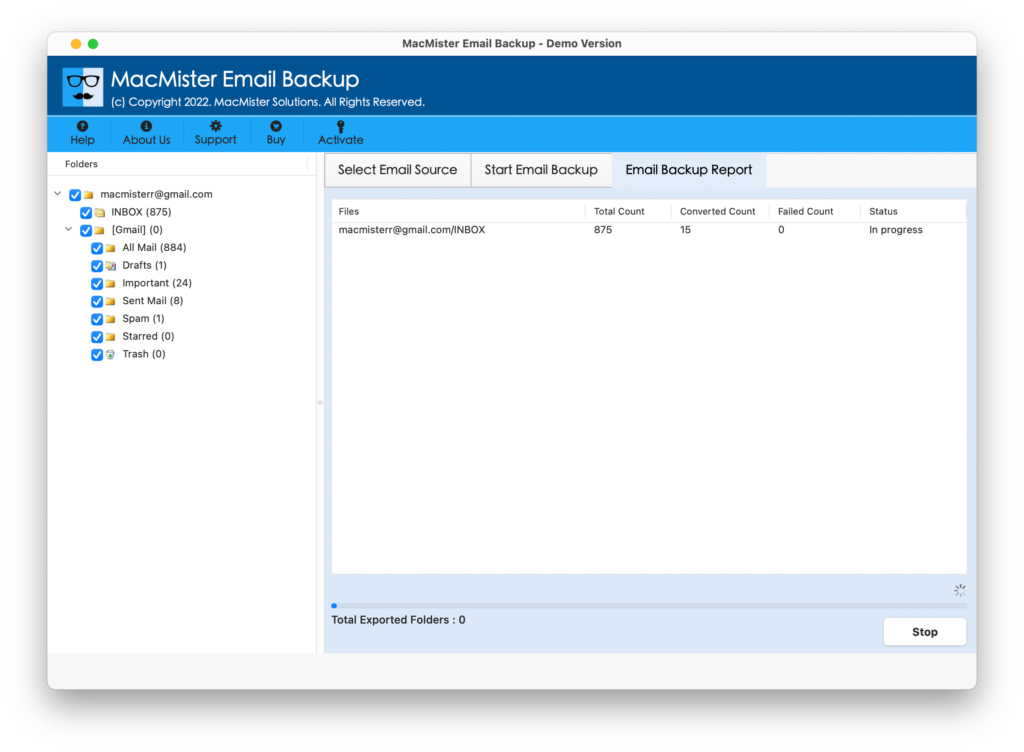
Step 6. The Outlook 365 to EML process is live. The migration status will appear in the Email Backup Report as shown-
The migration process will be entirely complete in seconds. And, the users will receive a “Process Completed” message on the screen. Click OK and go to the EML file saved location. Now, import it into the required platform. The process will be smooth and the resultant files will appear with accurate data and precise formatting properties.
Why to Choose Outlook 365 to EML Application?
The application possesses solid beneficial options using which users will be able to access Outlook 365 emails to EML and some of them are:
Direct Outlook 365 Email to EML
The tool provides the facility to save Outlook 365 email as EML directly. However, to perform the process, choose Outlook 365/Office 365 option from the left. Enter the necessary credentials. Select EML as a saving format from Select Saving Option. Apply sub-options and click Start Backup. After this, the process will quickly start and start saving all Outlook 365 emails into EML file format.
Apply Filters to Save Selective Files
With the help of the solution, users will be able to save selective Outlook 365 emails as EML with attachments. This will be achieved by utilizing the Filters property. It includes date range, from, subject, to, etc. By specifying the required filter option, users can contain the desired Outlook 365 emails to EML.
Accurate Migration without Data Loss
The software will perform the migration of Outlook 365 emails to EML accurately. After the tool terminates the process, import the resultant EML files into the desired email platform. However, when you open an EML file on a specific email app, you will see that the data is showing with original and exact rich-text formatting properties.
Use Email Backup Report for Tracking
The utility will show the Email Backup Report when the user clicks Start Backup button to start the migration process. By using the same, you can easily track the total count of files that are saved in EML, a number of files that are left to transfer, and the current export status.
Save Emails as EML on all Mac OS
The application is downloadable on all versions of Mac OS X. By installing them on macOS Ventura, Monterey, Big Sur, Catalina and other versions, users will be able to save Outlook 365 emails as EML within seconds.
Note – To gain more clarity about the software, download the trial edition Now!
Epilogue
The article discussed here has delivered the direct technique to save Outlook 365 email as EML with attachments. The application is verified and so Mac users can securely use the same on the Mac system. The process will complete without interruption. And, provide 100% accurate results in seconds. You can utilize the trial edition of the software. It will give you an idea about the software working and the steps. The freeware version allows saving the first 25 emails from Outlook 365 to EML with attachments free of cost. For any queries, contact MacMister Support.