Certified Method to Add GMX Emails into Gmail on Mac
Plethora of Mac users are searching a solution continuously to backup GMX emails into Gmail account. There could be many reasons behind the migration process. Some wants to experience a different and simple GUI, some are doing due to official needs or some are just tired of using the same email client again and again. However, whatever the reasons, the main challenge that comes up in front of users is how to migrate emails from one platform to another.
Note. Download Email Backup Software Mac to export multiple emails from 60+ webmail sources into Mac-based saving options. And, this includes PDF, MBOX, OLM, MHT, DOC, HTML, PST, MSG, EML, EMLX, CSV, Thunderbird, IMAP Server, Gmail, G Suite and more.
Emails are considered as one of the important source for indirect communication. People and organizations can worldwide connect via emails only. They exchange their important document and files through a secure email platform. Thus, it is essential for them to use only reliable technique which could directly, precisely and safely perform the migration between multiple email applications.
But, no worries at all as MacMister is now launching smart solution which will directly add GMX to Gmail on macOS. However, before diving deep, let’s just first know some common reasons behind the migration of GMX emails to Gmail.
Why to Add GMX to Gmail on Mac?
There are many reasons that clearly tells why Gmail is better than GMX –
- Gmail is simple, easy to organize and has lot of free applications for data management and that attracts many organizations and individuals across the globe.
- GMX is a German-based email application and this makes the email client functions limited.
- Gmail will prove flexible for large organizations due to its enhanced data storage facility.
- The strong security functionality in Gmail gives the breath of a fresh air to users whose accounts carries important data.
- Gmail’s Google Drive application is quite beneficial for keeping the unlimited data on cloud such as photos, documents, videos etc.
How to Export GMX Emails in Gmail on macOS?
To export GMX emails in Gmail, utilize GMX Backup Tool for Mac software. The all-in-one solution help users to directly transfer unlimited GMX emails to Gmail with attachments on Mac at once. The software carries interface which makes sure to secure the user’s confidential details and allow technical and non-technical users to perform the process without efforts. In simple words, the app is very easy, secure, cost-effective and quick to use.

The application has many features which will ease the process by allowing users to apply the same as per need in order to get the desired output. However, the trial edition of the tool is also available that users can use to check the working of the software properly.
Steps to Add GMX Emails to Gmail
Step 1. Run GMX to Gmail Software on any Mac OS.
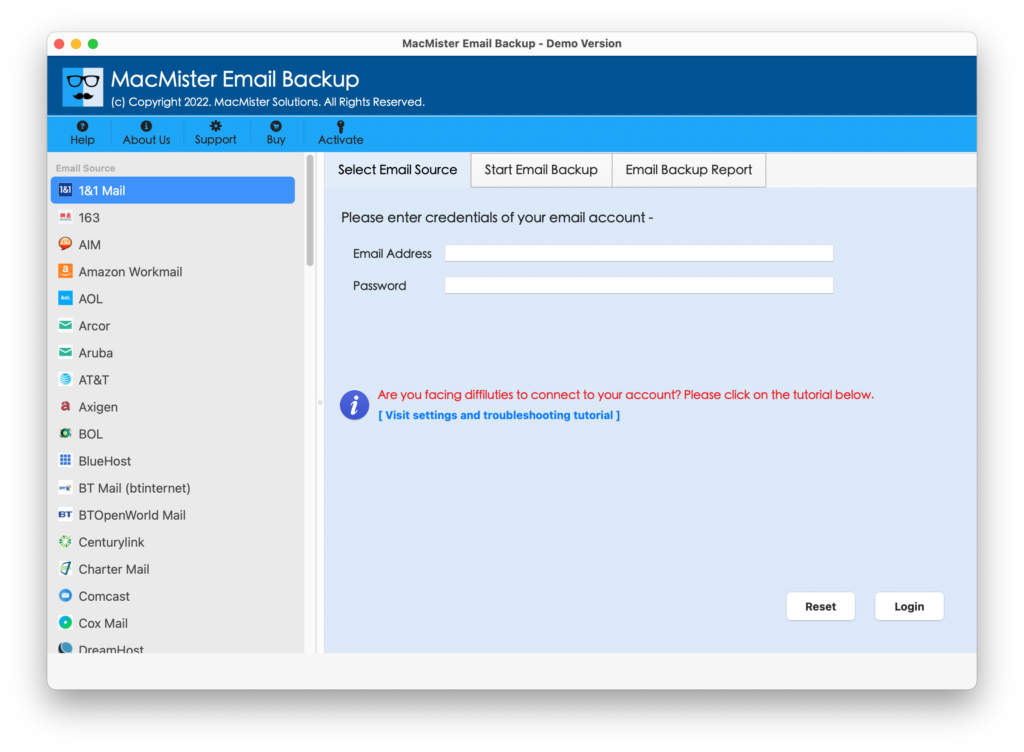
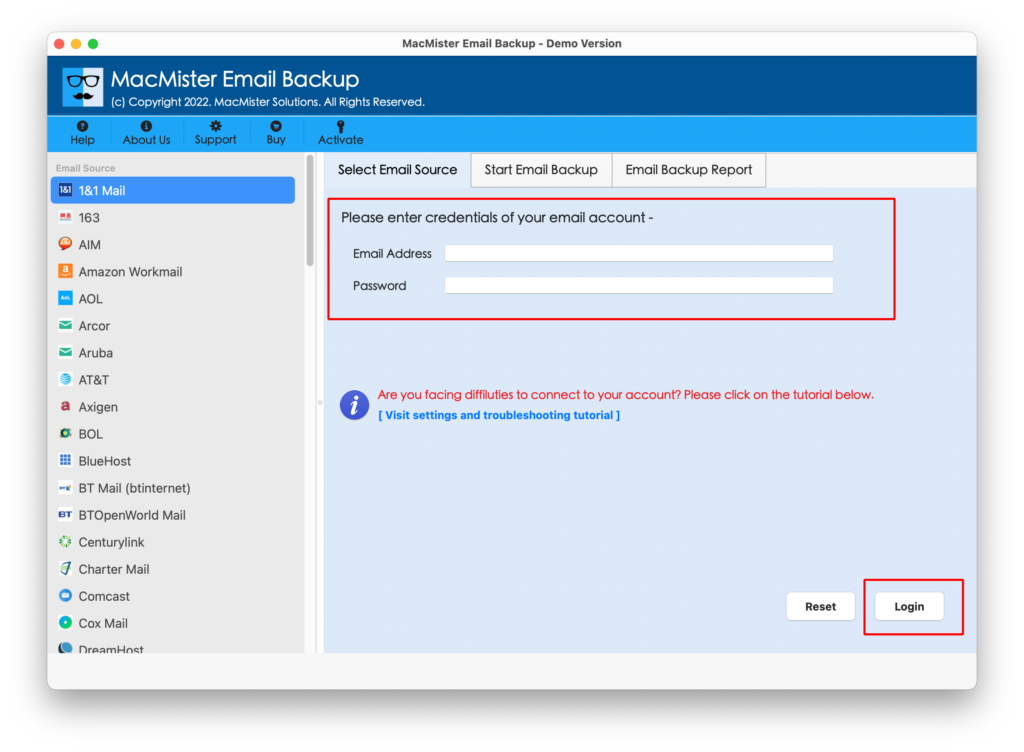
Step 2. Select GMX from the left source list that is appearing and provide GMX login details. Click Login after entering the credentials.
Step 3. GMX account items list will now appear. And all will be shown with checkboxes that are selected by default. Users can do the selection of a checkbox as per need.
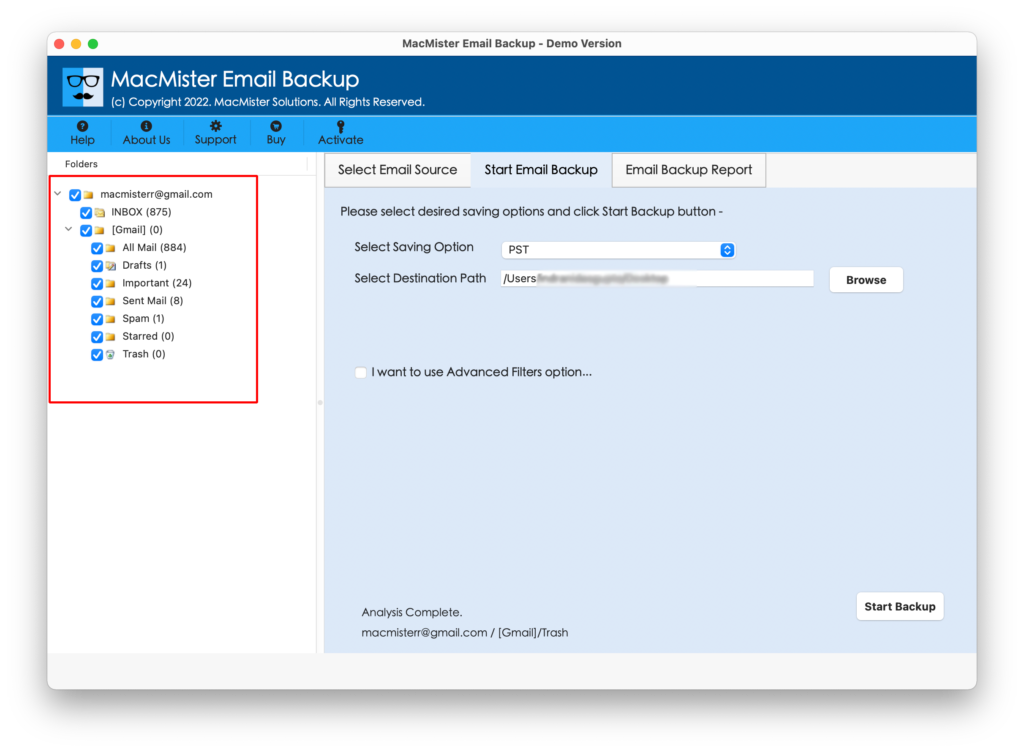
Step 4. Navigate to Select Saving Options menu that is on right-side of the tool.
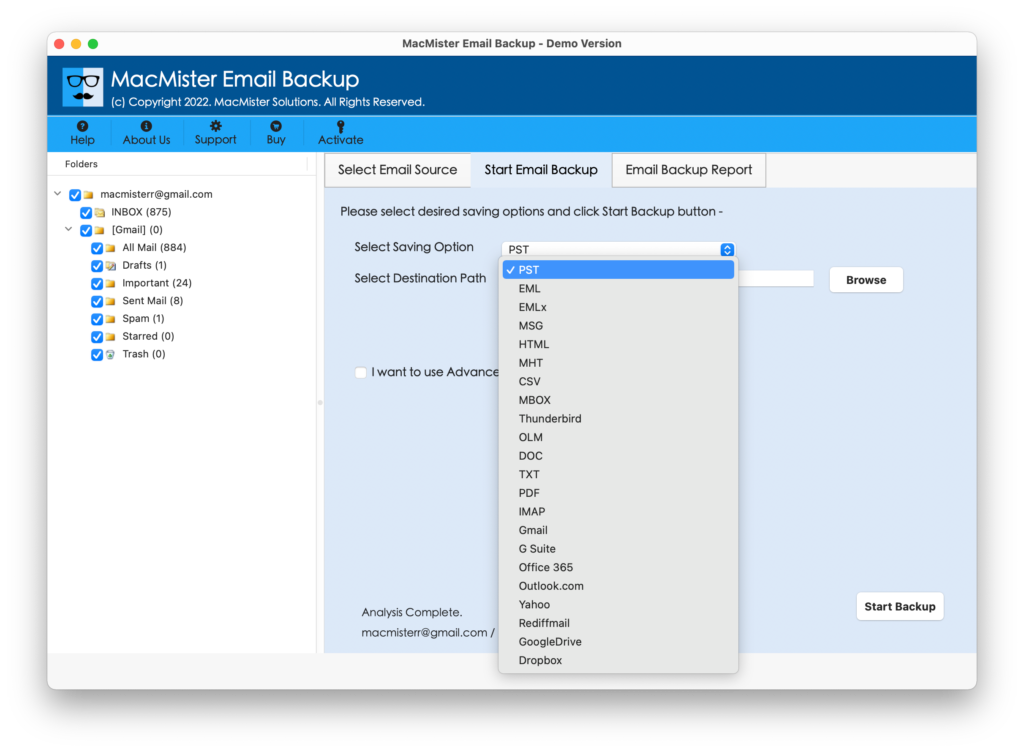
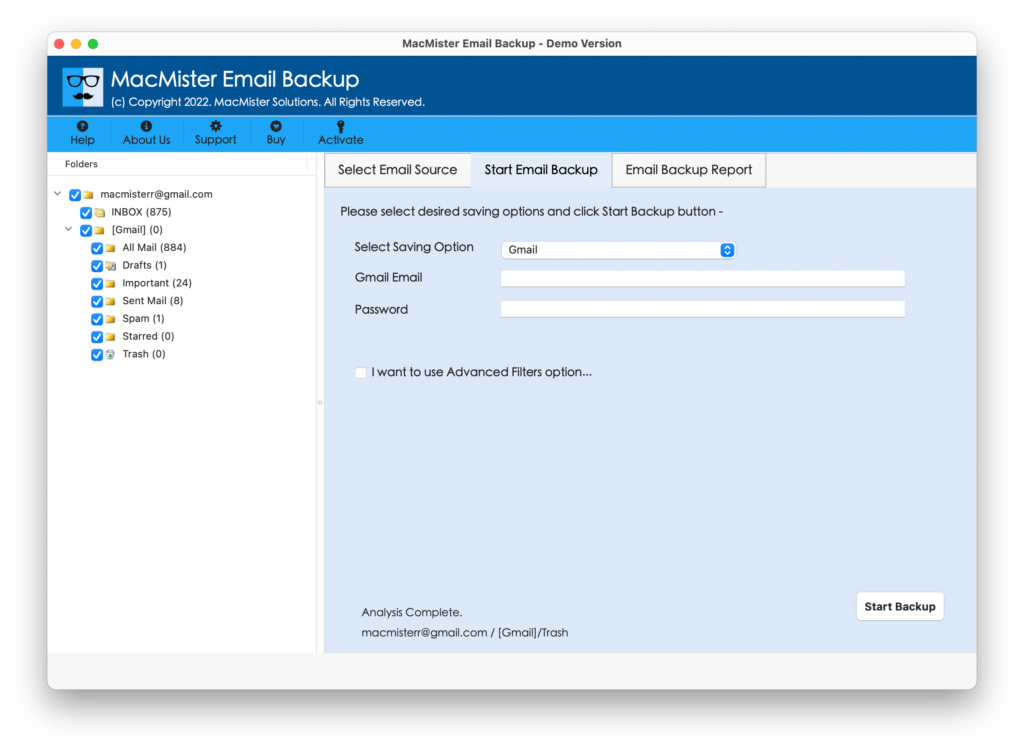
Step 5. Select Gmail and enter Gmail login details in which one wants to forward GMX emails. Also, set the filters in case one wants to move specific GMX emails to Gmail. When done, press Start Backup button.
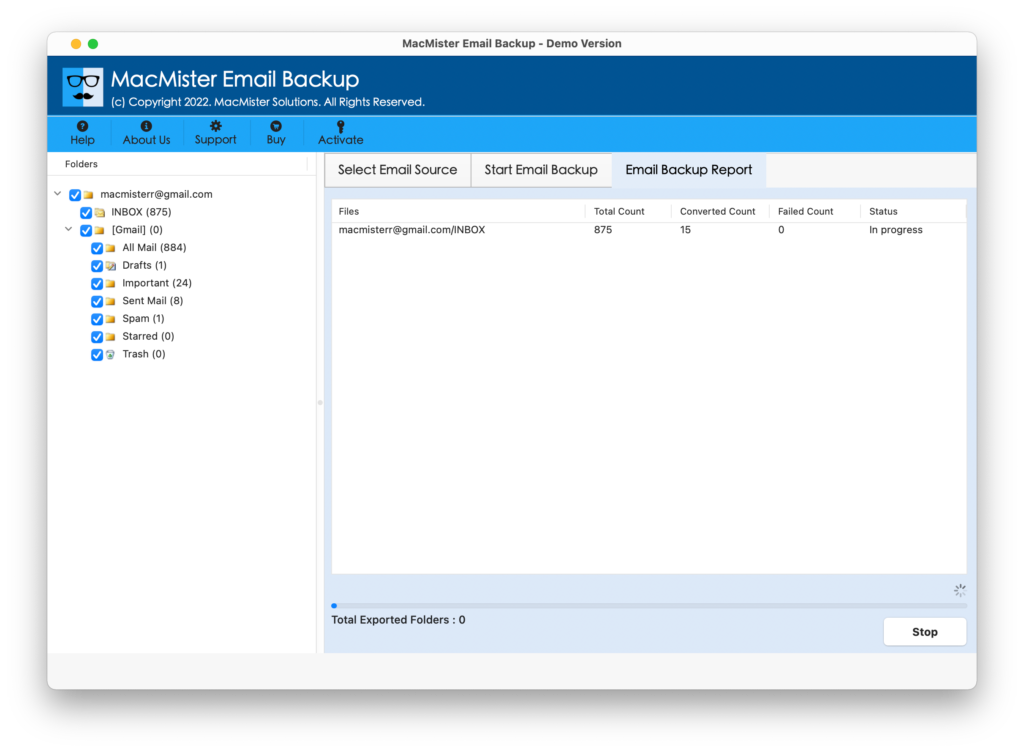
Step 6. Check Live Migration Report as shown below and track the backup progress. It will show item count converted, items left and status.
Click OK button after getting Conversion Completed confirmation message on the screen. Now, tool will display the log report which is auto-generated and shows the entire backup information that users can verify and save at desired location for future use, if needed.
Three Wonderful Attributes of GMX to Gmail Tool
Directly add GMX emails to Gmail on macOS
The application has GMX as a source option and by choosing the same tool will ask to enter its login details. Tool will then create a connection with the specified GMX account and list its entire folders on the software window. After this, choose Gmail account by clicking Select Saving Option and provide the Gmail account details in which GMX emails are required. Once everything is set, the direct migration process will start by the tool.
Take Help of Multiple Filters for Specified Migration
The GMX to Gmail software is added with Advance Filters property. By using the option, users can transfer GMX emails to Gmail according to date range, to, from and subject. Moreover, “Use Selective Export Settings for Mail Folders” option allow users to export the sent folder and also gives the option to exclude exporting email body content and attachments.
Easy, Safe, Secure and Gives Guaranteed Conversion
The software is introduced with simplified and secure steps. Mac users with professional and non-professional background can utilize the tool and implement the process effortlessly. Also, the advance in-built secure will keep the users credentials safe and give them the guarantee of precise execution in less time.
Note. To understand more features of the application on your own, download the free demo of the software and add first 25 GMX emails to Gmail with attachments on macOS free of cost. This will help you exploring the each and every feature and option of the tool.
Final Words
The entire section offered the direct solution to add GMX emails to Gmail on Mac. The GMX to Gmail Backup Tool for Mac is a time-saving software that forward unlimited GMX emails to Gmail at once and takes only few seconds to complete the entire migration process. Moreover, the features it provides gives exceptional experience to Mac users and help them to get the desired result in less time.