How to Export Outlook Mail from Mac to Windows Outlook?
Shifting from macOS system to a Windows PC may pose various technical issues, the most critical one being the migration of your digital emails. In case you have been working with Microsoft Outlook in a macOS system, your emails will be stored in the OLM (Outlook for Mac) file format.
In contrast, Microsoft Outlook for Windows works totally differently as it stores all the mailbox contents such as emails, contacts, and calendars in the PST (Personal Storage Table) file format. As Windows Outlook does not have native support to read the OLM files, data migration involves overcoming the format hurdle.
This detailed guide highlights the various issues of email migration across platforms and presents a professional solution that eases the entire process.
Understanding the Challenge: OLM vs. PST
It becomes easier to understand the need for a special tool by taking a closer look at how both formats of Outlook store data:
- Outlook for Mac (OLM): This format consists of emails, attachments, tasks, calendar events, and notes archived into a database that is intended for macOS structure.
- Windows Outlook (PST): Windows Outlook depends on PST databases. These require structural hierarchy and special format of metadata for folders to be displayed properly.
Due to the difference in structure of the two formats, you cannot simply move the OLM file to a Windows computer and view it. You will need a special conversion tool to convert the file format while keeping your data intact.
How to Export Outlook Mail from Mac to Windows Outlook using Professional Solution?
Despite the presence of some ways around the issue, including establishing an intermediate IMAP setup through Gmail or an Exchange server, these solutions are frequently quite slow when dealing with big mail accounts and run the danger of data throttling or synchronization problems.
The MacMister Mac OLM to PST Converter is a specially created tool that can get rid of such issues. It creates an efficient environment for converting OLM files to PST, MSG, or EML files on macOS.
Important Features of the Application –
- All inline images and attached documents will be secured inside individual emails during the conversion process.
- Rapidly converts Mac Outlook archives to conventional PST files that can readily be imported in any Windows Outlook application.
- Your folder/sub-folder structure and all email metadata (To, From, Cc, Bcc, timestamp information) will stay fully intact and unchanged.
- Ability to convert several OLM files at once without having to worry about file size limitations – saves valuable time.
- Includes built-in preview window and filters (for example, Date Range filters) allowing to convert only certain folders/timelines that you require.
Step-by-Step Guide: Exporting Mac Outlook Mail to Windows Outlook
Migration of emails through professional approach is an easy-to-complete procedure with various stages involved. Here are the guidelines on how to migrate your emails successfully:
Step 1. Launch Microsoft Outlook on Mac OS. Go to the File menu, then select Export and pick Mail, Calendar, Contacts that need backing up. Proceed with creating an archive and thus receiving your .olm file.
Step 2. Install the software on your macOS machine and open it.
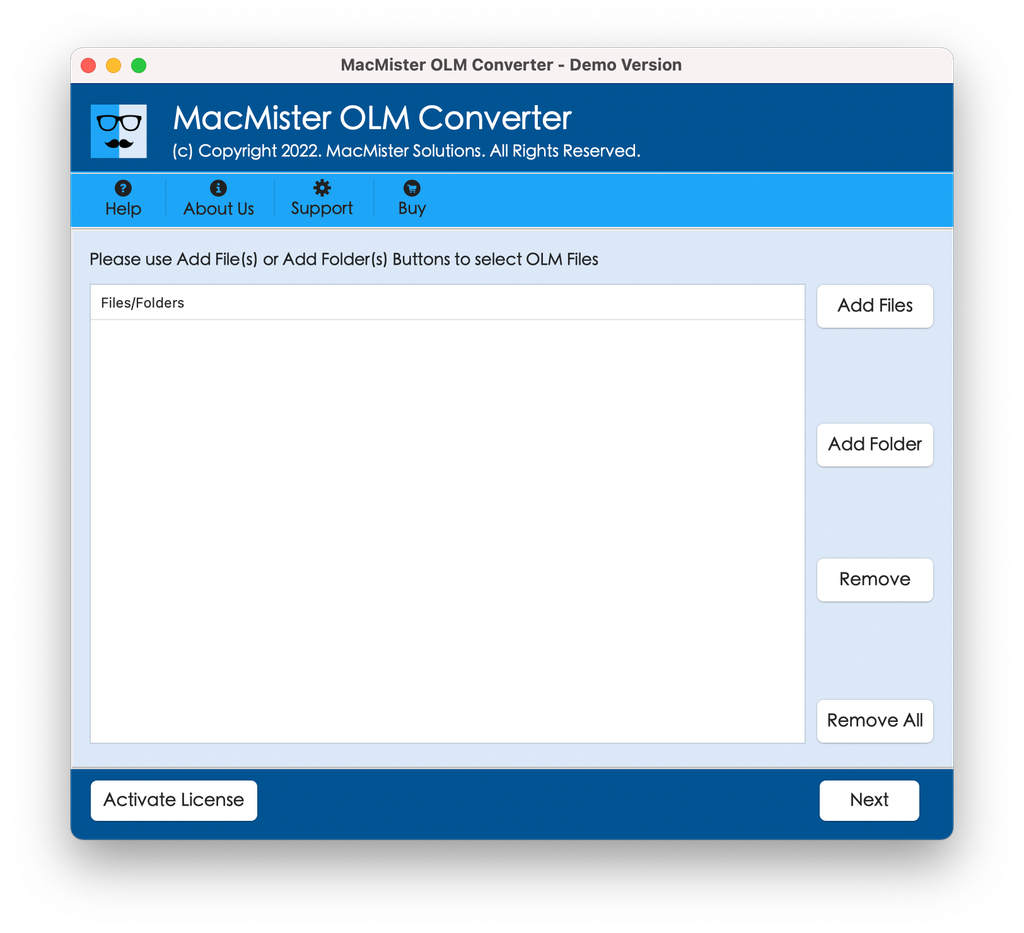
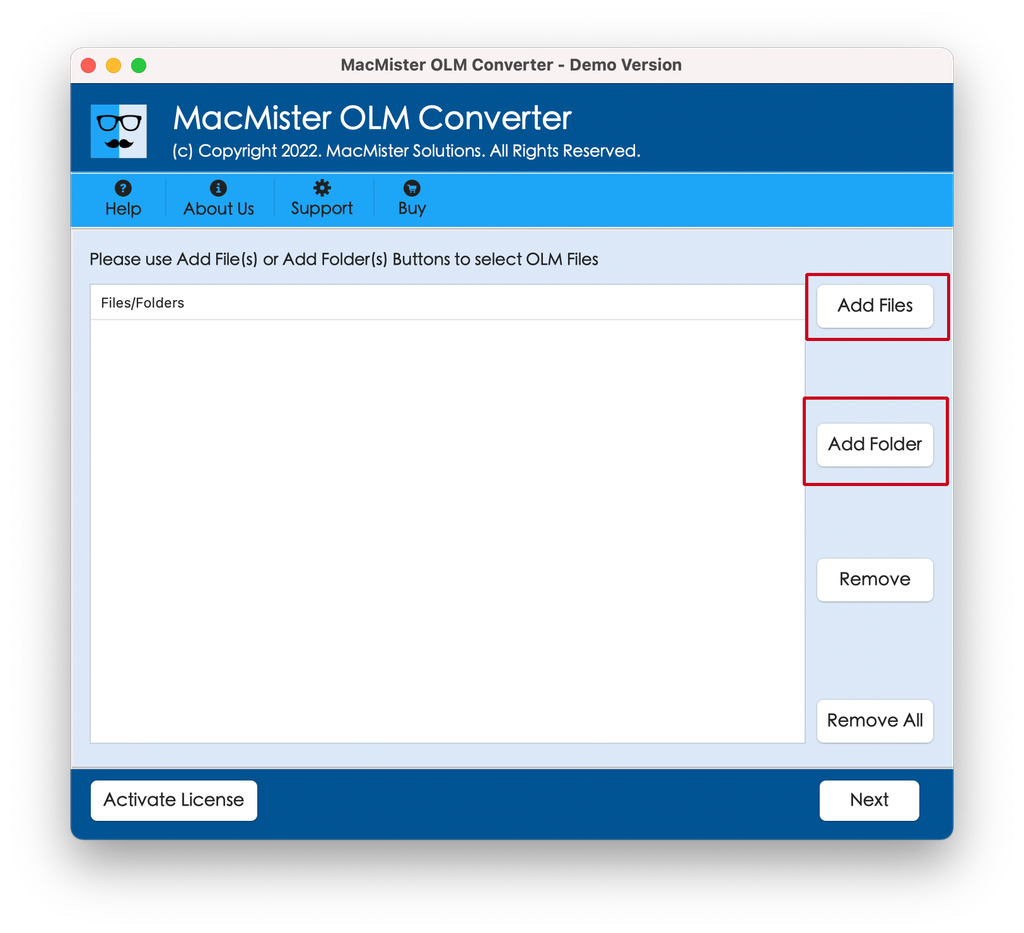
Step 3. Press Add File(s) or Add Folder to locate and select your .olm file to convert. Your archive will be scanned thoroughly, and the full folder structure will be shown to you. Inspect your folders and mark the items you want to transfer.
Step 4. From the list of possible formats for exporting your mailbox, choose PST.
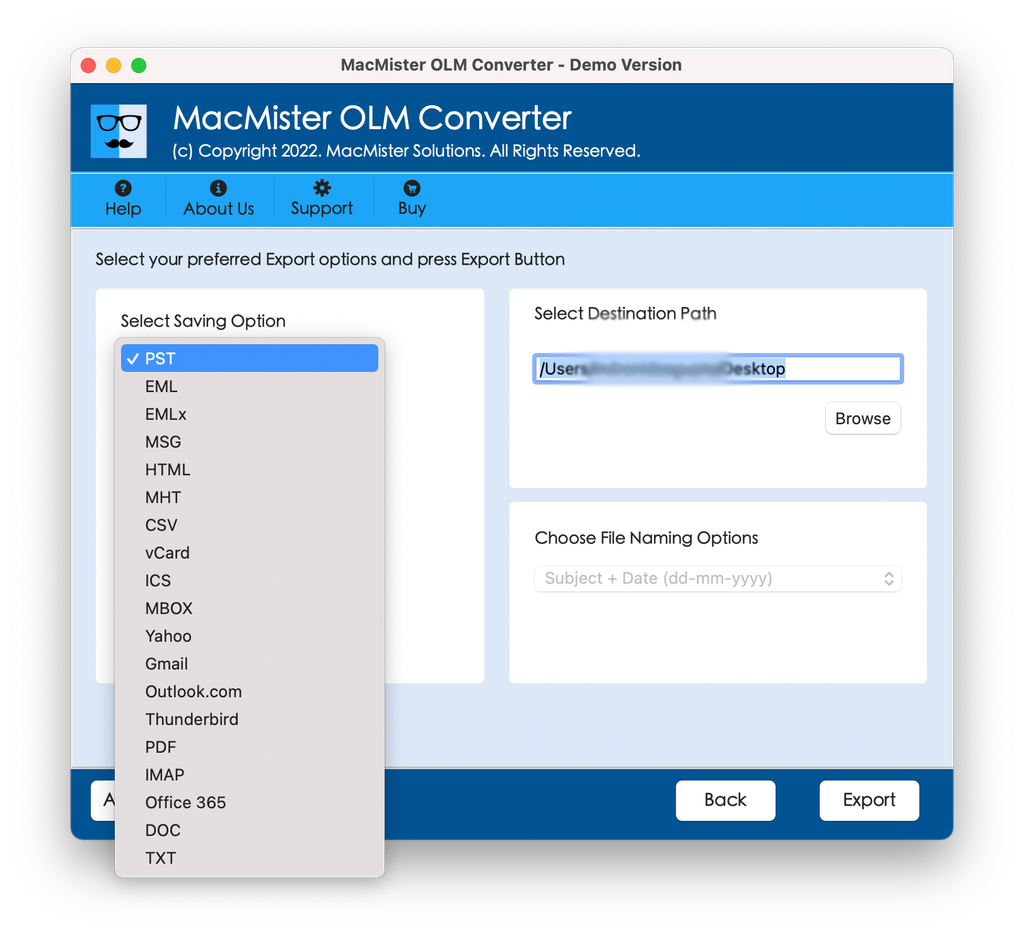
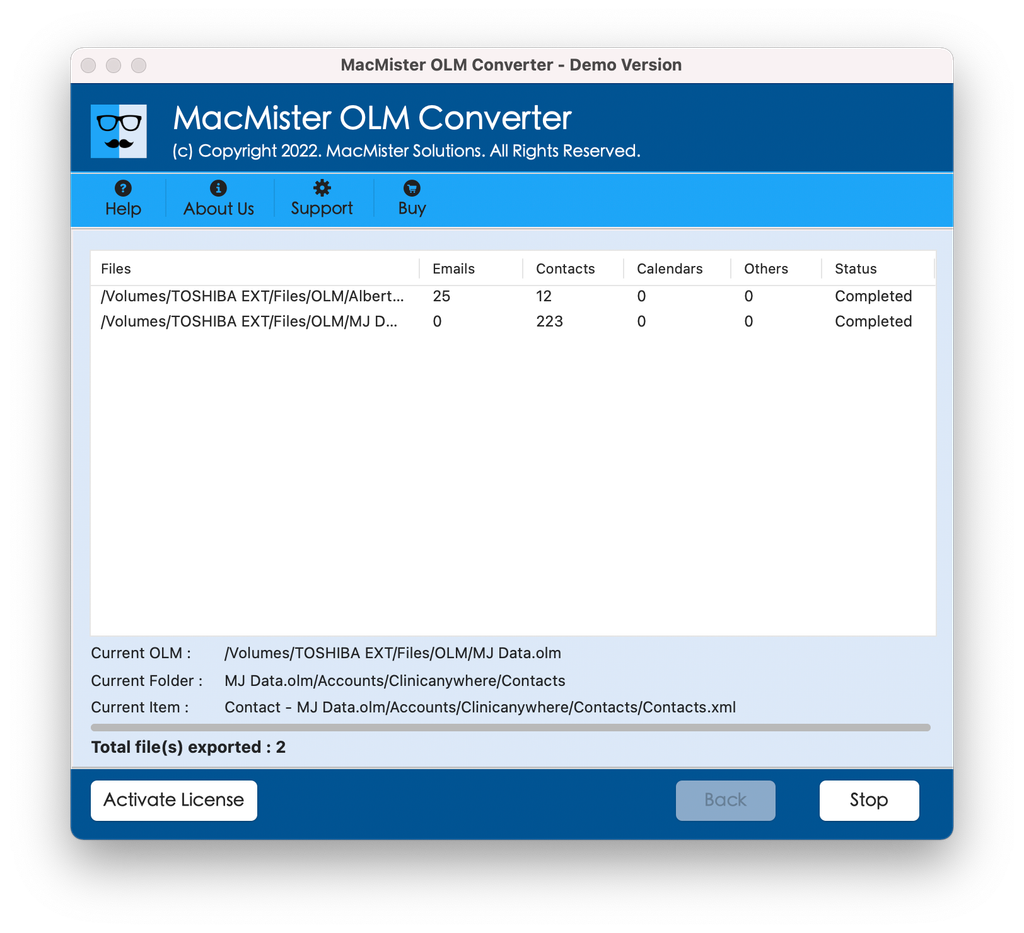
Step 5. Set sub-options appearing under PST as per requirements and press Start Export. As soon as the conversion is over, copy the produced .pst file to your Windows PC through USB flash drive or cloud storage.
Step 6. Start Microsoft Outlook on your Windows computer. Select File > Open & Export > Import/Export and choose the option Import from another program or file. Then choose Outlook Data File (.pst) and proceed with importing your emails to the Windows profile.
Verifying Success
To ensure your migration went off without a hitch, perform these quick checks:
- Open the folder pane in Windows Outlook and check if sub-folders match your old Mac setup.
- Open a few random emails containing attachments to verify that files open correctly and text formatting is intact.
Conclusion
There is no need for you to say goodbye to your precious history of correspondence when you decide to switch your operating system. Whereas manual methods can be rather inefficient, time-consuming, and cause data loss, specific tools make the entire process a breeze. With MacMister Mac OLM Converter at your disposal, you are assured of a quick, efficient, and smooth transition.