How to Convert EML to MHT Files on Mac? A Complete Guide
Email messages often contain important information, including sender details, message content, attachments, images, and hyperlinks. Saving these emails in a suitable format makes it easier to access, share, and archive them for future use. EML is a commonly used email file format, but some users prefer MHT files because they can store webpage-style content in a single file.
Converting EML files to MHT can be useful when you want to preserve email content in a format that can be opened using compatible web browsers or applications. Since EML and MHT store information differently, the conversion process should be selected according to your requirements. This guide explains both file formats, the reasons for conversion, the available manual approach, its limitations, and an advanced solution using EML to MHT Tool for Mac.
What Is an EML File?
EML stands for Electronic Mail. This format allows users to save email messages as separate files for later access and storage. An EML file generally contains the sender’s and recipient’s information, subject, date, message body, and other email headers. Depending on the message, it can also contain attachments, embedded images, and HTML-formatted content.
Many email clients, including Mozilla Thunderbird and other compatible applications, support EML files. Users can save individual emails in this format for backup, transfer, or offline access.
What Is an MHT File?
MHT, also known as MHTML, stands for MIME HTML. It is a web archive format that combines an HTML document and its associated resources, such as images, into a single file. Instead of keeping webpage content and its related resources in separate files, MHT packages them together.
MHT files are useful for saving webpage-style content for offline viewing and archiving. Compatible browsers and applications can open these files, although support varies by application and version.
Why Convert EML to MHT?
- Keep content in one file – MHT can package HTML content and related resources together, making it convenient for offline access.
- Simplify email archiving – Users can maintain selected email content in a web-archive format for reference.
- Preserve visual elements – When supported by the conversion process, HTML formatting and embedded images can remain available in the output.
- Improve accessibility – MHT files can be opened in compatible browsers and applications without requiring the original email account.
- Organize important messages – Converting selected emails into another format can help users maintain separate archives for projects, records, or documentation.
- Meet Specific Requirements – MHT files can be useful for maintaining business records, preparing technical documents, or working with applications that accept this archive format.
The results depend on the conversion method and the content of the original EML files. Therefore, users should verify the converted files before deleting or moving their original emails.
Manual Method to Convert EML to MHT
There is no universal, built-in conversion option available in every email client for directly converting EML files to MHT. However, you can try an intermediate method using an application that can open EML messages and a browser that supports saving content in a compatible archive format.
- Open the EML file in a compatible email application or message viewer.
- Verify that the message content, visual layout, and inserted pictures appear as expected.
- Copy or export the message content into an HTML document, if the application supports this option.
- Open the HTML document in a browser that supports saving pages as MHT or MHTML.
- Select the available web archive option in the browser’s Save As menu.
- Select a location on your computer where the converted file should be stored.
- Open the saved MHT file in a compatible application to verify the content.
Important – These steps describe a workaround rather than a guaranteed direct EML-to-MHT conversion. Browser support for saving MHT files varies, and copying the email body may not preserve all original headers, attachments, or formatting. If your browser does not provide an MHT or MHTML save option, you will need another compatible conversion method.
Risks and Limitations of the Manual Method
- Time-consuming process – Each email may require several individual steps.
- Layout Differences – The conversion process may alter text styles, table alignment, clickable links, email signatures, or the original HTML design.
- Missing attachments – Email attachments may not be included automatically in the saved MHT file.
- Incomplete email details – Sender information, recipients, timestamps, and other headers may be lost when only the message body is copied.
- Browser compatibility – Not every modern browser supports creating MHT files.
- Errors during conversion – Images and other embedded resources may not be packaged correctly.
- Limited batch processing – Converting a large collection of EML files manually can be inconvenient and difficult to verify.
For these reasons, it is advisable to keep a backup of the original EML files until you have checked the converted results.
Advanced EML to MHT Converter for Mac
Mac users looking for an alternative to the manual process can explore MacMister’s EML Converter for Mac for handling their email files. A dedicated conversion utility can help simplify the process by providing a workflow designed specifically for transferring email messages into the required output format.
|
|
|


Download EML to MHT Tool for Mac free demo that allows users to convert up to 25 EML emails into MHT format. Users can test the software, explore its available features, and check the conversion results before purchasing the full version.
Why we Choose the EML to MHT Tool on Mac
- Directly migrate EML files to MHT file format.
- Preserve email attachments during the migration process.
- Migrate unlimited EML files without a fixed file-count restriction.
- Transfer multiple email messages in a single process.
- Complete email migration with a quick and simple workflow.
- Maintain important email properties during migration.
- Support multiple macOS editions for convenient email transfer.
How to Convert EML Files to MHT in Simple Steps
Download and install the compatible MacMister EML to MHT Converter for Mac from its official website, Launch the application on your Mac.
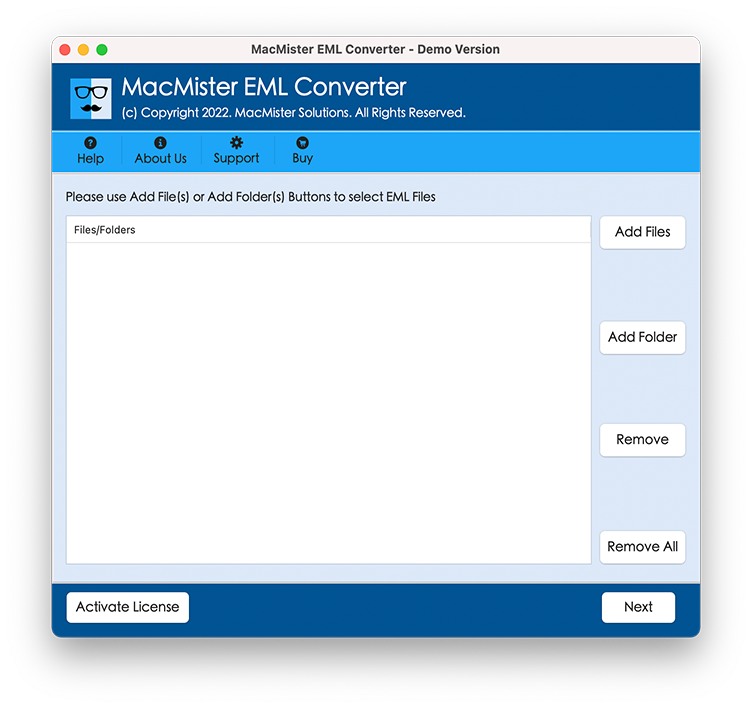
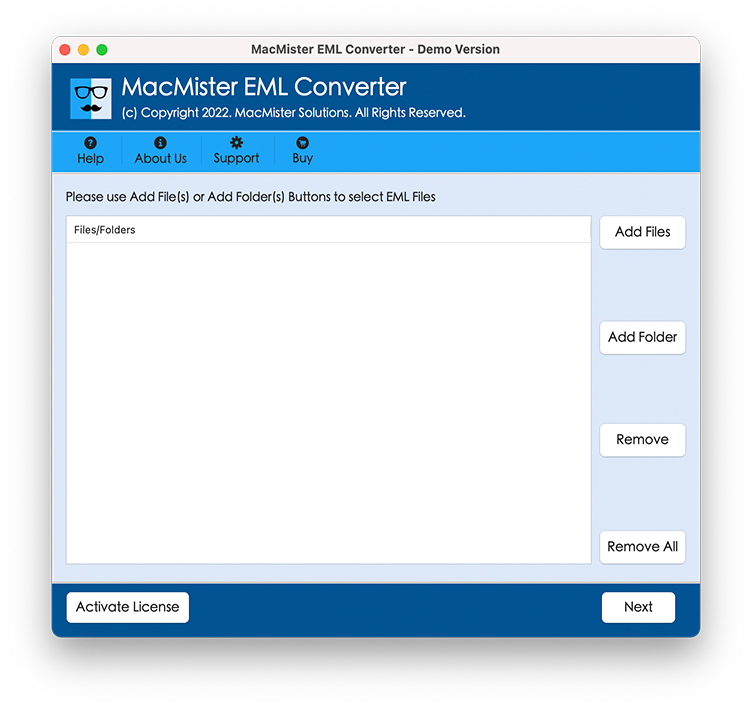
Add the EML files you want to convert using the available file or folder selection option.
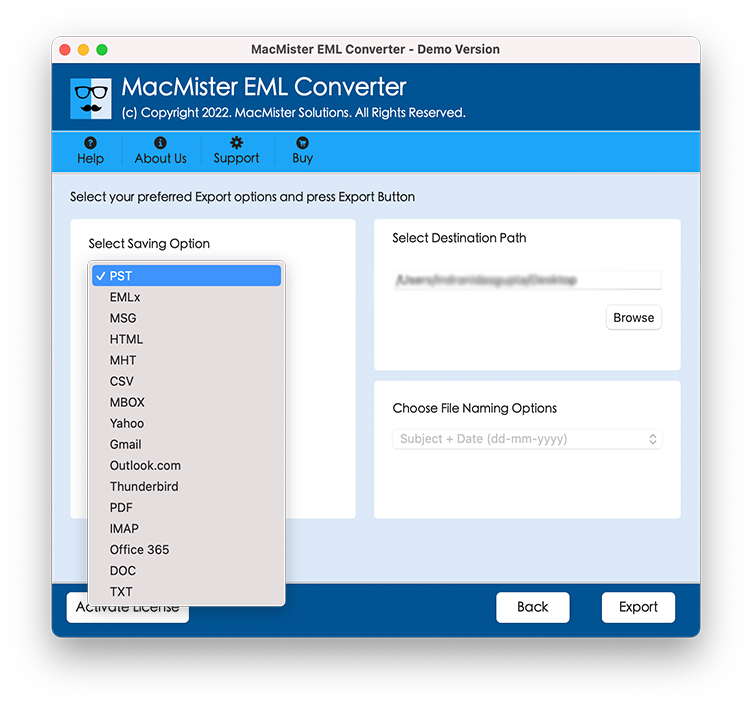
Select MHT as the output format.
Choose the destination folder for the converted files.
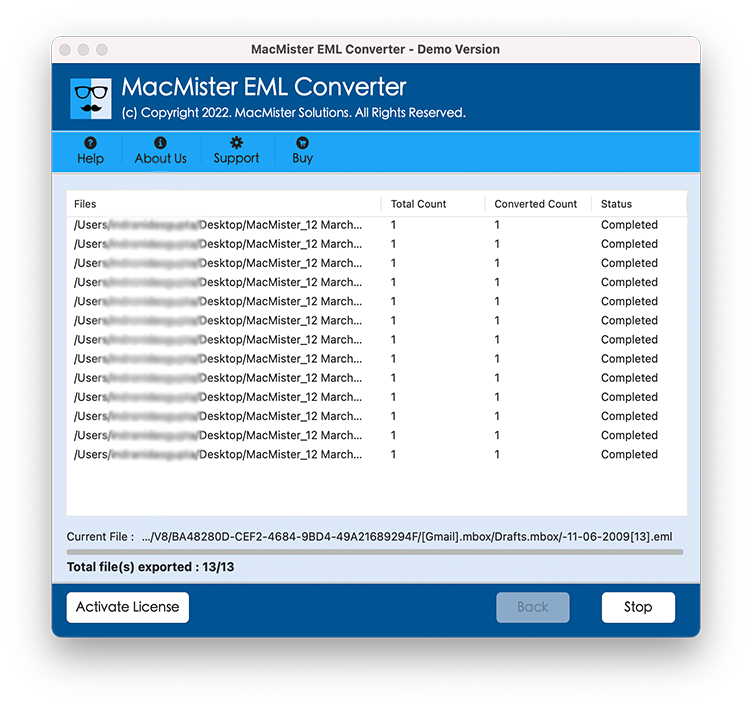
Start the conversion process and wait for it to finish.
Manual Method vs. Dedicated Conversion Tool
| Comparison Point | Manual Approach | Dedicated Converter |
| Processing | Usually requires several steps | Provide smooth Process |
| Multiple emails | Can be repetitive | Batch conversion available |
| Formatting | Depends on copying and browser support | Save all formatting data of emails |
| Attachments | May require separate handling | save email with attachments |
| Output selection | Requires a compatible MHT-saving application | direct save EML files to MHT |
Conclusion
Converting EML files to MHT can help users store email content in a single web-archive file for offline access and documentation. The manual method may be suitable for a small number of messages, but it can involve extra steps and may not retain every part of the original email.
For larger collections, the EML to MHT converter can offer a more organized workflow, provided it explicitly supports MHT output and the preservation of all emails details. Download EML to MHT Converter for Mac and check how it transfer EML files to MHT in smart way.