How to Add GoDaddy Email to Outlook (Mac) in an Advanced Way?

Want a solution to add GoDaddy email to Outlook (Mac)? No worries, simply read the section carefully and follow the given instruction mentioned in the segment and you will be able to successfully add GoDaddy email to Outlook (Mac) without facing any stress.
GoDadddy Webmail is a web-based email service provider that allows users to use a customizable interface and a variety of advanced features such as spam filtering, virus scanning, and email storage. The mail server is equipped with a wide range of capabilities including the ability to handle multiple email addresses and deliver email accessibility from anywhere & from any device. And, the easiest way to access GoDaddy Webmail is to directly login to the account and click the Email button appearing in the upper right-hand corner of the webpage.
One can say that GoDaddy is an affordable webmail service for small business owners and web developers.
However, GoDaddy Webmail is a platform that is accessible on desktops very quickly through desktop-supported email applications. And, there are plenty of advanced desktop-based email clients that offer integration with different webmail services for managing email communication and one of them is Outlook for Mac.
Let’s see how to add a GoDaddy email to Outlook (Mac) in an appropriate way.
How to Add GoDaddy Email to Outlook (Mac)?
There are different approaches to add a GoDaddy email to Outlook for Mac accounts.
- Manual Method
- Direct Method
Method 1. Manually Adding GoDaddy Email to Outlook Mac
Step 1. Open Outlook for Mac email application.
- New users: You will see the Set up your Email screen option.
- Existing users: Go to Tools > click on Accounts > click Add (+) > select New Account.
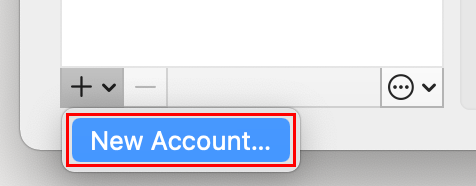
Step 2. Now, a screen will appear that will say that messages will be synced to Microsoft Cloud. Click Continue.

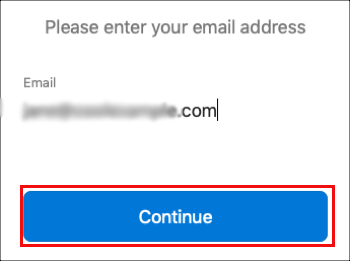
Step 3. Provide your email address and hit Continue. (In case Outlook Mac is unable to auto-discover your account then select IMAP/POP).
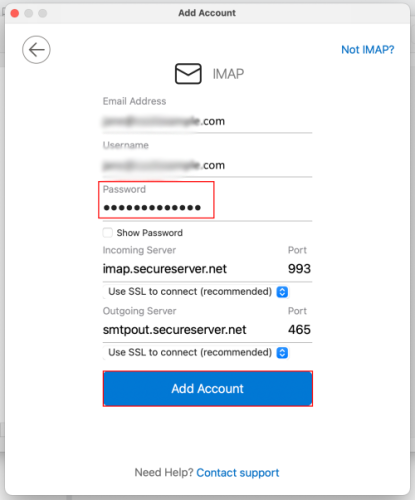
Step 4. Specify a professional email password and click on Add Account.
Step 5. Click Done. Outlook now verifies professional email account settings and accordingly load your inbox. If you have multiple email accounts, then you need to exit from your accounts to view your inbox.

Troubleshooting
Check that IMAP Server and Port Settings are properly mentioned and then go with Add Account button.
- IMAP incoming server: imap.secureserver.net
- SSL Port: 993
- SMTP Outgoing Server: smtpout. secureserver.net
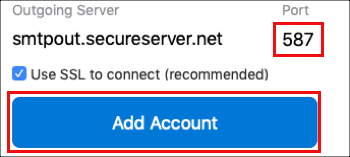
- SSL Port: 465(or 587)
Method 2. Directly Add GoDaddy Email to Outlook (Mac) without adding GoDaddy Webmail
With the help of MacMister GoDaddy Email Backup Software for Mac, you can directly add GoDaddy email to Outlook (Mac) supported file types i.e. OLM or PST. The software is simple, secure, and easy to use. Both professional and non-professional users can use the app independently and add GoDaddy email to Outlook for Mac with attachments. The steps are also minimum and will save the time of users who are having a large number of GoDaddy emails for migration.

The application has numerous features that is helpful in adding GoDaddy unlimited emails to Outlook Mac according to specific needs. You can take the help of a free demo and check the process of migration for free.
Working Steps to Add GoDaddy Email to Outlook (Mac)
Step 1. Download and open MacMister GoDaddy to OLM Converter for Mac on any macOS.
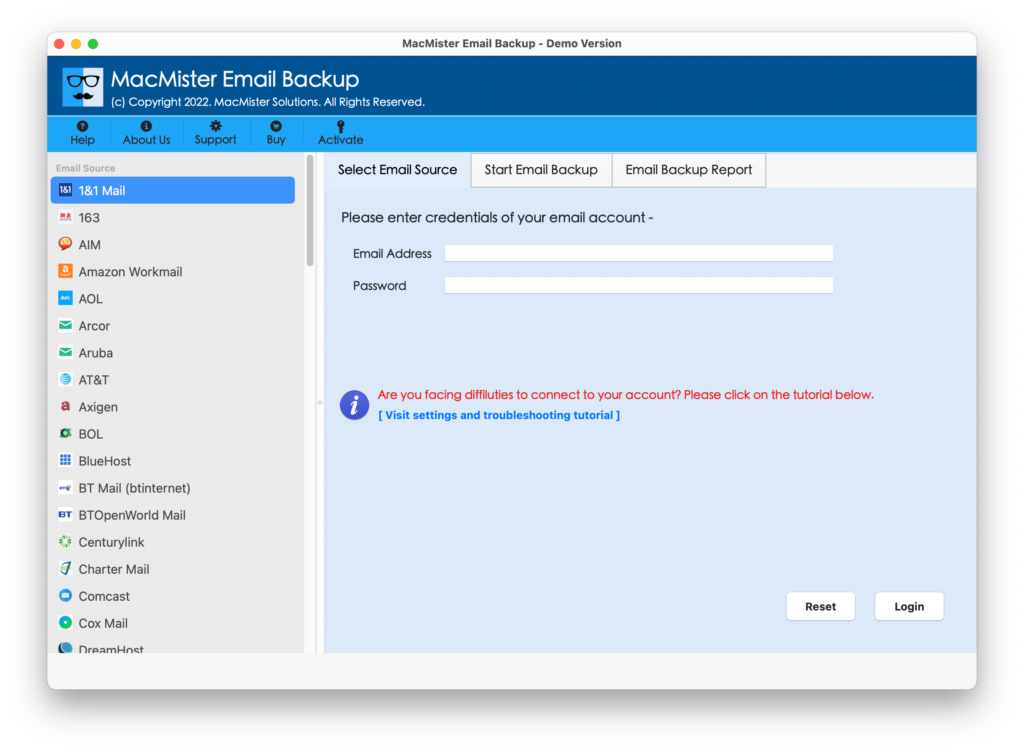
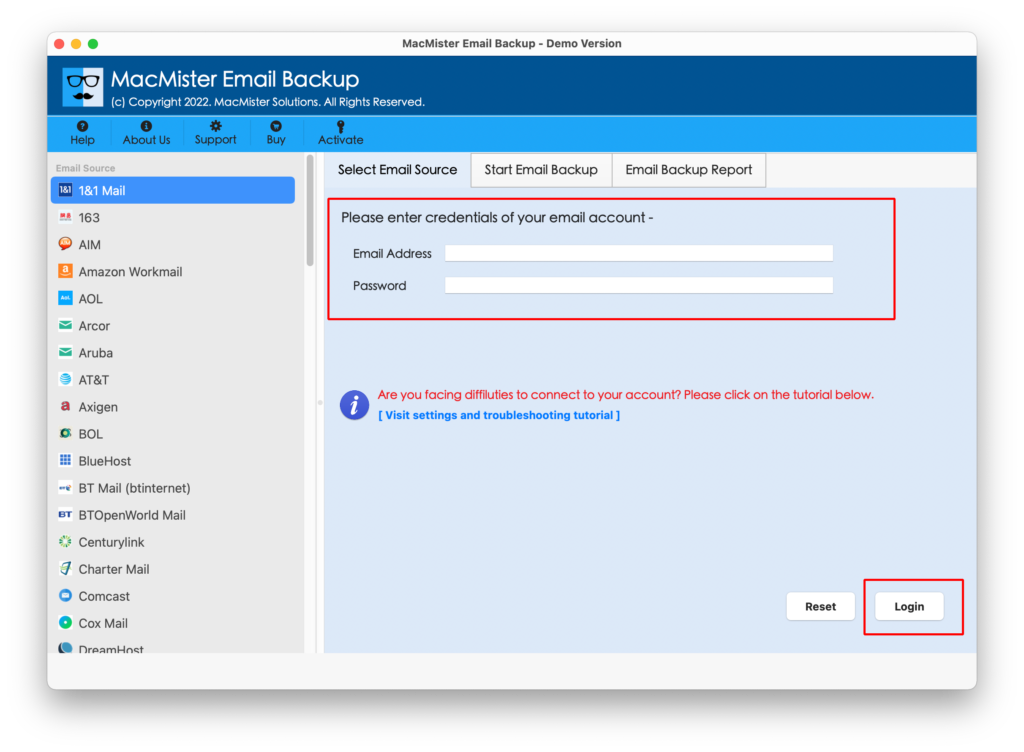
Step 2. Select the GoDaddy option from the left. Enter GoDaddy login details and press the Login button.
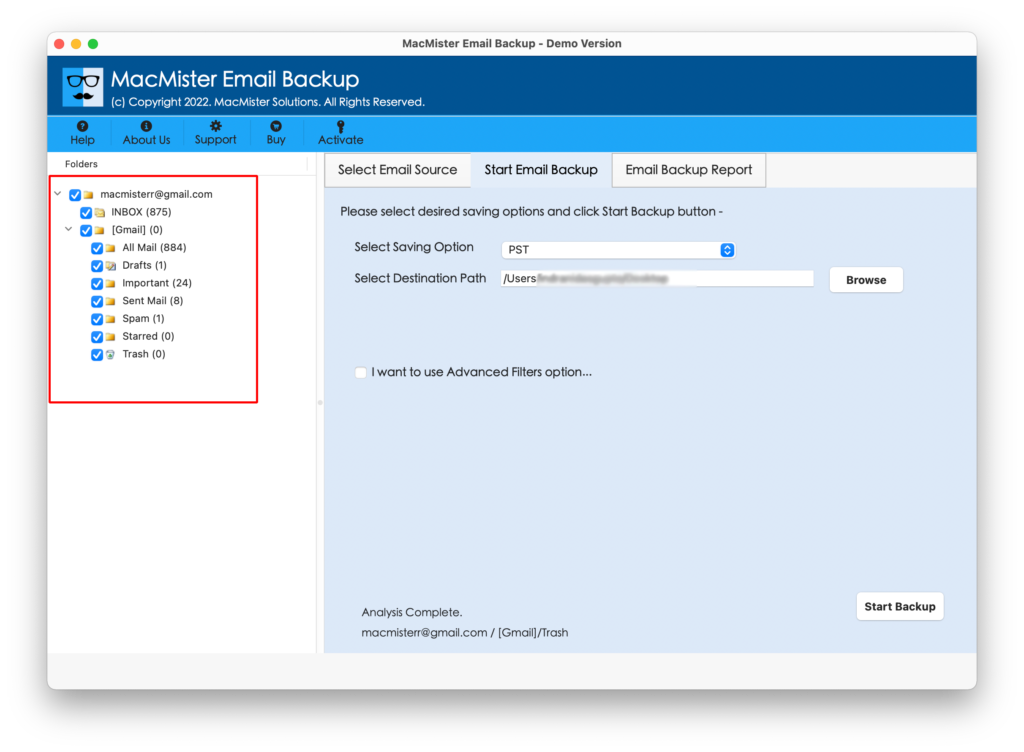
Step 3. GoDaddy webmail is connected to the app and its mailboxes start to appear on the screen.
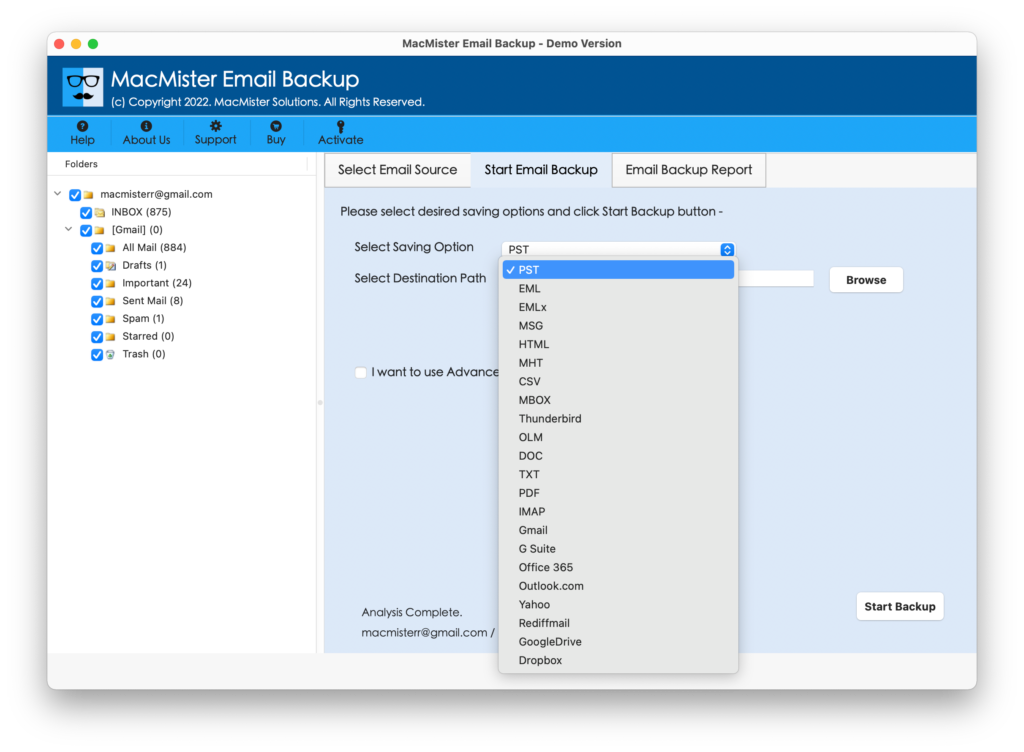
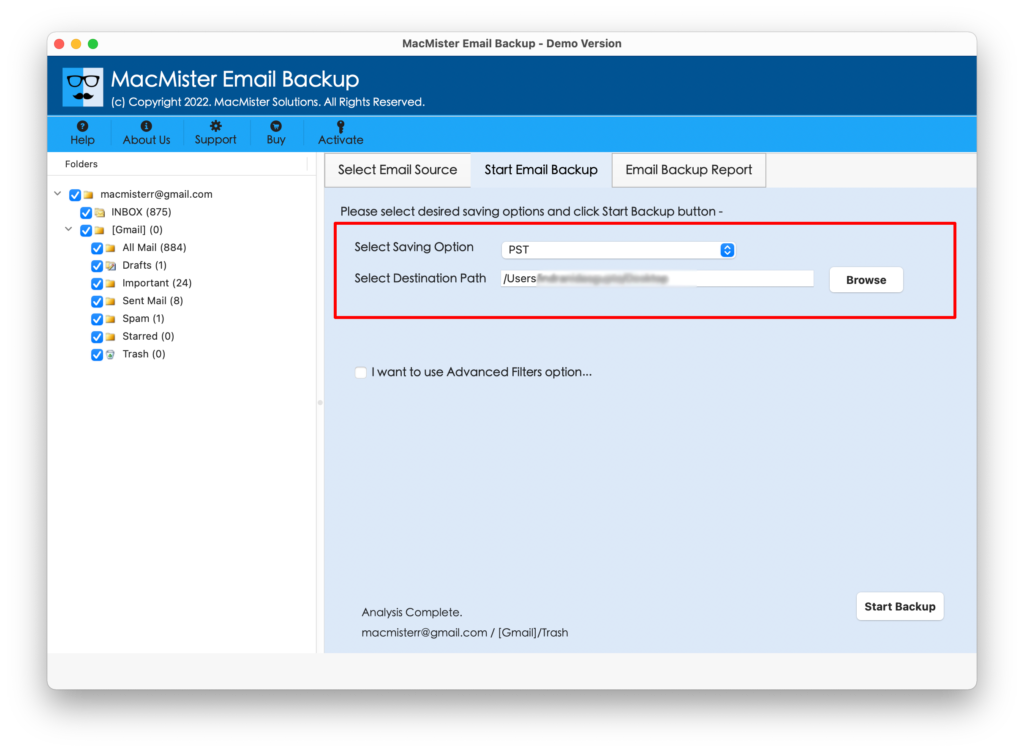
Step 4. Go to Select Saving Options and select OLM or PST from the drop-down menu.
Step 5. Set the sub-options of selected file formats as per your requirements and apply filters if you are looking to add selective GoDaddy emails to Outlook Mac. Last, click on Start Backup button.
Step 5. The migration is live and you can track the progress by taking the help of the Email Backup Report window appearing on the screen.
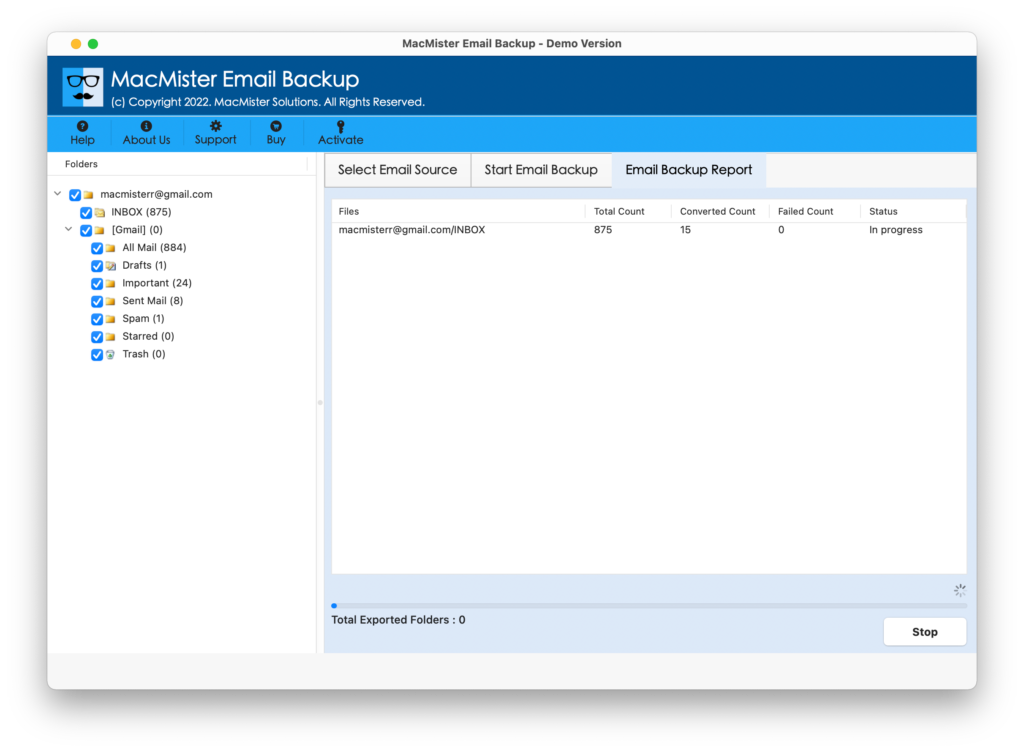
The process will finish in a few seconds and then the tool will show Process Completed message to users. Click on OK and go to location where the resultant files are saved. You can now import the same into Outlook for Mac email clients.
Note. Click on the link to know how to import OLM and PST files in Outlook for Mac email application.
Why Choosing Method 2 is Beneficial?
Method 2 is a certified solution and provides many benefits that help in adding GoDaddy email to Outlook (Mac) according to particular necessities. Some of them are:
- Directly add GoDaddy email to Outlook (Mac) with emails and attachments.
- Supports PST and OLM formats to add GoDaddy emails on macOS.
- Keeps the data of emails and attachments accurate as well as maintains their formatting properties during the process.
- Includes multiple filters such as date range, to, from, subject, and more to add selective GoDaddy email to Outlook for Mac.
- Offers a user-friendly interface that technical and novice users can operate effortlessly.
- It takes only three seconds to successfully transfer all GoDaddy emails into an Outlook Mac account.
- Displays Email Backup Report window that will show the details of the ongoing migration progress of GoDaddy emails.
- Capable to add GoDaddy email to Outlook (Mac) on macOS Ventura and all earlier macOS versions.
Note. Download the FREE DEMO to experience more software features and options.
Epilogue
The write-up has discussed multiple approaches to add GoDaddy email to Outlook (Mac). Method 1 allows you to implement the process manually but make sure that you are performing the steps under the expert’s guidance. The working steps of a manual procedure are technical and so it is necessary to have the technical knowledge to operate the manual process.
Method 2 is a direct solution i.e. GoDaddy Backup Tool. It helps to directly add GoDaddy emails to Outlook for Mac-supported file types such as OLM and PST. You can select the required saving option and perform the process accordingly.
The application has a free demo as well with the help of you can add 25 GoDaddy emails to Outlook Mac for free. Moreover, you can also check the process of GoDaddy to Google Workspace, Zoho Mail, Yahoo Mail, BlueHost, Mac Mail, Office 365, and more.