AT&T Email Not Syncing with Outlook? Here’s How to Fix It & Export AT&T Emails Safely
Many users connect their AT&T email accounts with Microsoft Outlook to manage emails more efficiently. Outlook provides offline access, better organization, faster search, and integration with calendars and contacts. However, users often experience synchronization issues where Outlook stops receiving new AT&T emails, repeatedly asks for passwords, or fails to connect to the mail server.
If you’re facing an AT&T Email Not Syncing with Outlook issue, don’t worry. In this guide, you will learn why the problem occurs, how to fix it manually, and the easiest way to export AT&T emails into Outlook without risking data loss.
Need a Faster and More Reliable Way to Save Your AT&T Emails?
If you are dealing with repeated sync failures, login issues, or simply want to protect your mailbox from unexpected data loss, using a professional Email Backup Tool for Mac is a smart choice. The software securely downloads your AT&T emails and saves them in multiple formats while preserving folder hierarchy, attachments, and email properties. It also lets you export your mailbox to Outlook-compatible PST files for easy access whenever you need them.
👉 Download the free demo today and experience a secure, hassle-free AT&T email backup on your Mac.
 |  |
Why Does AT&T Email Stop Syncing with Outlook?
Several reasons can interrupt the synchronization process between AT&T Mail and Outlook. Several factors can prevent AT&T Mail from syncing properly with Outlook, including the following –
- Incorrect IMAP or SMTP server settings
- Outdated Outlook application
- Weak or unstable internet connection
- Corrupted Outlook profile
- Two-factor authentication issues
- Incorrect email password
- Firewall or antivirus blocking Outlook
- Damaged Outlook data files
- Temporary server-side issues from AT&T
Understanding the exact cause helps you choose the right solution instead of trying random fixes.
Common Signs of the AT&T to Outlook Problem
You may notice one or more of the following symptoms –
- Outlook is not receiving new AT&T emails
- Sent emails remain stuck in the Outbox
- Password prompt appears repeatedly
- “Cannot connect to server” error
- Synchronization fails unexpectedly
- Outlook freezes during Send/Receive
- Missing folders after account setup
- Authentication errors while adding the account
If any of these situations sound familiar, follow the troubleshooting methods below.
Method 1: Check Your Internet Connection
Before changing Outlook settings, verify that your internet connection is stable. Try opening your AT&T mailbox in a web browser. If the webmail version works but Outlook doesn’t, the issue is likely with Outlook configuration rather than your email account. Restart your router if necessary and reconnect Outlook.
Method 2: Verify AT&T Outlook IMAP Settings
Incorrect server settings are among the biggest reasons Outlook fails to synchronize. Use the following configuration –
Incoming Mail Server (IMAP)
- Server: imap.mail.att.net
- Port: 993
- Encryption: SSL/TLS
Outgoing Mail Server (SMTP)
- Server: smtp.mail.att.net
- Port: 465 or 587
- Encryption: SSL/TLS
Also verify that your full AT&T email address and password are entered correctly.
Method 3: Generate a Secure Mail Key
When setting up your AT&T account in Outlook or any other desktop email client, it’s best to use a Secure Mail Key rather than your standard account password for authentication. If Outlook repeatedly asks for your password, create a Secure Mail Key from your AT&T account settings and replace your existing password inside Outlook. This resolves authentication issues for many users.
Method 4: Update Microsoft Outlook
Older Outlook versions may not fully support current authentication protocols.
- Install all available Office updates.
- An updated Outlook version often fixes:
- Login failures
- Sync errors
- Authentication bugs
- IMAP compatibility problems
Method 5: Repair Your Outlook Profile
Sometimes the Outlook profile itself becomes corrupted. To repair it –
- Close Outlook.
- Open Control Panel.
- Select Mail.
- Click Show Profiles.
- Create a new Outlook profile.
- Add your AT&T account again.
A fresh profile eliminates many synchronization issues.
Method 6: Disable Firewall Temporarily
Security software may block Outlook’s communication with the AT&T mail server. Temporarily disable your antivirus or firewall. If Outlook starts syncing normally afterward, add Outlook as an exception instead of leaving your security disabled.
Method 7: Repair Outlook Data File
Corrupted PST or OST files can interrupt synchronization. Microsoft provides the Inbox Repair Tool (SCANPST.EXE) to repair damaged Outlook files. After repairing the data file, restart Outlook and check whether synchronization resumes.
Method 8: Remove and Re-add Your AT&T Account
If none of the above solutions work –
- Remove your AT&T account from Outlook.
- Restart Outlook.
- Add the account again using correct IMAP settings.
- Many minor configuration issues disappear after re-adding the account.
Manual Limitations
Although manual methods may fix synchronization issues, they also have several drawbacks.
- Time-consuming process
- Technical knowledge required
- No email backup
- Risk of accidental data loss
- May not work for severely damaged accounts
- Multiple troubleshooting attempts required
- Attachments and folder hierarchy may not sync correctly
For users managing business or large mailboxes, relying solely on manual methods isn’t always the safest option.
Professional Solution to Export AT&T Emails to Outlook
If your goal is not only fixing synchronization issues but also safely transferring your AT&T mailbox into Outlook, using a professional migration solution is the easiest approach.
| |
CubexSoft Email Backup Tool for Mac allows users to download complete AT&T mailboxes and export them directly into Outlook-compatible PST files without altering the original mailbox.
The software supports secure IMAP login and preserves every email component throughout the migration.
Key Features
- Export AT&T emails to Outlook PST
- Backup complete mailbox locally
- Maintain folder hierarchy
- Preserve attachments and metadata
- Bulk email migration
- Selective folder export
- Date-filter migration
- Supports Windows versions
- No Outlook installation required during export
- Simple graphical interface
Steps to Export AT&T Emails to Outlook
Follow these simple steps –
Step 1 – Download and install AT&T to Outlook Tool and Launch the software.
Step 2 – Choose AT&T from the given webmail list.
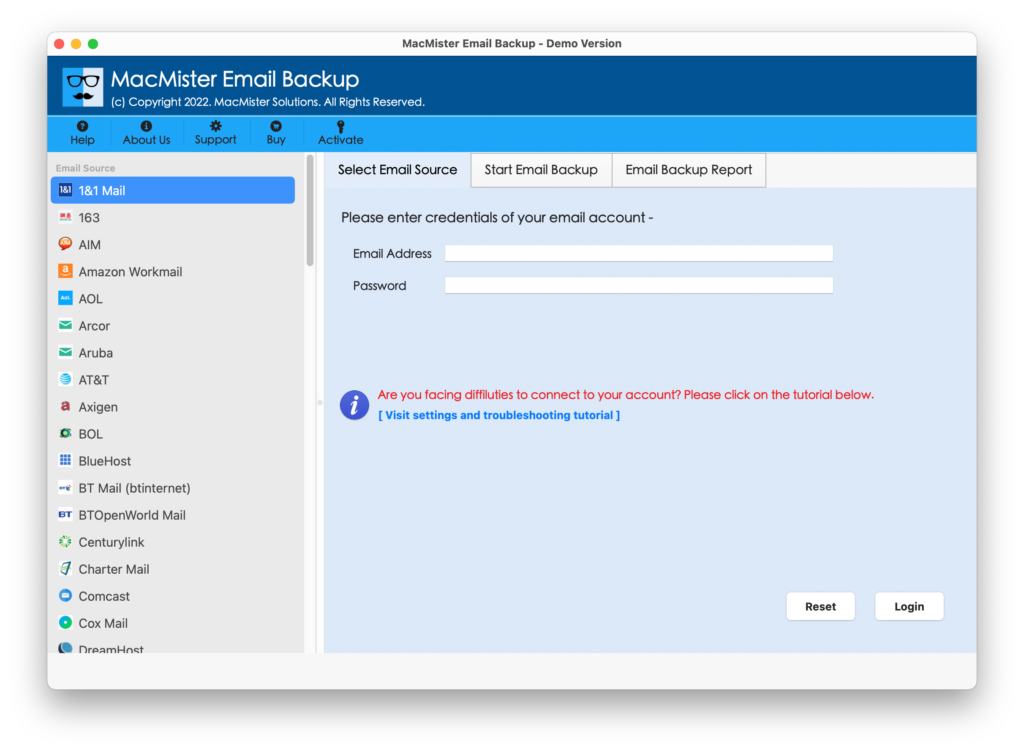
Step 3 – Enter your AT&T email credentials or Secure Mail Key.
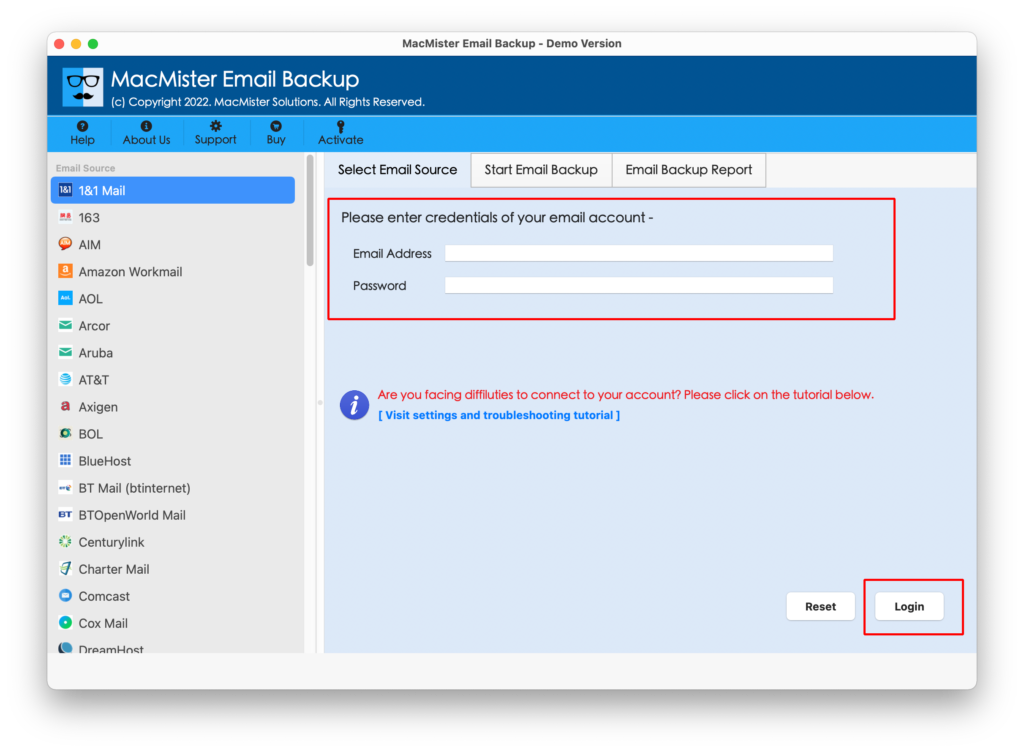
Step 4 – Preview all mailbox folders, select them for AT&T to Outlook migration.
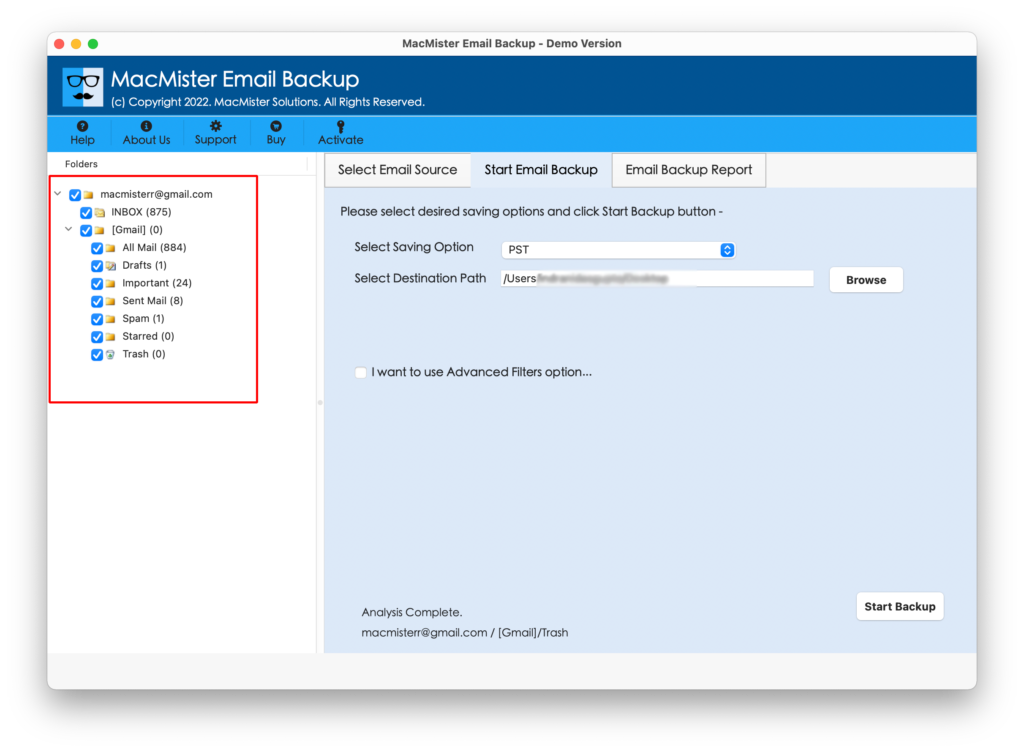
Step 5 – Select PST as the output format.
Step 6 – Click on Convert button and start the migration process.
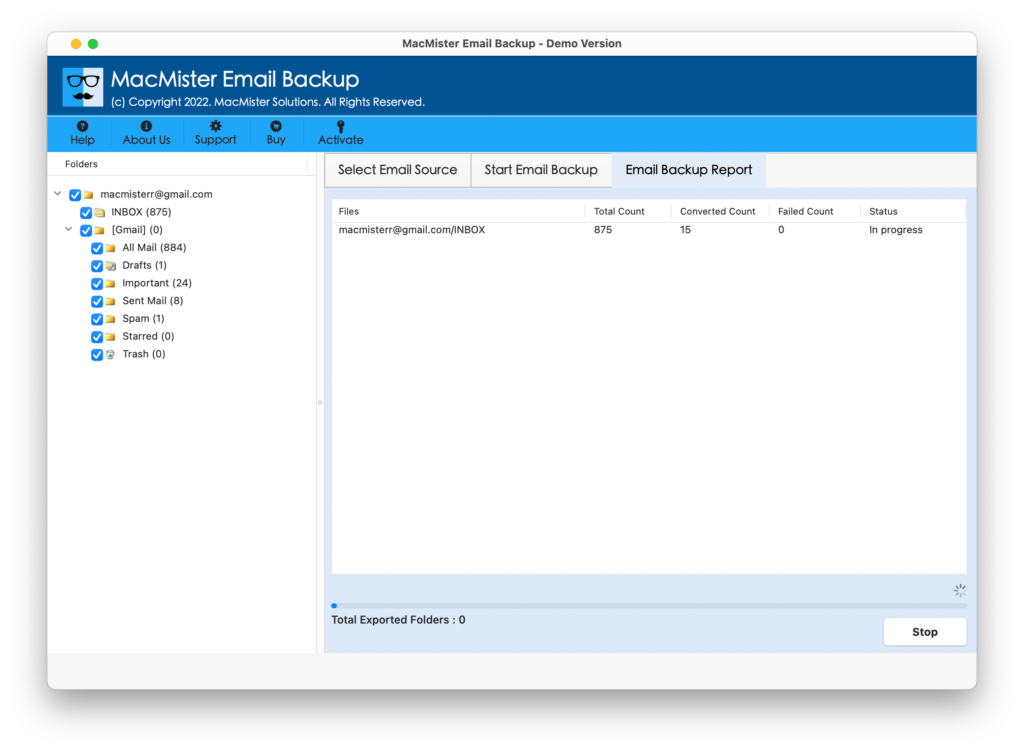
Within a few minutes, your entire AT&T mailbox is exported into Outlook PST format.
Benefits of Using the AT&T to Outlook Tool
Compared to manual configuration, the software offers significant advantages –
| Feature | Manual Method | CubexSoft Tool |
| Complete Backup | No | Yes |
| Export to PST | No | Yes |
| Bulk Migration | Limited | Yes |
| Folder Structure | Not Always | Preserved |
| Attachments | May Miss | Preserved |
| Date Filter | No | Yes |
| Easy to Use | Moderate | Very Easy |
| Data Integrity | Risky | 100% Maintained |
Who Should Use This Solution?
This solution is suitable for –
- Home users
- Business professionals
- IT administrators
- Small businesses
- Legal firms
- Educational institutions
- Organizations migrating to Outlook
- Users creating email archives
Tips to Prevent Future Sync Issues
To maintain a stable and uninterrupted connection between your AT&T account and Outlook, consider following these maintenance tips –
- Keep Outlook updated.
- Use a Secure Mail Key.
- Avoid unstable internet connections.
- Regularly backup your mailbox.
- Keep PST files healthy.
- Don’t force-close Outlook during synchronization.
- Monitor mailbox storage limits.
- Update Windows regularly.
Frequently Asked Questions
Q. Can I add AT&T email to Outlook?
Ans. Yes. Outlook supports IMAP configuration for AT&T email accounts.
Q. What causes Outlook to repeatedly request my AT&T email login credentials?
Ans. Usually because of authentication issues, incorrect credentials, or the need for a Secure Mail Key.
Q. Can I export AT&T emails into PST?
Ans. Yes. A professional email backup solution can export your mailbox directly into Outlook PST format.
Q. Will attachments remain intact?
Ans. Yes. The professional tool preserves attachments, metadata, formatting, and folder hierarchy.
Q. Is Outlook required during export?
Ans. No. The export process can create PST files without requiring Outlook installation.
Final Words
Issues with syncing AT&T Mail in Outlook are often linked to server configuration errors, login authentication problems, corrupted Outlook profiles, or an outdated email application. While manual troubleshooting may resolve basic issues, it doesn’t provide a secure backup or guarantee successful migration.
If you want a reliable way to export AT&T emails to Outlook, preserve every email, and avoid future synchronization problems, a professional AT&T IMAP Backup Tool for Mac solution offers a faster and more dependable approach. It ensures complete mailbox transfer, maintains data integrity, and saves valuable time, making it an ideal choice for both individual users and business environments.
| |