How to Migrate Rogers Email to Office 365 on Mac Without Losing Data
Switching from a Rogers email account to Microsoft Office 365 is becoming increasingly common among professionals, businesses, and home users. Office 365 offers a reliable cloud-based email platform with advanced security, larger mailbox storage, seamless Outlook integration, and access to productivity apps like Teams, OneDrive, Word, and Excel.
However, migrating emails from Rogers to Office 365 isn’t always as simple as it sounds. Many users experience issues such as incomplete mailbox transfers, missing attachments, folder hierarchy changes, authentication failures, or slow synchronization. These problems become even more frustrating when important business emails are involved.
If you are looking for a secure and hassle-free way to perform Rogers to Office 365 migration on Mac, this guide will walk you through the available methods, explain their limitations, and introduce a professional solution that simplifies the entire process while preserving your email data.
Move Rogers Emails to Office 365 Without Data Loss
MacMister Email Backup tool for Mac allows you to migrate Rogers emails directly to Microsoft 365 while maintaining folder hierarchy, email formatting, attachments, and metadata. The software is designed specifically for macOS users and supports direct cloud migration without requiring technical expertise.
 |  |
Why Are Users Migrating from Rogers Email to Office 365?
There are several reasons why users prefer Microsoft 365 over ISP-based email services like Rogers.
- Better Productivity – Office 365 combines email with powerful Microsoft applications, allowing users to manage communication and documents from one platform.
- Larger Mailbox Storage – Office 365 plans provide significantly more storage than most ISP email accounts, making it easier to manage growing email archives.
- Business Collaboration – With Microsoft 365, users also gain access to – Microsoft Teams, OneDrive, SharePoint, Outlook Calendar, Microsoft Office Apps. This makes Office 365 a preferred choice for both individuals and organizations.
- Secure Cloud Infrastructure – Microsoft provides enterprise-grade security features including –
Multi-Factor Authentication (MFA)
Anti-spam and anti-phishing protection
Email encryption
Data loss prevention
Compliance management
- Access from Anywhere – Users can access their mailbox using –
Outlook Desktop
Outlook Web
Mobile devices
Mac Mail (if configured)
Any modern web browser
Common Challenges During Rogers to Office 365 Migration
Although the Rogers to Office 365 backup for Mac process appears straightforward, users often encounter several technical issues –
- IMAP Authentication Errors – Incorrect server settings, outdated passwords, or account authentication issues may prevent Rogers email from connecting successfully.
- Folder Structure Changes – Some migration methods fail to preserve custom folders, causing emails to appear in incorrect locations after migration.
- Missing Email Attachments – Large attachments may not transfer correctly if synchronization is interrupted or mailbox limits are exceeded.
- Duplicate Emails – Repeated synchronization attempts can create duplicate messages inside Office 365.
- Slow Migration Speed – Large mailboxes containing years of emails often require several hours or even days to complete manually.
- Incomplete Mailbox Transfer – Sometimes only Inbox emails are migrated while Sent Items, Drafts, Archive folders, or custom folders remain behind.
- Metadata Loss – Improper migration methods may alter important email properties such as –
Sender details, Recipient information, Subject lines, Time stamps, Read/Unread status, Internet headers
Maintaining these properties is essential for business communication and future email searches.
Manual Method to Transfer Rogers Email to Office 365
One commonly used method involves Microsoft Outlook acting as a bridge between Rogers IMAP and Microsoft 365.
Step 1 – Configure your Rogers email account in Microsoft Outlook using IMAP settings.
Step 2 – Add your Microsoft 365 account to the same Outlook profile.
Step 3 – Allow Outlook to synchronize both mailboxes completely.
Step 4 – Select the desired folders from your Rogers account.
Step 5 – Drag and drop the folders into your Office 365 mailbox.
Step 6 – Wait for Outlook to finish uploading all emails to Microsoft 365.
Although this approach is free, it becomes increasingly unreliable for larger mailboxes and business users.
Limitations of the Manual Method
Before choosing the manual approach, it’s important to understand its drawbacks –
- Requires Microsoft Outlook installation and configuration.
- Migration speed depends heavily on internet connectivity.
- Large mailboxes take considerable time to synchronize.
- Risk of duplicate emails during repeated attempts.
- Folder hierarchy may not remain intact.
- Attachments can fail to upload properly.
- No advanced filtering options.
- No migration report or progress log.
- Interruptions may require restarting the process.
- Not suitable for bulk or business migrations.
For users handling years of important email data, these limitations can lead to unnecessary delays and data inconsistencies.
Advanced Rogers to Office 365 Solution –for Mac
To simplify the migration process, MacMister Email Backup for Mac offers a direct and secure way to migrate Rogers emails to Microsoft 365 without depending on Outlook or complicated manual procedures.
| |
The software connects to your Rogers mailbox using IMAP authentication and transfers your emails directly into your Microsoft 365 account while preserving the original mailbox structure.
Its intuitive interface makes it suitable for both technical and non-technical users, ensuring a smooth migration experience on macOS.
Why Choose Rogers Backup for Mac?
Unlike traditional migration methods, the Rogers to Office 365 for Mac Tool is designed specifically for Mac users who want a faster, more reliable, and more secure email migration experience. Key advantages include –
- Direct Rogers to Office 365 migration
- Supports all modern macOS versions
- Preserves folder hierarchy
- Maintains email formatting and metadata
- Migrates attachments without corruption
- Simple and user-friendly interface
- No Outlook dependency
- Secure IMAP authentication
- Suitable for personal and business email migration
Step-by-Step Guide to Migrate Rogers Email to Office 365 Using MacMister
If you want a faster and more reliable migration process, follow these simple steps using Rogers to Office 365 Migration Tool for Mac.
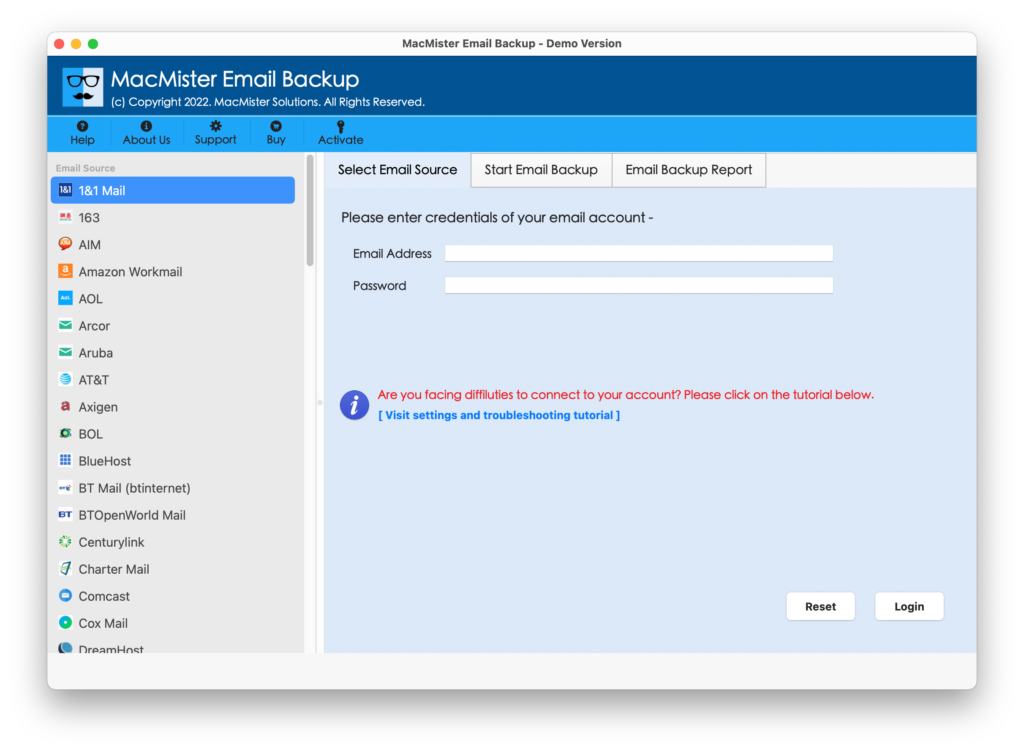
Step 1: Download and Launch the Software
Download MacMister Email Backup for Mac on your Mac and install it. Open the application to begin the migration process.
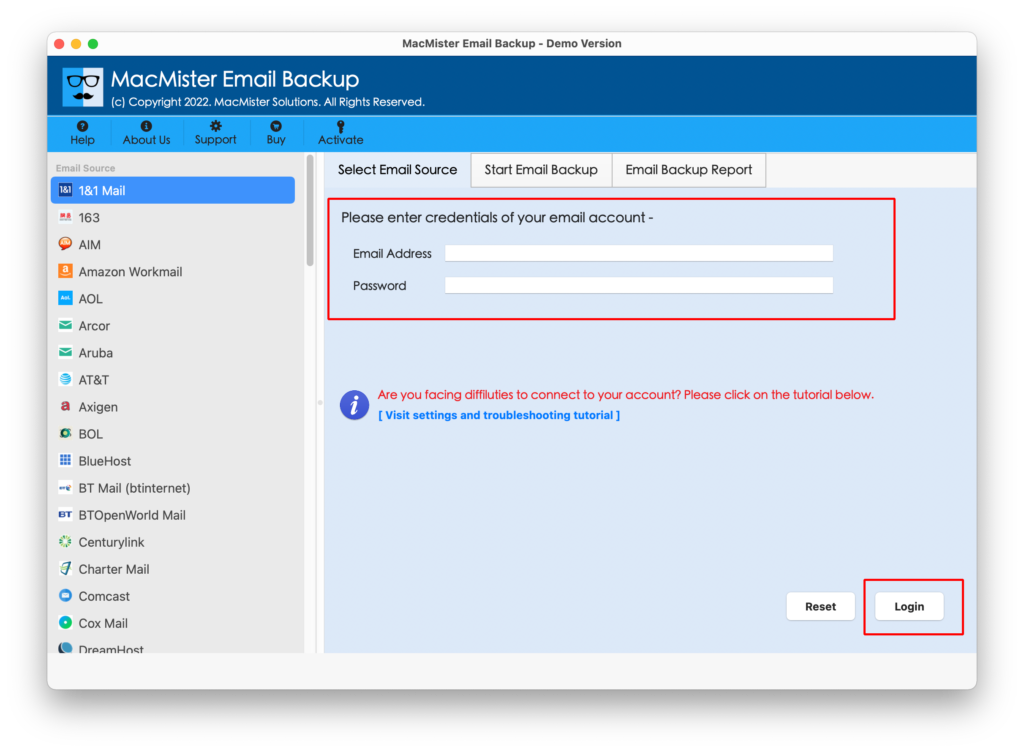
Step 2: Sign in to Your Rogers Email Account
Enter your Rogers email address and password. The software securely connects to your mailbox using IMAP authentication.
Step 3: Preview Your Mailbox
After login, the software scans your mailbox and displays all available folders, including –
Inbox, Sent Items, Drafts, Trash, Archive, Custom folders
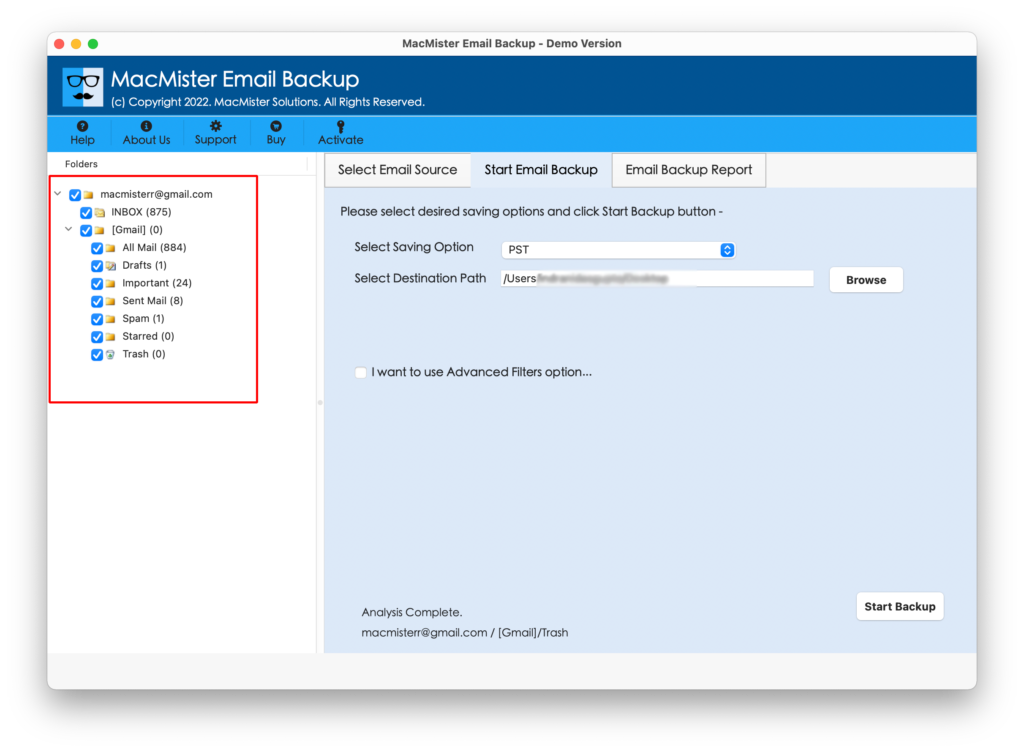
Previewing helps ensure that all important emails are available before migration.
Step 4: Select Office 365 as the Destination
From the list of export options, choose Office 365.
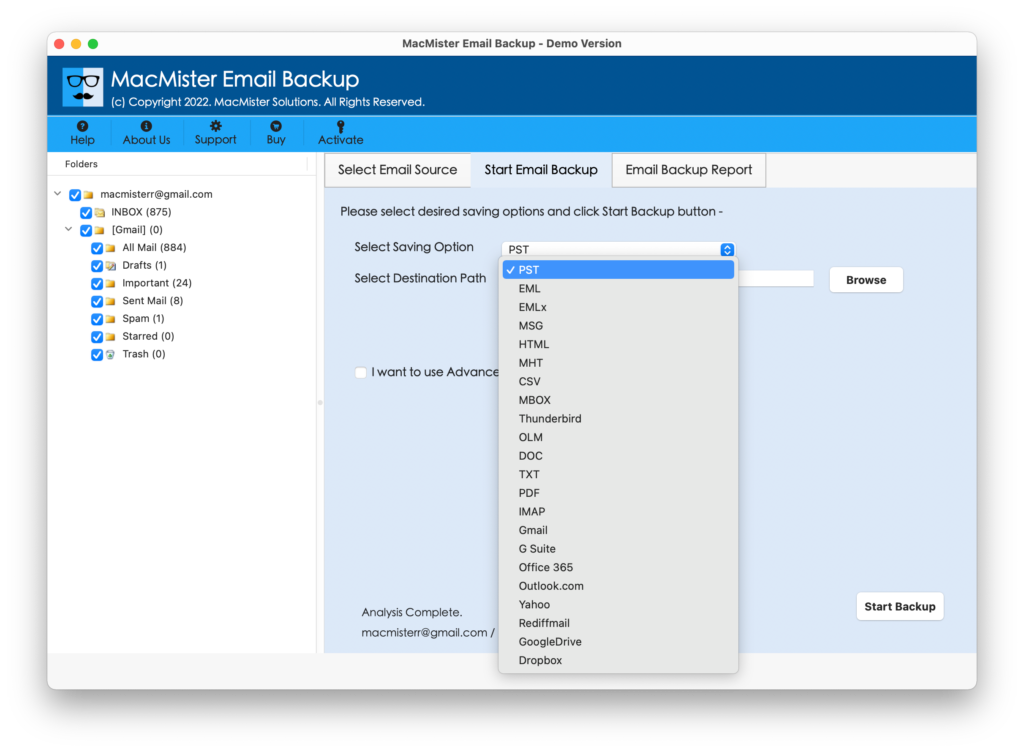
Step 5: Enter Microsoft 365 Credentials
Provide your Microsoft 365 account details and authorize the connection.

Step 7: Start the Migration
Click the Backup button to begin transferring emails from Rogers to Office 365.
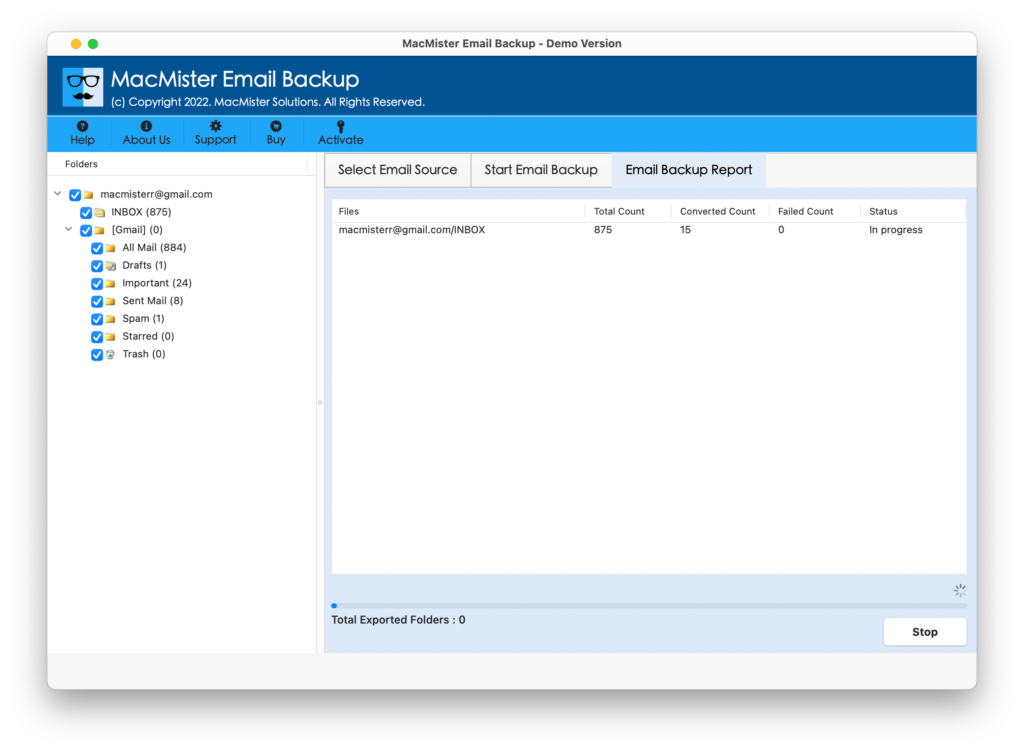
The software migrates your mailbox while maintaining its original structure and preserving all important email properties.
Powerful Features of MacMister Email Backup for Mac
It is much more than a simple email migration utility. It offers advanced features that make Rogers to Office 365 migration secure, accurate, and efficient.
- Direct Office 365 Migration – Transfer emails directly into your Microsoft 365 mailbox without using Outlook or any third-party email client.
- Preserve Folder Hierarchy – The software keeps your mailbox organized by maintaining the same folder structure after migration.
- Maintain Email Metadata – Every migrated email retains its original information, including –
Recipient, Sender, Subject, Date and Time, Read/Unread Status, CC and BCC, Internet Headers
- Preserve Email Formatting – HTML emails are transferred without changing –
Fonts, Colors, Images, Hyperlinks, Signatures
- Migrate Attachments Securely – All attachments—including PDFs, Word documents, Excel files, images, and ZIP archives—are migrated along with their respective emails.
- Selective Email Migration – Need only recent emails? Use advanced filters to migrate only the data you require.
- Bulk Mailbox Processing – Ideal for IT administrators and organizations managing multiple Rogers email accounts.
- Safe and Read-Only Migration – The software never modifies or deletes data from the original Rogers mailbox during the migration process.
- Compatible with Latest macOS Versions – The application works smoothly on modern macOS versions, ensuring consistent performance and reliability.
Manual Method vs. MacMister Email Backup for Mac
| Feature | Manual Method | MacMister |
| Direct Rogers to Office 365 Migration | ❌ | ✅ |
| macOS Friendly | Limited | ✅ |
| Outlook Required | ✅ | ❌ |
| Preserves Folder Structure | Limited | ✅ |
| Maintains Email Metadata | ❌ | ✅ |
| Supports Large Mailboxes | ❌ | ✅ |
| Attachment Integrity | Limited | ✅ |
| Selective Migration | ❌ | ✅ |
| Bulk Migration | ❌ | ✅ |
| Easy for Beginners | ❌ | ✅ |
The comparison clearly shows why dedicated migration software offers a more dependable experience than manual techniques.
Tips Before Migrating Rogers Email to Office 365
Following a few best practices can help ensure a successful migration.
- Verify your Rogers email credentials before starting.
- Confirm that IMAP is enabled for your Rogers account.
- Ensure your Microsoft 365 mailbox has enough available storage.
- Use a stable internet connection throughout the migration.
- Close unnecessary applications to improve system performance.
- If migrating a large mailbox, allow sufficient time for completion.
Review the migrated mailbox after completion to verify that all folders and emails have been transferred successfully.
Frequently Asked Questions
Q. Can I migrate Rogers email directly to Microsoft 365 on Mac?
Ans. Yes. MacMister Email Backup for Mac allows you to migrate Rogers emails directly to Microsoft 365 without configuring Outlook.
Q. Will my email attachments be migrated?
Ans. Yes. The software transfers emails along with all associated attachments while maintaining their original format.
Q. Does the software preserve folder hierarchy?
Ans. Absolutely. Your mailbox folders remain organized exactly as they appear in the Rogers account.
Q. Can I migrate only selected folders?
Ans. Yes. You can choose specific folders or use filters to migrate only the required emails.’
Q. Is the original Rogers mailbox affected?
Ans. No. The software performs a read-only migration, ensuring that your original mailbox remains unchanged.
Q. Can I migrate large Rogers mailboxes?
Ans. Yes. MacMister is designed to handle both small and large mailboxes efficiently without compromising data integrity.
Final Thoughts
Migrating from Rogers Email to Office 365 can significantly improve your email experience by providing better security, larger mailbox storage, and seamless integration with Microsoft’s productivity suite. While manual methods may seem convenient, they often become unreliable when dealing with large mailboxes, complex folder structures, or important business communications.
MacMister Rogers Backup for Mac offers a simple, secure, and efficient solution for Mac users who want to migrate Rogers emails to Microsoft 365 without the risk of data loss. With support for direct Office 365 migration, preserved folder hierarchy, email metadata, attachments, and selective migration options, it eliminates the common challenges associated with manual methods.
Whether you are an individual user upgrading your email platform or a business planning a complete mailbox migration, MacMister helps you complete the process with confidence and accuracy.
Ready to move your Rogers mailbox to Microsoft 365? Download the free trial of MacMister Email Backup for Mac and experience a secure, hassle-free migration on your Mac.
Looking for a different migration destination? You can also migrate your Rogers mailbox to other popular email platforms. Follow our step-by-step guides to migrate Rogers email to Gmail or transfer Rogers email to Yahoo Mail securely while preserving your emails, attachments, and folder hierarchy.