How to Import or Transfer Axigen Email to Gmail on Mac & Windows?
Continuously having a thought about moving to Google Mail from Axigen due to official requirements but the emails stored in Axigen email account are holding you back? Wondering how to directly transfer Axigen email to Gmail with ease? Looking for a cost-effective and secure solution for the same? If yes, then follow the segment in which you will find a method that will directly import Axigen email to Google Mail on Mac & Windows. But first, let’s discuss about Axigen email service and the reasons behind transferring Axigen emails to Gmail environment.
Overview
Axigen Webmail is an online email service that creates a connection with a mail server through web-browsers. It helps in sending/receiving email messages to and from storage unit. Moreover, most of the popular web-browsers are compatible with Axigen email server such as Chrome, Safari, Edge, and Firefox. However, users can easily access emails from Axigen email account anywhere anytime on any device as it only requires good internet connectivity while keeping the control over the content and functionality of the application.
Gmail is also a web-based email server but is more advanced and secure than Axigen email. It is launched by Google itself which makes it a reliable platform for many professionals. Besides, the email server includes many applications that ease the work for businesses, allowing them to manage large amount of data online. Also, its security measures will safeguard users account from malevolent attacks.
Why to Import Axigen Email to Gmail?
Gmail is free to use yet strong and powerful. It has many beneficial features, some of them are mentioned below –
- Capable to provide 15 GB of storage space for free.
- Offers advanced Search bar help users finding the required email message from list of emails.
- Includes applications such as Docs, Slides, Sheets, etc. for online data management.
- Google Meet and Google Chat help users connecting with family, friends, and team members staying in different parts of the world.
- Spam Filtering will automatically redirect spammed emails to junk folder.
- Different themes are available that helps in transforming the user-interface of Gmail account impressive.
How to Import or Transfer Axigen Email to Gmail on Mac & Windows?
The direct procedure to import Axigen email to Gmail on Mac is MacMister Email Backup Software Mac & Windows. The software has 30+ webmail sources and Axigen is one of them. Users can select it directly, add Axigen email account details, choose Gmail from Select Saving Options, and perform the process by tapping Start Backup button. It contains a user-friendly interface which is easily manageable by all professional and novice users. Even, the three-step procedure will save the users lot of time and efforts.
Moreover, the software contains many features with the help of users can transfer emails from Axigen to Gmail as per their requirements. However, a free demo version is available with the help of users can experience the working steps of the application for free.
Working Steps to Transfer Axigen Email to Gmail on Mac
Step 1. Download and run MacMister Axigen to Gmail Backup Tool for Mac on Mac OS.
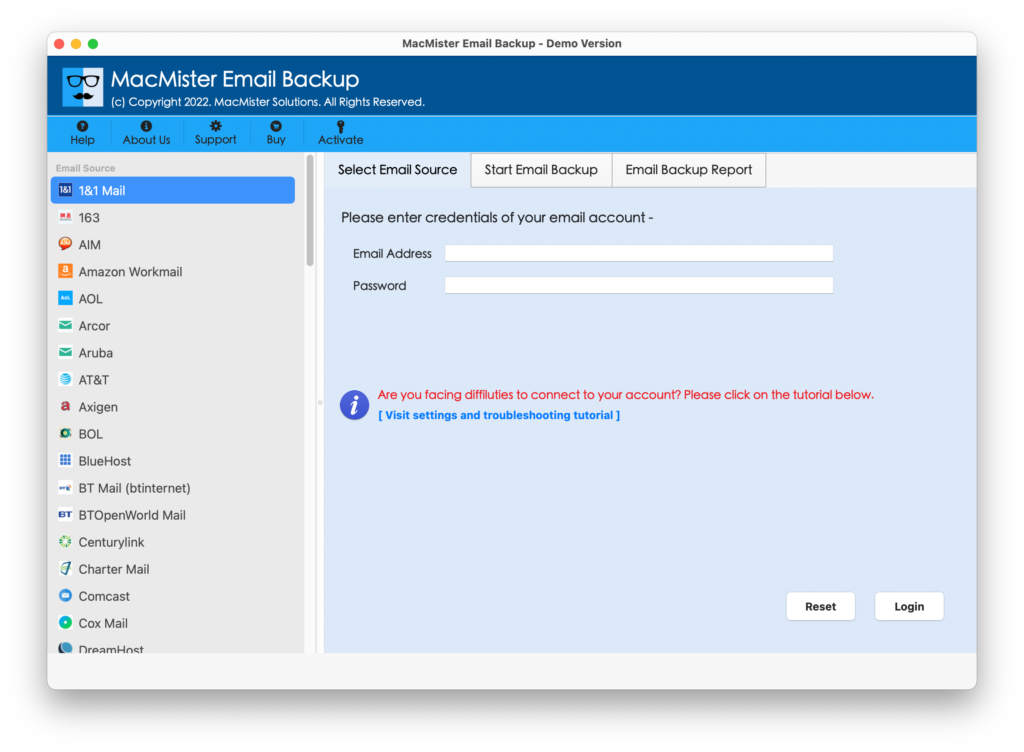
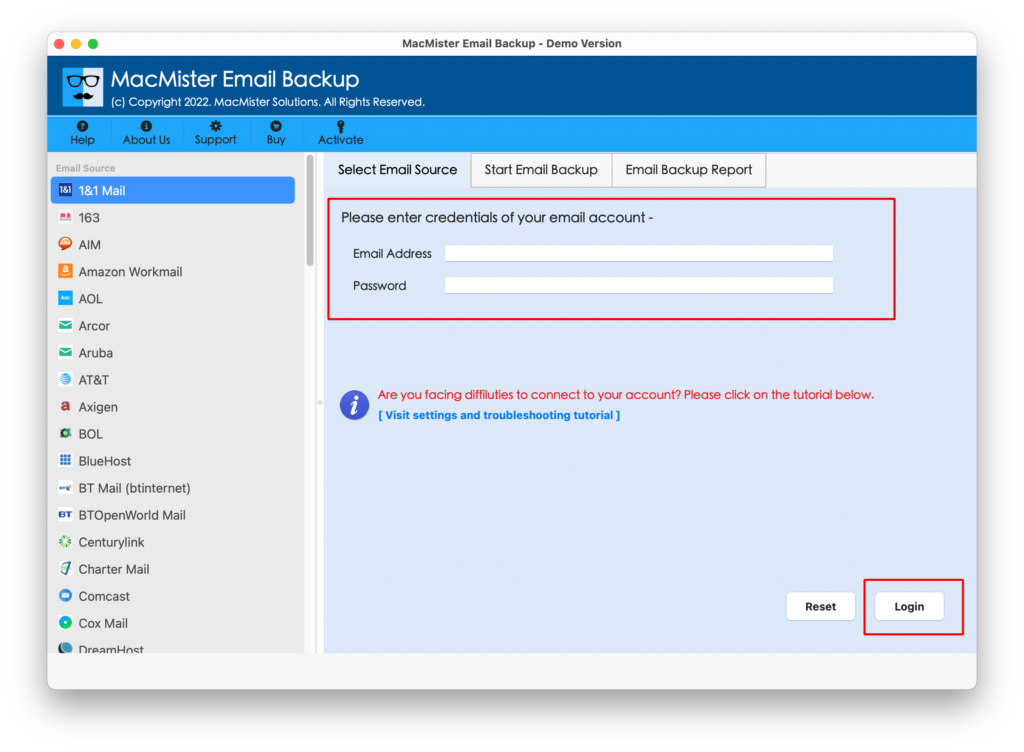
Step 2. Select Axigen option from the left. Add Axigen login details. Click Login button.
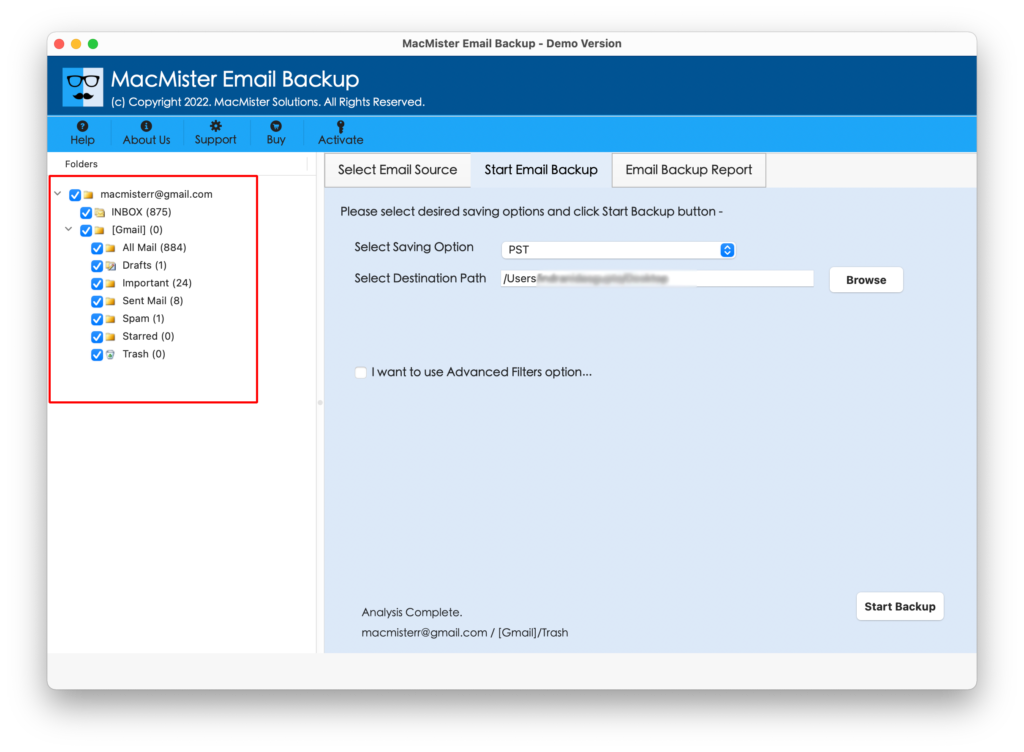
Step 3. The tool will connect with specified Axigen email account and show the list of mailboxes on the left pane.
Step 4. On the right, click Select Saving Options, and choose Gmail from the drop-down list.
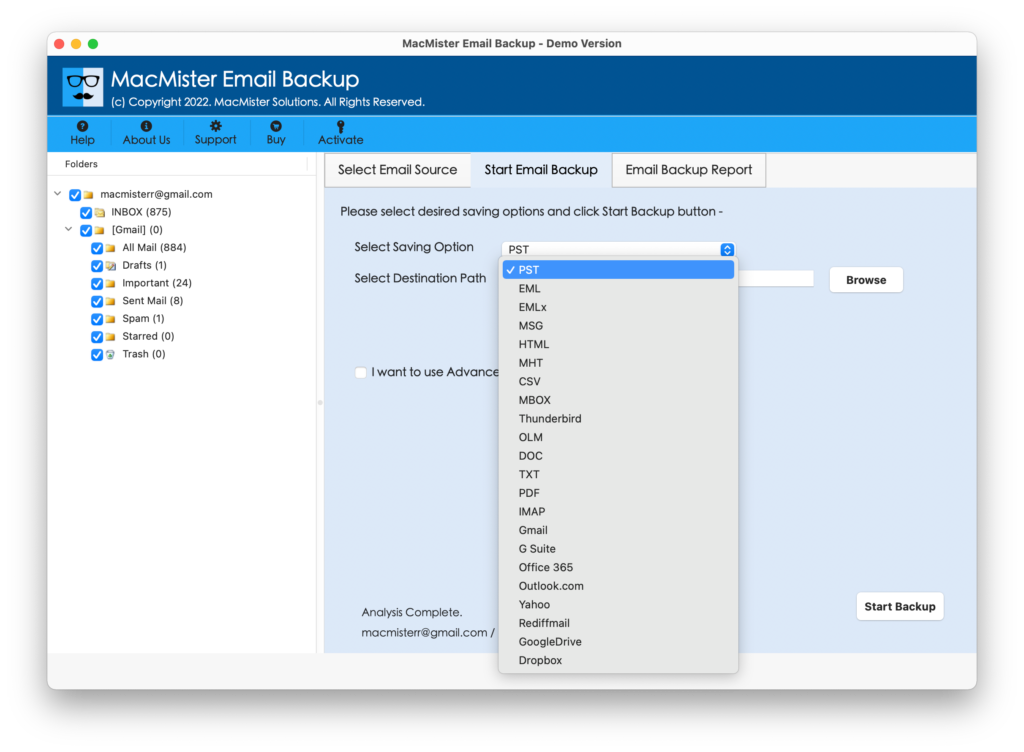
Step 5. Add Gmail email address and app password and click Start Backup button.
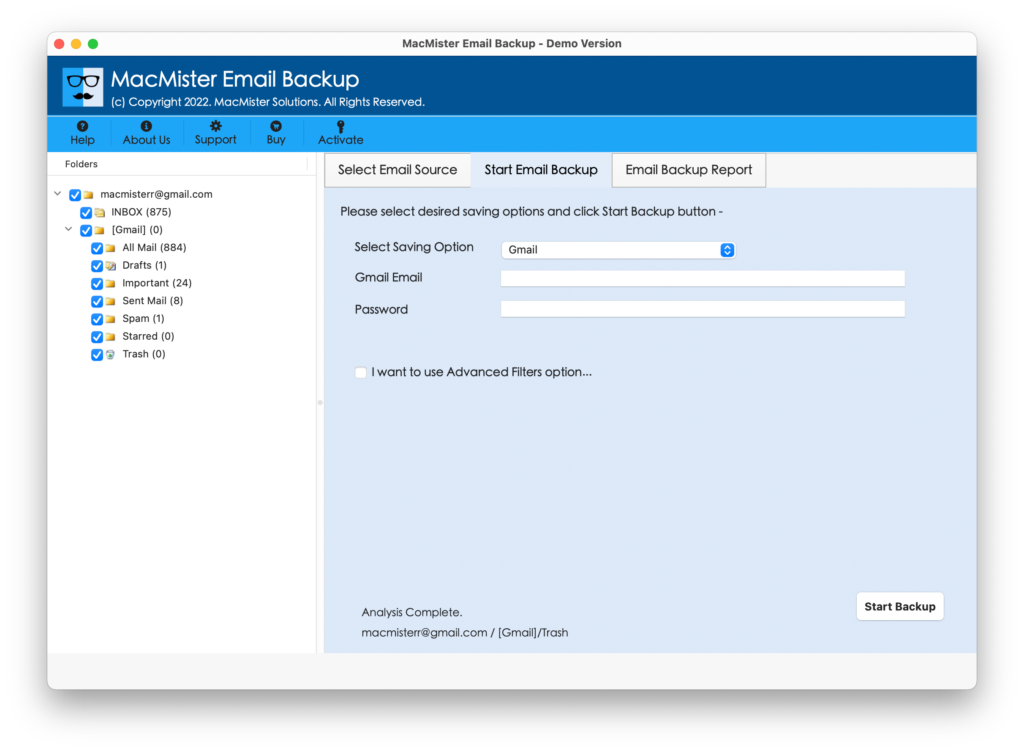
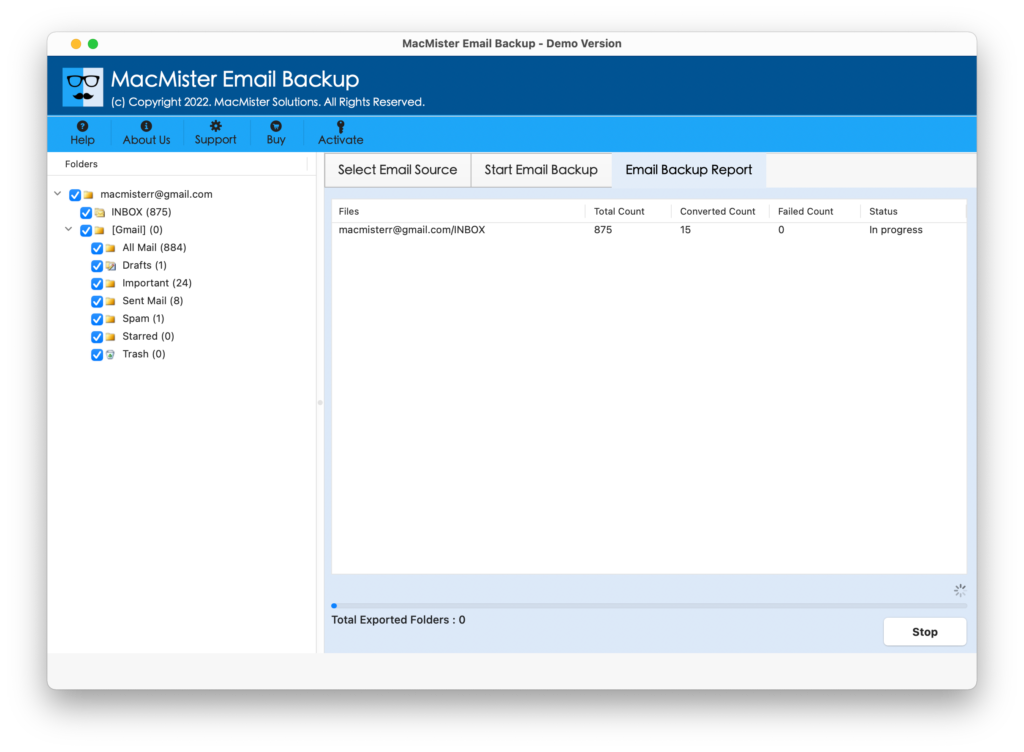
Step 6. The Email Backup Report window will appear which displays the ongoing migration progress of Axigen emails.
In few seconds, the process will finish with a notification showing “Process Completed” message on the screen. Click on the OK button and login to specified Google Mail account to cross-check the results. However, all the emails will appear accurate after migration. Moreover, the metadata properties and email layout will remain preserved throughout process.
Why users prefer MacMister Axigen to Gmail Tool?
MacMister Axigen to Gmail is a wonderful solution for transferring Axigen emails to Gmail with attachments. The application possesses many features with the help of users may obtain desired results. Some of them are –
- Directly import Axigen email to Gmail on Mac with attachments without data loss.
- Provide Filter options such as date range, subject, to, from, etc. to transfer specific emails from Axigen to Gmail account.
- Able to protect the login details of Axigen and Gmail account during migration.
- Offers user-friendly interface for easy and effective execution of the process.
- Displays email backup report which shows the live migration progress of Axigen emails.
- Capable to import the entire inbox folder of Axigen to Gmail at once.
- Preserves the folder structure of Axigen email account when importing the emails to Google Mail account.
- The email content, metadata properties, and layout remain intact throughout process.
- Supports 15+ commonly used saving options other than Gmail such as PST, PDF, EML, EMLx, MBOX, OLM, MSG, CSV, DOC, IMAP, Yahoo, Office 365, and more.
- Contains software versions for Mac & Windows OS.
Epilogue
In the write-up, we have managed to provide an exceptional method to resolve “how to transfer Axigen email to Gmail” on Mac & Windows. The solution is user-friendly, reliable, and secure. Any professional and novice user can operate it freely and perform the migration without needing support from experts. Its features are also incredible that users may apply to import emails from Axigen to Gmail as per specific requirements. Moreover, besides Gmail, the tool has 15+ other saving options as well that users may choose to transfer Axigen emails. And to experience the same, download its free demo version that allows users to import first 25 Axigen emails to Gmail with attachments free of cost.