How to Transfer Comcast Emails to Office 365 on Mac? Complete Guide
Comcast email users may eventually need to move their mailbox data to Microsoft 365 for easier access, centralized email management, and compatibility with modern workplace applications. Office 365, now commonly referred to as Microsoft 365, provides cloud-based email through Exchange Online along with applications and services used for communication and collaboration.
Moving Comcast emails to Office 365 on Mac can become challenging when the mailbox contains a large number of messages, attachments, and multiple folders. While a manual approach may work for a limited number of emails, transferring an entire mailbox requires careful handling to avoid missing or duplicated data.
This guide explains the Comcast to Office 365 migration process on Mac, including the manual approach, its limitations, and an alternative method using the Comcast to Office 365 Tool.
Comcast emails can contain important business and personal correspondence, attachments, contacts, and other mailbox information. When moving this data to Office 365, the objective is to transfer the required emails into the appropriate Microsoft 365 mailbox while maintaining the existing folder organization as much as possible.
The migration process generally involves connecting to the Comcast mailbox, accessing the required email data, and transferring it to the destination Office 365 account. The complexity depends on factors such as mailbox size, internet connectivity, folder structure, and the number of messages being transferred.
For a small mailbox, manual transfer may be sufficient. However, larger mailboxes can require a more structured migration approach.
Why Move Comcast Emails to Office 365?
There are several reasons users may choose to move Comcast email data to Office 365 –
- Cloud-based access – Office 365 allows users to access their mailbox from supported devices and locations.
- Centralized email management – Organizations can manage email accounts through a single Microsoft 365 environment.
- Microsoft ecosystem integration – Office 365 works with Outlook and other Microsoft applications.
- Scalability – Microsoft 365 can accommodate growing email requirements and organizational needs.
- Better collaboration – Users can work with Microsoft 365 services alongside their email environment.
- Long-term accessibility – Moving important Comcast emails to a business-oriented cloud platform can simplify future email management.
Manual Method to Move Comcast Emails to Office 365
A manual approach can be attempted by configuring the Comcast account in a compatible email client and then adding the Office 365 account.
Step 1 – Add Comcast Account – Open a compatible email application on your Mac and configure the Comcast email account using the appropriate account settings. Allow the application to synchronize the available mailbox folders.
Step 2 – Add Office 365 Account – Configure the destination Office 365 account in the same email application. Wait for the mailbox folders to synchronize successfully.
Step 3 – Transfer Emails – Select the required Comcast emails or folders and move or copy them to the corresponding Office 365 folders.
Step 4 – Allow Synchronization – Wait for the transferred messages to synchronize with the Office 365 server. After completion, sign in to Office 365 and verify the transferred emails.
Limitations of the Manual Method
Although the manual method can be useful for a small number of messages, it has several limitations when dealing with a large Comcast mailbox.
- Time-consuming – Moving emails individually or folder by folder can take considerable time.
- Not ideal for bulk migration – Large mailboxes may contain thousands of messages that are difficult to process manually.
- Folder management – Maintaining the original folder structure may require additional effort.
- Synchronization dependency – The process depends on successful synchronization between the email client and both accounts.
- Duplicate emails – Repeated copy or synchronization operations can potentially result in duplicate messages.
- Connection issues – A slow or unstable internet connection can interrupt the transfer process.
- Manual monitoring – Users need to check the migration and verify that important emails have been transferred correctly.
These limitations make a dedicated migration solution more practical when a complete Comcast mailbox needs to be moved to Office 365 on Mac.
Alternative Comcast to Office 365 Migratino Solution
The MacMister Comcast Backup Tool for Mac provides an alternative approach for users who want to transfer Comcast mailbox data to an Office 365 account without depending entirely on a manual email-client workflow.
|
|
|


Instead of repeatedly copying individual messages, users can use the software to establish the source and destination accounts and process the required mailbox data through a dedicated migration workflow. A general process includes –
Install and launch Comcast to Office 365 Tool on your Mac.
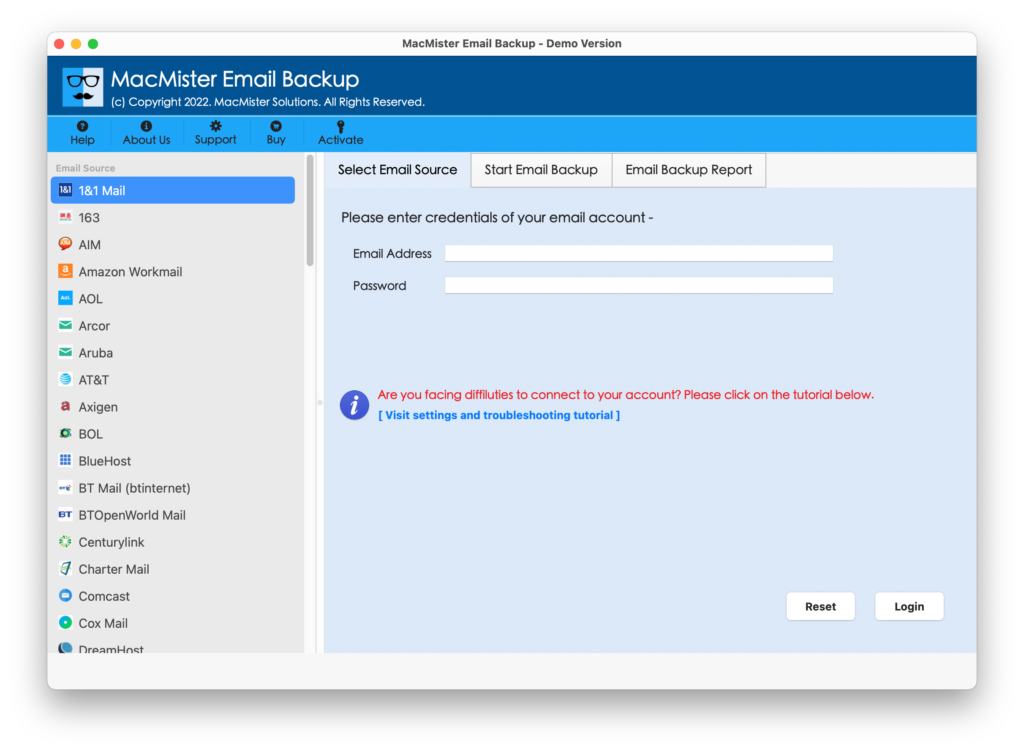
Select Comcast from the given webmail options. Enter or connect the required Comcast email account.
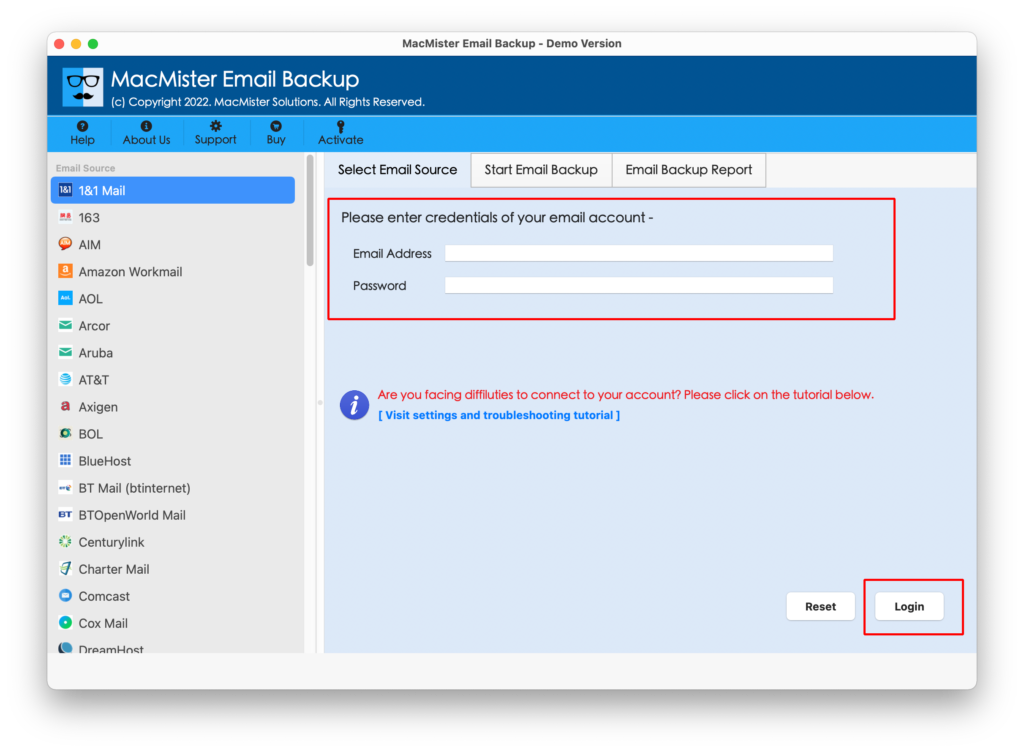
Select the required mailbox folders or email data.
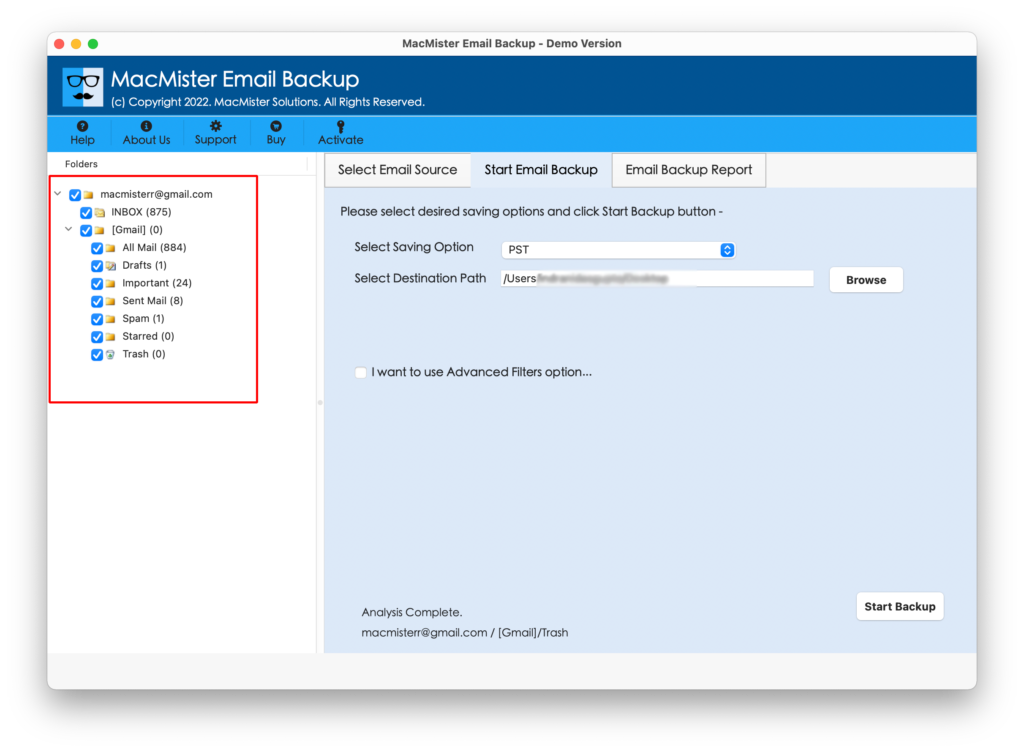
Choose the Office 365 as your saving option.
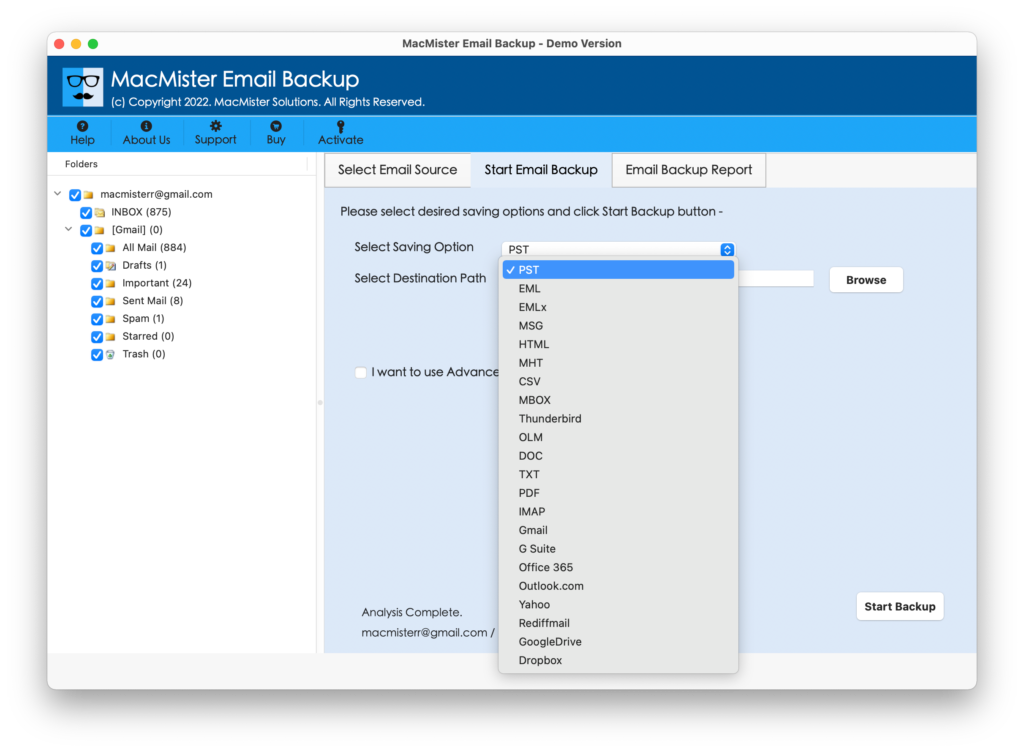
Provide login details of Office 365 account.

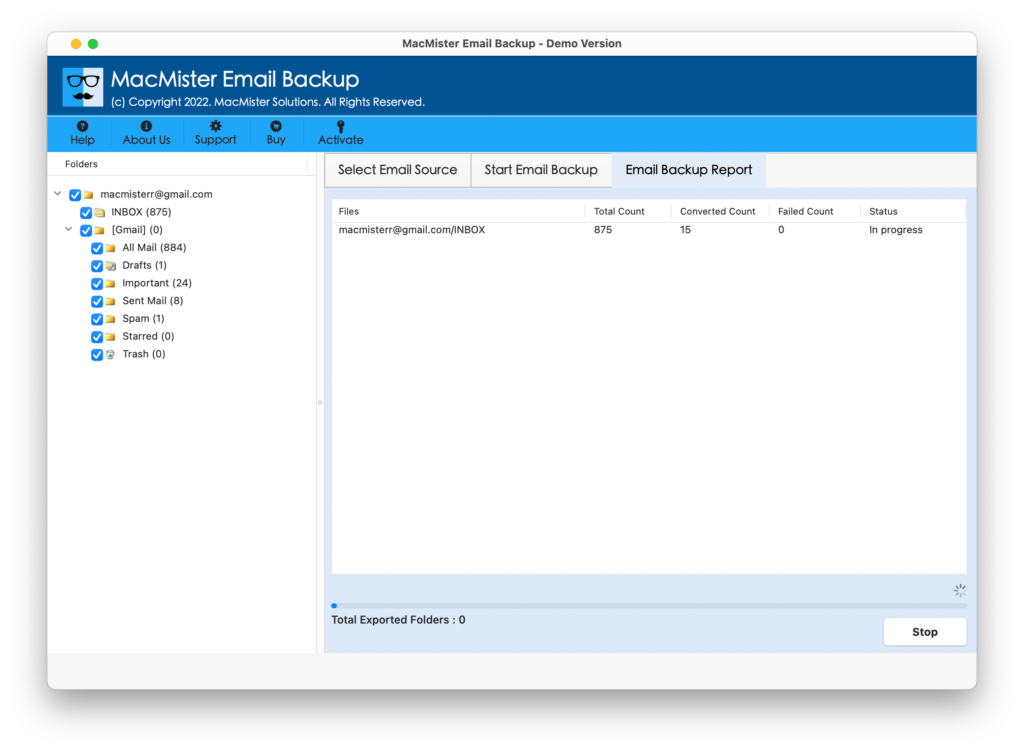
Click on the Start Backup button and Start the transfer process.
Why the Comcast to Office 365 Tool?
A dedicated migration tool can be useful when the mailbox contains a substantial amount of data or when manual copying becomes difficult to manage.
Comcast to Office 365 tool can help simplify the migration workflow by providing a dedicated interface for transferring Comcast email data to Office 365. Users can work with mailbox data in a structured manner instead of repeatedly opening messages and moving them between accounts. It can be particularly useful for –
- Migrating a large collection of Comcast emails.
- Reducing repetitive manual operations.
- Handling multiple mailbox folders.
- Performing migration directly from a Mac environment.
- Managing the transfer through a dedicated interface.
Before beginning the migration, users should ensure that the Comcast and Office 365 credentials are correct and that sufficient internet connectivity is available.
FAQs
1. Can I move Comcast emails to Office 365 on Mac?
Yes. Comcast emails can be transferred to an Office 365 account on Mac using a compatible email-client-based approach or dedicated migration software.
2. Is the manual Comcast to Office 365 migration suitable for large mailboxes?
The manual method can become difficult for large mailboxes because messages and folders may need to be transferred and synchronized individually or in batches.
3. Can I transfer Comcast email folders to Office 365?
Yes, mailbox folders can generally be transferred when the source and destination accounts are properly configured. The exact results can depend on the migration method used.
4. Does it support Comcast to Office 365 migration on Mac?
It provides a dedicated Comcast to Office 365 migration solution designed for Mac users. The available features depend on the specific software version.
5. What should I check before starting the migration?
Verify both account credentials, ensure that the source mailbox is accessible, maintain a stable internet connection, and confirm that the destination Office 365 account has sufficient access for receiving the email data.
Conclusion
Moving Comcast emails to Office 365 on Mac can provide a more centralized and accessible email environment. While configuring both accounts in an email client and manually copying messages can work for smaller transfers, the process becomes increasingly difficult as mailbox size and folder count increase.
For larger or more structured migrations, the Comcast Email Backup Tool for Mac offers an alternative way to organize and simplify the transfer process. By using a dedicated migration workflow, users can reduce repetitive manual steps and move their Comcast email data toward an Office 365 environment more efficiently.
|
|
|