Know How do I Convert OLM to Excel on Mac in Three Steps?
Are you one of those Mac users who are carrying many individual OLM files on the system and thinking about copying them into Excel? Looking for an effective and trouble-free approach to convert OLM to Excel on Mac? If yes, then MacMister blog is all you need to achieve the desirable task. So, without wasting any more time, let’s move ahead and understand the conversion process in detail.
There are multiple reasons exists due to which users need to convert their critical OLM file data into Excel. One of the most common reasons of the conversion is managing contacts in a spreadsheet that allow users to view and edit them according to their requirements without any stress.
OLM is very popular among Mac users. It is a format that Microsoft Outlook for Mac supports to store the important data items of users account such as emails, contacts, calendars, etc. The email client possesses an export option that Mac users make use of when they want to extract some crucial database on the system which one can use later in the future according to their own needs. And, Excel is the application that uses CSV format to store its files.
However, the data in Excel is separated by commas and so its format stands for Comma Separated Values. It is one of the most preferred and chosen file formats to store contacts. Also, any spreadsheet such as Microsoft Excel, Google Sheets, Open Office, etc. can easily open it. In other words, one can open OLM file in Excel without efforts and manage their important contacts in the same.
10 Main Benefits of Using Excel Spreadsheet
Microsoft Excel is a feature-rich application. It has numerous benefits and some are as mentioned:
- One of the best and easy ways to store database.
- Easily shareable with friends and colleagues.
- Complete list of functions will help in performing calculations.
- Options available to create charts and to represent data in a visual way.
- Multiple templates available that one can download and use quickly.
- No data limit. You can use millions of rows and columns and store data.
How to Convert OLM to Excel on Mac?
There are multiple methods for converting OLM to Excel on Mac:
- Manually open OLM files in Excel.
- Using Safe and Direct Solution.
Method 1. Steps to Convert OLM to Excel Manually
Follow the steps mentioned below and convert OLM to Excel on Mac manually:
- Import all OLM files into Outlook for Mac using Import/Export option.
- Pick the option of Export to a File from Import and Export Wizard.
- Opt for Comma Separated Value option and hit Next.
- Select the destination path as per your choice to save resultant files.
- Press Finish button.
Method 2. Convert OLM to Excel on Mac using Safe and Direct Solution
MacMister OLM to CSV Converter for Mac is a perfect solution for converting multiple OLM files to Excel supported CSV format at once. The tool is easy, friendly, and time-saving. Anyone can operate the tool effortlessly and perform the conversion without data loss. Even, the operational steps are not complicated. They are quick and able to convert OLM to Excel in few seconds.

Moreover, the features in the application will offer the opportunity to users to save resultant files on Mac according to their requirements. However, users can also take help of a free demo and test the procedural steps of the tool for free.
Working Steps to Convert OLM to Excel on Mac
Step 1. Run OLM Converter for Mac on Mac OS.

Step 2. Use Add File(s) and Add Folders buttons and add important OLM files on the software for conversion into Excel. Click Next.

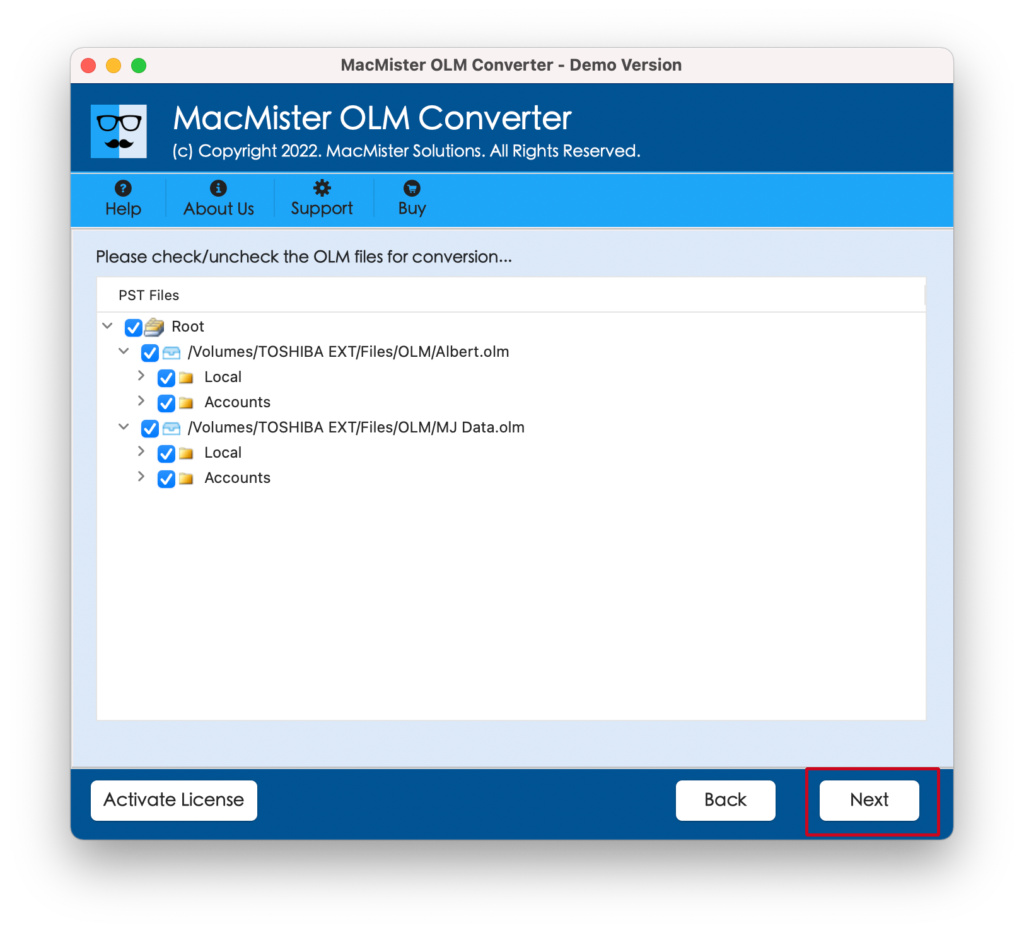
Step 3. The list of chosen OLM files will appear on software with checkboxes. The checkbox is useful for converting selective OLM files to Excel on Mac, if needed otherwise click on Next.
Step 4. Choose CSV file format from Select Saving Options menu.
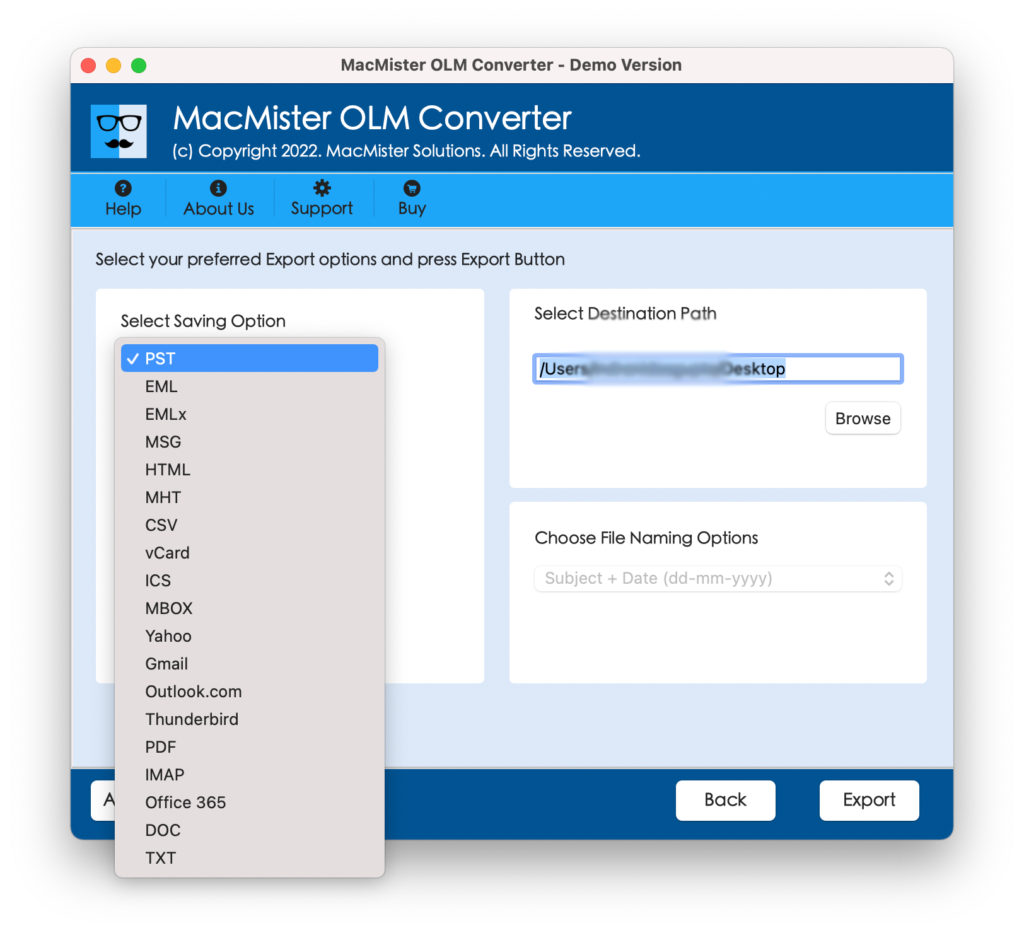
Step 5. Set the sub-options appearing under CSV format according to your requirements and click on Export button to start the process to convert OLM to Excel on Mac.
Step 6. Process will immediately start and end with a completion message “Conversion Completed”. Click OK.
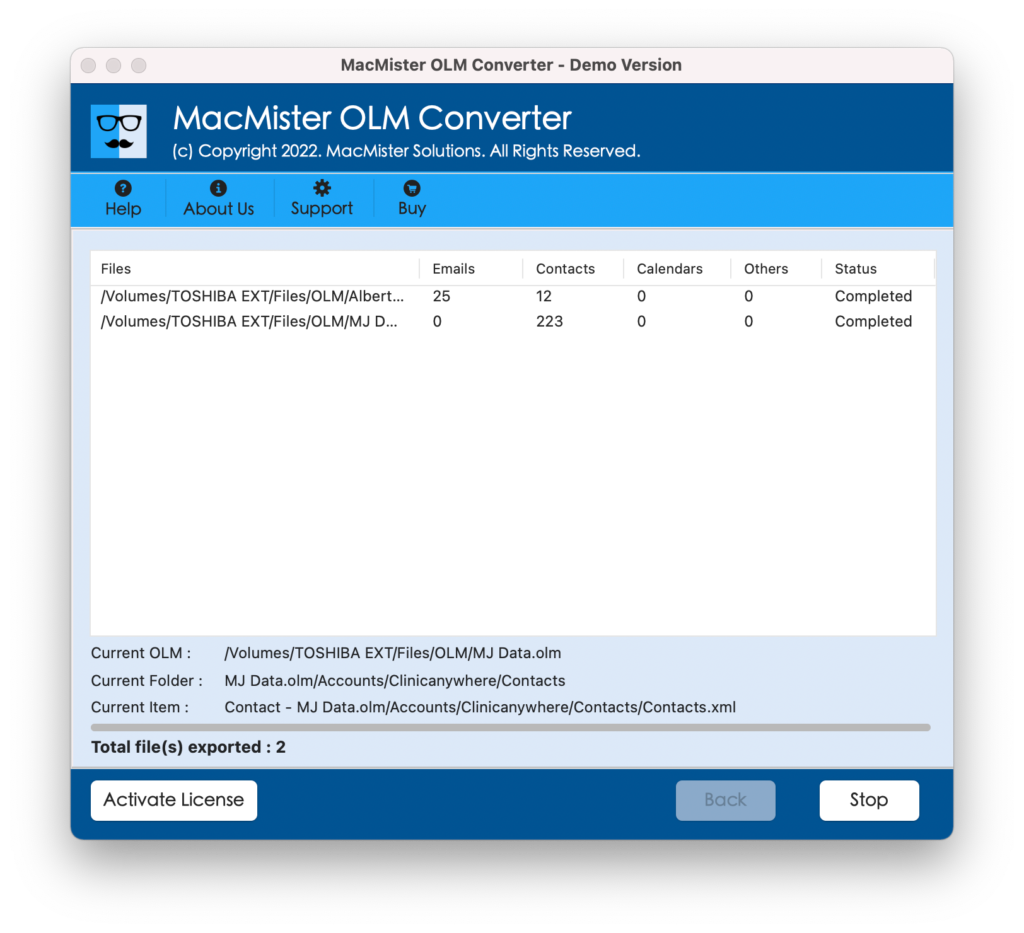
Now, you can to the location that you had set earlier to save resultant files. Click on a required file and verify its accuracy. However, you will see that the content is appearing without alteration and the data integrity is also precise.
Beneficial Aspects for Choosing MacMister OLM to Excel Solution
There are multiple reasons for choosing MacMister OLM to Excel and some of them are highlighted here:
- Convert OLM to Excel on macOS Ventura, Monterey, Big Sur, etc.
- Includes batch mode function that allows batch convert of OLM files to Excel at once.
- Keeps the accuracy of OLM data intact during the conversion process.
- Dual options (Add File(s) & Add Folders) are helpful in loading important OLM files/folders on the software for conversion.
- Equipped with a user-friendly interface that technical and novice users can operate effortlessly.
- Offers Set Destination Path option that allows users to set the destination path as per their choice to save resultant files.
- No file size limitation exists as users can save unlimited OLM files to Excel on Mac.
Epilogue
The blog here explained a powerful procedure that securely converts OLM to Excel on Mac with 100% accuracy. The solution is easily accessible by anyone and able to carry out the entire conversion without data loss. However, you can try the entire process by downloading the free demo. It allows converting first 25 OLM files to Excel free of cost. Also, you can use the same to check the process of OLM to PST, Office 365, Gmail, Yahoo, and more.