How to Fix “PST file open in another program” Error on Mac?
When working with Microsoft Outlook data files on macOS, one of the errors that may appear to the user is related to the impossibility of accessing the PST file. The reason for this may be that Outlook is trying to open the file, which is already open in another application, or the file is currently locked.
Since the operating system differs fundamentally in its interaction with data files and their management, the file on the Mac may really be blocked by another application, or the system’s indexing service. In either case, it is essential to find out why a PST file is unavailable for reading, moving, importing, or editing. Knowing the reason, the user will be able to quickly unlock the PST file without the risk of losing valuable information contained in it.
Why Does the “PST File Open in Another Program” Error Occur on Mac?
Unlike Windows where Outlook natively uses .pst files, Outlook on Mac OS does not use PST as the default data file format (Mac Outlook uses .olm files or an internal SQLite database). Hence, when a user tries to access a PST file on the Mac, there are several reasons why macOS might show the error that the file is in use:
1. Background Indexing (Spotlight)
macOS uses a feature called Spotlight to provide search capabilities and keep all files on connected drives indexed for faster access. However, this can lead to the file being indexed and, therefore, temporarily locked.
2. Background Processes
If you had Outlook for Mac open or another third-party email client (e.g., Spark) that accessed the PST file and it crashed, the process might have hung on your computer and still try to access the PST file.
3. Cloud Sync
If you sync files to the cloud on your Mac (iCloud, OneDrive, Dropbox), make sure that the PST file is not placed in one of the synced directories. Your files would then be constantly accessed and written to by the syncing software, and the file would be locked.
4. File Permissions or Read-Only Attribute
If you copied the PST file to your Mac from another computer using an NTFS-based file system (such as a Windows PC) or an external hard drive, there is a high possibility that file permission issues on macOS prevent writing to the file.
5. Orphaned Lock Files
When Outlook opens a PST file, it may create hidden lock files (.tmp or handle files) so that other instances know that the file is in use. If Outlook becomes unresponsive, it may not remove those locks, which will cause a “File in Use” error on macOS.
Method 1: End Troublesome Processes in Activity Monitor
If the application failed while reading the file, then the process might still run in the background.
- Launch Spotlight by pressing the Command + Space keys together, type Activity Monitor and hit Return.
- On the top right corner of Activity Monitor, a search bar appears. The user needs to type Outlook or Microsoft there and hit Return.
- Now the user needs to select any of the running Microsoft Outlook or database daemons.
- Finally, click on the Stop (X) icon on the top menu bar and choose Force Quit.
- Now the user can go to their initial location where the PST file was placed to see whether it is opened now or not.
Method 2: How to Kill File Locks Using Mac Terminal
If you want to go the direct route, you can use the Mac Terminal to find out which process is keeping your PST file open.
Step 1. Open the terminal emulator (Applications > Utilities > Terminal)
Step 2. Type lsof followed by a space, then drag and drop the PST file on the terminal window and hit Return:
lsof /path/to/your/file.pst
Step 3. The terminal will show you the ID of the process that is keeping the file open
Step 4. Kill that process using the following command:
kill -9
Method 3: Move the PST File Outside Synced “Cloud” Folders
If you keep your PST file in Desktop, Documents, or some other place synced with cloud storage (like OneDrive):
- Copy the .pst file,
- Paste it somewhere outside the synced folders (in a local directory not connected to the cloud, such as your own Home directory: /Users/yourusername/LocalPST),
- Turn off the syncing process (OneDrive, iCloud, etc.)
- Reboot the computer to clear caches and other temporary handles on the file.
Method 4: Apply Permanent Effective Solution
Even if PST file unlocking helps to overcome some specific problem, the fact is that it does not bring any convenience to access PSTs in your computer as the Outlook for Mac can read the PST files very poorly.
The only way out of the situation is to convert the PST file to some other local file format on the Mac OS using MacMister’s Mac PST Converter Tool.
Why to choose Permanent Solution?
- This incredible software actually scans the data from the PST file without opening the outlook. This means that there is absolutely no need for outlook to be installed in the system at all to transfer the emails and data.
- The application move PST files that are locked or archived into other formats like OLM (for Mac Outlook), MBOX (for Apple Mail and Thunderbird), EML, PDF, TXT, HTML and so forth.
- It enables users to pick multiple PST files at once using the options “Add files” and “Add folder”.
- It preserves the structure of mails such as the folder structure, embedded images, metadata (To, Cc, Bcc, From, Date) and attachments.
- It also helps in migrating emails directly from the PST file to web mail servers such as Gmail, Yahoo, Office 365, IMAP etc.
Step-by-Step Guide to Transform PST Files on Mac using the app
Step 1. Download and install the tool on macOS machine.
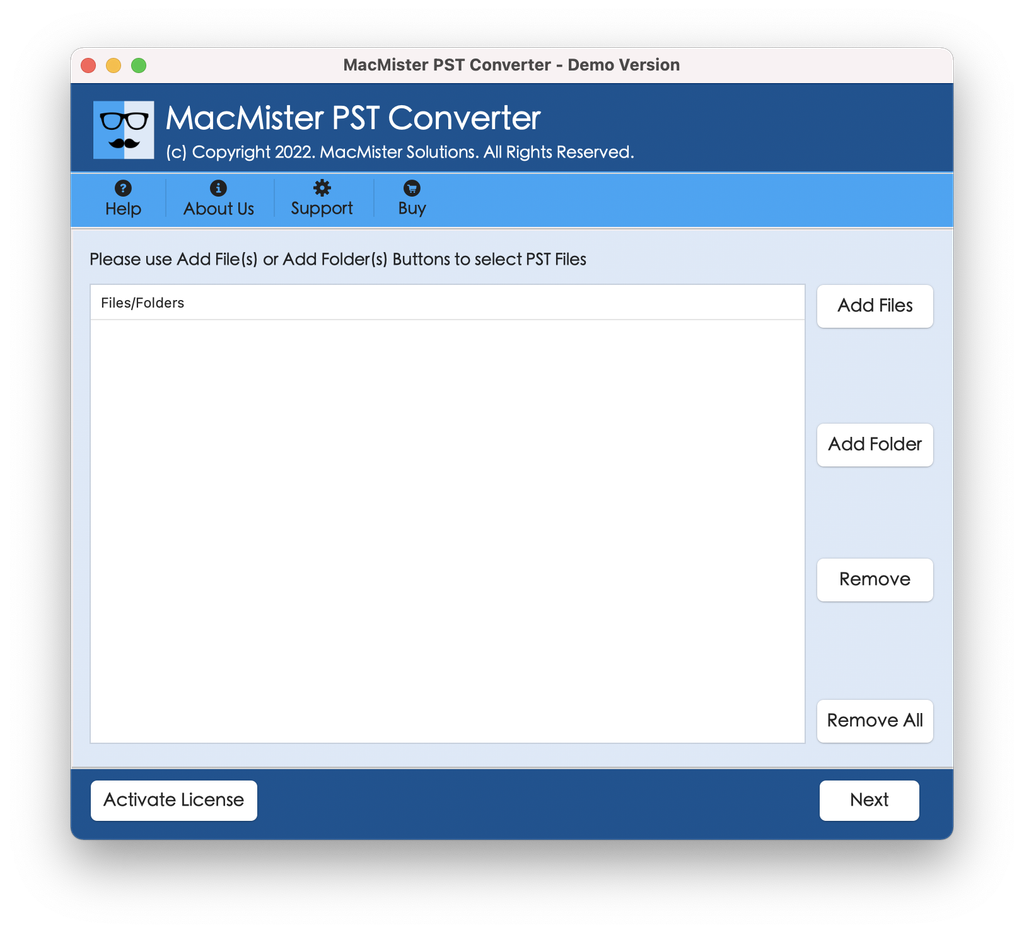
Step 2. Launch the application and click Add File(s) or Add Folder to select your PST file.
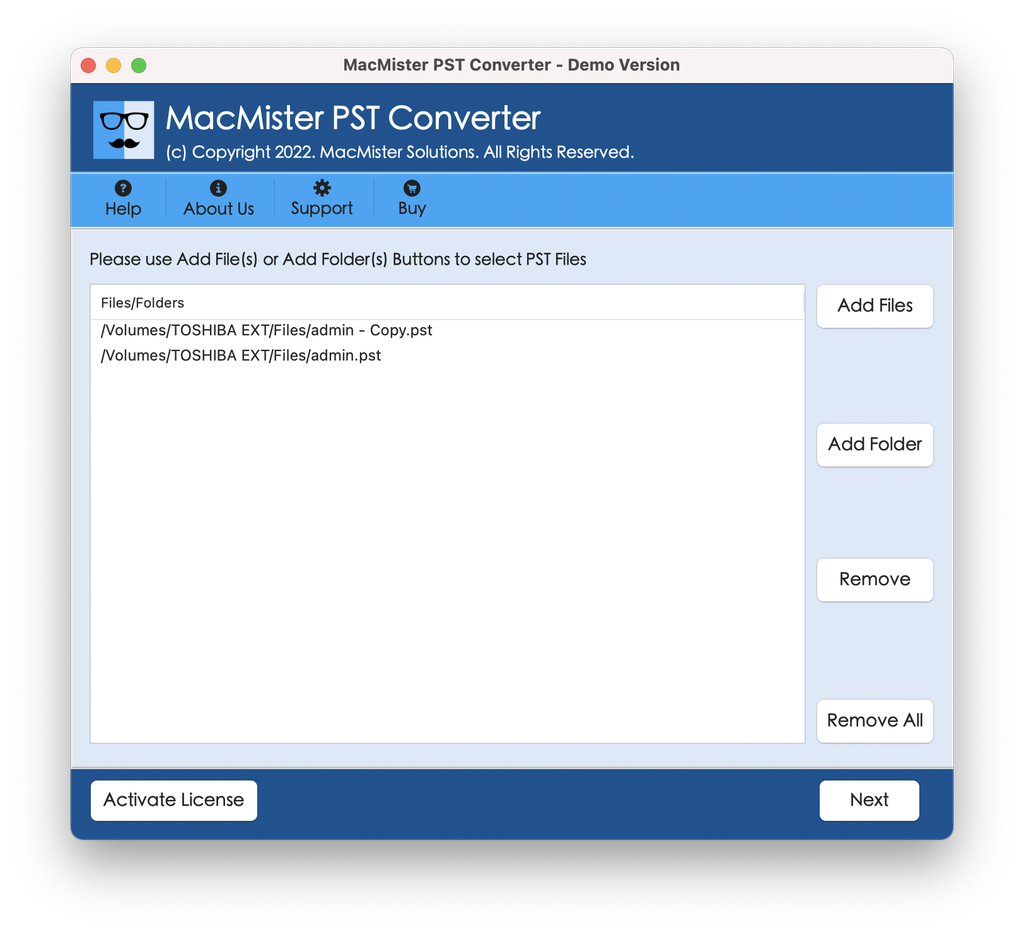
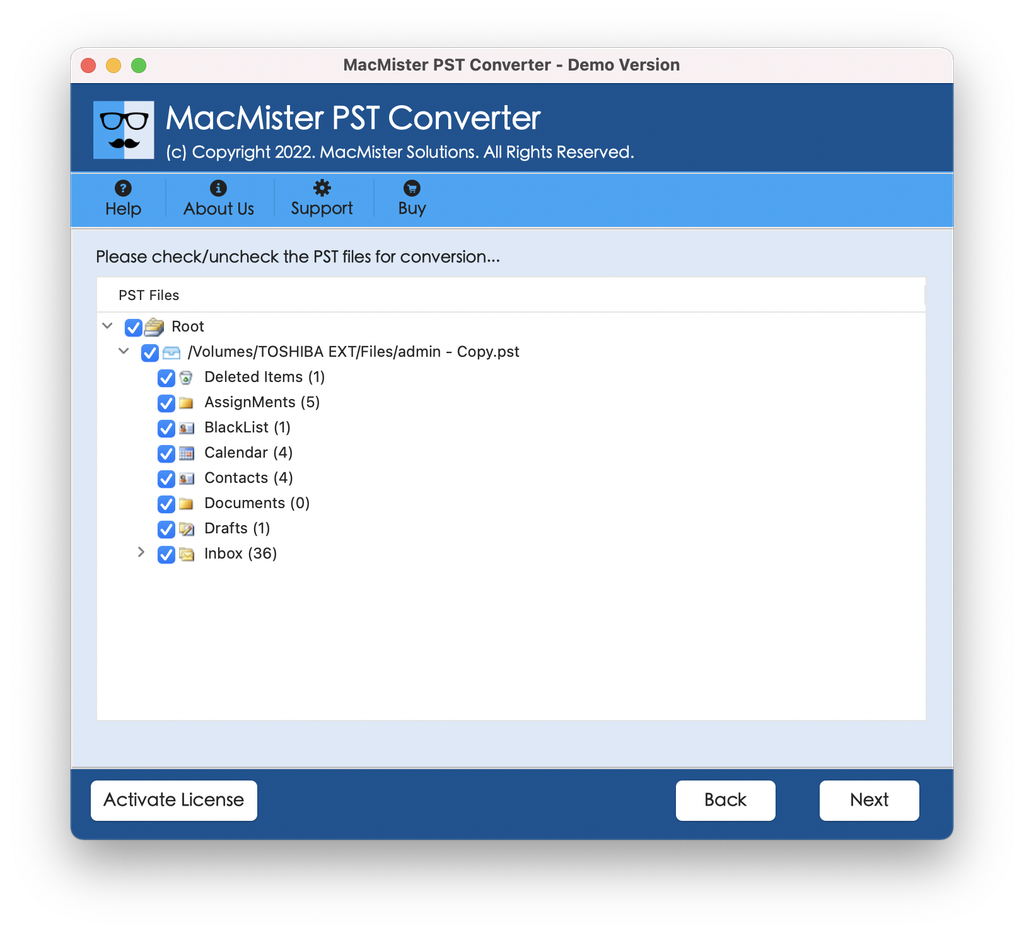
Step 3. Preview the loaded PST folders in the item list.
Step 4. Open the Select Saving Option dropdown menu and select your desired format..
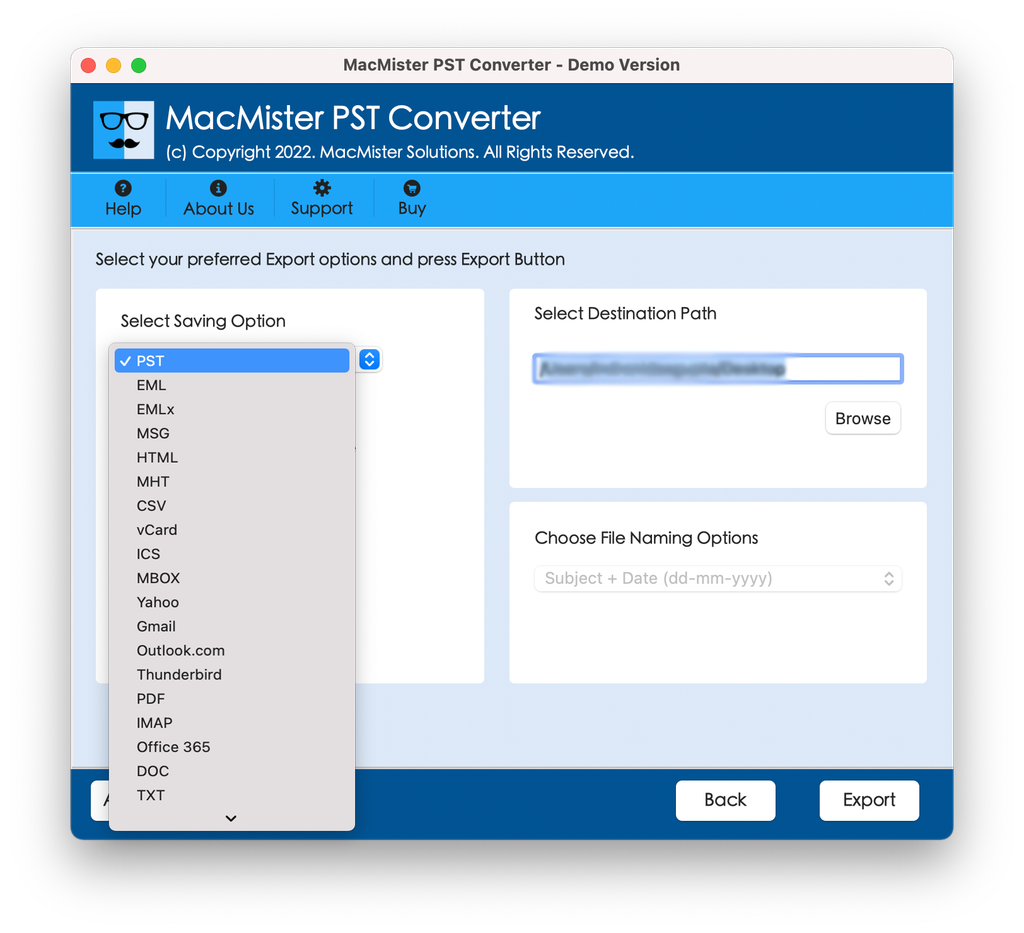
Step 5. Apply sub-options as per requirements and tap Export.
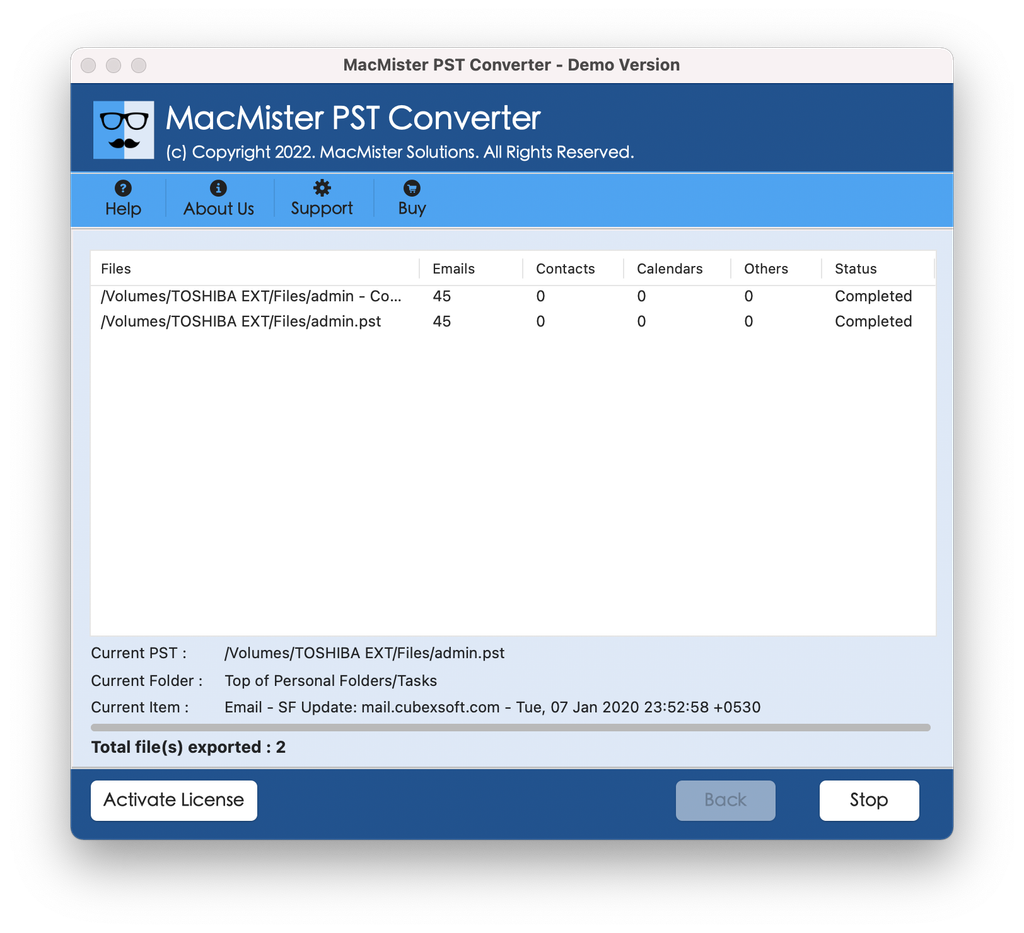
Step 6. Go through the Live Conversion Window to track the live conversion status of PST files.
Epilogue
If you see an error message regarding the PST file being opened in another application on your Mac, it implies that either the background processes must be released or you have to convert the PST file to a destination format compatible with your system. While killing the process via Activity Monitor or Terminal will resolve the issue, you can still convert your PST files using MacMister PST Converter and enjoy enhanced performance and complete access to your PST data in any email client on your Mac.